
Printer cloning in Xerox CentreWare Web involves copying the configuration of an existing printer and applying it to one or more other printers on the network. This allows administrators to quickly deploy settings, such as power settings, security settings, paper sizes, print quality options and address books to multiple devices without the need to configure each printer individually. There are few ways to clone printers, it can be done either through Configuration sets or Fleet Orchestrator.
Notes:
1. DO NOT CLONE NETWORK (IP NETWORK) INFORMATION - Host name will carry over
2. To create a Configuration Set from a device (Cloning- Device must be same Model and firmware level)
Method 1 – Configuration Set (From Centreware web)
Doing this from CWW grants capability to clone mass printers easily.
1. Select Devices > Printers.
2. Select the View icon for the desired printer from the printer list.
3. Select Actions> Save as New Configuration Set.
4. Use the default Set Name, or define a new one.
5. Edit the New Configuration Set, if necessary.
6. Click Save. The Configuration Set is saved.
To deploy the configuration set:
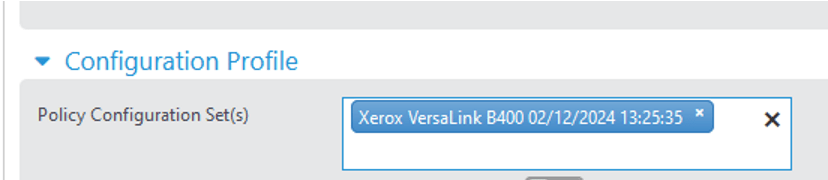
A. Go to policy
B. Create new policy and assign the configuration set
Method 2 – Create a clone file from Fleet Orchestra (From Printer)
The clone file can only be created from printers web portal. Great way to clone small number of printers.
- Navigate to web portal (On the printer to Clone FROM)
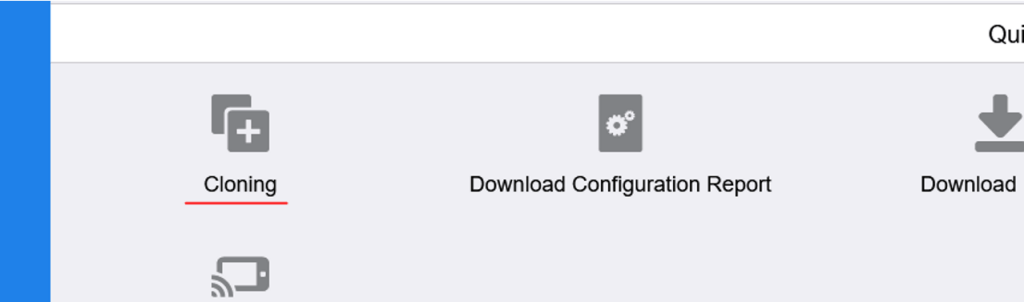
- Click Clone > create
- Select the settings to clone
- An .DLM or .zip file will download.
- * If possible, leave out cloning of network settings to avoid duplicate hostname


To Deploy the file:
- Go to second printer web portal (On the printer to clone TO)
- Click clone.
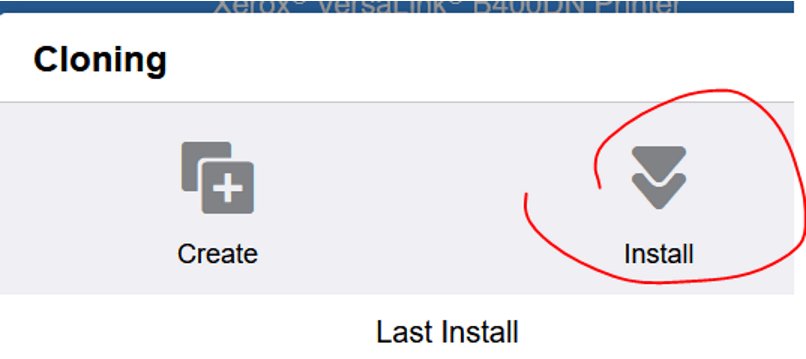
- Click Install and select the cloned file from previous step.
- Once complete, the settings on both printers should be identical.
 Steven’s Knowledge Base