
The Reports tab offers a reporting feature that allows users to generate and either view or email links to reports on devices detected by CentreWare Web. These reports are mainly used for ad hoc reporting or for generating operational data to assess baseline assets or evaluate print-device usage.
CentreWare Web supports both graphical and tabular reports for various conditions and functions. Graphical reports are available in pie, bar, and line formats. Both graphical and tabular reports can be customized, and users can assign a unique name to them using the Named Reports feature.
Access reports under Reports > Standard Graphics/Tabular
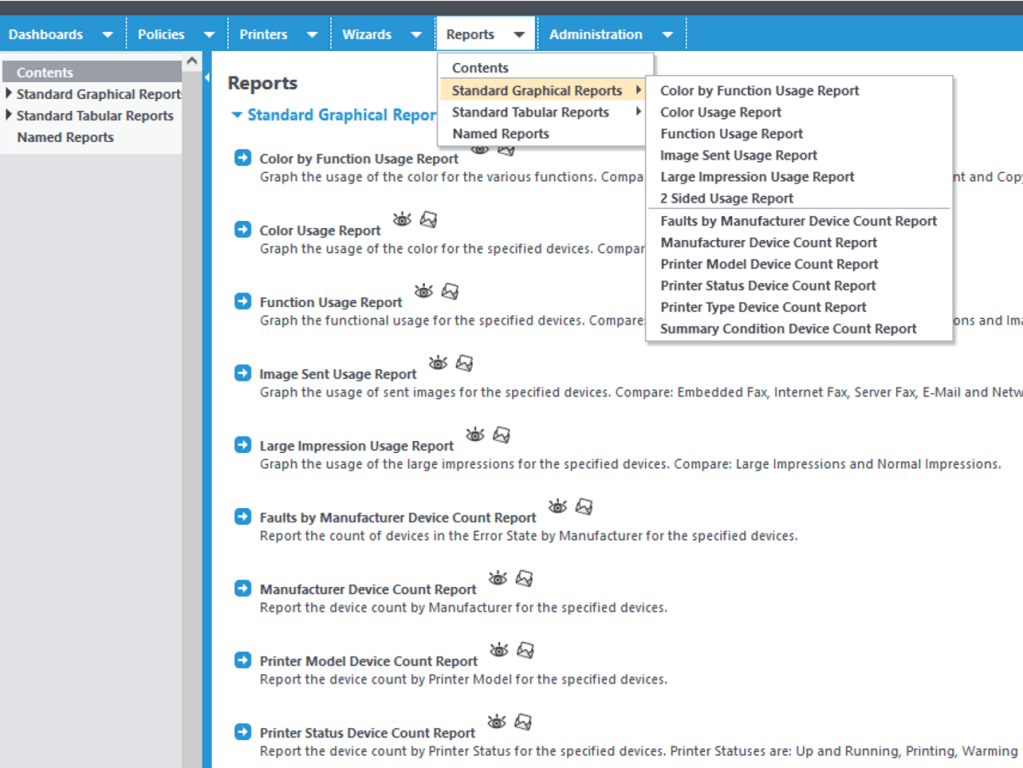
Standard Graphics:
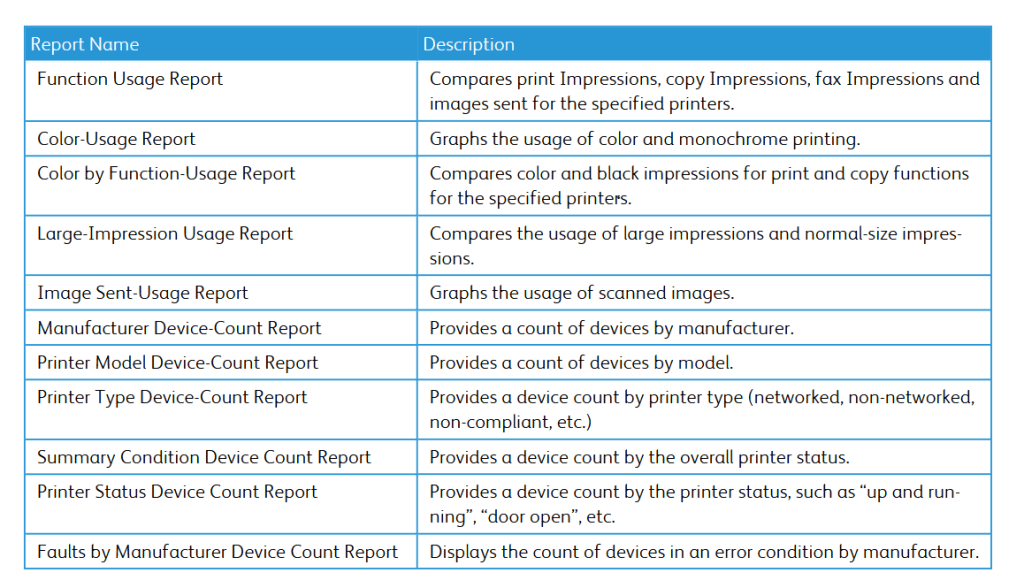
Standard Tabular:
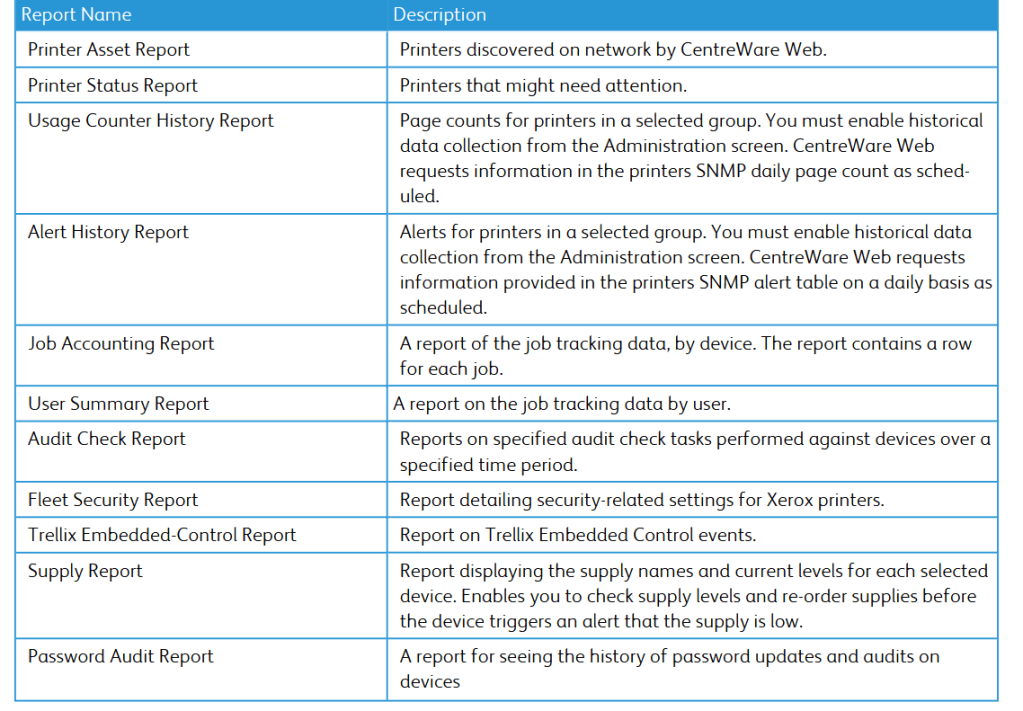

Counter usage report (For Page count/black or color impression):
Note: To generate meaningful report data for the Usage Counter History Report and the Alert History Report, you must enable the Historical Data Gathering function. If this is not turned on, the report will display blank fields for page counts.
To turn on historical data collection:

1.Go to administration > network > network usage configuration > set an interval
2.Enable collect usage counter history
3.Enable collect Alert history
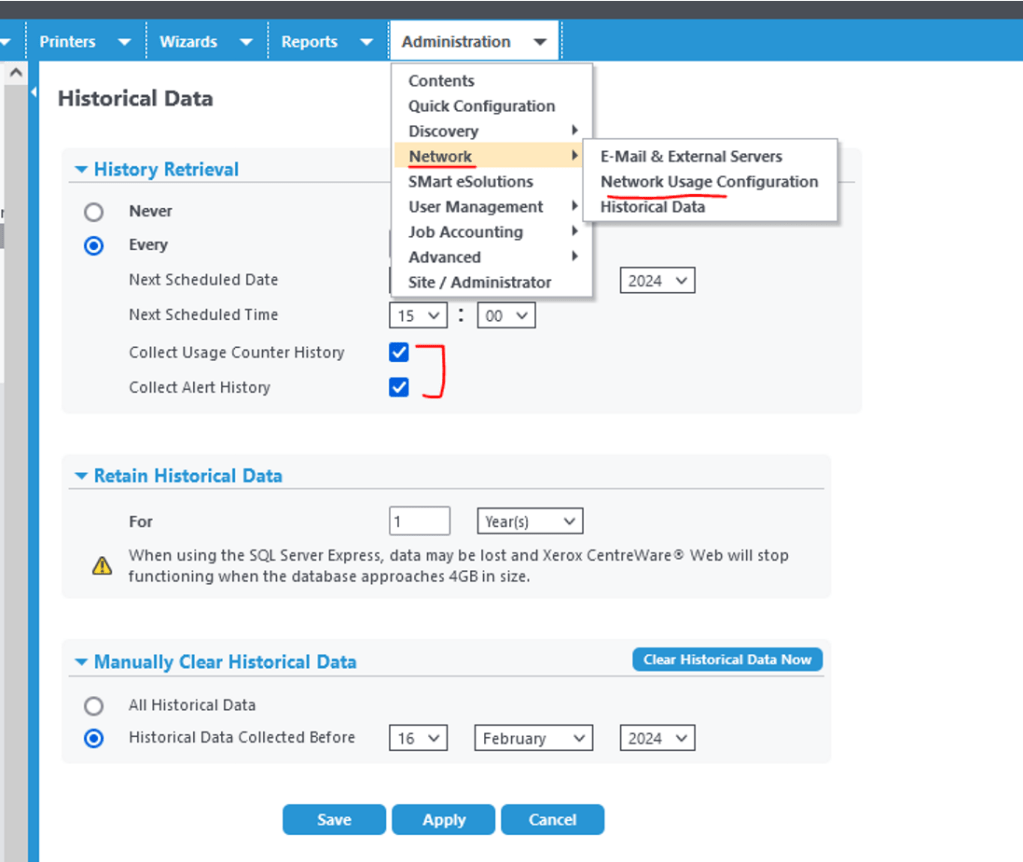
The Centreware Web database can store up to two years of report-related data generated by the Historical Data Gathering function. Each report contains both a site and server name, for the server that generated a report. This is useful when multiple servers are deployed within a large enterprise.
Note: You must configure Centreware Web to specify a valid SMTP server. If this was not done at installation, you must complete this prior to sending reports via e-mail.
To specify a valid SMTP server:
1. Select Administration > Network.
2. Click E-Mail & External Servers.
3. Enter data for the SMTP server and e-mail address.
4. Click Test to confirm that the server specified is active.
5. Click Save to apply the settings.
Notes:
If historical data retrieval is not turned on, reports will display blank for page count

 Steven’s Knowledge Base