
What is an array?
An array is a data structure that serves as a collection of multiple items. You can iterate over the array or access individual items using an index. The array is created as a sequential chunk of memory where each value is stored right next to the other.
1. Create an array
In order to create an array, create a variable then follow with @()
$Array1 = @() (parenthesis)
A regular array comes with fixed size so items in it cannot be modified/removed.
$array1.IsFixedSize
Output: True

$Array1 = @("one","two","three")
$array1.count
Output:

When it comes to adding element to an array, new elements overwrites the old ones as this degrades performances for large data set.
2. Indexing array with [ ]
Display specific items from an array variable starting at index 0 for first value, index 1 for second value, etc..
For example: $Array1 = @(“one”,”two”,”three”)
#index 0 = “one”, index 1 = “two”, index 2 = “three”
$array1[2] #outputs “three” if index is 2

Outputs “two” if index is 1

3. Add item to array
Adding “four” on top of one, two and three.
$array1 = $array1 + “four”
Or
$array1+=”four”
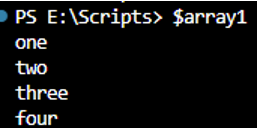
4. Remove element/items from array
$array1.RemoveAt(3) #will error with fixed size prompt – use arraylist instead#
Removes the “xx” from $array1
$array1 = $array1 -ne “xx”
Before:

After:
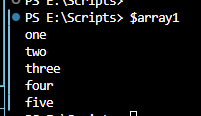
Array List (Better alternative to array as it is NOT fixed size – makes for easier modification)
1. Create array list:
Method 1: create array list #Minor performance hit since it carries the [System.Collections.ArrayList] in background
$arraylist2 = [System.Collections.ArrayList]@(“pear”) #Using parentheses () equips a single value
$arraylist2 = [System.Collections.ArrayList]@{pear = 10} #Using curly br{} requires an “=” operator- equips a key-value pair like a hashtable
Method 2:
$ArrayList1 = new-object -TypeName System.Collections.ArrayList
Variable type:
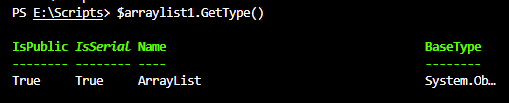
$array1.IsFixedSize #not fixed size makes for easier modification to array#

2. Add item to array list
$arraylist1.Add(“Test1”) #The output is the index indicator, if it outputs “1”, then “Test1” sits at index 1
*[void]$arraylist1.Add(“Test2”) #if user prefers not to have the output show as values are added to array

Pear sits at index 0, apple sits at index 1

3. Remove item from arraylist
$arraylist1.RemoveAt(3) #removes index 3 from array#
$arraylist1.Remove(“apple”) #removes specific item, removes only one instance from array list. Loop to remove all instances- CASE SENSITIVE
$ArrayList1.Removerange(0,2) #removes the range of index NOT specific index. This removes the first two values from index 0-2
4. Add range of items to array list
$arraylist1.AddRange(@(“apple”, “orange”, “pear”))
Notes:
If the variable is originally a arraylist with fixedsize set to $false, using an array operation will convert it back to normal arrray with fixedsize to $true. Be careful of using array operations for arraylist.
Example:
$arraylist1 = $ArrayList1 -ne “test2”

Revert the array list back with (this will clear all the elements)
$ArrayList1 = new-object -TypeName System.Collections.ArrayList

Source:
 Steven’s Knowledge Base