
Execution policy-
Set basic security rules to prevent execution of malicious files unintentionally. PS scripts may not run depending on what policy is set. A restricted policy will deny all scripts to be run. It is best to run code in remotesigned or allsigned mode under process scope.
Ex: Set-ExecutionPolicy -Scope Process -ExecutionPolicy remotesigned -Force;
Retrieve current execution policy setup:
Get-executionpolicy -list
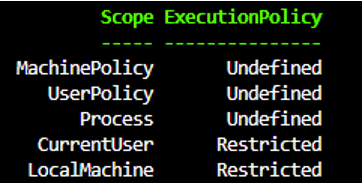
Restricted (DEFAULT for all versions of Windows except for Windows Server 2012 R2)

○ Permits individual commands, but will not run scripts.
○ If ALL of the scope are [Undefined], then the default execution policy will become Restricted

AllSigned

○ Scripts can run, but they must be signed by a trusted publisher with a digital signature, even scripts you wrote on your local computer.
○ If you try to run a script that is signed by an unknown publisher, it will prompt you to allow or deny.
○ Does not guarantee the script contents aren’t malicious, just that the script file hasn’t been modified since being signed by a trusted publisher.

RemoteSigned (DEFAULT for Windows Server 2012 R2)

○ Scripts can run, however:
	§ Scripts or config files downloaded from the Internet, including those from emails or IM attachments, must be digitally signed, OR
	§ the script file is unblocked using the Unblock-File cmdlet (or right-click file, go to Properties > General and select to Unblock the file).
○ Scripts that are written on the local computer or within the same Windows AD domain do not require a digital signature or unblocking to run

A best practice is to read the script's code and verify it's safe before using the Unblock-File cmdlet. The Unblock-File cmdlet unblocks scripts so they can run, but doesn't change the execution policy. Unblock first with: Unblock-File -Path .\Start-ActivityTracker.ps1

Unrestricted

○ Unsigned scripts can run, regardless of origin.
○ If a file is from the Internet and hasn’t been unblocked, the user will be warned before executing.

Bypass

○ Nothing is blocked.
○ No warnings, no prompts.
○ Per Microsoft: “This execution policy is designed for configurations in which a Windows PowerShell script is built in to a a larger application or for configurations in which Windows PowerShell is the foundation for a program that has its own security model.”

Undefined

○ The phantom sixth. It relates to scopes, which will be discussed below.
○ If all scopes are set to Undefined, the inherited value is the default for your Windows version, either Restricted or RemoteSigned.
○ You can set a scope’s policy to Undefined, and it will remove it from precedence processing (also discussed below).
Actions: (Use actions words like “Get” to retrieve information. “Set” is also a command to configure settings)
Verb – (Get, set)
Noun – (Date)
Examples:
Get-Date #[Verb-Noun]#
Get-Service
Get-LocalUser
A. Search’s for commands with the verb containing “Set”
Get-command –verb set
Result – SET-item, SET-printer, SET-smbshare, etc….
B. Search’s for commands with the noun containing “service”
Get-Command –noun Service
Result- get-SERVICE, set-SERVICE , stop-SERVICE, etc…
C. Get syntax and what parameter is required for code as well as input, outputs and alias
Get-Help Get-Service -Full
**Avoid alias if possible since it makes code harder to interpret
Example : gsv #alias for get-service#
Get-Alias
To Clear variables from VSC:
There may be times where variable needs to be removed/clear if there is a duplicate variable somewhere or testing is done.
- How can I list back all the variables that I have created before?
- This gets all the variables, not just the ones you created, you need to filter to variable you are concerned about: Get-Variable -name <name without $>
- How do I then clear all the contents of the variables?
- Clear-Variable -name <name without $>
- How do I remove/delete a variable?
- Remove-Variable -name <name >
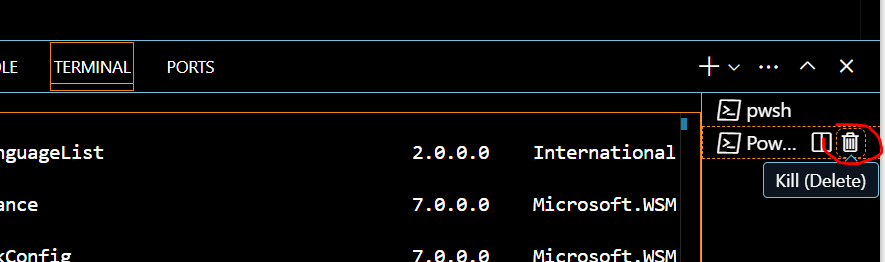
By far, the easiest way is to kill the terminal session then recreate it. This wipes off all the variables that is cached.
 Steven’s Knowledge Base