
Get started with scripting by utilizing code editor software like visual studio code. Recommend using this over Powershell ISE as git sync can be triggered to pull remote repository.
- Download visual studio code (free)
- Get the powershell extension
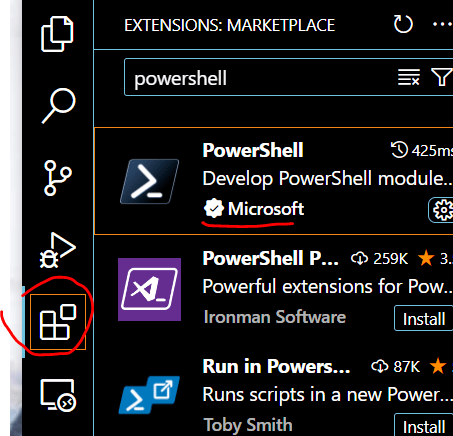
3. Once VSC is installed, create a github repository so any code created can be pushed to github where it can be saved. This allows the code to be “pulled” from any machine with Visual studio code application. Github will be the central storage for the source code.
4. Install https://git-scm.com/download/win git.
Or via cmd -[ winget install –id Git.Git -e –source winget ] This will pull/push the changes from local repository to github using Git authentication.
once its installed – Run the CMDLET on GIT cmd:
git config –global user.name “Username”
git config –global user.email “youremail@email.com”
5. On VSC, press “CTRL+SHIFT+P” > type in “Clone” > clone from github

6. VSC will ask where to save all the files pulled from github to. It requires a workspace, so a file location must be set. You can set it to “C:\temp\myGitRepository”. Any files that are saved are set to that location. Any files pulled from github are also saved there. Think of “C:\temp\myGitRepository” as a clone of your remote github storage.
7. Admin is now ready to save and sync data to github.
**User are not able to run code from remote repository. So GIT for windows https://git-scm.com/download/win will need to be installed to clone the repository locally then it will allow execution of code locally.
- Save changes and Commit
If Admin wants to save work, it goes to a staged changes. In order to finalize the changes, Admin needs to write “commit” then either select commit & push (or sync) in order to push the changes to Github.

2. Pulling changes
If Admin is on different machine and requires updated code, a pull request must be done in order to pull the latest changes and update the files.

VSC intellsense – assistant with code completion with display of these icons will help you as you get more familiar with VSC
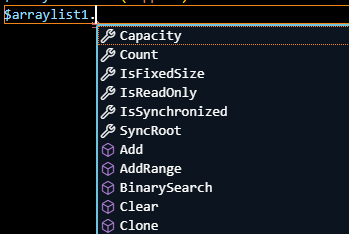

https://code.visualstudio.com/docs/editor/intellisense#_types-of-completions
 Steven’s Knowledge Base