
Switch is another conditional statement (besides If, ElseIf, ..) to determine Boolean value.The switch statement allows you to provide a variable and a list of possible values. If the value matches the variable, then its scriptblock is executed. It performs much faster than IF statements since it stops processing script block once the value is found.
Switch statement isn’t limited to a single condition. You can actually execute multiple conditions and event test multiple values at the same time with single variable. Using the switch statement is preferred over using multiple If statements, because it makes your code easier to read and maintain.
Example:
Recommended usage of Switch Statement for evaluating SINGLE VARIABLE, much faster than IF statements.
- Create a SWITCH statement to evaluate the first line of text in a file containing names.
#Switch(Variable)
	{ Value {Execute}  }

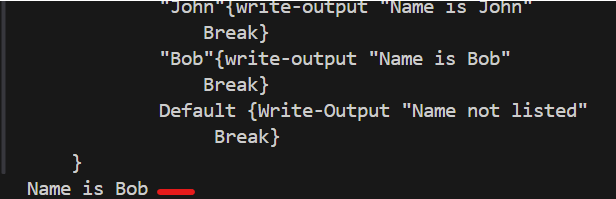
#Example 1: Read from text file $Firstname
$filepath = "C:\Sli929 Repository\tester\Test.txt"
$FileData = Get-Content $filepath
$FirstName = $FileData[0]

  switch($FirstName) {
     "Kim"{write-output "Name is Kim
         Break}
    "John"{write-output "Name is John"
          Break}
     "Bob"{write-output "Name is Bob"
           Break}
     Default {Write-Output "Name not listed"
             Break}
    }

#Put in Break so it STOPS reading from conditions once it finds a TRUE Boolean
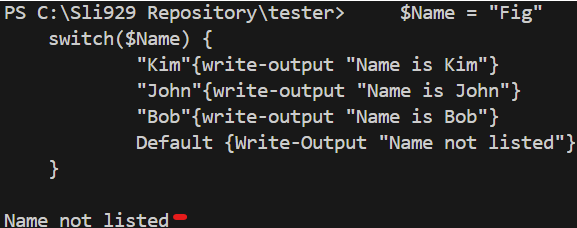
#Example 2- Read from Variable
    $Name = "Fig"
    switch($Name) {
            "Kim"{write-output "Name is Kim"}
            "John"{write-output "Name is John"}
            "Bob"{write-output "Name is Bob"}
            Default {Write-Output "Name not listed"}
    }
#Example 3:
EVALUATE VALUE with {} and get value from Variable with "$__"

$filepath = "C:\Sli929 Repository\tester\Test.txt"
$content = Get-Content -path $filepath
$data = $content.count
$data

switch($data){
    {$_ -gt 2} {Write-Output "More than two line"
    Break}

    {$_ -eq 6} {Write-Output "the line of text is 6"
    Break}

    {$_ -gt 6} {Write-Output "the line of text more than 6" }

    {$_ -in (4..6)}{Write-Output "the line of text contains 4 to 6 lines" } #Evaluate a range of number using -IN operator

    Default {Write-Output "Void"}
}
# Output (The text file has 6 lines. It stops processing after evaluating first statement. Any value greater than 2 breaks at the first condition. The other statements are invalid after that)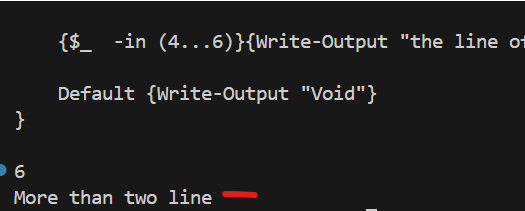
Switch parameters:
Wildcard – You can use wildcard characters, like * and ? in your conditions.

$name = "John"
Switch -Wildcard ($name) {

 "Jo*" { Write-Host "The name starts with 'Jo'."}

}
CaseSensative – Indicates that the conditions are case sensitive. By default, the conditions are case insensitive
$language = "PowerShell"
switch -CaseSensitive ($language) {
"powershell" {Write-Host "The language is PowerShell in lower case."}
}• Exact – Enable by default. The switch statement will always perform an exact comparison, only not if you use the wildcard parameter
• Regex – Indicates that each condition is treated as a regular expression.

$input = "example@lazyadmin.nl"
switch -Regex ($input) {

"^[a-zA-Z0-9._%+-]+@[a-zA-Z0-9.-]+\.[a-zA-Z]{2,}$" {Write-Host "The input is a valid email address."}
 }
• File – Allows you to use a file for the value. This way you can check if the contents of a file match one of the conditions.

$file = "C:\Documents\example.txt"
switch -File ($file) {

	{$_ -match "apple"} {Write-Host "The file contains the word 'apple'."}

}

#Get the count of a word inside a file that matches "test-path"
$file = "C:\Sli929 Repository\tester\PowerShell 101\If, ElseIf, Else (Conditional statement).ps1"
$Content = (Get-Content $file) | Where-Object {$_ -match "test-path"}

switch -File ($file) {
    {$_ -match "test-path"} {Write-Output "The file contains the word 'test-path'. It occurs $($content.count) times"}

}
 Steven’s Knowledge Base