
This script automates password notification for AD environment, alerting users and IT admins. It identifies users whose passwords are nearing expiration (within 14 days) and sends them email reminders. The module for smtp usage is mailkit. Send-message cmdlet is not used here as it is obsolete.
Key functionalities:
Email notification: Sends emails to users with expiring passwords.
Success/failure tracking: Counts the number of successful and failed email deliveries.
Error logging: Logs details (user and email) for failed deliveries for troubleshooting.
Admin notification: Sends a separate email notification to the system administrator.
For the core of the script – my logic for this script is to obtain the expiration date of the password subtract the current date plus 14. So to figure out when a password is expiring within 14 days, it would be$DateRange = $ExpiredDate-((Get-Date).AddDays(14)). If today’s date is 14 days within the expired date, then it would trigger a notification. For example, if expiration date is July 30th and today is July 15, then today is not 14 days away from expiration but actually 15 (so there won’t be notification). If today is July 16, then it does fall under the 14 day range, so notification will be sent out. Notification delivery date also depends on how often the script is run. Once $DateRange is determined, execute scriptblock based starting with the following if statement:
if ($DateRange.Days -in (0..-14))
Optionally, administrators can customize the warning threshold using the New-TimeSpan cmdlet for greater flexibility.
Robust error handling is essential to ensure the script’s reliability. The current version includes basic error handling, but it’s recommended to implement more comprehensive error logging and potentially an error count.
###############################################################
<#Password Expiration Notification Script:

This PowerShell script automates password expiration notifications for Windows Active Directory users.
It identifies users with passwords expiring within 14 days, sends email reminders for password resets, tracks delivery success/failure, logs errors, and provides an administrative summary report.

Key functionalities:

    Email notification: Sends emails to each user with expiring passwords within 14 day range.
    Success/failure tracking: Counts the number of successful and failed email deliveries and export to .txt file.
    Error logging: Logs details (user and email) for failed deliveries for troubleshooting in .txt file.
    Admin notification: Sends a separate email notification to the system administrator revealing all user details in csv. along with error logging.

    V.929
#>
###############################################################
# Start Module Imports:

    # Install Active Directory module then import
    Install-WindowsFeature -Name “RSAT-AD-PowerShell” -IncludeAllSubFeature #For Windows Server
    Import-Module activedirectory
    # Add-WindowsCapability -online -Name Rsat.ActiveDirectory.DS-LDS.Tools~~~~0.0.1.0 # (for windows 10/11)
    # Install-Module -Name WindowsCompatibility # (for windows 10/11)

    # Enable Mailkit functionality to send email to users and admin - https://github.com/austineric/Send-MailKitMessage#releases
    # Install MailKit module then import
    Install-Module -Name Send-MailKitMessage -Force
    Import-Module Send-MailKitMessage -Force

# Start credential storage:

    <# Trigger the commandlines below first!  Prompt for SMTP credentials and export them securely to an XML file. Authenticated SMTP must be turned on for office 365 email.
    $Creds = Get-Credential
    $Creds | Export-CliXml -Path "C:\temp\credential.xml"
    #>

    # Verify the stored credential. Use $Credential variable in the commandline below
    $Credential = Import-Clixml -Path "C:\temp\credential.xml"
    $Credential

# Declare variables:

    # Select the taget and which OU. Only target users that are enabled with expiring passwords. Accounts with password that never expires or must reset at next logon is excluded.
        $OUPath = "OU=Users and Computers,DC=Red929,DC=com" #Target parent OU
        $Users = Get-ADUser -Filter * -SearchBase $OUPath -Properties *|  Where-Object {($_.enabled -eq $true) -and ($_.PasswordNeverExpires -eq $false) -and  ($_.PasswordExpired -eq $false) -and ($_.PasswordNotRequired -eq $false)}
        $MaxPasswordAge = (Get-ADDefaultDomainPasswordPolicy).MaxPasswordAge.Days # Get password policy password age.
        $Date = get-date -format MM-dd-yyyy #Will be used for logs and report

    # Log success and failed attempts for Send-Mailkitmessage
        $SentSuccess = 0
        $SentFailed = 0

    # Error log location.
        $ExpirationLog = "C:\temp\Passwords_expiration_Log_$Date.txt"


###############################################################
#Store information of all users with passwords expiring within 14 days into $Data variable.
#Start foreach loop to sent e-mail to all users with password expiring within 14 days as well.

$Data = foreach($user in $users){

    $Name = $user.Name    # Requires (-Properties Name) on $users variable
    $UserEmail = $user.emailaddress  # Retrieves from Email attribute. Alternative is using UPN. Requires (-Properties EmailAddress) on $users variable
    $PasswordLastSet = $user.passwordlastset # Retrieves last password set date
    $ExpiredDate =  $PasswordLastSet.AddDays($MaxPasswordAge) # PasswordLastSet + MaxPasswordAge = Date of expiration

    # The current age of password
    $PassCurrentAge = (New-TimeSpan -Start ($PasswordLastSet)  -End (Get-Date)) # Get the password Current Age in days/hours/minutes...
    $CurrentAgeFull = $PassCurrentAge.Days.ToString() + " Days" + ":" + $passcurrentAge.Hours.ToString() + " Hours" #Turn to string in order to combine them together for easier read

    # Remaining lifespan of password
    $PassValidAge = (New-TimeSpan -Start (Get-Date) -End $ExpiredDate) # How long the password will be valid for.
    $ValidAgeFull =  $PassValidAge.days.ToString() + " Days" + ":" + $PassValidAge.Hours.ToString() + " Hours" #Turn to string in order to combine them together for easier read

    #Caculate range; Check if pass is 14 days away from expiration
    $DateRange  = $ExpiredDate-((Get-Date).AddDays(14))

    # Message Body
    $Body = "This is an important reminder to update your password for company.

    For security purposes, your password is scheduled to expire in $validAgeFull on $expiredDate. To avoid any disruption to your access, we recommend changing your password as soon as possible.

    Here are some helpful tips for creating a strong password:

    -Use a combination of upper and lowercase letters, numbers, and symbols. It must total to 12 characters!
    -Avoid using personal information like your name, birthday, or address.
    -Don't reuse passwords across different accounts.
    -Consider using a password manager (Lastpass) to help you create and store strong passwords.

    If you need assistance, please contact the helpdesk at X3307"

    # Calculate each user with passwords expiring within 14 day range. If condition is true -  Store their information into $info. Then sent email notification out.
    if ($DateRange.Days -in (0..-14)) #If value is between 0 and -14 , the password is within 14 days or LESS of expiration date
    {
        #--------------------------#
        #1. Generate a report, parse into $info then export into csv
        $Info =[PSCustomObject]@{
        Name =  $Name
        Email = $UserEmail
        PasswordLastSet = $PasswordLastSet
        Expired_Date = $ExpiredDate
        Password_Current_Age = $CurrentAgeFull
        Password_Expires_In = $ValidAgeFull
            }#end Custom object

        #show details of $info
        $info
        #--------------------------#

        #2.Send email out to each user if password less than 14 days. Contain instructions for password reset
        Send-MailKitMessage -SMTPServer "mail.smtp2go.com" -port 587 -From "Alerts929@red929.com"  -RecipientList @("$UserEmail","Bob@gmail.com") -UseSecureConnectionIfAvailable -Credential $Credential  -Subject "User Password Expiration Alert!" -TextBody "Alert for:$UserEmail $Body" -ErrorAction Continue -ErrorVariable +ErrorVar

        #--------------------------#
        #3.Error logging
        # If errorvar count is eq to 0, that means no error. Add counter to $sentSuccess
             # **If email attribute is EMPTY/null- it will not log as error. It counts as success. Therefore, $UserEmail requires a value in order to count as success.

        if (($ErrorVar.Count -eq 0) -and ($null -ne  $UserEmail ))
             {Write-Output "Email sent successfully for $name - $UserEmail" |Out-File -FilePath $ExpirationLog -Append
             $SentSuccess++}

        # Else if send-mailmessage encounter error, log which email is causing the error. Add Count to $sentfail
        # Refresh $errorVar count to null after single loop to increment $sentfailed counter correctly.
         else
             {
              if($ErrorVar.Count -ge 1 )
                 {Write-Output "Error Encountered for $name - $UserEmail" |Out-File -FilePath $ExpirationLog -Append
                 $ErrorVar| Format-List * -Force | Out-String |Out-File -FilePath $ExpirationLog -Append

                 $Errorvar = $null   # Start the loop again with $errorVar null value.
                 $SentFailed++
                         }

              # If $Useremail is $null, it skips first IF statment. If so, this triggers second statement. Add counter to $sentfailt if E-mail attribute is empty
                 if(([string]::IsNullOrWhiteSpace($useremail)) )
                 {Write-Output "No e-mail listed for $name" |Out-File -FilePath $ExpirationLog -Append
                 $SentFailed++
                         }
         } #End [Else] statement block - error log
        #--------------------------#

    }#if statement end { if ($DateRange.Days -in (0..-14)) }
} #end for each {foreach($user in $users){}

###############################################################
# Use $Data information above to sent e-mail to IT admin. Also sent log file ($ExpirationLog) to IT admin.

    #--------------------------#
    # Start formatting body and report before senting to IT Admin
    # Convert to CSV for view - email attachment
    $ExpirationReport = "c:\temp\Passwords_expiration_report_$Date.csv"
    $Data | Export-Csv  -Path $ExpirationReport -Force

    # Format-Table for view - email body
    $Data_Table = $data | convertto-html | Out-String  #Format it to a table for view - system.array. Convert table to string in order to be embedded into body of email

    $HTMLBody = "
    <!DOCTYPE html>
    <html>
    <head>
    <title>Page Title</title>
    </head>
    <body>

    <h1>User Password Expiration Report-For IT Admin</h1>
    <p>This report lists red929 domain users whose passwords expire within the next 14 days:</p>

    </body>
    </html>

    <br>
    <br>

    $Data_table";

    # Output total success/fail to log -$ExpirationLog = "C:\temp\Passwords_expiration_Log_$Date.txt"
    Write-Output "Toal Number of Emails Sent Successfully: $sentsuccess  Total Numbers of Email failed to sent: $SentFailed" |Out-File -FilePath $ExpirationLog -Append
    #--------------------------#

# Send user expiration report(.csv) and error logging (.txt) to Admin with attachtments and htmlbody format
    Send-MailKitMessage -SMTPServer "mail.smtp2go.com" -port 587 -From "Alerts929@red929.com"  -RecipientList @("Bob@gmail.com") -UseSecureConnectionIfAvailable -Credential $Credential  -Subject "Password Expiration Report-IT Admin" -HTMLBody "$htmlbody" -AttachmentList @("c:\temp\Passwords_expiration_report_$Date.csv","$ExpirationLog")

###############################################################
# unload the module once done

    Remove-Module -name ActiveDirectory
    Remove-Module -Name Send-MailKitMessage
Results:
Review success and failed counts, as well as logs errors to a text file.

What the users see:
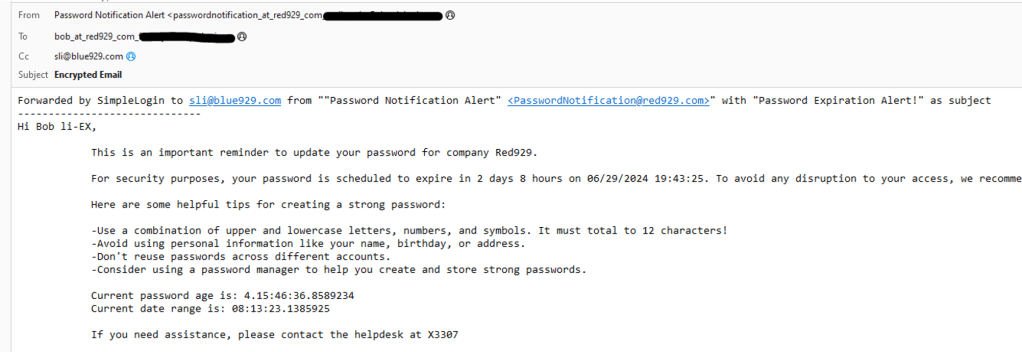
What the admin see:

 Steven’s Knowledge Base