
Since windows 10 is coming to end of life in October 2025, it is time to upgrade workstations to windows 11. The following powershell script is intended for SCCM, PDQ, or any other administration tools that includes powershell scripting. It is divided into three parts:
- Hardware Check
- Windows 11 ISO execution
- Clean up
The script applies only to specific models within Dell and Lenovo family. However, this can be adjusted in the script to apply to other models as well. The scripts all have logging with start-transcript. Feel free to omit Tee-object for logging if prefer.
Part 2:
Part 2 of the script runs hardware readiness script again post part 1 TPM/secure boot changes, if script return code = 0, grab ISO from network file share then execute setup. If it fails to execute setup.exe then fallback to downloading the ISO from either onedrive or third party repository then use 7zip to extract and execute setup.exe
Results:
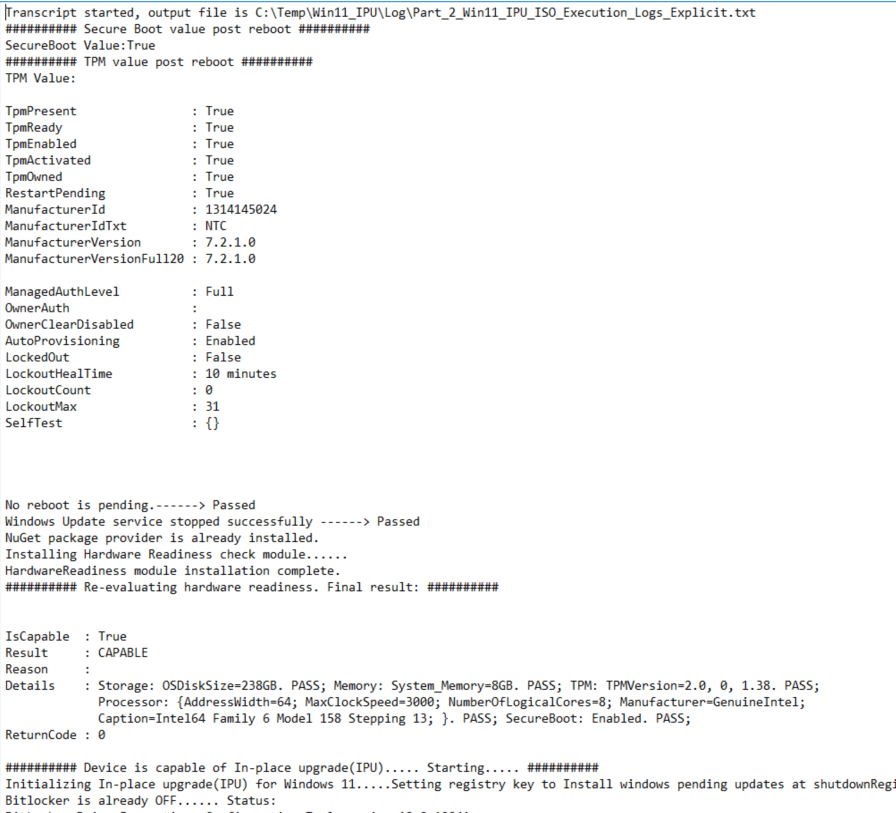

<######################################################################
Part 2:
Continue Windows 11 in place upgrade based on the result from Script [Hardware_Check_Win11-Pt1]. It will only run if return code is 0 (capable)

Hardware Readiness can return following return code:

    -2 : FAILED TO RUN
    -1 : UNDETERMINED
    0 : CAPABLE
    1 : NOT CAPABLE

Notes:
1. This script is intended ONLY for Dell and Lenovo system
2. Part 2 mounts the win11 ISO and starts setup.exe.
    If ISO fails to mount from network drive, it fallsback to download the ISO using start-BitsTransfer. Extract ISO using 7-zip then start setup.exe
3. If any error, exit script and resume bitlocker
4. Error code 66 = failed to IPU

######################################################################>
# Start logging
# Command start time: 20250405141035  = 2025-04-05 2:10pm Format:YYYY-MM-DD HH MM SS
Start-Transcript -Path "C:\Temp\Win11_IPU\Log\Part_2_Win11_IPU_ISO_Execution_Logs_Explicit.txt" -Force -IncludeInvocationHeader

$LogPath = "C:\temp\Win11_IPU\Log"
$Log = "Part_2_ISO_Execution_Logs.txt"
$AllError = "Part_2_ISO_Execution_Errors.txt"

######################################################################
# Block Windows 11 Re run
$OSInfo = Get-CimInstance -ClassName Win32_OperatingSystem | Select-Object Version, Caption
if($OSInfo.Caption -match "Microsoft Windows 11"){

    Write-Output "`n########## Current OS is $($OSInfo.Caption).....Closing script ##########" | Tee-Object "$($LogPath)\$Log" -Append
    exit 66

}
######################################################################
# Post reboot value from Part 1
  # Output secureboot and TPM value
  $TPM = Get-Tpm  | Out-String
  $isSecureBootEnabled = Confirm-SecureBootUEFI

  Write-Output "########## Secure Boot value post reboot ##########`n"  | Tee-Object "$($LogPath)\$Log" -Append
  Write-Output "SecureBoot Value:$isSecureBootEnabled`n"  | Tee-Object "$($LogPath)\$Log" -Append

  Write-Output "########## TPM value post reboot ##########`n"  | Tee-Object "$($LogPath)\$Log" -Append
  Write-output "TPM Value: $TPM"  | Tee-Object "$($LogPath)\$Log" -Append

  ######################################################################

# Enable TPMReady status to ON post reboot from Hardware check part 1:

try{
    $TPM = Get-Tpm
        <#
        The Get-Tpm cmdlet gets a TpmObject. This object contains information about the Trusted Platform Module (TPM) on the current computer.
        TPM status:
        TpmPresent                : False  #TPM present will be FALSE if TPM is turned OFF. This is normal as TPM will be invisible to the OS once its off.
        TpmReady                  : False # TpmReady : False means TPM is Turned ON but disabled - Tells whether the TPM is complies with latest Windows standards.
        TpmEnabled                : False
        TpmActivated              : False
        TpmOwned                  : False
        #>

    if($TPM.TpmReady -eq $false){

        Write-Output "Provisioning TPM with Initialize-Tpm -AllowClear -AllowPhysicalPresence " | Tee-Object "$($LogPath)\$Log" -Append
        # The Initialize-Tpm cmdlet performs part of the provisioning process for a Trusted Platform Module (TPM). Provisioning is the process of preparing a TPM to be used.
        # Requires reboot. Result of Initialize-TPM is is enable the TPM if set to Disabled
        Initialize-Tpm -AllowClear -AllowPhysicalPresence
        }
    }# End try
        catch{
        Write-Output "Error: $($_.Exception.Message)"  | Tee-Object "$($LogPath)\$Log" -Append
        }

    ######################################################################

    Write-Output "########## Checking prerequisite ##########`n"  | Tee-Object "$($LogPath)\$Log" -Append

# Check for pending restarts on the device that may interrupt the setup. Exit script if pending reboot.

try{

    $rebootRequired = Test-Path 'HKLM:\SOFTWARE\Microsoft\Windows\CurrentVersion\WindowsUpdate\Auto Update\RebootRequired'

# if reboot is required, exit script. Rerun the script once reboot is done
    if ($rebootRequired){

        Write-Output "`n########## Modifying Bitlocker ##########`n" | Tee-Object "$($LogPath)\$Log" -Append
        Write-Output "Pending Reboot Detected....Resume Bitlocker....Exiting Script" | Tee-Object "$($LogPath)\$Log" -Append

        Stop-Transcript #End logging
        $BitlockerStatus = (Get-BitLockerVolume -MountPoint "C:").ProtectionStatus
        $BitlockerInfo = manage-bde.exe -status C:

        # If bitlocker is off, turn it on
        if($BitlockerStatus -match "OFF"){
            Resume-BitLocker -MountPoint C:
            Write-Output "Resuming bitlocker on C: ....." | Tee-Object "$($LogPath)\$Log" -Append
        }else{
            Write-Output "Bitlocker is already ON. Status:" $BitlockerInfo
        }
        exit 66 #close script afer bitlocker is resume

    } # End if
    else {

        Write-Output 'No reboot is pending.------> Passed'   | Tee-Object "$($LogPath)\$Log" -Append

            }

    }#try
    catch{
        Write-Output " $($_.Exception.Message)" | Tee-Object "$($LogPath)\$Log" -Append
        $error[0] | Tee-Object "$($LogPath)\$Log" -Append

    }


######################################################################
# Cancel any pending updates. Safe to stop update service since the setup.exe uses "/DynamicUpdate disable". This argument prevents setup.exe from downloading dynamic updates during the upgrade process.

try{

# Stop the windows update service to cancel any pending updates
Stop-Service -Name "wuauserv" -Force

# Verify that the service has stopped
    if ((Get-Service -Name "wuauserv").Status -eq "Stopped") {

        Write-Output "Windows Update service stopped successfully ------> Passed" | Tee-Object "$($LogPath)\$Log" -Append

    }else{

        Write-Output "Failed to stop Windows Update service.......Continue" | Tee-Object "$($LogPath)\$Log" -Append
    }


    }#try
        catch{

            Write-Output " $($_.Exception.Message)" | Tee-Object "$($LogPath)\$Log" -Append
            $error[0] | Tee-Object "$($LogPath)\$Log" -Append
        }

######################################################################
# Call hardware readiness module to re-evaluate device post part 1 changes. Only run scriptblock if returncode = 0 and is capable

try{
    <# This module provides functionality to check if a Windows system meets the hardware requirements for Windows 11.
    Based on Microsoft's official hardware readiness check script
    https://www.powershellgallery.com/packages/HardwareReadiness/1.0.2

    #####Install and import hardware readiness check module #####>

    $HWReadiness = try{

    # Get Package provider - Nuget and Hardware Readiness module
        if (Get-PackageProvider -Name NuGet -ErrorAction SilentlyContinue) {
            Write-Output  "NuGet package provider is already installed." | Tee-Object "$($LogPath)\$Log" -Append
        }
        else {
            Write-Output "Installing Nuget Package provider....."  | Tee-Object "$($LogPath)\$Log" -Append
            Install-PackageProvider Nuget -Force

            # Check for package present
            if (Get-PackageProvider -Name NuGet -ErrorAction SilentlyContinue) {{
                Write-Output  "NuGet package provider installation complete." | Tee-Object "$($LogPath)\$Log" -Append
                }
            }
        }# End Else


    ########

        if (Get-Module -Name HardwareReadiness -ErrorAction SilentlyContinue) {
            Write-Output "HardwareReadiness module is installed." | Tee-Object "$($LogPath)\$Log" -Append
        }
        else {
            Write-Output "Installing Hardware Readiness check module......" | Tee-Object "$($LogPath)\$Log" -Append
            # Get Module
            Install-Module -Name HardwareReadiness -Force
            Import-module HardwareReadiness -Force

            # Check for HardwareReadiness module
            if (Get-Module -Name HardwareReadiness -ErrorAction SilentlyContinue) {
                 Write-Output "HardwareReadiness module installation complete." | Tee-Object "$($LogPath)\$Log" -Append
            }
        }# end else


    #Return results to variable
        $result = Get-HardwareReadiness

        $ReturnCode = $result.returncode
        $ResultR = $result.Result

    #Display results
        Write-Output "`n########## Re-evaluating hardware readiness. Final result: ##########`n" | Tee-Object "$($LogPath)\$Log" -Append

        $result

    }Catch{
        Write-Output "$($_.Exception.Message)" | Tee-Object "$($LogPath)\$Log" -Append
    }

    $HWReadiness | Tee-Object "$($LogPath)\$Log" -Append

    ##### If values returns success, continue scriptblock and execute setup.exe #####

    if($ReturnCode -eq "0" -and $ResultR -eq "CAPABLE"){

        Write-Output "`n########## Device is capable of In-place upgrade(IPU)..... Starting..... ##########`n" | Tee-Object "$($LogPath)\$Log" -Append

    # Steps before triggering setup.exe:
        # 1. Install windows pending updates at shutdown
            Write-Output "Initializing In-place upgrade(IPU) for Windows 11.....Setting registry key to Install windows pending updates at shutdown`nRegistry Value: $($OrchestratorValue|Out-String)"  | Tee-Object "$($LogPath)\$Log" -Append

            New-ItemProperty -Path "HKLM:\Software\Microsoft\Windows\CurrentVersion\WindowsUpdate\Orchestrator\" -Name "InstallAtShutdown" -PropertyType "Dword" -Value "1" -erroraction silentlycontinue | Tee-Object "$($LogPath)\$Log" -Append
            $OrchestratorValue = Get-ItemProperty -Path "HKLM:\Software\Microsoft\Windows\CurrentVersion\WindowsUpdate\Orchestrator\" -Name "InstallAtShutdown"

        # 2.  Suspend bitlocker to make changes to device. Only resume by using resume-bitlocker cmdlet

        # Suspend bitlocker ONLY if the drive is encrypted. Else, skip it
        $BitlockerStatus = (Get-BitLockerVolume -MountPoint "C:").ProtectionStatus # On or Off
        $BitlockerInfo = manage-bde.exe -status C:

        # If bitlocker is ON, turn it off
        if($BitlockerStatus -eq "On"){

            Write-Output "`n########## Modifying Bitlocker ##########`n" | Tee-Object "$($LogPath)\$Log" -Append
            Write-Output "....Suspending BitLocker temporarily......."  | Tee-Object "$($LogPath)\$Log" -Append

            Suspend-BitLocker -MountPoint "C:" -RebootCount 0

        }else{
            Write-Output "Bitlocker is already OFF...... Status:" $BitlockerInfo | Tee-Object "$($LogPath)\$Log" -Append
        }

      Write-Output   "`n########## Initializing In-place upgrade(IPU) for Windows 11......##########`n" | Tee-Object "$($LogPath)\$Log" -Append
######################################################################
# locate the iso and then mount it

Write-Output "`n########## Begin ISO mount ##########`n"| Tee-Object "$($LogPath)\$Log" -Append

$Image = "\\Linktofileshare\Lab\Win11-23H2-IPU\Win11-23H2-22631_4169.iso"
Write-Output "ISO path: $Image"  | Tee-Object "$($LogPath)\$Log" -Append

######################################################################
#Validate the Iso image path before starting execution. Validation if file path can be accessible is vital as some antivirus apps can BLOCK ISO mounts OR PREVENT file access post mount

try{
if ((Test-Path -Path $image) -eq $true) {

    Write-Output "`n########## Validating ISO mount path ##########`n"| Tee-Object "$($LogPath)\$Log" -Append

    # If image is not attached, mount it. Else, do not remount. Avoid Remount since it provideds a secondary drive letter that is different.
    if((Get-DiskImage -ImagePath $image).Attached -eq $false){

        Write-Output "Starting Mount for ISO located at $image" | Tee-Object "$($LogPath)\$Log" -Append
        $MountISO = Mount-DiskImage -ImagePath $Image -PassThru -StorageType ISO -Verbose

        # Get Mount drive letter
        $DriveLetter = ($MountIso | Get-volume).DriveLetter
        Write-Output "Mounted ISO Drive letter is: $DriveLetter" | Tee-Object "$($LogPath)\$Log" -Append

    }elseif((get-diskimage -ImagePath $image).Attached -eq $true){

        # if drive is already attached, provide same $driveletter if the script gets rerun second time.
        $DriveLetter = (Get-DiskImage -ImagePath $image | Get-Volume).DriveLetter
        Write-Output "ISO Drive Already mounted - letter is: $DriveLetter" | Tee-Object "$($LogPath)\$Log" -Append
        }

    }else{
        # Notify if iso path is invalid or cannot mount
        Write-Output "ISO path not found or failed to mount....." | Tee-Object "$($LogPath)\$Log" -Append
        # Create file to be detected for plan B script
        New-Item -Path $LogPath -Name Start_Plan_B -ItemType File -ErrorAction SilentlyContinue | Tee-Object "$($LogPath)\$Log" -Append
    }
}catch{

    Write-Output " $($_.Exception.Message)" | Tee-Object "$($LogPath)\$Log" -Append
}
######################################################################
### start silent execution of setup.exe ###
# If organization blocks iso mount via antivirus or group policy... skip this scriptblock and fall back to plan 2

    <#/Auto Upgrade: This tells the installer to perform an upgrade installation, preserving existing data and settings, rather than a clean install.
    /Quiet: This instructs the installer to run silently, minimizing or eliminating user interaction. This is essential for automated deployments.
    /migratedrivers all: This tells the installer to migrate all existing device drivers to the upgraded system. This aims to maintain hardware compatibility.
    /ShowOOBE none: OOBE stands for "Out-Of-Box Experience," the initial setup process after a Windows installation. This argument suppresses the OOBE, further automating the process.
    /Compat IgnoreWarning: This tells the installer to ignore any compatibility warnings. While this can speed up the process, it's generally not recommended, as it could lead to potential issues after the upgrade.
    /Telemetry Disable: This disables the collection of telemetry data during the upgrade process.
    /DynamicUpdate disable: This prevents the installer from downloading and installing dynamic updates during the setup process. This is very important if you are trying to do an offline upgrade.#>

    try{

    $SetupPath = Test-Path -Path "$($DriveLetter):\setup.exe"

    # Test path for setup.exe (If mounted)
    if($SetupPath -eq $true){

    Write-Output "`n########## Validating access to mounted ISO ##########`n"| Tee-Object "$($LogPath)\$Log" -Append

    # Test path for access denied or file permission errors. Verify from the parent folder
       if(Get-ChildItem -Path "$($DriveLetter):\" ){

        Write-Output "$($DriveLetter):\setup.exe is accessible and ready for execution" | Tee-Object "$($LogPath)\$Log" -Append


        ## Finally--- execute setup.exe once file path is ok and file is accessible
        Write-Output "`nExecuting Setup located at: $($DriveLetter):\setup.exe ............Setup may take 10 minutes or more`n" | Tee-Object "$($LogPath)\$Log" -Append

        $arguments = "/Auto Upgrade /Quiet /migratedrivers all /ShowOOBE none /Compat IgnoreWarning /Telemetry Disable /DynamicUpdate disable /eula accept /copylogs $LogPath"
        Start-Process -NoNewWindow -FilePath "$($DriveLetter):\setup.exe " -ArgumentList $arguments -Wait  -Verbose  | Tee-Object "$($LogPath)\$Log" -Append

       }else{

            Write-Output "$($DriveLetter):\setup.exe is NOT accessible.... Executing PLAN B!" | Tee-Object "$($LogPath)\$Log" -Append

            # Create file to be detected for plan B script
            New-Item -Path $LogPath -Name Start_Plan_B -ItemType File -ErrorAction SilentlyContinue | Tee-Object "$($LogPath)\$Log" -Append
       }
    }# End If $SetupPath -eq $True

    }Catch{

        Write-Output " $($_.Exception.Message)" | Tee-Object "$($LogPath)\$Log" -Append
    }

############################################################
            ##### Start PLAN B #####
############################################################
# If iso cannot be mounted, create folder to house the iso
$PlanBVerify = Test-Path "$LogPath\Start_Plan_B"

# If ISO mount fails, detect "Start_Plan_B" file and start fall back plan of ISO download/extraction:
if($PlanBVerify -eq $true){

Write-Output "`n########## Fall Back to Plan B for Windows 11 IPU ##########`n" | Tee-Object "$($LogPath)\$Log" -Append

    $ISOPath = "C:\temp\Win11_IPU\ISO"
    $ISOPathValidate = Test-Path -Path $IsoPath
    if($ISOPathValidate -eq $false ){
        New-Item -Path "C:\Temp\Win11_IPU\" -Name "ISO" -ItemType "Directory"
        Write-Output "`n########## Executing PLAN B ##########`nFolder created under $ISOPath" | Tee-Object "$($LogPath)\$Log" -Append
    }

##### Download ISO and save to "C:\temp\Win11_IPU\ISO" #####
# Start-BitsTransfer is designed specifically for transferring files between client and server computers. This PowerShell cmdlet is dependent on the Background Intelligent Transfer Service (BITS) that is native to the Windows operating system.
# transfer takes 3 minutes on home lab;
<#
When you use *-BitsTransfer cmdlets from within a process that runs in a noninteractive context, such as a Windows service, you may not be able to add files to BITS jobs, which can result in a suspended state.
For the job to proceed, the identity that was used to create a transfer job must be logged on. For example, when creating a BITS job in a PowerShell script that was executed as a Task Scheduler job, the BITS transfer will never complete unless the Task Scheduler's task setting "Run only when user is logged on" is enabled.
# Notes on start-bitTransfer: For PDQ - run as [Logged on SYSTEM] or [Logged on User]
#>

#Verify IF ISO is present, if not present, grab the ISO from start-BitsTransfer
$ISOVerify = Test-Path "$ISOPath\Win11-23H2-22631_4169.ISO"

if($ISOVerify -eq $false){

    Write-Output "Start download of Win11-23H2-22631_4169.ISO....." | Tee-Object "$($LogPath)\$Log" -Append

    $Source = "LinkToISO.com"
    $Destination = "$ISOPath\Win11-23H2-22631_4169.ISO"
    Start-BitsTransfer -Source $source -Destination $destination -Verbose -Description "Downloads Windows 11 Build 23H2-22631_4169.ISO" | Tee-Object "$($LogPath)\$Log" -Append
    # End Download

    #Post download check
    $ISOPathVerify = test-path -Path $Destination
    # Verify if ISO is there in the folder.
    if($ISOPathVerify -eq $true){
        Write-Output "ISO download complete....File saved to $Destination" | Tee-Object "$($LogPath)\$Log" -Append
    }else{
        Write-Output "ISO not found under '$ISOPath'. Cannot proceed to extraction phase....Exiting script" | Tee-Object "$($LogPath)\$Log" -Append
        Stop-Transcript #End logging
        Exit 66 #close script
    }


}# End ISO path verification for "C:\temp\Win11_IPU\ISO\Win11-23H2-22631_4169.ISO"
else{
    Write-Output "Win11-23H2-22631_4169.ISO is already downloaded" | Tee-Object "$($LogPath)\$Log" -Append
}

##### Start extraction phase #####

##### Start Installation of 7-zip. Overwrite it with new version if machine has existing installation. #####
# Default installation path is "C:\Program Files\7-Zip"

    ###### Installation of 7-zip (Latest version) ######
    # File will be downloaded to %temp% stored in local appdata
    # Once download completes, the default installation file path is stored under "C:\Program Files\7-Zip"

    $dlurl = 'https://7-zip.org/' + (Invoke-WebRequest -UseBasicParsing -Uri 'https://7-zip.org/' | Select-Object -ExpandProperty Links | Where-Object {($_.outerHTML -match 'Download')-and ($_.href -like "a/*") -and ($_.href -like "*-x64.exe")} | Select-Object -First 1 | Select-Object -ExpandProperty href)
    # modified to work without IE
    # above code from: https://perplexity.nl/windows-powershell/installing-or-updating-7-zip-using-powershell/

    $installerPath = Join-Path $env:TEMP (Split-Path $dlurl -Leaf)
    Invoke-WebRequest $dlurl -OutFile $installerPath
    Start-Process -FilePath $installerPath -Args "/S" -Verb RunAs -Wait
    Remove-Item $installerPath

    $Info = Get-ChildItem -Path "HKLM:\Software\Microsoft\Windows\CurrentVersion\Uninstall\7-Zip*" | Out-String
    Write-Output "Installation Completed.......Current 7-zip settings from registry:`n$Info " | Tee-Object "$($LogPath)\$Log" -Append

    ##### End 7-zip installation #####

    ##### Start extraction of ISO using 7-zip #####
    # Set 7-zip to environment path
    $env:Path += ";C:\Program Files\7-Zip"

    # Start extraction x (Source file) -o (Destination folder) -bb(1-3) (Set Output Log Level) -aoa(Overwrite All)
    # It will output all the files extracted. Extract Source:("C:\temp\Win11_IPU\ISO\Win11.ISO") to ("C:\temp\Win11_IPU\ISO\) overwrite
    # Extraction time takes less than 20 seconds on home lab (85 Folders; 946 Files)

    $SetupVerify = Test-Path "$ISOPath\Setup.exe"

    #If extraction has already been done, skip this phase
    if($SetupVerify -eq $false){

        Write-Output "`n########## Start Extraction of Windows 11 ISO using 7-zip ##########`n" | Tee-Object "$($LogPath)\$Log" -Append
        7z.exe x "$Destination" -o"$ISOPath" -bb1 -aoa  | Tee-Object "$($LogPath)\$Log" -Append

    }else{
        Write-Output "ISO extraction already completed....skipping extraction" | Tee-Object "$($LogPath)\$Log" -Append
    }
    ##### End extraction of ISO using 7-zip #####

##### start silent execution of setup.exe post extraction #####
# Time to complete 25-40minutes
    $SetupPath2 = Test-Path -Path "$($ISOPath)\setup.exe"

    # Test path for setup.exe (If mounted)
    if($SetupPath2 -eq $true){

        Write-Output "`nExecuting Setup located at: $($ISOPath)\setup.exe ............Setup may take 10 minutes or more..........`n" | Tee-Object "$($LogPath)\$Log" -Append

        $arguments = "/Auto Upgrade /Quiet /migratedrivers all /ShowOOBE none /Compat IgnoreWarning /Telemetry Disable /DynamicUpdate disable /eula accept /copylogs $LogPath"
        Start-Process -NoNewWindow -FilePath "$($ISOPath)\setup.exe" -ArgumentList $arguments -Wait  -Verbose  | Tee-Object "$($LogPath)\$Log" -Append

    }else{

        Write-Output "Setup.exe file not found under $ISOPath......Exit script " | Tee-Object "$($LogPath)\$Log" -Append
        Stop-Transcript #End logging
        Exit 66 # close script

    }

} #End scriptblock for plan B ---  if($PlanBVerify -eq $true)

    ######################################################################
    ## End logging

        # Log all errors from script to txt file. Do not display to terminal
        $Error | Out-File -FilePath "$($LogPath)\$AllError" -Append

        # End logging
        Stop-Transcript

        }# End Entire Scriptblock if($value -match "ReturnCode=0" -and "Result=CAPABLE"){}
    elseif($ReturnCode -eq "1" -or $ResultR -eq "NOT CAPABLE"){

        Write-Output "########## DEVICE IS NOT CAPABLE OF WINDOWS 11 IPU.....Closing Script ##########" | Tee-Object "$($LogPath)\$Log" -Append
        Exit 66
    }

#End the scriptblock here instead of creating new one since PDQ will fail to execute next scriptblock onces it restarts and update begins. PDQ service agent wont be available

########### End of PLAN B #####################

#Catch any non terminating errors
}catch{
 Write-Output "$($_.Exception.Message)" | Tee-Object "$($LogPath)\$Log" -Append
    }# end catch

######################################################################
# Part 3 script - cleanup
 Steven’s Knowledge Base