
This script modifies AD attributes in case user wants a name changes or email address modified. Script is intended to update UPN, NAME, E-MAIL.

Scenarios where name change may occur:
Marriage or Divorce/Gender Transition/Cultural or Religious Reasons/Adoption/legal reasons/etc...

*Notes:
Firstname, Initials, surname are optional fields (fill only if changes to name)
Old UPN and new UPN is required
This script assumes that the old email is to be used as an email alias and proxy address.

Impact of modification:
Systems like AD, Exchange, etc. aren't joined together by the attributes like userPrincipalName (deliberately setting aside AD-AAD soft matching), but rather "primary key" identifiers like objectGUID or objectSid (on-premise Active Directory), or objectID/Id (Azure AD/Graph).
These are generally referred to as "immutable identifiers" as they cannot change over the course of their life.
Using these immutable identifiers allows actions like renames to take place and be reflected across all those integrated systems without breaking anything.

So modification to SAM, UPN, email should have little to no impact to a user unless an attribute like UPN/email/SAM is used to integrate with third party apps.

Platform with no impact:
Onedrive
sharepoint
Office apps
Folder ACL

Possible impact (third party apps):
ADP
Chatgpt
DUO
Departmental Apps


Troubleshooting:
Run script in PS version 5 instead of 7 if pipe does not work and following error is encountered

Rename-ADObject: The input object cannot be bound to any parameters for the command either because the command does not take pipeline input or the input and its properties do not match any of the parameters that take pipeline input.
Results:
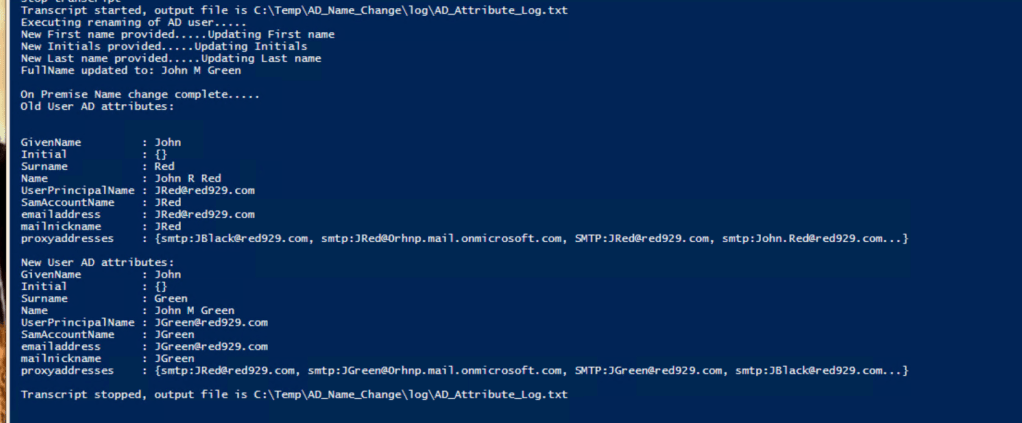
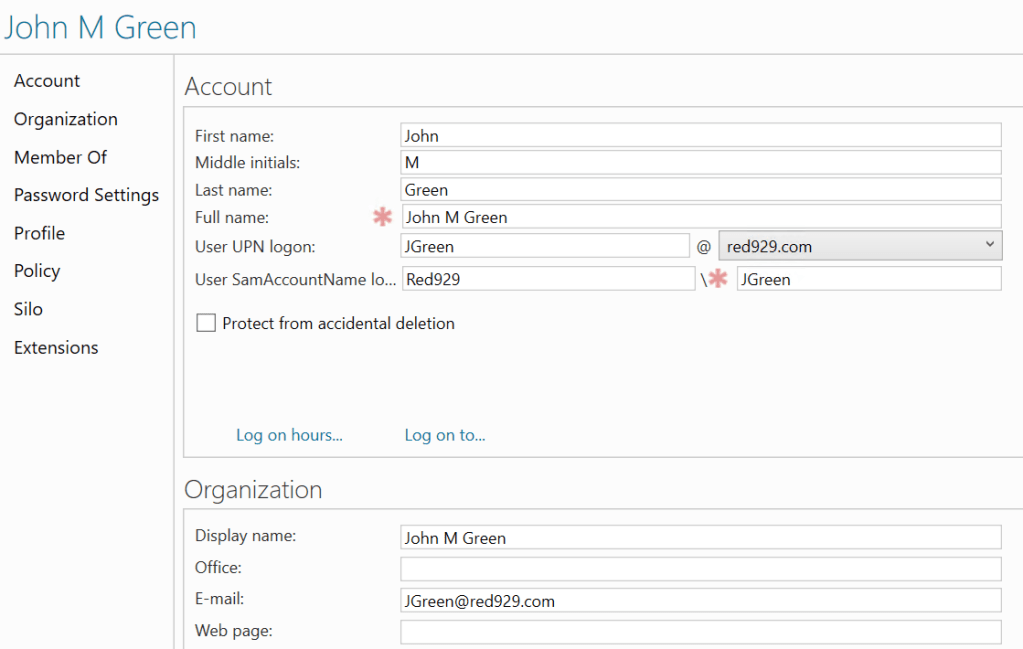
The following results shows changes from user name “John R Red” to “John M Green”. Updating the name and UPN also updates all other attributes in AD. Once this is done, the changes should reflect on Microsoft 365 in hybrid environment.
Source code:
######################################################
# Start log
Start-Transcript -Path "C:\Temp\AD_Name_Change\log\AD_Attribute_Log.txt" -Force -IncludeInvocationHeader

# Create log folder
$LogPath = "C:\temp\AD_Name_Change\"
$TestPath = Test-Path -Path $LogPath
if($TestPath -eq $false ){
    New-Item -Path "C:\Temp\AD_Name_Change" -Name "Log" -ItemType "Directory"
}

try{

## Declare Variables:
# Make sure there is no EMPTY space
$FundsDomain = "@red929.com"
$DefaultDomain = "@0rhnp.mail.onmicrosoft.com"

##### Required field #####
# Fill out the User Principal Name (UPN) of the user. Input old and desired UPN:
# If no UPN changes, input old UPN under $NewUPN
$OldUPN = "JRed"
$NewUPN = "JGreen"
##### Required field #####

##### Optional field #####
# If there is any name change needed for First, last or inital. Update them here:
$Firstname_New  = "John"
$Initial_New =  "M"
$Surname_New = "Green"
##### Optional field #####

#[string]::IsNullOrEmpty($variable) - A static method of the [string] class that checks for both $null and empty strings.
# Detect if string is present
$FirstNamePresent = (([string]::IsNullOrEmpty($Firstname_New)) -eq $false)
$InitialPresent = (([string]::IsNullOrEmpty($Initial_New)) -eq $false)
$SurnamePresent = (([string]::IsNullOrEmpty($Surname_New)) -eq $false)

# Detect if string is null or empty
$FirstNameNull = ([string]::IsNullOrEmpty($Firstname_New))
$InitialNull = ([string]::IsNullOrEmpty($Initial_New))
$SurnameNull= ([string]::IsNullOrEmpty($Surname_New))

# Get first, initial, surname info for current user
$FirstName_Old = (get-aduser $OldUPN | Select-Object GivenName).GivenName
$Initial_Old = (get-aduser $OldUPN -Properties Initials | Select-Object Initials).Initials
$Surname_Old= (get-aduser $OldUPN | Select-Object Surname).Surname

# Record all the previous AD attributes to a variable before change
$OldUPNInfo = Get-ADUser $OldUPN -Properties * | Select-Object GivenName,Initial,Surname,Name,UserPrincipalName,SamAccountName,emailaddress,mailnickname,proxyaddresses

########################################################
### Start modification of on prem AD attributes ###
########################################################

############# Start NAME CHANGE ##########
# Execute name change if string is available for $firstname, $Initial or $surname variable:

# If only first,Initial or Surname name is present
if($FirstNamePresent -or $InitialPresent -or $SurnamePresent ){

    Write-Output "Executing renaming of AD user....."

    if($FirstNamePresent){
        # Update first name
        Write-Output "New First name provided.....Updating First name"
        Set-ADUser $OldUPN -GivenName $Firstname_New
        # Update variable
        $FirstName_Old = (get-aduser $OldUPN | Select-Object GivenName).GivenName

    }
    if($InitialPresent){
        # Update Initials
        Write-Output "New Initials provided.....Updating Initials"
        Set-ADUser $OldUPN -Initials $Initial_New
        # Update variable
        $Initial_Old = (get-aduser $OldUPN -Properties Initials | Select-Object Initials).Initials

    }
    if($SurnamePresent){
        # Update last name
        Write-Output "New Last name provided.....Updating Last name"
        Set-ADUser $OldUPN -Surname $Surname_New
        # Update variable
        $Surname_Old= (get-aduser $OldUPN | Select-Object Surname).Surname

    }
# Once the name is updated, retrieve full name depending if Initial exist or not
    #Check if user has current initials.
    # If initials are not empty, execute:
     if([string]::IsNullOrEmpty($Initial_Old) -eq $false){
        # Fullname includes first + Initials + surname
        $Fullname = "$Firstname_old $Initial_old $Surname_old"
        Write-Output "FullName updated to: $Fullname`n"

    # If initials are empty, execute:
        }elseif([string]::IsNullOrEmpty($Initial_Old)){
        # Fullname includes first + surname
        $Fullname = "$Firstname_old $Surname_old"
        Write-Output "FullName updated to: $Fullname`n"
        }

} # End if changes to name
########################################################

# If there are no updates to name:
if($FirstNameNull -and $initialNull -and $SurnameNull){

Write-Output "No changes to name provided....."

#Check if user has current initials.
    # If initials are not empty, execute:
    if([string]::IsNullOrEmpty($Initial_Old) -eq $false){
        # Fullname includes first + Initials + surname
        $Fullname = "$Firstname_old $Initial_old $Surname_old"
        Write-Output "FullName updated to: $Fullname`n"

    # If initials are empty, execute:
        }elseif([string]::IsNullOrEmpty($Initial_Old)){
        # Fullname includes first + surname
        $Fullname = "$Firstname_old $Surname_old"
        Write-Output "FullName updated to: $Fullname`n"
        }
    }#End if no changes to name

########################################################
# Update CN (Name)
Get-ADuser $OldUPN | Rename-ADObject -NewName $FullName

# Update Display Name
Set-ADuser $OldUPN -DisplayName $FullName

#####################################################
############# END NAME CHANGE ##########
#######################################################
######## Start Email attributes modification #######
#######################################################
# Set new Email address
Set-ADUser $OldUPN -EmailAddress $NewUPN$FundsDomain

# Set mailnickname (alias)*The mailnickname seems to be used when showing/hiding in the GAL
Get-ADUser $OldUPN | Set-ADUser -Replace @{mailnickname=$NewUPN}

<# Update proxy addresses. The proxyAddresses attribute in Active Directory is a multi-valued attribute that stores a list of email addresses associated with a user, group, contact, or other mail-enabled object.

Normal setup for proxy address:
    #SMTP:sli@red929.com
    #smtp:sli@red929.mail.onmicrosoft.com

    SMTP: (uppercase) denotes the primary SMTP address.
    smtp: (lowercase) denotes secondary SMTP addresses.
    X400: denotes X400 addresses.
    Other address types may also be present.
#>

# Add the new primary SMTP primary email (@Company Domain) and secondary smtp routing address(@Microsoft Default Domain)
Get-ADUser $OldUPN | Set-ADUser -Add @{proxyaddresses="SMTP:$NewUPN$FundsDomain"} #Required
Get-ADUser $OldUPN | Set-ADUser -Add @{proxyaddresses="smtp:$NewUPN$DefaultDomain"} #Required

# Remove old SMTP primary email address(@Company Domain) and re-add the old SMTP address as secondary "smtp" addresses
Get-ADUser $OldUPN | Set-ADUser -Remove @{proxyaddresses="SMTP:$OldUPN$FundsDomain"} #Required
Get-ADUser $OldUPN | Set-ADUser -add @{proxyaddresses="smtp:$OldUPN$FundsDomain"} # optional

#######################################################
##### Modify SAM and UPN #####

# Update UPN (Login name)
Set-ADUser $OldUPN -UserPrincipalName $NewUPN$FundsDomain

# Set -SamAccountName (Set-ADUser takes from SAM) - Do this LAST!
Set-ADUser $OldUPN -SamAccountName $NewUPN

#######################################################
# Error log
}catch{
    Write-Output " $($_.Exception.Message)"
}
#####################################################
# Show results before and after

$NewUPNInfo = Get-ADUser $NewUPN -Properties * | Select-Object GivenName,Initial,Surname,Name,UserPrincipalName,SamAccountName,emailaddress,mailnickname,proxyaddresses

Write-Output "On Premise Name change complete.....`nOld User AD attributes:"$OldUPNInfo
Write-Output "New User AD attributes:"$NewUPNInfo

######################################################
### End modification of on prem AD attributes ###
#####################################################

stop-transcript
 Steven’s Knowledge Base