
Application deployment is the process of installing and configuring software on devices in a managed and automated way.
This can include:
- Silent installs (no user interaction)
- Version control and updates
- Remote installation
- Uninstall and upgrade management
This post will detail step by step on how to deploy application using Microsoft deployment tool (MDT). The steps assumes that an existing MDT environment is already set up.
Part 1: Basic application deployment
For example, if admin is trying to prep an image and one of the pre requisite for the light image is to include Microsoft .NET 8 (which is required by Dell command update).
1. Install the .exe file first. Place the .EXE in a folder somewhere in MDT server. (Ex: C:\temp\NetRuntime8)
2. Select deployment share > Applications > new application with source file > Select (C:\temp\NetRuntime8) folder
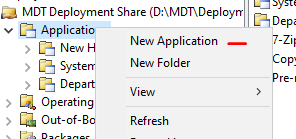
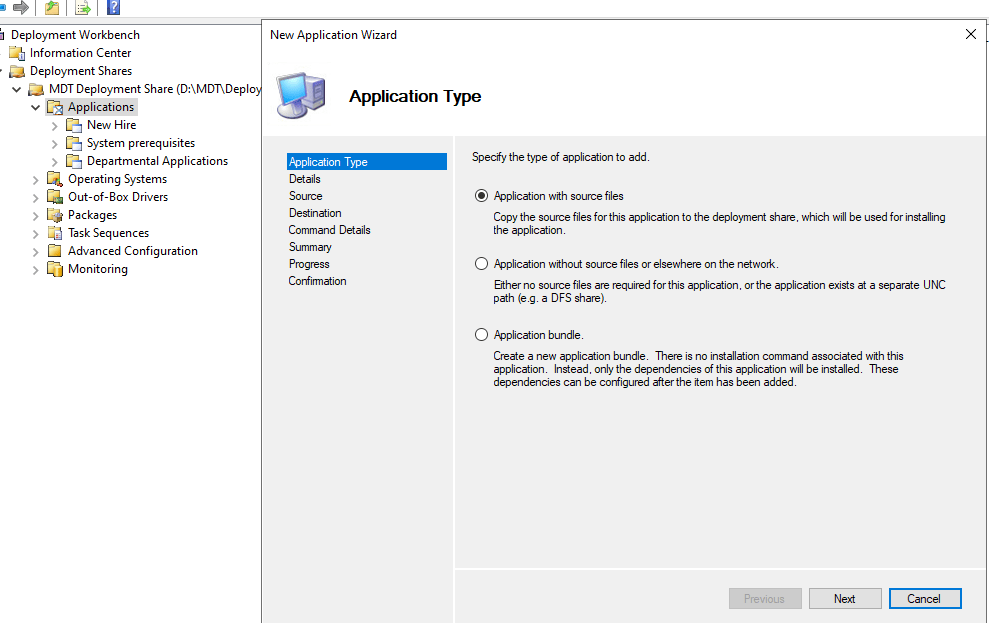
3. The file will be copied over to \\mdt\deploymentshare$\applications folder. The exe under c:\temp can be removed.
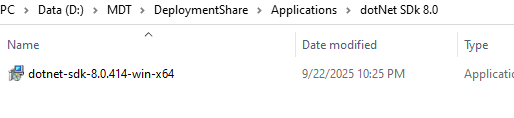
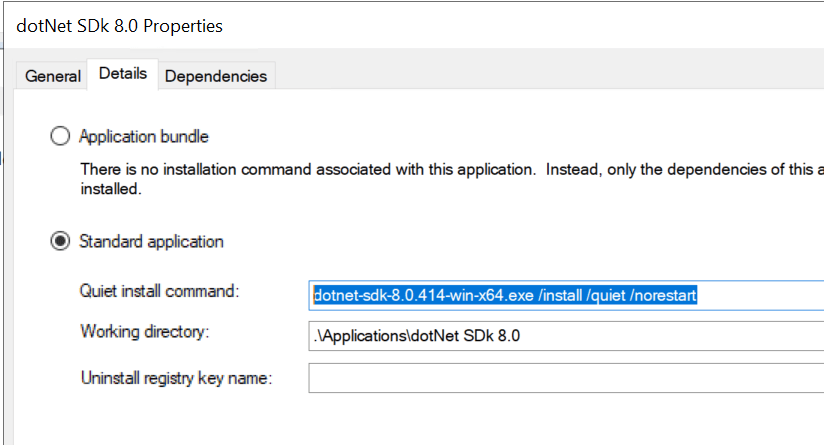
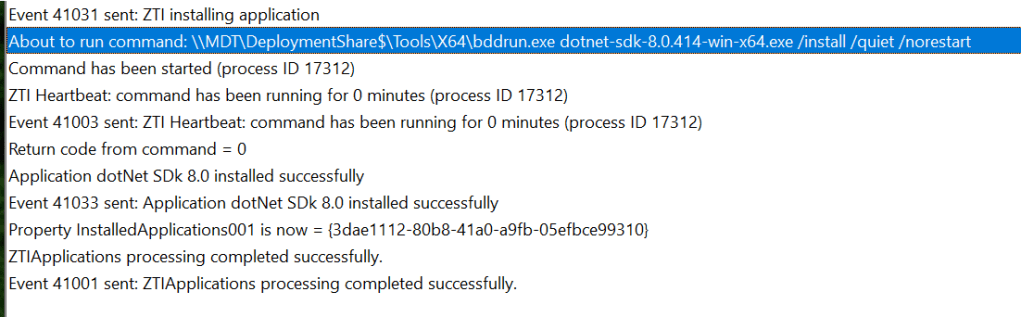
4. Insert the installation parameters for silent install “/install /quiet /norestart”. The working directory is where the .exe is located.
5. Once application is all set on MDT side, deploy and verify install on the image.
Installation of MSI packages:
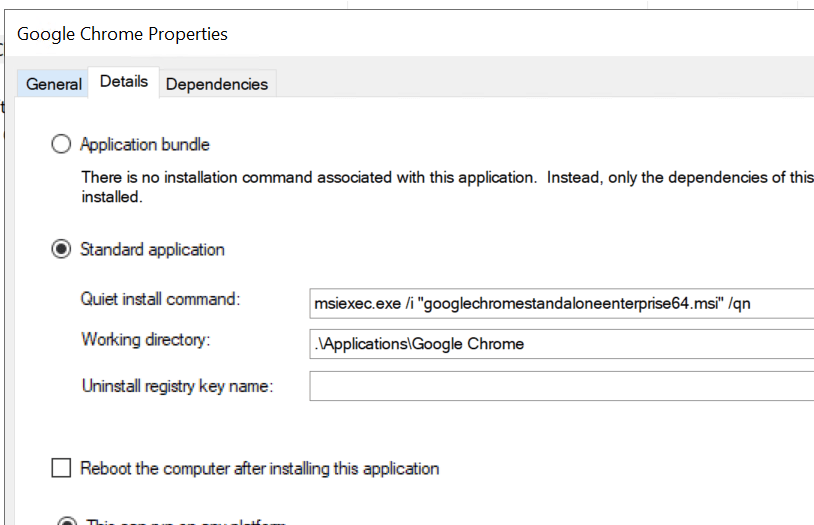
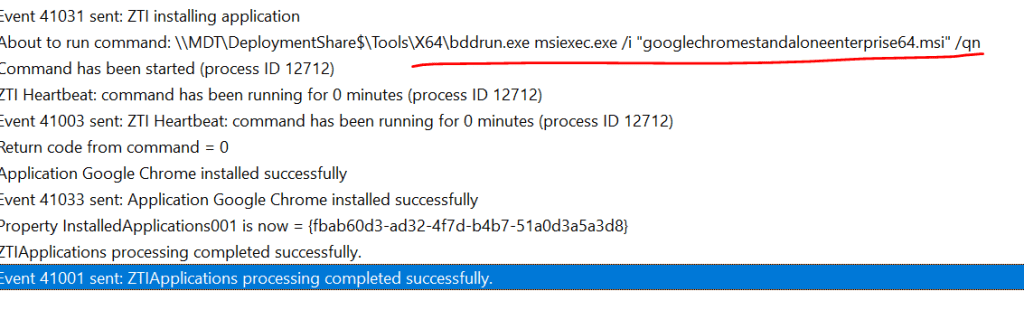
MSI packages are also supported on MDT. The example below shows example of Google Chrome setup:
Logs for application install:
%WINDIR%\TEMP\DeploymentLogs\ZTIapplications.log
 Steven’s Knowledge Base