
The following post provides details on installation departmental application based on the registry key provided. It can work for both mandatory and optional install.
The requirements for this to work is to figure out where each device that is being re imaged belong to which department.
Admin will need to figure out how those device will get placed into an OU. Will it be based on device name, model, network setup,etc..
Set up departmental application install:
1. Generate script to determine which department the device belongs to based on device name. The script below places a registry key under “HKLM:\Software\MDT” if the device name starts with either “MR” or “Mail”. Example: Mail-DSK-001
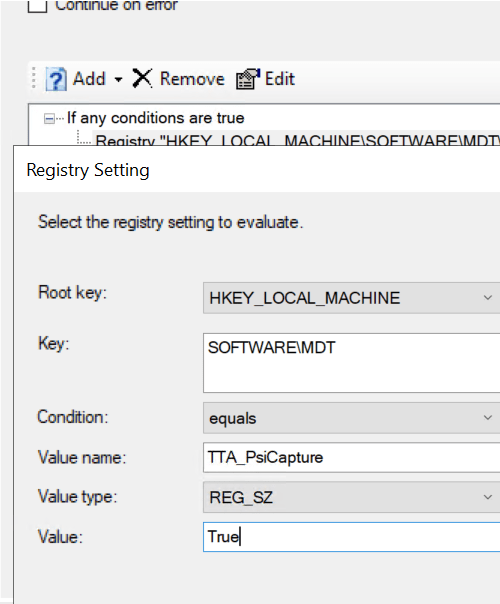
The string key is named “TTA_PsiCapture” with value “True”
####################################################
# Create log folder
Write-Output "##### Creating Log folder #####"

$LogPath = "C:\Temp\MDT"
$TestPath = Test-Path -Path $LogPath
if($TestPath -eq $false ){
    New-Item -Path $LogPath -ItemType "Directory"
}
# start logging
$LogFile = "$LogPath\MDT-Dept_Install_Restart-$(Get-Date -Format 'MMddyyyy-HHmmss').log"
Start-Transcript -Path $LogFile -Force

####################################################

# Check what domain the device is part of:
$DeviceName = $env:COMPUTERNAME

# Split device name and grab only the first string/index[0] to be evaulated to determine its department.
$DeviceNameDept = $devicename.Split("-")[0]


##################################################
### Begin Evaluation of Device Name ###
##################################################
$RegKey = "HKLM:\Software\MDT"

# Create Key
New-item -Path $RegKey -Verbose

##################################################
### Check if device name starts with MR (Mailroom)
#
if($DeviceNameDept -match "MR|Mail") {

    Write-Output "`n##### The device [$DeviceName] belongs to MailRoom department #####`n"

      Write-Output "`n##### The device [$DeviceName] will install TTA Psicapture 2025 #####`n"
      New-ItemProperty -Path "$RegKey" -Name "TTA_PsiCapture" -Value "True" -PropertyType String -Force -Verbose


        } # end If statement
         #
##################################################


#end logging
Stop-Transcript
2. Place the Powershell script to run as the first step for the task sequence. It will evaluate the computer name.
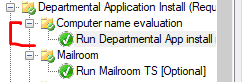
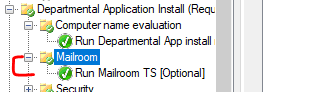
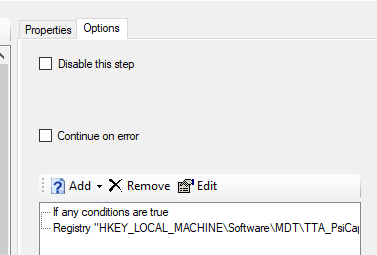
3. For the second step, which is the application install – modify the option to ONLY execute IF the registry values are met in the script (New-ItemProperty -Path “$RegKey” -Name “TTA_PsiCapture” -Value “True” -PropertyType String -Force -Verbose).
**Registry seems to be the most consistent and works better than querying WMI values and task sequence variables from my experience**
3. Test out the image and the application should only install if registry value is detected
 Steven’s Knowledge Base