
What if basic .exe or .msi setup install is not enough for certain applications. For example, an application like Desktop Companion application for voice channel (https://learn.microsoft.com/en-us/dynamics365/contact-center/administer/install-manage-desktop-app) created for the Dynamics 365 Contact Center platform also requires installation of browser extension along with it.
- Chrome: Desktop companion app for Dynamics 365 Contact Center Extension
- Edge: Desktop companion app for Dynamics 365 Contact Center
What if Admin also want to disable updates for this app? That would require registry changes. An application that has multiple requirement targeting extension downloads, registry edits etc.. requires it to be written to a powershell script for successful install.
This post will implement powershell script into task sequence for MDT. Current lab environment includes all script under this location:
[\MDT\DeploymentShare$\Scripts\Powershell_Script]
Use powershell script to deployment apps
1. Under deployment share > Task sequence > new sequence > custom task sequence.
2. Add new step > general > run command line.
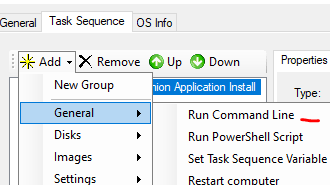
3. Insert the following string:
“%deployroot%\tools\%architecture%\ServiceUI.exe” -process:TSProgressUI.exe %SYSTEMROOT%\System32\WindowsPowerShell\v1.0\powershell.exe -NoProfile -ExecutionPolicy Bypass -File “\MDT\DeploymentShare$\Scripts\Powershell_Script\DCA_Install.ps1”
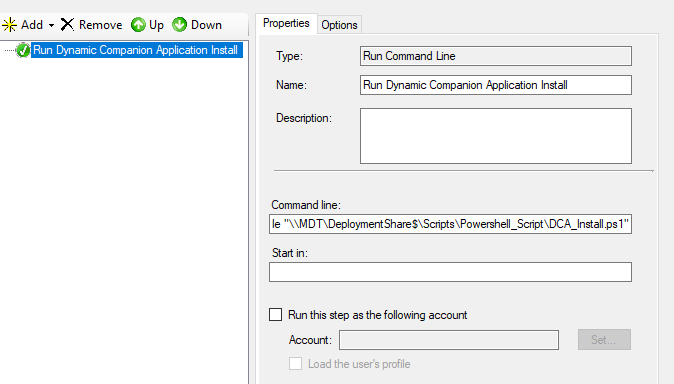
I prefer calling ServiceUI.exe so powershell prompt can show me the progress of the script on the screen while the device is being re imaged. The entire process is always non-interactive so there is no need for user interaction.
The reason why you don’t want to select “Powershell script” under general is because the command we use requires quotations to wrap it in order to properly execute.

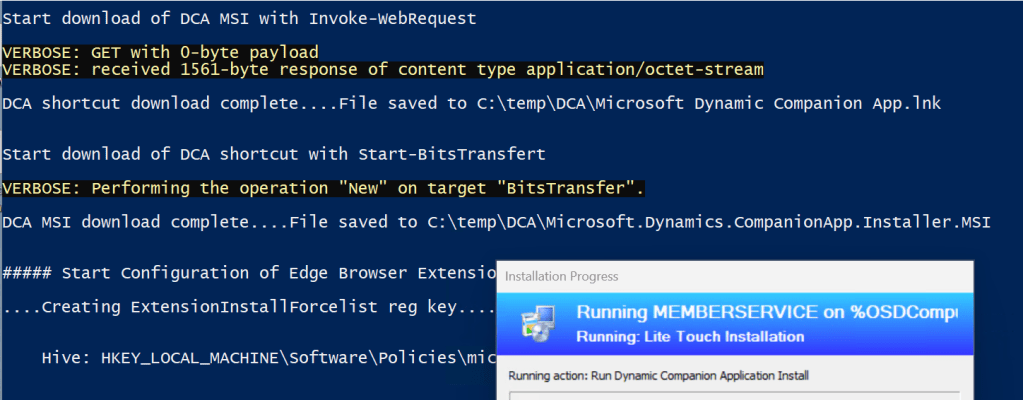
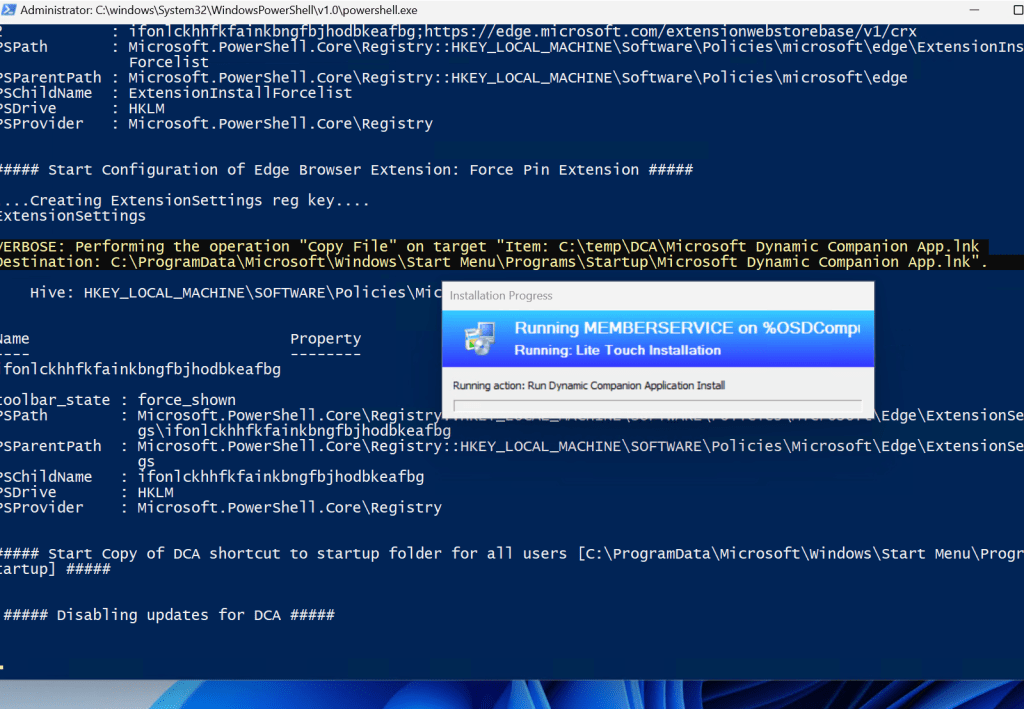
Verification:
I won’t be posting the script here as writing it from scratch is always the fun part. The script contains the following:
##### Part 1:  DCA-Prerequisite and browser extension setup #####
It entails the following:
    - Installs prerequisite for DCA - Microsoft visual c++ 2015-2022 (latest version)
    - Downloads DCA MSI and DCA shortcut to c:\temp\DCA\.
        DCA client is pulled from "https://aka.ms/dca-installer" so version will always be the latest.
    - Installs and configure DCA extension for Edge browser
    - Copy DCA shortcut to start up folder for ALL users [C:\ProgramData\Microsoft\Windows\Start Menu\Programs\Startup]
    - Disable Auto Update for DCA using registry

  Notes:
    When extension gets installed, edge browser needs to be closed and re opened to initialize the extension.
    DCA shortcut is pulled from shell:Appsfolder. No need to reference windowsapp folder directly.
    Shortcut should work for any version of DCA

##### Part 2:  DCA Install #####
It entails the following:
    - Installs DCA (Desktop companion application for Dynamics 365 Contact Center) have it available to all users that log into device.
    - Detect and verify if DCA is installed. Provides version and install date
    - The script triggers the DCA shortcut. Once process starts, DCA will install and start up for current user logged in
The DCA powershell script is triggered for the “MEMBERSERVICE” task sequence.
 Steven’s Knowledge Base