
This post provides overview of a powershell script to auto update Lenovo devices using LSU module.
This script does not require the application “Lenovo system update” to be installed. It only requires the LSU module (https://www.powershellgallery.com/packages/LSUClient/1.8.0).
If Admin prefers the official “Lenovo system update” by Lenovo – you can use TVSU.exe to call the updates, however, I never found any success with silent updates from that application. LSU module remains one of the most consistent and simple method of deploying updates silently.
Deployment Method: Powershell
Overview:
 Install Unattended lenovo system update using module LSUClient
-- Requires device to be plugged into AC outlet
-- May require Restart
-- Script is intended for newly reimaged device OR existing devices
- Does NOT require User interaction

https://jantari.github.io/LSUClient-docs/

# It is recommended to run Install-LSUpdate twice in order to obtain all updates.
# ThinkCentre, ThinkStation are the only models that may require a shutdown for bios flashing. This does not apply to thinkpads with UEFI
**Highly suggest implementing a restart command post silent install into package if using tools like PDQ or MECM for deployment.
Source code:
# Install the module.
#If there is policy to restrict execution of policy, the script will be unrestricted to temporarily execute only for current process.
Set-ExecutionPolicy -Scope Process -ExecutionPolicy Unrestricted -Force;
Install-PackageProvider -Name NuGet -Force
Install-Module -Name 'LSUClient' -Force
Import-Module -Name 'LSUClient'

# Start logging under c:\  folder. If folder does not exist, create one.
$TempPath = Test-Path -Path "C:\Temp\LSU-Log"
if($TempPath -eq $false ){
    New-Item -Path "c:\Temp\" -Name "LSU-Log" -ItemType "Directory"
}

# Log start #
# The Start-Transcript cmdlet creates a record of all or part of a PowerShell session to a text file. The transcript includes all command that the user types and all output that appears on the console.
Start-Transcript -LiteralPath "C:\Temp\LSU-Log\LSUClient$(Get-Date -Format 'yyyyMMdd-HHmmss').log"

# First round:
   # Get ONLY updates that can be installed silently - if ".Installer.Unattended" property set to $True
    # Start retrieving update and save them
    <#
    Filtering out non-unattended packages like this is strongly recommended when using this module in MDT, SCCM, PDQ, remote execution via PowerShell Remoting, ssh or any other situation in which you run these commands remotely or as part of an automated process.
    Packages with installers that are not unattended may force reboots or attempt to start a GUI setup on the machine and, if successful, halt until someone clicks through the dialogs.
    #>
    $updates = Get-LSUpdate | Where-Object { $_.Installer.Unattended } -ErrorAction Continue # Retrieve all updates needed for the device that supports silent installation. (BIOS can be silent installation but requires a restart)
    $updates | Save-LSUpdate -Verbose  -ErrorAction Continue  # download all updates to "%temp%\LSUPackages" since installing a network (NIC, WiFi adapter) driver can cause a short loss of network connectivity.

    Write-Host "$($updates.Count) updates found"

    # Start installation of updates
    $i = 1
    foreach ($update in $updates) {
         Write-Host "Installing update $i of $($updates.Count): $($update.Title)"
            [array]$results = Install-LSUpdate -Package $update -Verbose -Debug -ErrorAction Continue  # Retrieve and install it from local file. Use -Debug to log output to text file

            $i++
        } #foreach update

# Second round:

    # Pause before starting second search. Execute second round only if the NIC (wireless/wired) is working post first round. Else reboot machine.
    Start-Sleep -Seconds 30
    $Internet = Test-NetConnection 1.1.1.1

    if($internet.PingSucceeded -eq $true){

    $updates = Get-LSUpdate | Where-Object { $_.Installer.Unattended } -ErrorAction Continue
    $updates | Save-LSUpdate -Verbose  -ErrorAction Continue

    Write-Host "$($updates.Count) updates found"

    $i = 1
    foreach ($update in $updates) {
         Write-Host "Installing update $i of $($updates.Count): $($update.Title)"
            [array]$results = Install-LSUpdate -Package $update -Verbose -Debug -ErrorAction Continue

            $i++
        } #foreach update

    } #If scriptblock


# If any of the installed updated suggest or requires a reboot, trigger a restart
    <# #if ($results.PendingAction -match 'REBOOT') {

        Write-Host "Restarting computer in 30 seconds"
        shutdown.exe /r /t 30
         }
                #>
# end log #
Stop-Transcript

	#Grab transcript and clean up the header.
	$Log = Get-ChildItem -Path "C:\Temp\LSU-Log\" | Where-Object Name -Match "LSUClient"
	# Requires the full path. Use "fullname" properties
	(get-content $Log.FullName -ReadCount 3 | select -skip 6) | set-Content -Path "$($Log.fullname)" -Force
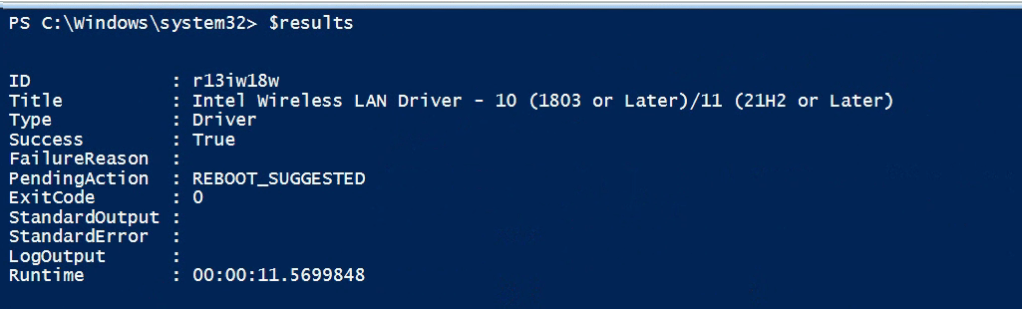
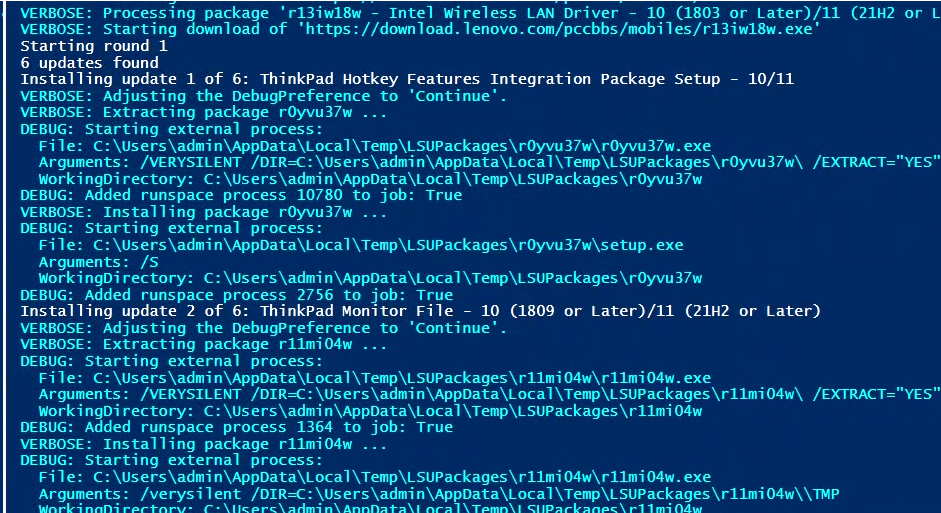
Results:
 Steven’s Knowledge Base