
Windows Package Manager (winget) is a Microsoft-built command-line tool that enables users to install, upgrade, remove, and manage applications on Windows through the terminal.
It is especially beneficial for IT administrators who prefer not to manually maintain application versions within MDT. Instead of updating and repackaging applications individually, winget automatically pulls the latest available version at deployment time. This significantly reduces maintenance effort and ensures applications are up to date when deployed.
Common use cases include frequently updated applications such as web browsers. This post will detail how to implement winget in MDT environment.
Current lab script folder is: “\MDT\DeploymentShare$\Scripts\Powershell_Script”
Overview:
Utilize winget (Windows Package Manager)cmdlet in order to install packages. Integrates winget with MDT for lite touch deployment. Winget is named Windows package manager created for windows 10 and 11.

Cuts down time to manually update msi or exe packages to keep up to date with version

Winget will always pull the latest version unless different version is provided in command.

What is required for Winget to run?

* Windows 11 have native support for winget
* Requires up to date windows app installer(Microsoft.DesktopAppInstaller is the package name for App Installer, the app that provides winget (Windows Package Manager) in Windows.)
* Requires Microsoft store to be up to date for the current version of OS build
Implement Winget:
1. In order to use winget as part of a Task Sequence, the PowerShell script triggers the Microsoft Store updater and wait until winget is the correct version before exiting. Save this powershell script in the script root folder (\\mdt\deploymentshare$\scripts\)
	## Run the MS Store update and wait until winget is installed
	# Credits to https://gal.vin/posts/2022/win-package-managers/ for the following script

	Write-Output "##### Creating Log folder #####"

	$LogPath = "C:\Temp\MDT"
	$TestPath = Test-Path -Path $LogPath
	if($TestPath -eq $false ){
	    New-Item -Path $LogPath -ItemType "Directory"
	}
	# start logging
	$LogFile = "$LogPath\WindowsAppInstaller_$(Get-Date -Format 'MMddyyyy-HHmmss').log"
	Start-Transcript -Path $LogFile -Force

	#################################
	# start the Microsoft.DesktopAppInstaller update in order to get winget to latest

	$OSVBui = [environment]::OSVersion.Version | Select-Object -expand build
	$wmiObj = Get-WmiObject -Namespace "root\cimv2\mdm\dmmap" -Class "MDM_EnterpriseModernAppManagement_AppManagement01"

	## Windows 11 22H2
	If ($OSVBui -eq "22621")
	{
	    Write-Output "`nStarting update for Microsoft.DesktopAppInstaller..."
	    Do {
	        $updateTrigger = $wmiObj.UpdateScanMethod()
	        start-sleep -S 60
	    } until (Get-appxprovisionedpackage -online | where-object {$_.packagename -like 'Microsoft.DesktopAppInstaller*'} | where-object {$_.version -notlike "2022.310.2333.0"})
	}

	#################################
	# get current desktop app installer version
	Write-Output "`nCurrent version of Microsoft.DesktopAppInstaller:`n"
	Get-appxprovisionedpackage -online | where-object {$_.packagename -like 'Microsoft.DesktopAppInstaller*'}

	#################################
	Stop-Transcript
2. Create a batch file with command to call the PS script above until the command completes. The bat file is named “WindowsAppInstaller.bat”
start /wait powershell -ep bypass \\MDT\DeploymentShare$\Scripts\Powershell_Script\WindowsAppInstaller.ps1
3. Once the batch file is created, place it on task sequence. The location of the bat file will be under script root folder as well. (\\MDT\DeploymentShare$\Scripts\Batch_Script\)
The process is simply use .Bat to call the PS1 script “WindowsAppInstaller.ps1”. There is a way to do this under one powershell script, however this method is tested and consistent without producing any errors.
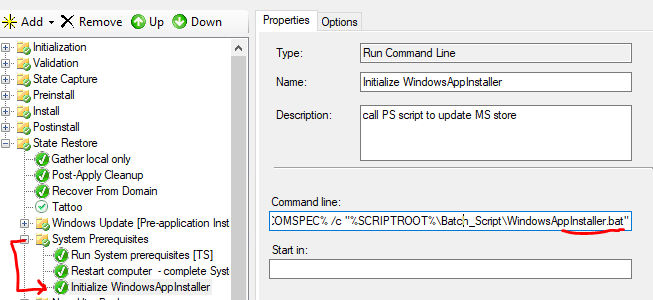
4. Once the “WindowsAppInstaller” steps is done running, Admin can now add additional scripts after this step to install apps using winget cmdlet.
An example of a script with following command will install Notepad, Chrome and firefox on device level.
winget install -e --id Notepad++.Notepad++ --accept-package-agreements --accept-source-agreementswinget install -e --id Google.Chrome --accept-package-agreements --accept-source-agreementswinget install -e --id Mozilla.Firefox --accept-package-agreements --accept-source-agreements
Transcript logs:
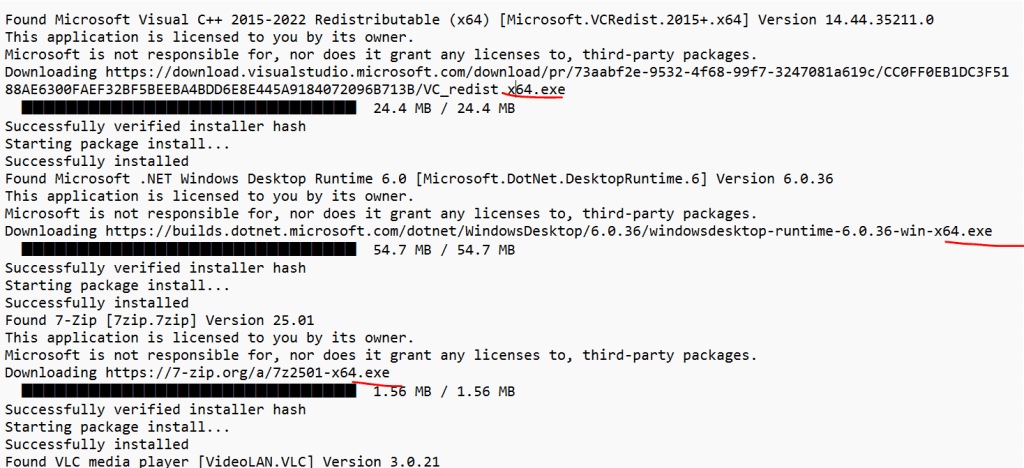
Notes:
Not all Winget packages offer device level install. Some are from MSStore and MSIX installs meaning its provision per device but installs on user level. This method provides users the ability to modify and delete the sandbox app.
Highly recommend using parameter “–scope machine” (winget install Google.Chrome –scope machine) for device installs. Do note that not all apps support the “–scope machine”.
Winget Show will also reveal the MSIX package under ID column

Source: MSStore
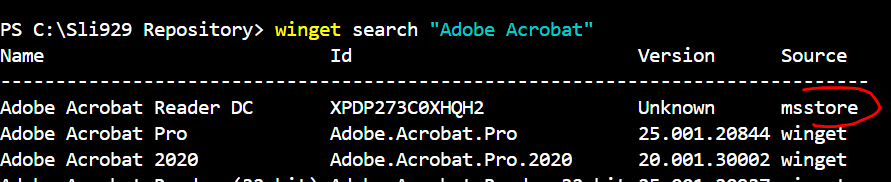
Name or ID will reveal msix

Show more information of winget packages:
Reveals more details on the winget package to determine installer url and format of installer.
winget show "Lenovo system update"winget show Notepad++.Notepad++

WinGet supports the following types of installers:
- EXE (with Silent and SilentWithProgress flags)
- ZIP
- INNO
- NULLSOFT
- MSI
- WIX
- APPX
- MSIX
- BURN
- PORTABLE
Examples:
1. Firefox Long term support
winget install –id=Mozilla.Firefox.lt -e –accept-package-agreements –accept-source-agreements
2. Google chrome enterprise
winget install –id=Google.Chrome -e –accept-package-agreements –accept-source-agreements
3. Lenovo system update
winget install –id=Lenovo.SystemUpdate -e –accept-package-agreements –accept-source-agreements
4. Dbeaver
winget install –id=DBeaver.DBeaver.Community -e –accept-package-agreements –accept-source-agreements –scope machine
5. Visual Studio Code
winget install –id=Microsoft.VisualStudioCode -e –accept-package-agreements –accept-source-agreements –scope machine
6. ***Microsoft Teams (NOT SUPPORTED for Device Wide install – use bootstrapper.exe instead)
winget install –id=Microsoft.Teams -e –accept-package-agreements –accept-source-agreements –scope machine


 Steven’s Knowledge Base