
The Microsoft Entra ID connector (formerly Azure Active Directory connector) allows workflows in Azure Logic Apps, Microsoft Power Automate, Power Apps, and Microsoft Copilot Studio to automate identity management tasks within a Microsoft Entra ID tenant.
This managed connector is one that I have not gotten a chance to use for the new hire project, but I do look forward to using it in the future for identity lifecycle management. This post will provide a general overview of the connector.
Core Capabilities
| Category | Primary Actions |
| User Management | Create user, Get user, Update user, Assign manager, Refresh tokens (Invalidates all active user refresh tokens) |
| Group Management | Create group, Create security group, Create Office 365 group, Get group, Get group members |
| Membership Management | Add user to group, Remove Member From Group, Check group membership (V2), Get groups of a user (V2) |

Prerequisites & Required Administrator Permissions
The connector uses default Authentication:
Authentication Type: Interactive OAuth 2.0 (Delegated)

How It Works: You click Sign In and authenticate using an Entra ID user account. Azure stores encrypted access and refresh tokens, which are automatically renewed in the background.

The authenticating account requires direct tenant administrative access and must have the following Microsoft Graph permissions:

 1. User.ReadWrite.All
 2. Group.ReadWrite.All
 3. Directory.ReadWrite.All
Known Issues & Technical Limitations:
• Custom Attributes: The connector does not return custom directory attributes or extensions on Entra ID entities.
• Throttling Limit: 200 API calls per connection every 60 seconds.
• Non-Shareable Connections: Connections cannot be shared between users. If a Power App or Logic App is shared, secondary users are prompted to create their own explicit connection.


Unsupported Groups:
• Mail-Enabled Security groups are not supported.
• Groups configured with the isAssignableToRole = true attribute are currently unsupported.

Pagination Limit:
• Get group members returns up to 1,000 items by default. Retrieving larger member lists requires enabling Pagination under the action settings and defining a threshold limit.

Conditional Access / MFA Enforcement:
• If your tenant enforces strict Azure Conditional Access / MFA policies on the connection account, the connector will fail unless a specific bypass/workaround is configured.
Setup:
User requesting access to Microsoft Entra connector in logic app requires permission to Azure logic apps. The service principal must be registered in order to be used.

Sign in with Admin to grant permissions:


Permissions

Example: (Get user with Microsoft Entra ID using OAuth2 default authentication)
The following example will reveal the status code whether a user exist or not. That information can then be used to determine the next step of the user provision workflow.
Sign in with an account that has permission to read user profile.

If a user exist – Error code 200

If a user is not found – Error code 404
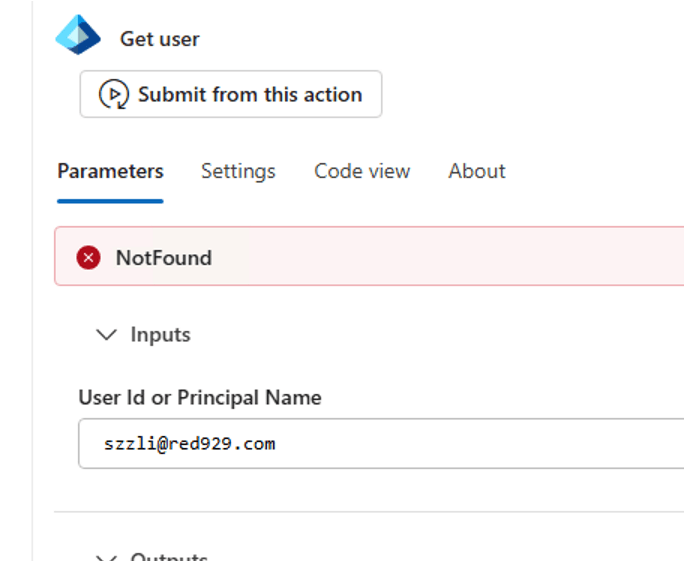
Get user using entra ID connector with REST API call using HTTP action: (User managed identity)
The user identity being used is [UAMI_Red929], apply the following permissions in order to use it with Entra connector:
1. User.ReadWrite.All
2. Group.ReadWrite.All
3. Directory.ReadWrite.All
The URL is [https://graph.microsoft.com/v1.0/users/”UPN”/identities]- the UPN dynamic content is declared from the variable in workflow. Can enter static value as well.


Authentication:

Output (The output does not reveal much detail unless it specified)

Example: Use entra ID connector or HTTP call to validate if user already exist in Entra
• If the environment is hybrid, the disabled users in on premise AD should show up in entra as disabled.
• Use Entra ID as source of truth for user properties and attributes
• If user is not present in Entra, set up condition action and proceed with user creation.

1. Set up REST API call to entra

2. Set up condition action for IF/ELSE flow to evaluate the output of the call
IF the http call is successful, the user must exist with status code of 200. Evaluate as TRUE > Proceed with account creation.
IF the http call is not successful, the user must not exist with status code of 404. Evaluate as False > Skip account creation.

Set the condition [IF user exist] to run if the previous action fails. IF this is not configured, the entire workflow stops if the HTTP call to get user fails.


Verify:
1. User exist in entra. Proceed with account creation.

2. User does not exist in entra. Skip account creation.


