
Permission scopes for Microsoft graph
Microsoft Graph relies on the OAuth 2.0-based Microsoft identity platform to secure data access through permissions and explicit consent. By prioritizing the principle of least privilege, this system ensures that automation workflows and apps only receive the minimum level of access necessary to function.
The Concept of “Scopes”
Permissions in Microsoft Graph are called scopes. They are granular, meaning they target specific resources (users, groups, mailboxes).
- Structure: A scope like User.ReadWrite.All breaks down into the Resource (User), the Action (ReadWrite), and the Extent (All).
- Range: Scopes can be narrow (reading only your own profile) or broad (modifying every user in the entire tenant). (Ex: Delegated or app permisson)
The Two Types of Permissions
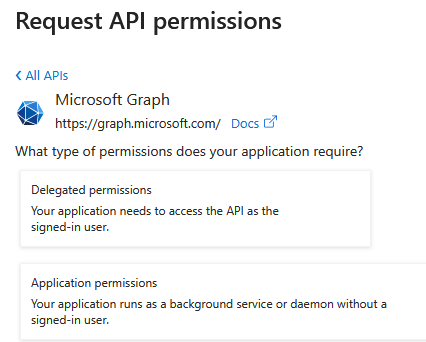
Microsoft Graph distinguishes between how an app accesses data based on whether a human is present.
| Feature | Delegated Permissions | Application Permissions |
| User Presence | Required (User must be signed in). | Not required (Runs as a background service). |
| Acting As | Acts on behalf of the signed-in user. | Acts as the application itself. |
| Effective Power | The intersection of user rights and app rights. (The app can’t do more than the user). | The full privilege of the scope granted. |
| Common Use | Interactive apps, Outlook mobile, CLI tools. | Automation, sync services, background daemons. |
Example when setting up app registration:
Consent and Security
Before an app can use a scope, it must be granted consent.
- User Consent: Individual users can allow an app to access their data (e.g., “Allow this app to read my calendar”).
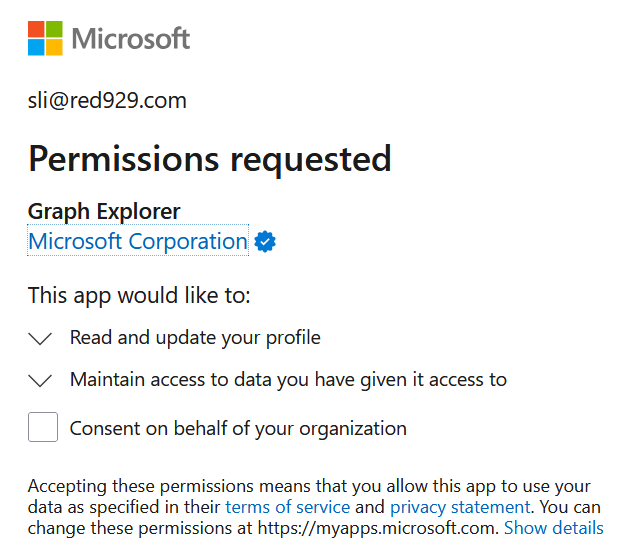
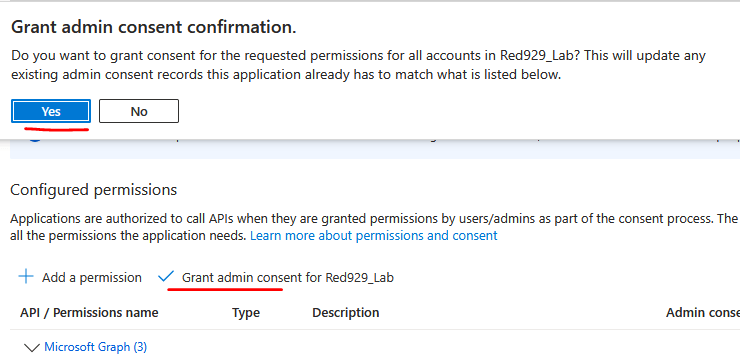
- Admin Consent: A tenant administrator grants permission for the entire organization. This is required for all Application Permissions and high-privilege Delegated Permissions.
- [!CAUTION] Security Warning: Application permissions are high-risk. Since they don’t require a user to sign in, anyone with the app’s secret or certificate has full access to the granted scopes. This can lead to privilege escalation if not managed strictly.
Example:
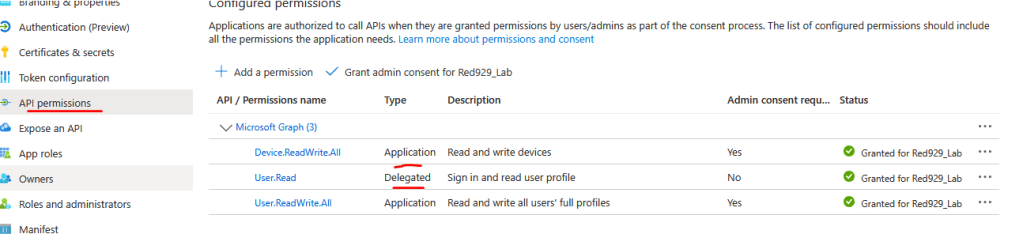
A permission scope like User.ReadWrite.All means:
   • Affected resource: User
   • Type of privilege: Read and write
   • Scope: All users
   • Effective permission: Read and write all users

A permission scope like User.Read means:
   • Affected resource: User
   • Type of privilege: Read
   • Scope: The currently signed-in user
   • Effective permission: Authenticate and read the currently signed-in user
Under Entra > app registration > app > API permission:
Example:
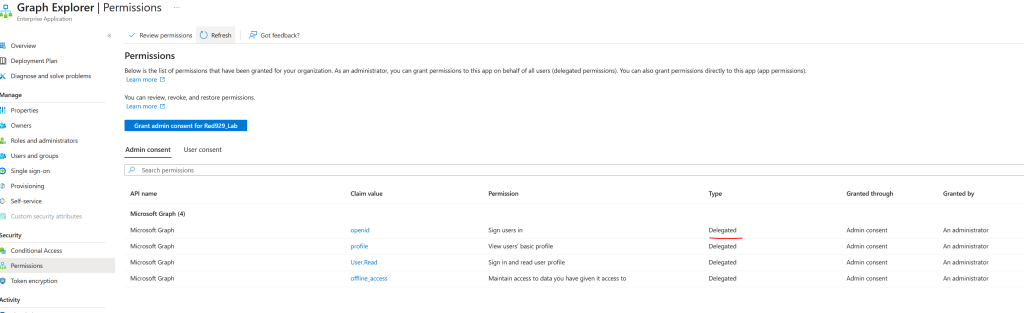
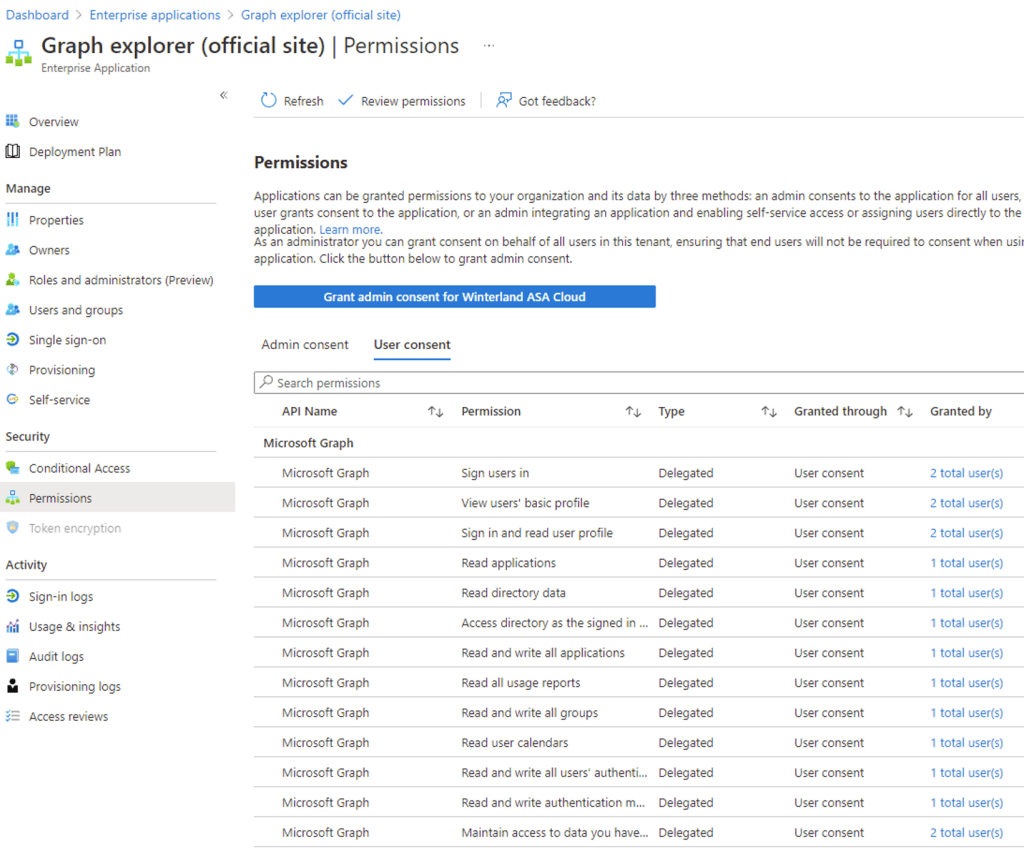
Under the portal – (https://developer.microsoft.com/en-us/graph/graph-explorer), I am currently signed in with user profile and consent is sent under (user consent/delegated permission). The application will be registered under the name [Graph Explorer] in Entra.

Go to Entra Admin portal -> Enterprise Applications -> Graph Explorer (official site) and click the Permissions tab to see all the consented permission scopes for single users (user consent) or all users (admin consent).
High level overview:
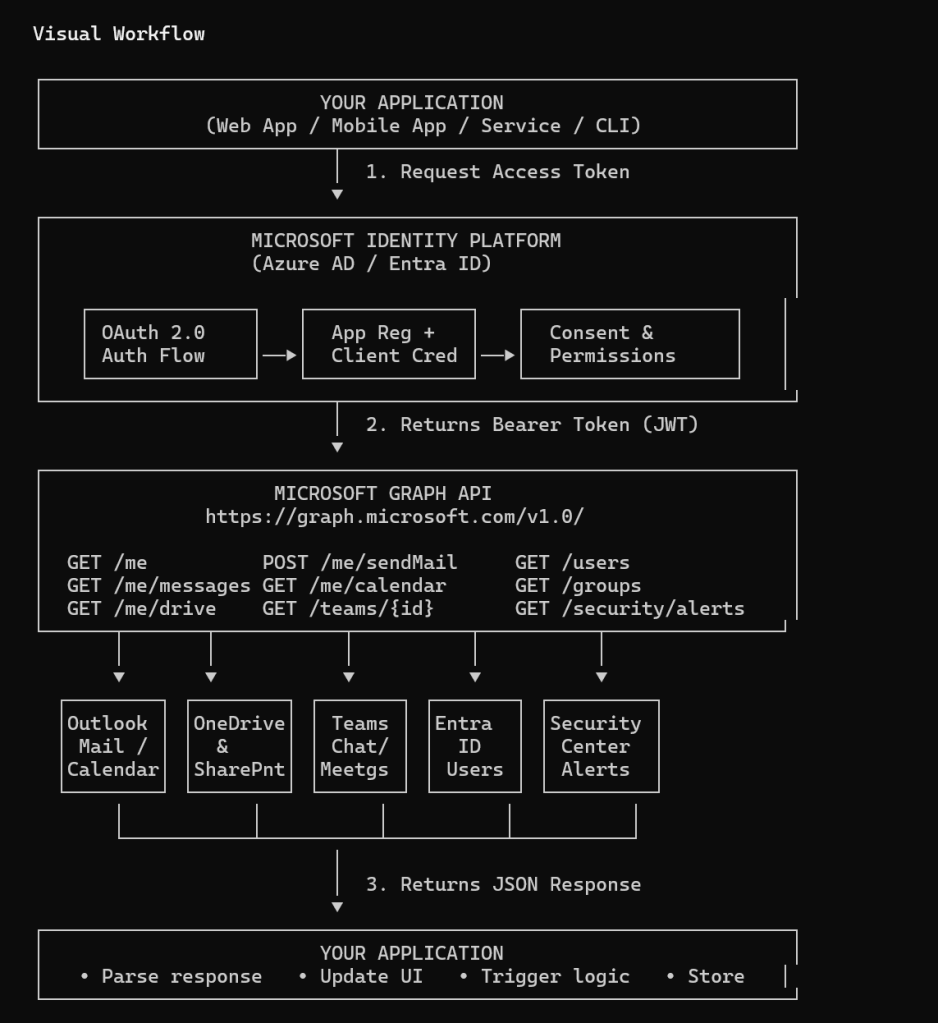
The idea here: your app never talks to Outlook, Teams, SharePoint, or Entra ID directly — it makes one call to graph.microsoft.com/v1.0, and Graph internally routes it to whichever backend service owns that data, then hands back a single unified JSON shape either way. That’s the whole point of Graph as an abstraction layer: one auth model, one endpoint, one response format, regardless of which Microsoft 365 service is actually behind the data.
Source:
https://learn.microsoft.com/en-us/graph/permissions-reference

