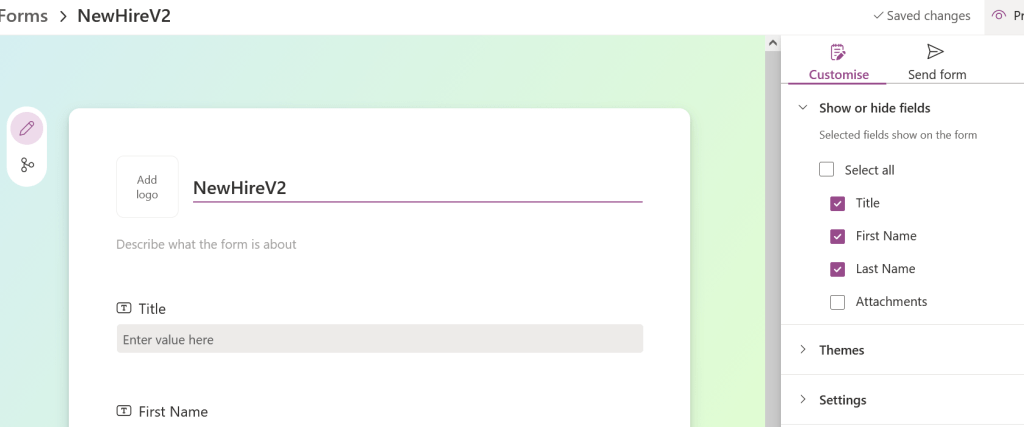
Microsoft Lists Forms is a native feature that lets you build clean, standalone intake questionnaires directly on top of a SharePoint or Microsoft List.
Instead of forcing users to look at a dense spreadsheet grid, you send them a secure link to a polished form. When they click submit, the data instantly populates your list columns.
The 4 Biggest Takeaways:

    ** No Power Apps Needed: You can design, brand, and layout the form directly inside your list settings without needing a separate app builder. The list can also be modified via sharepoint.

    ** Conditional branching Logic: You can dynamically show or hide fields based on previous answers (e.g., if a user selects "Hardware", show the "Serial Number" field).

    ** Controlled Access: Users can submit information through the form link without having permission to view or edit the other rows in the master list.

    ** Automation Ready: Because it writes directly to the list schema, a submission immediately fires off backend workflows like Azure Logic Apps.
- Feature Overview & Walkthrough: Microsoft Lists Forms Video Tutorial
- Official Microsoft Documentation: Microsoft Tech Community Announcement
How It Triggers the Automation Flow
-----------------------------------

From an architecture perspective, this new capability provides a pristine, lightweight entry point for backend orchestration.

Because the form writes directly to your SharePoint list columns, it naturally drops straight into the provisioning architecture we just designed:


[ User Completes Lists Form ]
                 │
                 ▼
     (Data saved to SharePoint)
[ Logic App Trigger: "When an item is created" ]
                 │
                 ▼
[ Execute Azure Automation Runbook on Hybrid Worker ]
Create a lists form
First thing is to create the environment for employee provisioning first. The most important item is having a sharepoint site dedicated to this task.
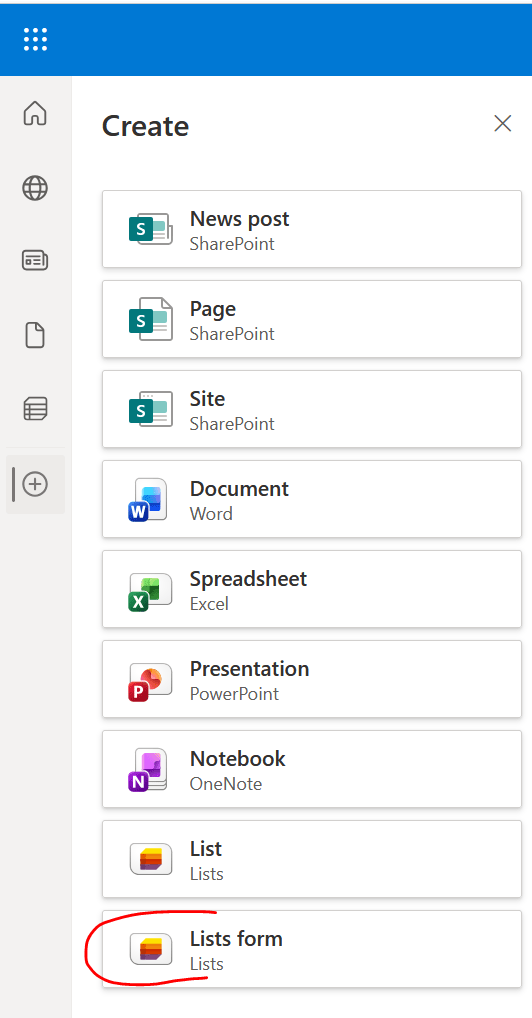
- The site name will be “UserList” > dashboard > select “+” > create List form.
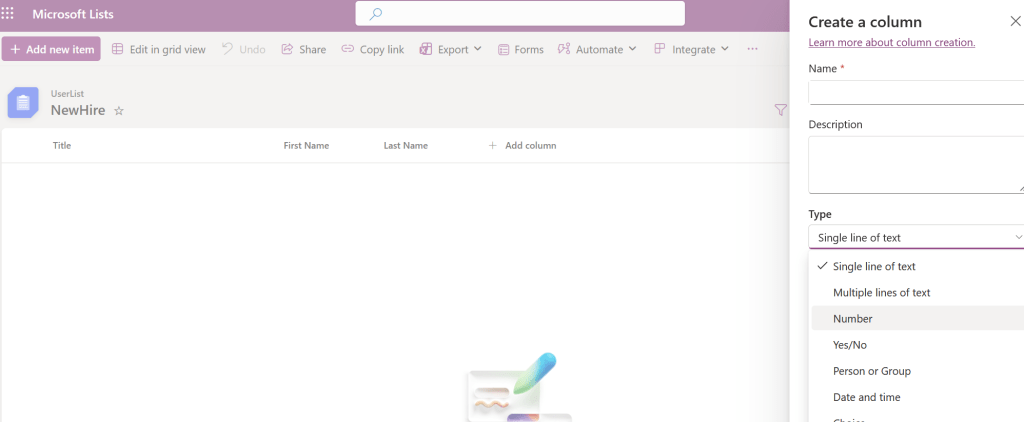
2. Modify the list via the default GUI using “+ Add column”
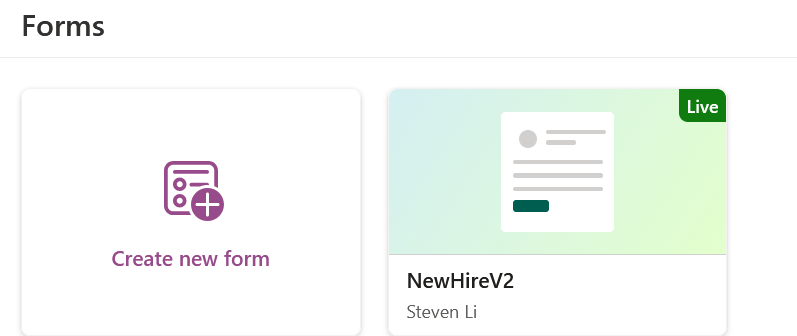
3. Once changes are done – generate the form by select the “Forms” button. This is the link that IT or user can fill out to start the on board process.

4. The field must be selected and shown on the form in order to be fillable. Do note that each [List form] has its own unique form and link once its generated. A form cannot reference another form.