
Overview
This guide demonstrates how to configure API permissions as well as certificate-based authentication for the [AzMSGraph] Application Service Principal to enable secure, non-interactive access to Microsoft Graph.
Next Steps: Establishing this authentication method is a prerequisite for our upcoming Logic Apps automation, which requires Microsoft Graph, SharePoint, and Microsoft 365 permissions to execute the new hire on-boarding pipeline.
Hybrid Worker Note: These steps apply directly to Hybrid Runbook Worker groups. Once the application is registered and its API permissions are configured, administrators can export the certificate from Azure Key Vault and import it into the on-premises machine’s local certificate store—either manually or using an automated script—to enable certificate-based authentication.
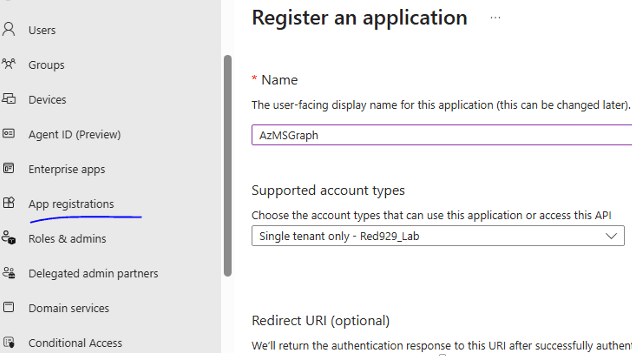
Register Application [AzMSGraph]
In Microsoft Entra ID (formerly Azure AD), an App Registration is the process of telling Entra ID about your application so it can handle identity and access management. Think of it as creating a “digital identity” or “blueprint” for your app.
Why do you need it?
You register an app to:

Get a Client ID: A unique ID that identifies your app to Microsoft.

Enable Sign-in: Allow users to log in with their work, school, or personal Microsoft accounts.

Access APIs: Request permission to call services like Microsoft Graph (to read emails, calendars, etc.) or your own custom APIs.

Establish Trust: Create a "secret" or "certificate" so Entra ID knows it's really your app trying to talk to it.
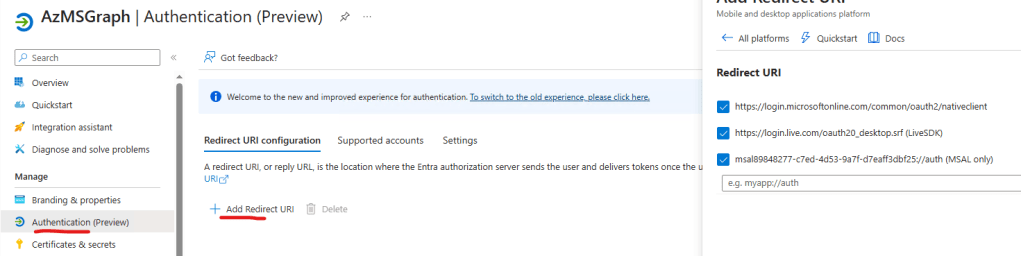
Enable redirect URL
Assign API permissions [AzMSGraph]
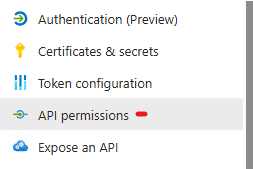
1. App registration > API permission
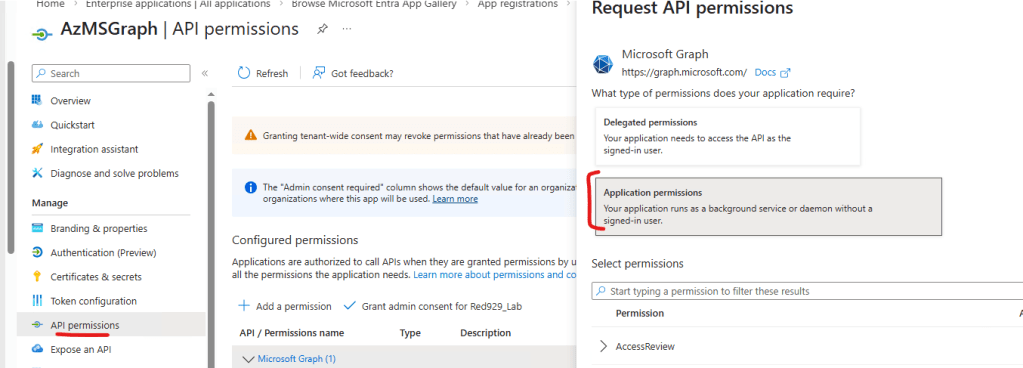
2. API permissions > Select application permission (Do not use delegated permission to avoid passing credentials as user)
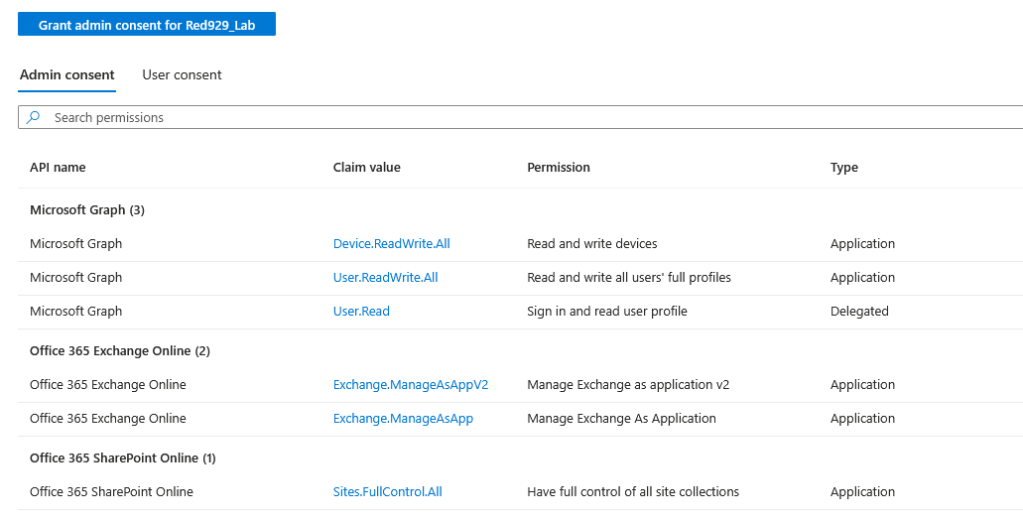
Required Permissions (*Grant Admin consent must be granted)
Microsoft Graph

User.ReadWrite.All (Application): Full administrative access to user accounts. Essential for your onboarding pipeline to provision accounts, set job titles, assign department attributes, or reset initial passwords.
Office 365 Exchange Online

Exchange.ManageAsAppV2 (Application)
Exchange.ManageAsApp (Application)

Enables unattended App-Only authentication to Exchange Online PowerShell (Connect-ExchangeOnline -CertificateThumbprint ...). This lets your pipeline automatically configure mailboxes, distribution list memberships, or email forwarding for new hires without requiring a traditional service account with a password.
Office 365 SharePoint Online

Sites.FullControl.All (Application): Grants the service principal administrative access across all SharePoint site collections in the tenant. This allows your onboarding scripts to automatically grant new hires access to team sites, create personal folder structures, or provision document libraries.
Verify: (There are other permission provided like device read/write, it is not necessary for this project but may be useful later on)
Set up authentication for app [AzMSGraph] (Certificate method)
In the Certificates & secrets section of [App Registration], you define the credentials your application uses to prove its identity to Microsoft. This is effectively the “password” for your application.
Certificates (The "Key")

Instead of a text string (Secret), you upload the public key (.cer, .pem, or .crt) of a certificate. Your application then uses its private key to sign an authentication request.

Best For: Production environments.

Pros: Much more secure than secrets. The private key never leaves your server (or Key Vault).

2026 Industry Change: Be aware that standard certificate validity is being shortened globally. Many public CAs now limit certificates to 398 days or less. Microsoft recommends rotating these every 180 days.
We decided to go with certificate-based authentication because it works reliably with our Hybrid Worker group. While Managed Identity is another popular approach, tracking down token failure issues with it can be a headache. Certificates have been rock-solid for this project and haven’t failed once and easy to implement.
Visual workflow to properly establish certificate authentication:
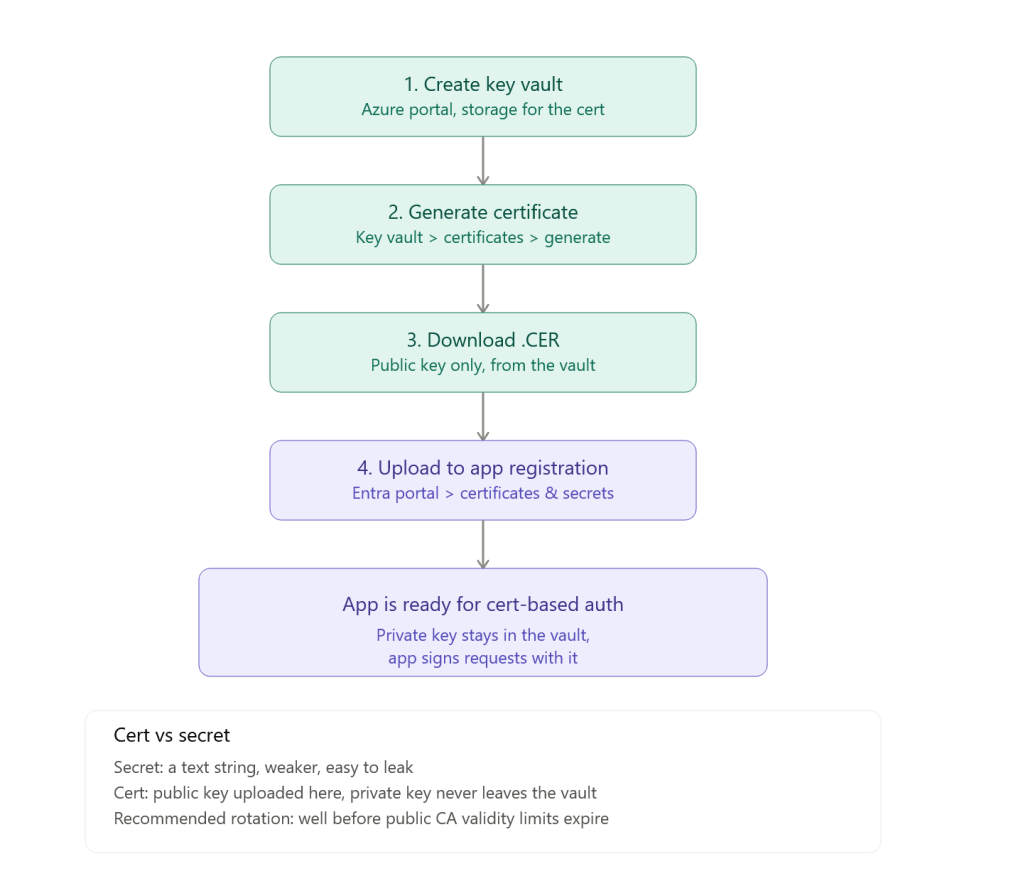
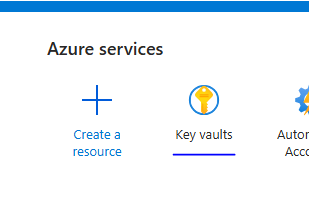
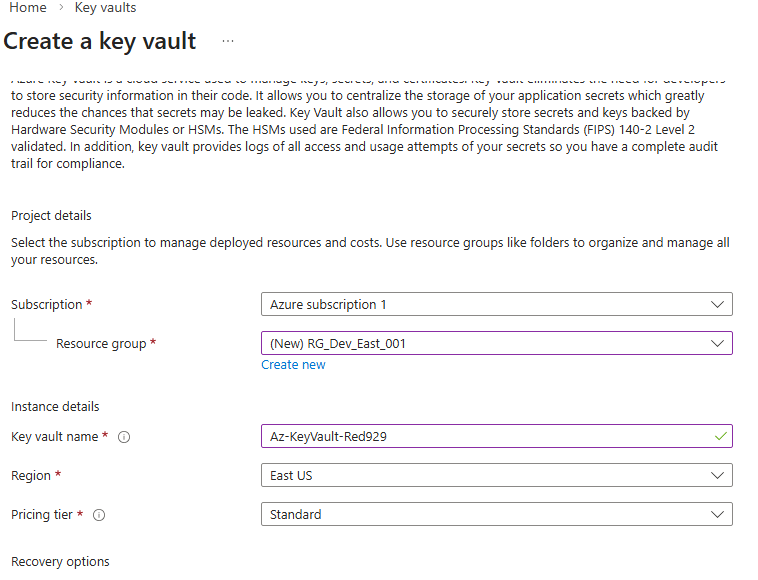
1. Create key vault (In Azure admin portal – https://portal.azure.com/auth/login/) [Az-KeyVault-Red929]
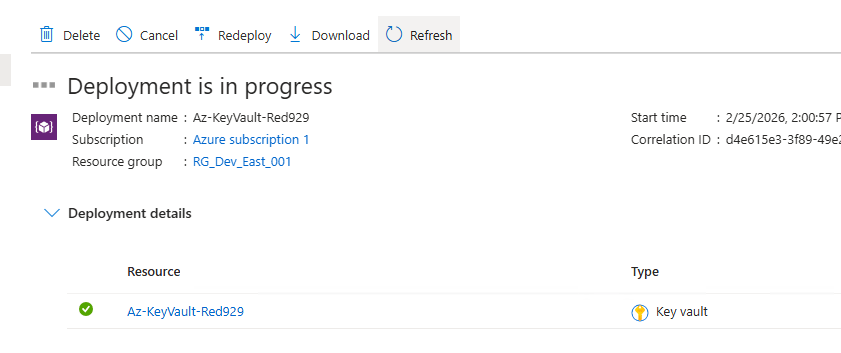
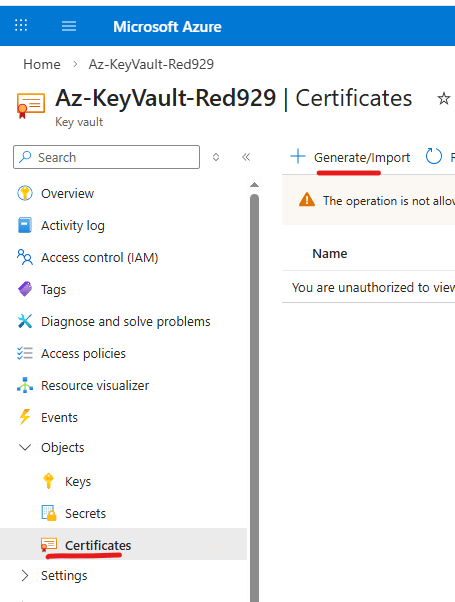
2. Generate a certificate from key vault [Az-KeyVault-Red929]:
Go to Azure Portal > Select Key Vault> Certificate > Generate
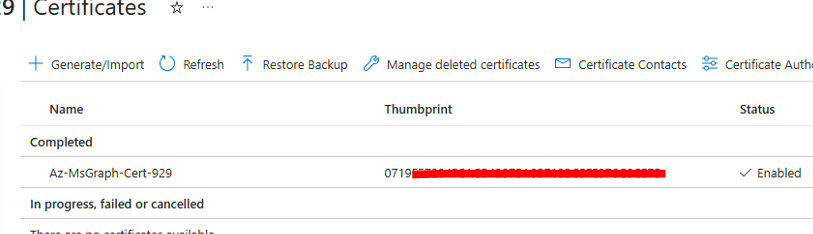
Certificate creation complete:
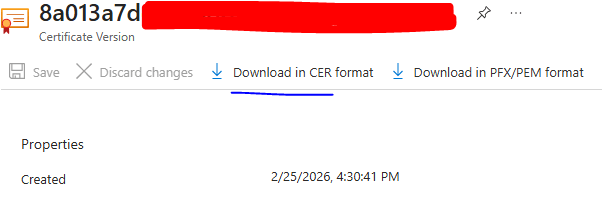
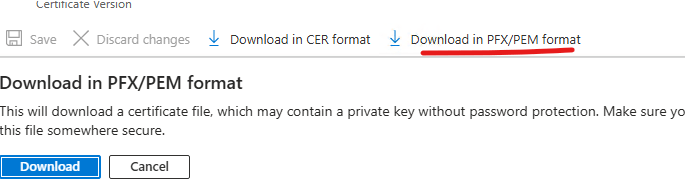
3. Download the certificate in .CER format (Public Key) from the key vault [Az-KeyVault-Red929]
4. Upload the .CER file (Public Key) to application [AzMSGraph]
Go back to Entra admin portal > app registration > select app > upload the .CER file
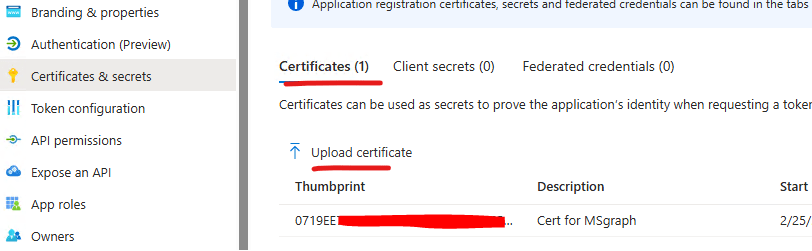
Manual verification for CBA (Certificate Based Authentication)
The following steps shows how to manually import certificate in order to use for authentication
From on premise device:
Start with manual import of the PFX cert:
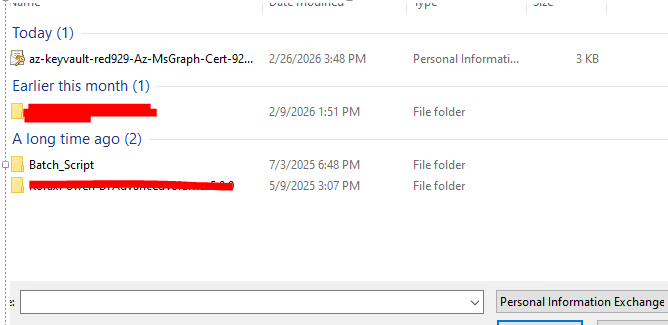
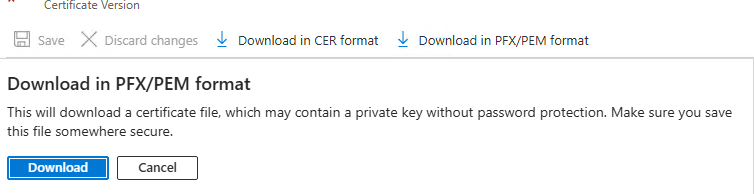
Test the cert by importing to computer and user personal directory. Test by importing only the PFX (Personal information exchange) /PEM (Privacy Enhanced Mail) certificate format. This cert is required to connect to the app successfully because it contains the Public and private Key. (Default password is blank)
Import it to certificate store per machine or per user.
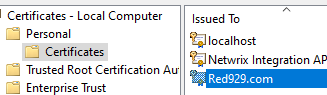
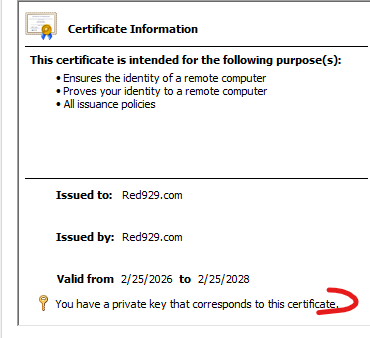
Once the cert if imported, try to connect with the following commands:
Connect-MgGraph -ClientID “xxxxxxxxxxxxxxx” -TenantId “xxxxxxxxxxxxxxx” -CertificateThumbprint “xxxxxxxxxxxxxxx”
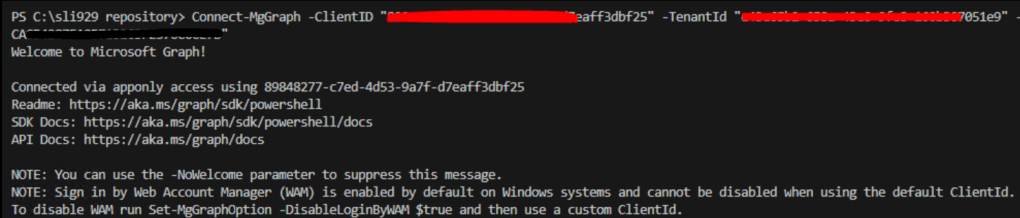

Automated verification for CBA (Certificate Based Authentication)
The following script will automatically connect to key vault – access to vault requires interactive login.
Once it access key vault, retrieve the private key certificate and store it in memory then import it over to local machine certificate store. Once the key is on local machine, use it to connect to Microsoft graph with powershell SDK.
Visual workflow from script:
1. Install all the necessary modules (MS graph authentication, key vault and accounts)
2. Initiate interactive login ONCE
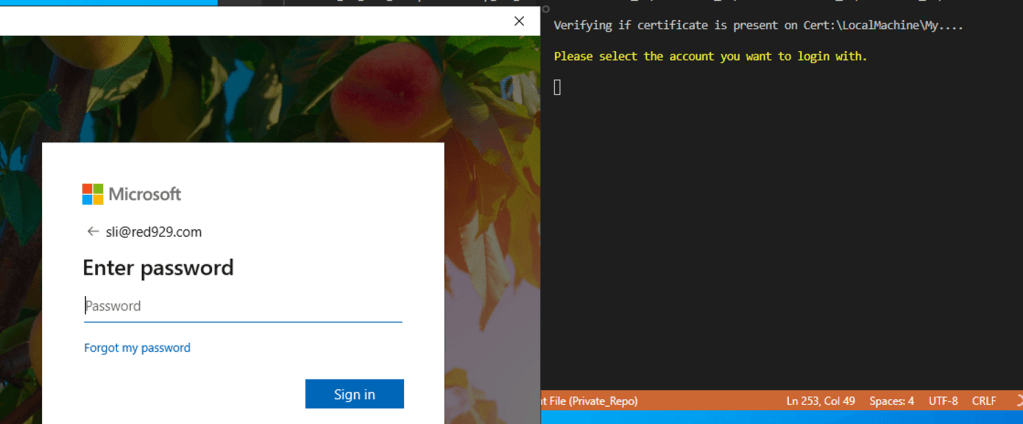
3. Once authenticated to MS graph – retrieve private key from key vault
4. Import the private key (PFX) onto computer certificate store.
5. Once imported- use the key to authenticate against MS Graph
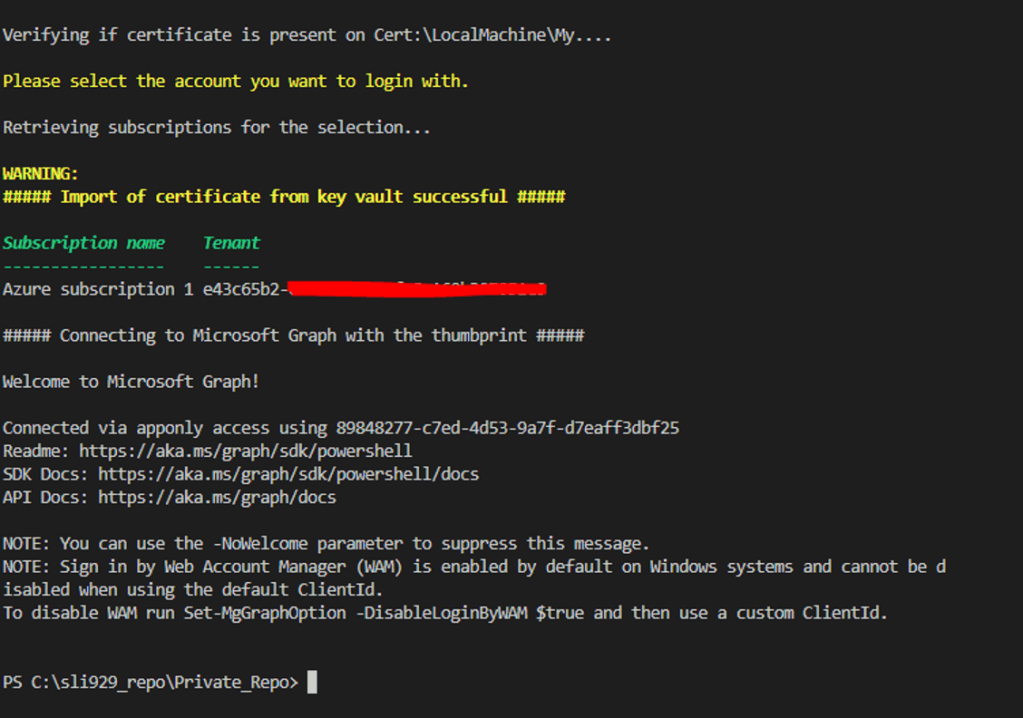
6. Verify connection context
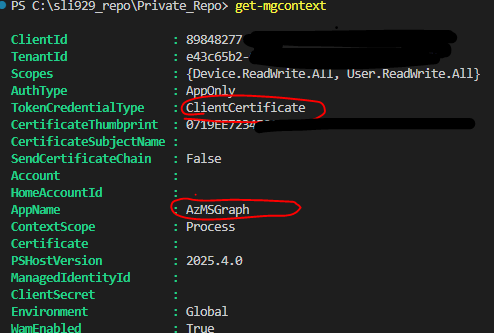
>> Authenticate_MSGraph_Certificate.ps1 (Click to reveal code)
<#.SYNOPSISAuthenticate with Certificate-Based Authentication (CBA) to Microsoft Graph for Hybrid Worker Groups.- Script is not for azure runbook.DESCRIPTION Checks local machine cert store for required certificate. If missing, retrieves it from Azure Key Vault directly in-memory, imports it to Cert:\LocalMachine\My, and authenticates via Connect-MgGraph..NOTES***** Requires Interactive Login ONCE *****# Requirements: 1. The app is already registered 2. API permissions configure 3. Key vault created with new certificate 4. Certificate uploaded to app (AzMsGraph) in azure portal-----------------------------------The following modules are required for certificate authentication:Microsoft.Graph.AuthenticationAz.AccountsAz.KeyVaultTroubleshoot:# Remove moduleget-module -Name Microsoft.Graph.Authentication |Uninstall-Module -Force# Removing module directoryRemove-Item -Path "C:\Program Files\PowerShell\Modules" -Recurse -ForceRequires -Version 5.1#>######################################################### # Set Variables ##########################################################$TenantID = "xxxxxxxxxxxxxxxxxxxxxxxxxxxxxxx"$Subscription = "xxxxxxxxxxxxxxxxxxxxxxxxxxxxxxx"$AppID = "xxxxxxxxxxxxxxxxxxxxxxxxxxxxxxx"$vaultname = "Az-KeyVault-Red929"$certname = "Az-Cert-929"$Cert_Subject= "CN=Red929.com"##################################################### # Declare Functions # ######################################################Install module if not availablefunction ModuleInstall { [CmdletBinding()] param ( [Parameter(Mandatory = $true)] [string]$ModuleName )# Check if module is loaded - $Module = get-module -Name $ModuleName # If module is not loaded - try import it if(-not $Module){ Write-Warning "Attempting to import $ModuleName module.......`n" import-module $ModuleName -Force # Check module post import $Module_Check = get-module -Name $ModuleName # Module path $Path = (Get-Module -ListAvailable $ModuleName).path if(Test-Path -path $Path){ Write-Output "Imported $ModuleName from:`n$path.......`n" } # If importing module fails - install it then import it if(-not $Module_Check){ # Install the module Write-Output "`n####### Installing $ModuleName #######`n" Install-Module -Name $ModuleName -Repository PSGallery -Force -AllowClobber -Scope AllUsers # Import the module Write-Output "`nImporting $ModuleName module.......`n" import-module $ModuleName -Force # Check for imported module if(get-module -Name $ModuleName){ Write-Warning "`n##### $ModuleName module is installed and imported successfully #####`n" # Module path $Path = (Get-Module -ListAvailable $ModuleName).path Write-Output "`nImported $ModuleName from:`n$path.......`n" }else{ Write-Warning "`n##### $ModuleName module is NOT installed #####`n" } } }}# End function [Module_Install]######################################################### # Start Install modules ########################################################### Get NuGet if not available $Nuget = Get-PackageProvider NuGet if (-not $Nuget) { Write-Output "`n ####### Installing provider NuGet #######`n" Install-PackageProvider -Name NuGet -Confirm:$false -Force -ErrorAction SilentlyContinue }# Install Required Modules$RequiredModules = @('Microsoft.Graph.Authentication', 'Az.Accounts', 'Az.KeyVault')foreach ($module in $RequiredModules) { ModuleInstall -ModuleName $module}######################################################### # certificate check ########################################################### Check if cert if present and loaded on local machine personal store.Write-Output "`nVerifying if certificate is present on Cert:\LocalMachine\My....`n"$cert_check = Get-ChildItem Cert:\LocalMachine\My -Recurse | where {$_.Subject –like "$cert_subject"}######################################################### # Start - Connect to Azure vault to get certificate ########################################################### If the cert does NOT exist - connect to azure to retrieve it from key vaultif(-not $cert_check){# Connect to azure first. ##### Interactive login REQUIRED FOR FIRST TIME sign on ##### Connect-AzAccount -Tenant $TenantID -Subscription $Subscription # Directly import into machine store from memory (without creating a temporary disk file) $CertificateSecret = Get-AzKeyVaultSecret -VaultName $vaultname -Name $certname -AsPlainText $CertificateBytes = [System.Convert]::FromBase64String($CertificateSecret) $flags = [System.Security.Cryptography.X509Certificates.X509KeyStorageFlags]::MachineKeySet -bor ` [System.Security.Cryptography.X509Certificates.X509KeyStorageFlags]::PersistKeySet $cert = New-Object System.Security.Cryptography.X509Certificates.X509Certificate2($CertificateBytes, "", $flags) $store = New-Object System.Security.Cryptography.X509Certificates.X509Store("My", "LocalMachine") $store.Open([System.Security.Cryptography.X509Certificates.OpenFlags]::ReadWrite) $store.Add($cert) $store.Close()}######################################################### # End - Connect to Azure vault to get certificate ################################################################################################################### # Start - Connect to Microsoft Graph (CBA) ##########################################################$Cert_Thumbprint = (Get-ChildItem Cert:\LocalMachine\My -Recurse | where {$_.Subject –like "$cert_subject"}).Thumbprint# If Cert just got imported - proceed to connect with thumbprintif($Cert_Thumbprint){ Write-Warning "`n##### Import of certificate from key vault successful #####`n" Write-Output "`n##### Connecting to Microsoft Graph with the thumbprint #####`n" Connect-MgGraph -TenantId $tenantid -ClientId $appid -CertificateThumbprint $Cert_Thumbprint# If cert already exist in store - use it to authenticate}elseif($cert_check){ $Cert_Thumbprint = (Get-ChildItem Cert:\LocalMachine\My -Recurse | where {$_.Subject –like "$cert_subject"}).Thumbprint Write-Warning "`n##### Certificate is already imported into the store.... Connecting to Microsoft Graph with the thumbprint #####`n" Connect-MgGraph -TenantId $tenantid -ClientId $appid -CertificateThumbprint $Cert_Thumbprint}else{ Write-Error "#### Import of certificate from azure vault failed... please try again! #### "}######################################################### # End - Connect to Microsoft Graph (CBA) ##########################################################
Troubleshoot
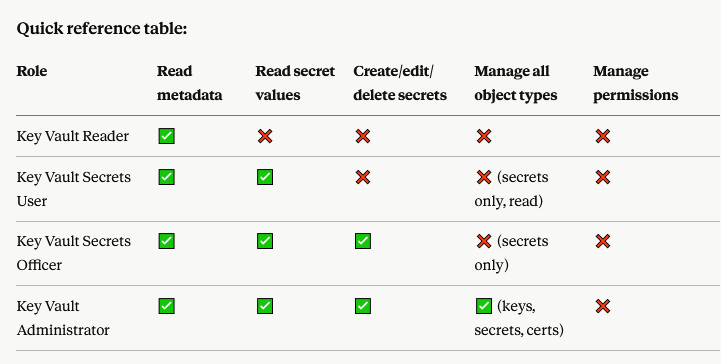
1. Cannot generate a certificate from key vault due to error message “The Operation is not allowed by RBAC”

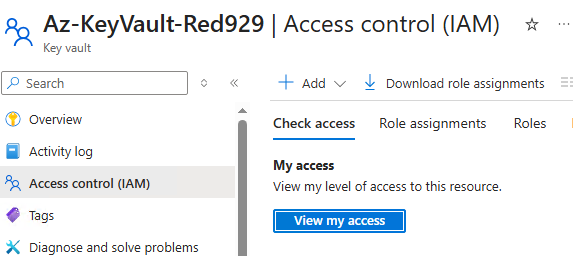
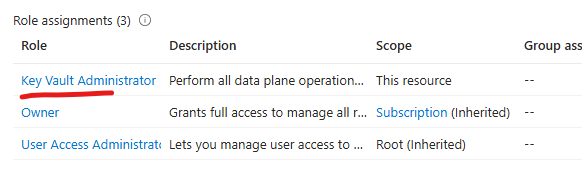
- Admin is not allow to generate certificate due to insufficient permission- modify the IAM for the key vault and provide the necessary RBAC role:
- Key Vault Secrets User & Key Vault Reader
- Key Vault Secrets Officer & Key Vault Reader
- Key Vault administrator
2. ClientCertificateCredential authentication failed: The certificate certificate does not have a private key.

Import the certificate as a .pfx file and ensure “Mark this key as exportable” is checked, ensuring the private key is included (Import .CER format only imports it as public key)
Issue – Only the .CER format was installed on the computer. The CER. (x.509) cert does not contain the private key with it. Admin must import it as PFX format since it contains private key.
Source:
https://andrewstaylor.com/2024/03/04/getting-started-with-graph-and-azure-automation/
https://blog.admindroid.com/connect-to-microsoft-graph-powershell-using-certificate/


One thought on “Service Principal (Application Authentication) [Certificate]”