
What is Microsoft graph?
Microsoft Graph is a REST API platform from Microsoft that lets developers access data and services across Microsoft 365 in a single unified endpoint.
Microsoft Graph is like one central gateway to get information from many Microsoft services such as:
   * Microsoft 365
   * Microsoft Teams
   * Outlook
   * OneDrive
   * SharePoint
   * Microsoft Entra ID
Instead of calling each service separately, developers send one API request to Microsoft Graph and get the data all through one endpoint – https://graph.microsoft.com
Why Microsoft Graph matters
Microsoft is deprecating Azure AD Graph and older PowerShell modules (MSOL, AzureAD)
- The recommended replacement is:
- Microsoft Graph API
- Microsoft Graph PowerShell SDK
Graph is now the standard way to manage Microsoft 365 / Entra ID programmatically.
Core concept to understand for REST API platforms
What is API?
An API (Application Programming Interface) allows systems to interact with each other

It enables:
Create
Read
Update
Delete (CRUD) operations

APIs don’t store data—they expose it securely to authorized clients (Certificate/API key/OAuth/Secrets)
Key idea: APIs are the gateway to data and services
What is REST API?
A REST API (Representational State Transfer API) enables communication between client and server over HTTP. It exchanges data typically in JSON format using standard web protocols.
Note: REST is an architectural style that defines how APIs should be designed,
whereas HTTP is the protocol used to transfer data between client and server.
They work together, but they are not the same.
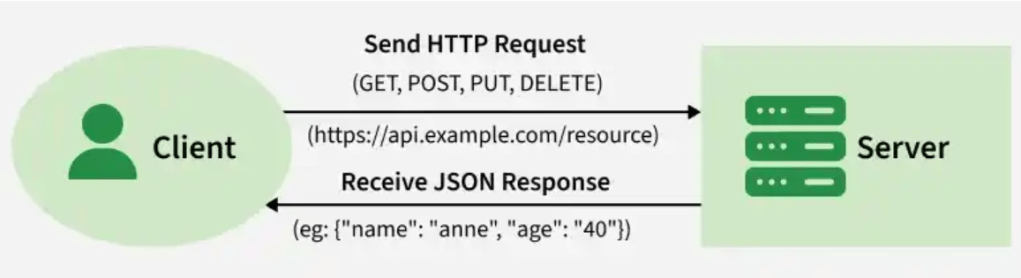
REST API Uses HTTP methods: (*SEND CALL to get/post/patch/.... data*)

	• GET: read data
	• POST: add new data
	• PUT: update existing data
	• PATCH: update a subset of data
	• DELETE: remove data

JSON (Data Format) (*RECEIVE RESPONSE back in JSON format*)
		○ JSON = JavaScript Object Notation
		○ Used for sending/receiving data in APIs
		○ Based on:
			§ Key-value pairs
			§ Arrays
Understanding JSON is critical because all Graph responses use it
API Version:
Microsoft Graph has two main versions:
🔹 v1.0
- Stable, production-ready- Fully supported by Microsoft
🔹 beta
- Stable, production-ready- Fully supported by Microsoft
Calls to MS graph are shown here:
For v1.0

For Beta

Test Invoke REST API Call
First create dummy API endpoint from the following address (link may expire) – https://app.beeceptor.com/console/mp00766ffb2ced84a211
1. copy and paste sample JSON code into payload
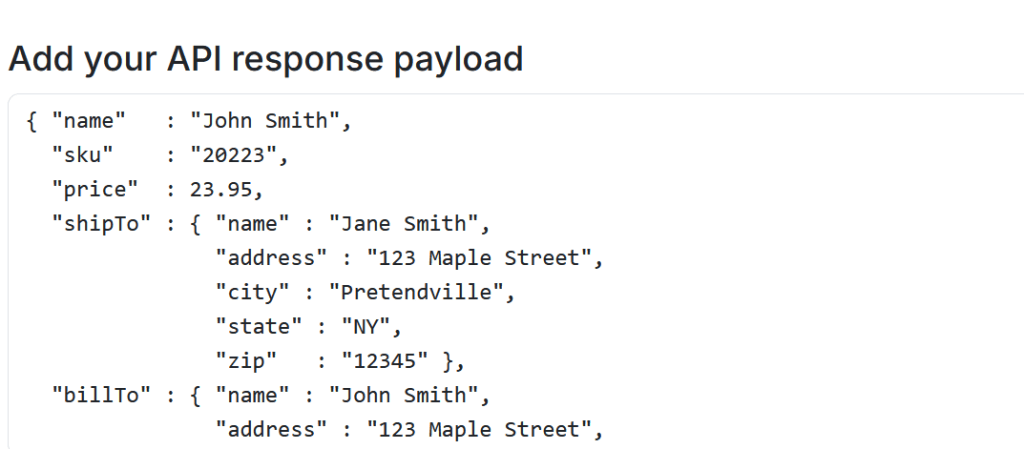
2. Generate a link – https://mp00766ffb2ced84a211.free.beeceptor.com/data
3. Use “Invoke-RestMethod -Method Get” or “Invoke-WebRequest” to retrieve data from that endpoint
Invoke-RestMethod -Method Get -Uri “https://mp00766ffb2ced84a211.free.beeceptor.com/data“

Invoke-WebRequest -Method Get -Uri “https://mp00766ffb2ced84a211.free.beeceptor.com/data“

Invoke-RestMethod -Method Get -Uri “https://mp00766ffb2ced84a211.free.beeceptor.com“

What is CRUD?
CRUD in a REST API refers to the four basic operations you can perform on data:
Create, Read, Update, Delete
To perform Create, Read, Update, or Delete (CRUD) operations in Microsoft Graph, a target resource must be specified—this is the object the action is performed on. In Microsoft Graph, resources are exposed as endpoints (nouns), while HTTP methods act as the verbs.
All Microsoft Graph requests use the base URL:
https://graph.microsoft.com/v1.0
🔹 CRUD Breakdown
| CRUD Operation | HTTP Method | Description |
| Create | POST | Add new data |
| Read | GET | Retrieve data |
| Update | PATCH/PUT | Modify existing data |
| Delete | DELETE | Remove data |
🔹 Microsoft Graph CRUD Examples (Users)
| Action (Verb) | Resource (Noun) | Description |
| GET | /v1.0/users | Retrieve a list of users |
| GET | /v1.0/users/{id} | Retrieve a single user by ID |
| POST | /v1.0/users | Create a new user |
| PATCH | /v1.0/users/{id} | Update specific properties of a user |
| DELETE | /v1.0/users/{id} | Delete a user by ID |
Verify CRUD against MS Graph
# Connect to ms graph
connect-mggraph -scope User.ReadWrite.All
# Get list of all users with GET
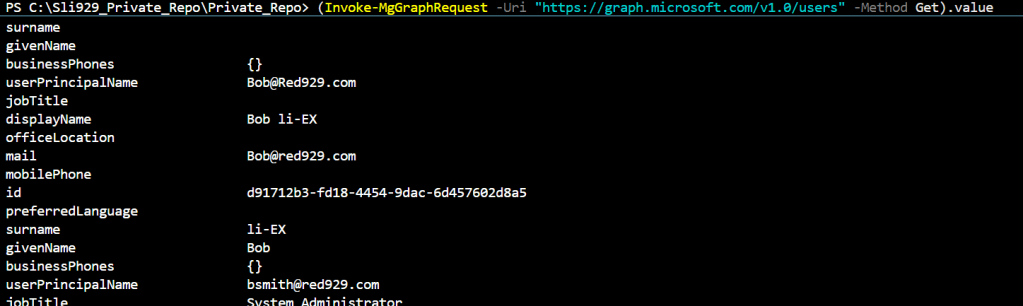
Invoke-MgGraphRequest -Uri "https://graph.microsoft.com/v1.0/users" -Method Get

The code above will reveal the following:
 • @odata.context: The URL pointing to the metadata schema of the response.
 • value: The actual array containing your Entra ID users (represented in your console as a list of Guid-like unique user IDs).

(Invoke-MgGraphRequest -Uri "https://graph.microsoft.com/v1.0/users" -Method Get).value # This list details on ALL users.
# Get details on single user with GET
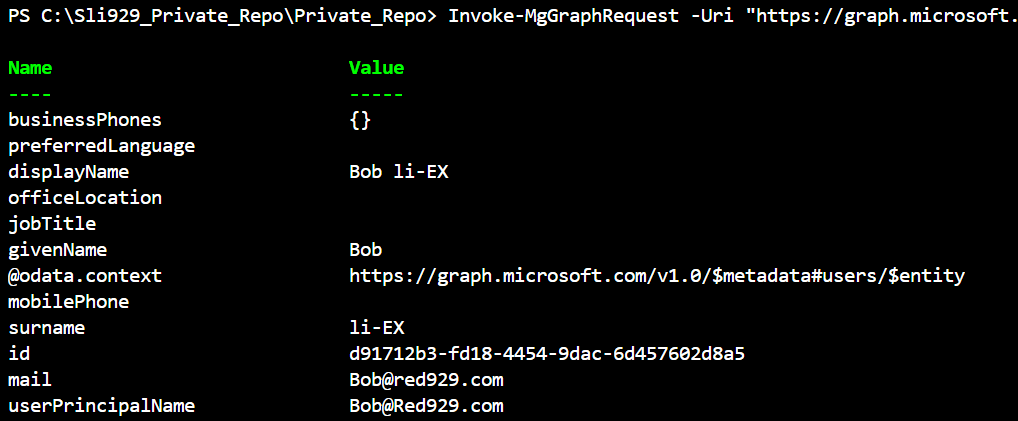
# Get single user by ID (Get details on bob – d91712b3-fd18-4454-9dac-6d457602d8a5)
Invoke-MgGraphRequest -Uri "https://graph.microsoft.com/v1.0/users/d91712b3-fd18-4454-9dac-6d457602d8a5" -Method Get
# Create a new user with POST
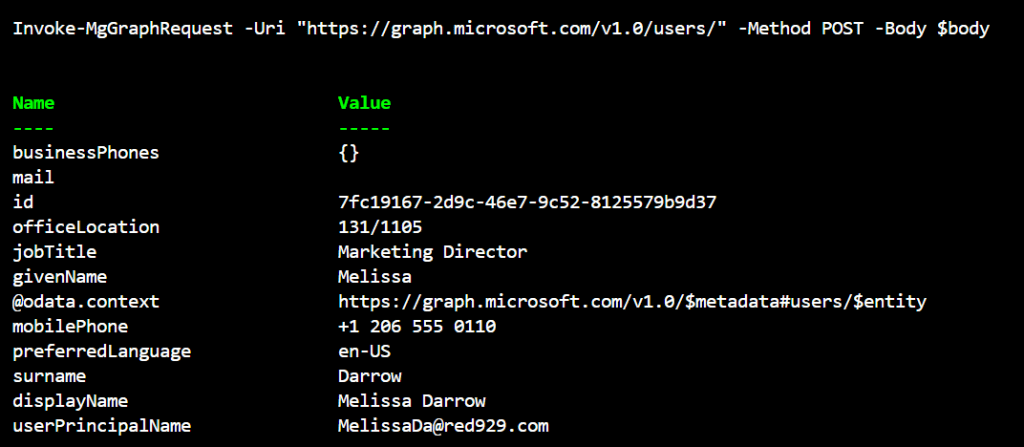
$body =@"
{
    "accountEnabled": true,
    "city": "Seattle",
    "country": "United States",
    "department": "Sales & Marketing",
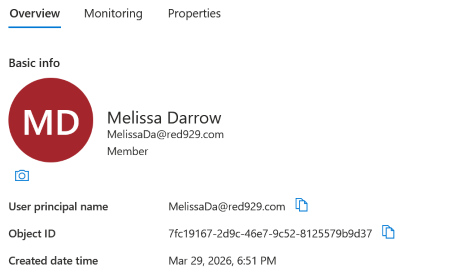
    "displayName": "Melissa Darrow",
    "givenName": "Melissa",
    "jobTitle": "Marketing Director",
    "mailNickname": "MelissaD",
    "passwordPolicies": "DisablePasswordExpiration",
    "passwordProfile": {
        "password": "76c9fcb8-4238-e227-012f-18b4e66a6e74",
        "forceChangePasswordNextSignIn": false
    },
    "officeLocation": "131/1105",
    "postalCode": "98052",
    "preferredLanguage": "en-US",
    "state": "WA",
    "streetAddress": "9256 Towne Center Dr., Suite 400",
    "surname": "Darrow",
    "mobilePhone": "+1 206 555 0110",
    "usageLocation": "US",
    "userPrincipalName": "MelissaDa@red929.com"
}
"@
Invoke-MgGraphRequest -Uri "https://graph.microsoft.com/v1.0/users/" -Method POST -Body $body
# Update a user with PATCH
Update department for Melissa (7fc19167-2d9c-46e7-9c52-8125579b9d37) to Information technology
- If updating properties for users that is sync from on premise – it will not work. The properties that are allow to update are only for users created in Entra first. ***Attributes synced from on premise cannot be modified, must be done in AD first***
$body =@"
{
    "department": "Information Technology",

}
"@
Invoke-MgGraphRequest -Uri "https://graph.microsoft.com/v1.0/users/7fc19167-2d9c-46e7-9c52-8125579b9d37" -Method PATCH -Body $body
Verify:
Invoke-MgGraphRequest -Uri "https://graph.microsoft.com/v1.0/users/7fc19167-2d9c-46e7-9c52-8125579b9d37/Department" -Method GET

# Delete a user with DELETE
Invoke-MgGraphRequest -Method DELETE -Uri "https://graph.microsoft.com/v1.0/users/d91712b3-fd18-4454-9dac-6d457602d8a5" # No response from cmdlet means successful call.

HTTP Status Codes
Explains how APIs communicate success/failure:
Common codes:
- 200 → Success
- 201 → Created
- 401 → Unauthorized
- 403 → Forbidden
- 404 → Not found
- 429 → Too many requests
👉 Important insight:
You should always check status codes in scripts to validate API calls
Troubleshoot:
HTTP 400 bad request – cannot update properties for an on-premise user.
The properties can only be modified for users created in Entra, not users synced from on-premise AD.

Source:
https://learningbydoing.cloud/blog/getting-started-with-microsoft-graph

