
Introduction to Graph Explorer
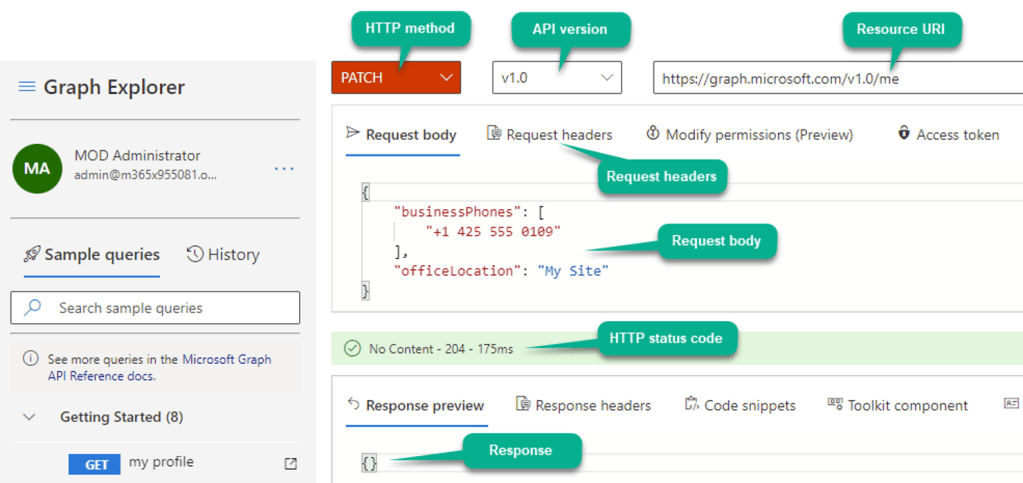
- What it is: A developer tool that lets you make REST API requests and view responses from Microsoft Graph.
- Demo Environment: By default, it connects to a Microsoft demo tenant. This allows you to test queries (Users, Groups, etc.) without needing your own data.
- Your Own Tenant: You can sign in with your own Azure AD (Entra ID) credentials to run queries against your actual organization.
Permissions and Consent in Graph Explorer
- Delegated Permissions only: Graph Explorer only uses Delegated permissions. It can never perform actions that the signed-in user doesn’t already have the right to do.
- Granting Consent: The first time you perform a sensitive action (like reading all users), you must “Consent” to that permission scope.
- Admin Consent: If you are an admin, you can select “Consent on behalf of your organization” so other users don’t have to repeat the process.
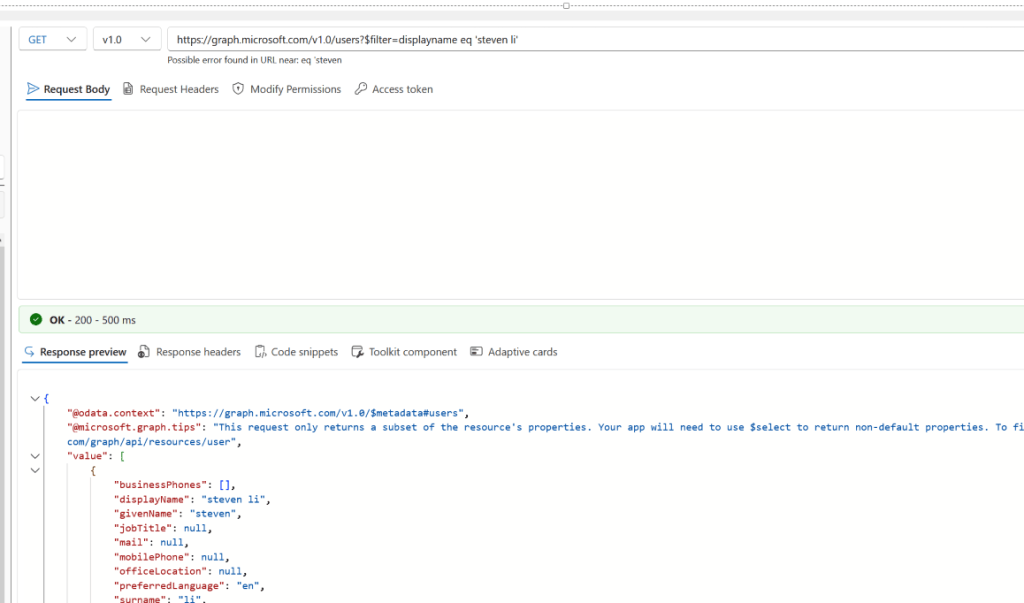
Example: Get the properties of the user that matches displayname eq ‘Steven li’
Request examples for user objects:
• Fetch a specific user object
Make a GET request to /users/{upn | id} endpoint, objects like users can be referenced directly by specifying ‘userPrincipalName’ or ‘objectId’ in the Resource URI.

GET https://graph.microsoft.com/v1.0/users/admin@M365x955081.onmicrosoft.com
GET https://graph.microsoft.com/v1.0/users/6c834590-0d25-4863-8c05-a6dde9be0812

Permission scopes required: User.Read.All

• Fetch selected attributes on a user object
Make a GET request to /users endpoint and utilize the $select query parameter to specify which attributes to return in the response.

GET https://graph.microsoft.com/v1.0/users/admin@M365x955081.onmicrosoft.com?$select=id,userPrincipalName,displayName,jobTitle,manager

Permission scopes required: User.Read.All

• Fetch and expand reference attributes on a user object
Make a GET request to /users endpoint and utilize the $expand query parameter to specify a reference attribute to expand, like ‘manager’. If you only want to return specific attributes on the manager object, add them to a $select query parameter.

GET https://graph.microsoft.com/v1.0/users/admin@M365x955081.onmicrosoft.com?$expand=manager($select=id,userPrincipalName,displayName,jobTitle)

Permission scopes required: User.Read.All

• Fetch the first x number of users
Make a GET request to /users endpoint and utilize the $top query parameter to specify the maximum number of objects to return. Note that 999 is max, and the default is 100 if $top is not specified.

GET https://graph.microsoft.com/v1.0/users?$top=5

Permission scopes required: User.Read.All

• Fetch user(s) with a specific attribute value
Make a GET request to /users endpoint and utilize the $filter query parameter to filter the response to only return objects with a specific attribute value.

GET https://graph.microsoft.com/v1.0/users?$filter=displayName eq 'MOD Admin'
GET https://graph.microsoft.com/v1.0/users?$filter=accountEnabled eq true

Permission scopes required: User.Read.All

• Fetch users and count the number of returned objects
Make a GET request to /users endpoint and utilize the $count query parameter to retrieve a count of returned objects. Note that Request header ConsistencyLevel: eventual is required for this operation.

GET https://graph.microsoft.com/v1.0/users?$count=true
ConsistencyLevel: eventual

Permission scopes required: User.Read.All

• Fetch users created within a specific time period
Make a GET request to /users endpoint and utilize the $filter query parameter with dates to specify time periods to filter the response on. Note that Request header ConsistencyLevel: eventual and $count=true query parameter is required for this operation, as is true for all advanced Graph queries using ge (greater than), le (less than) and certain other specific operators.

GET https://graph.microsoft.com/v1.0/users?$filter=createdDateTime ge 2021-09-17T07:00:00Z and createdDateTime le 2021-09-18T07:00:00Z&$count=true
ConsistencyLevel: eventual

Permission scopes required: User.Read.All

• Create a new user
Make a POST request to /users endpoint to create a new user account. The attributes in the example below are the very minimum of required attributes, add additional attributes in Request body as needed. To generate a strong password, utilize this powershell script.

  POST https://graph.microsoft.com/v1.0/users
  Content-type: application/json

{
      "accountEnabled": false,
      "displayName": "Graph Demo User",
      "mailNickname": "GraphDemoUser",
      "userPrincipalName": "graphdemouser@M365x955081.onmicrosoft.com",
      "passwordProfile" : {
          "forceChangePasswordNextSignIn": true,
          "password": "at8oO5SqYfLFcgm$-NPVj&H2y"
      }
  }

Permission scopes required: User.ReadWrite.All

• Update an existing user
Make a PATCH request to /users/{upn | id} endpoint to change data on an existing user account, add the correct UPN or objectId in the Resource URI. Only include attributes that you want to change in the in Request body.

  PATCH https://graph.microsoft.com/v1.0/users/graphdemouser@M365x955081.onmicrosoft.com
  Content-type: application/json

{
      "accountEnabled": true,
      "displayName": "Graph Demo User Updated",
      "givenName": "Demo",
      "surname": "Test"
  }

Permission scopes required: User.ReadWrite.All

• Delete an existing user
Make a DELETE request to /users/{upn | id} endpoint to delete an existing user account, add the correct UPN or objectId in the Resource URI. The account will be soft-deleted for 30 days before Azure AD automatically deletes it permanently.

DELETE https://graph.microsoft.com/v1.0/users/graphdemouser@M365x955081.onmicrosoft.com

Permission scopes required: User.ReadWrite.All

• Fetch deleted users
Make a GET request to /directory/deletedItems/microsoft.graph.user endpoint to fetch all soft-deleted users in the tenant.

GET https://graph.microsoft.com/v1.0/directory/deletedItems/microsoft.graph.user

Permission scopes required: User.Read.All

• Restore a deleted user
Make a POST request to /directory/deletedItems/{id}/restore endpoint to restore a soft-deleted user, add the correct objectId in the Resource URI.

POST https://graph.microsoft.com/v1.0/directory/deletedItems/86046a93-f6dd-4482-afa4-6eb0ed669123/restore
Content-type: application/json

Permission scopes required: User.ReadWrite.All
Request examples for group objects
• Fetch a specific group object
Make a GET request to /groups/{id} endpoint, objects like groups can be referenced directly by specifying the ‘objectId’ in the Resource URI.

GET https://graph.microsoft.com/v1.0/groups/2025d2e8-4c4b-4c30-9488-48e51e21e8d1

Permission scopes required: Group.Read.All

• Fetch and expand members on a group object
Make a GET request to /groups/{id} endpoint and utilize the $expand query parameter to include data on group members in the response.

GET https://graph.microsoft.com/v1.0/groups/7991df10-5597-4d63-9040-b66659b6629d?$expand=members

Permission scopes required: Group.Read.All

• Add a user as a group member
Make a POST request to /groups/{group-id}/members/$ref endpoint, add the objectId of the group in the Resource URI and add the objectId of the user in the Request body to add the user as a member in the specified group.

POST https://graph.microsoft.com/v1.0/groups/7991df10-5597-4d63-9040-b66659b6629d/members/$ref
Content-type: application/json

{
      "@odata.id": "https://graph.microsoft.com/v1.0/directoryObjects/0cf215e7-b99f-4013-bd49-4a68060efed2"
  }

Permission scopes required: GroupMember.ReadWrite.All or Group.ReadWrite.All

• Remove a user as a group member
Make a DELETE request to /groups/{group-id}/members/{user-id}/$ref endpoint, add the objectId of the group and user in the Resource URI to remove the user as a member in the specified group.

DELETE https://graph.microsoft.com/v1.0/groups/7991df10-5597-4d63-9040-b66659b6629d/members/0cf215e7-b99f-4013-bd49-4a68060efed2/$ref

Permission scopes required: GroupMember.ReadWrite.All or Group.ReadWrite.All

• Add a user as a group owner
Make a POST request to /groups/{group-id}/owners/$ref endpoint, add the objectId of the group in the Resource URI and add the objectId of the user in the Request body to add the user as an owner in the specified group.

POST https://graph.microsoft.com/v1.0/groups/7991df10-5597-4d63-9040-b66659b6629d/owners/$ref
Content-type: application/json

{
      "@odata.id": "https://graph.microsoft.com/v1.0/directoryObjects/0cf215e7-b99f-4013-bd49-4a68060efed2"
  }

Permission scopes required: Group.ReadWrite.All

• Remove a user as a group owner
Make a DELETE request to /groups/{group-id}/owners/{user-id}/$ref endpoint, add the objectId of tbe group and user in the Resource URI to remove the user as an owner of the specified group.

DELETE https://graph.microsoft.com/v1.0/groups/7991df10-5597-4d63-9040-b66659b6629d/owners/0cf215e7-b99f-4013-bd49-4a68060efed2/$ref

Permission scopes required: Group.ReadWrite.All

• Create a new static Azure AD security group
Make a POST request to /groups endpoint to create a new security group with static membership in Azure AD, including owner. The attributes in the example below are the very minimum of required attributes (except owners@odata.bind which can be skipped to not set an owner), add additional attributes in Request body as needed.

POST https://graph.microsoft.com/v1.0/groups
Content-type: application/json

{
      "displayName": "Graph Test Group 1",
      "mailNickname": "GraphTestGroup1",
      "mailEnabled": false,
      "groupTypes": [
      ],
      "securityEnabled": true,
      "owners@odata.bind": [
          "https://graph.microsoft.com/v1.0/users/0cf215e7-b99f-4013-bd49-4a68060efed2"
      ]
  }

Permission scopes required: Group.ReadWrite.All

• Create a new dynamic Azure AD security group
Make a POST request to /groups endpoint to create a new security group with dynamic membership (groupTypes: DynamicMembership). The attributes in the example below are the very minimum of required attributes, add additional attributes in Request body as needed.

POST https://graph.microsoft.com/v1.0/groups
Content-type: application/json

{
      "displayName": "Graph Test Group 2 dynamic",
      "mailNickname": "GraphTestGroup2dynamic",
      "mailEnabled": false,
      "groupTypes": [
          "DynamicMembership"
      ],
      "securityEnabled": true,
      "membershipRule": "user.accountEnabled -eq true",
      "membershipRuleProcessingState": "On"
  }

Permission scopes required: Group.ReadWrite.All

• Create a new Microsoft 365 group
Make a POST request to /groups endpoint to create a new Microsoft 365 group (groupTypes: Unified). The attributes in the example below are the very minimum of required attributes, add additional attributes in Request body as needed.

POST https://graph.microsoft.com/v1.0/groups
Content-type: application/json

{
      "displayName": "Graph Test M365 Group",
      "mailNickname": "GraphTestGroup3",
      "mailEnabled": true,
      "groupTypes": [
          "Unified"
      ],
      "securityEnabled": false
  }

Permission scopes required: Group.ReadWrite.All

• Teams-enable an existing Microsoft 365 group
Make a PUT request to /groups/{group-id}/team endpoint to Teams-enable an existing Microsoft 365 group, add the correct objectId in the Resource URI. Groups created outside of Teams is not Teams-enabled by default. If the group was just created, you may have to wait 15 minutes before you can Teams-enable it. Note that a Teams-enabled owner must be present on the group.

POST https://graph.microsoft.com/v1.0/groups/82633cc4-c5bb-4d46-b399-8bffb9560ede/team
Content-type: application/json

{
      "memberSettings": {
          "allowCreatePrivateChannels": true,
          "allowCreateUpdateChannels": true
      },
      "messagingSettings": {
          "allowUserEditMessages": true,
          "allowUserDeleteMessages": true
      },
      "funSettings": {
          "allowGiphy": true,
          "giphyContentRating": "strict"
      }
  }

Permission scopes required: Group.ReadWrite.All

• Update an existing group
Make a PATCH request to /groups/{group-id} endpoint to change data on an existing group, add the correct objectId in the Resource URI. Only include attributes that you want to change in the in Request body.

PATCH https://graph.microsoft.com/v1.0/groups/c6c01449-8405-420d-ac67-1592738cf152
Content-type: application/json

{
      "displayName": "Graph Test Group 1 Updated",
      "description": "Updated description"
  }

Permission scopes required: Group.ReadWrite.All

• Delete an existing group
Make a DELETE request to /groups/{group-id} endpoint to delete an existing group, add the correct objectId in the Resource URI. A security group will be permanently deleted immediately, a Microsoft 365 group will be soft-deleted for 30 days until Azure AD automatically deletes it permanently.

DELETE https://graph.microsoft.com/v1.0/groups/82633cc4-c5bb-4d46-b399-8bffb9560ede

Permission scopes required: Group.ReadWrite.All

• Fetch deleted groups
Make a GET request to /directory/deletedItems/microsoft.graph.group endpoint to fetch all soft-deleted groups in the tenant.

GET https://graph.microsoft.com/v1.0/directory/deletedItems/microsoft.graph.group

Permission scopes required: Group.Read.All

• Restore a deleted group
Make a POST request to /directory/deletedItems/{id}/restore endpoint to restore a soft-deleted group (Microsoft 365), add the correct objectId in the Resource URI.

POST https://graph.microsoft.com/v1.0/directory/deletedItems/82633cc4-c5bb-4d46-b399-8bffb9560ede/restore
Content-type: application/json

Permission scopes required: Group.ReadWrite.All

