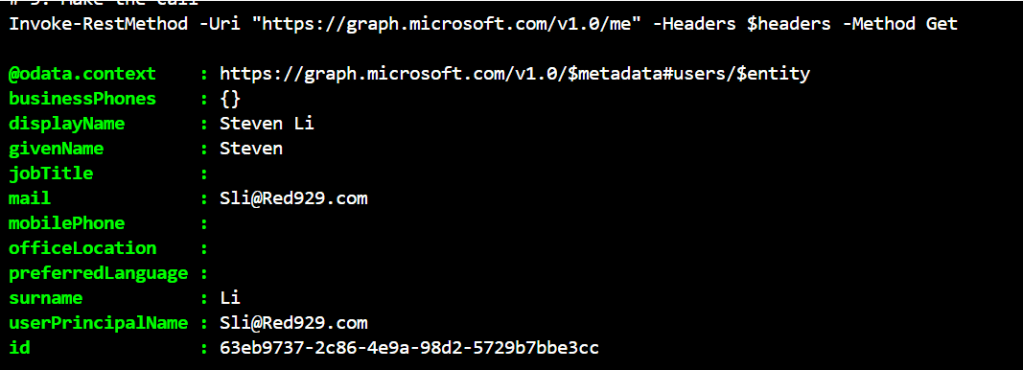
By adhering to the OData 4.0 standard, Microsoft Graph query parameters allow you to filter, sort, and shape API responses dynamically. Leveraging these parameters is a best practice for refining your data payloads, minimizing network overhead, and keeping your automation workflows highly performant.
For the current lab of user provisioning, we do not work with query parameters but they are still very helpful to know and learn how to use for the future especially when invoking REST API calls from logic app or other apps like postman.
For example, user termination – verification of user status to see if they are enabled or not can be done via http calls. However, my preference when working with Entra environment is using powershell SDK with Graph.
The examples here are shown from the following portal https://developer.microsoft.com/en-us/graph/graph-explorer (Extremely helpful site to test out any REST API calls made to graph)
Query parameters:
Example:
| Query Parameter | Description | Example |
| $count | Retrieves the total count of matching resources | https://graph.microsoft.com/v1.0/users?$count=true |
| $expand | Retrieves related resources (reference attributes) | https://graph.microsoft.com/v1.0/groups?$expand=members |
| $filter | Filters results (rows) | https://graph.microsoft.com/v1.0/users?$filter=accountEnabled+eq+false |
| $select | Filters properties (columns) | https://graph.microsoft.com/v1.0/users?$select=id,displayName,userPrincipalName |
| $top | Specifies the max number of objects to return per page | https://graph.microsoft.com/v1.0/groups?$top=5 |
Data Shaping Parameters
These parameters control which pieces of data are returned, helping to reduce payload size.

• $select: Acts like a "column picker." It limits the properties returned for each entity.
	○ Example: $select=displayName,mail

• $expand: Retrieves related entities in a single request, preventing "N+1" query problems.
	○ Example: $expand=manager to get a user and their manager's details at once.

Filtering and Searching
These parameters determine which records match your criteria.

• $filter: Filters the collection based on specific conditions using logical operators (eq, ne, gt, lt, any, all).
	○ Example: $filter=startsWith(displayName, 'J')

• $search: Used for free-text searches across specific entities like messages or files. It often requires a special header (ConsistencyLevel: eventual).
	○ Example: $search="marketing project"
Advanced query:
You can add several query parameters to one request if necessary, join with &:
The query below gets the total count of inactive account of managers
GET https://graph.microsoft.com/v1.0/users?$filter=accountEnabled eq false&$count=true&$expand=manager
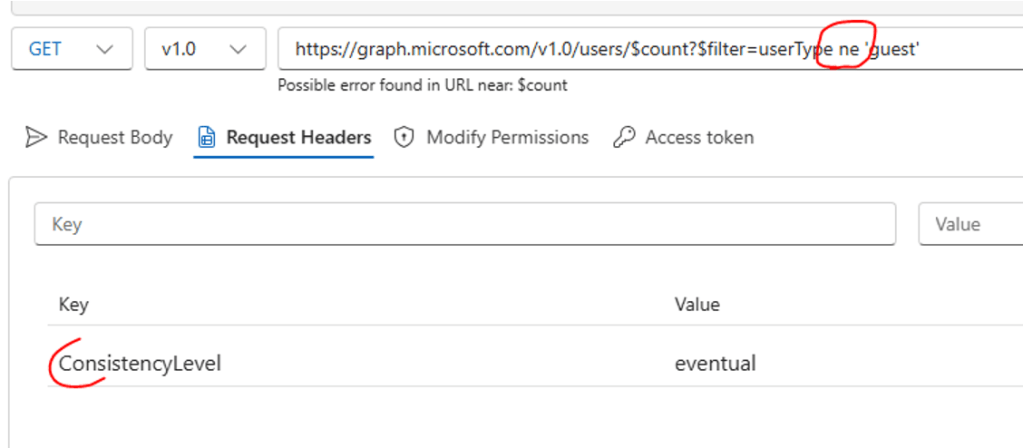
Using operators like ge (greater than), le (less than) and certain other specific operators is considered advanced Graph queries. Such queries require Request header set to ConsistencyLevel: eventual, and $count=true as a query parameter.
Example of using “NE” (not equal guest) requires usage of headers “Consistencylevel = evental”.
The query counts all users in org that’s not guest.
Request headers and body
When invoking requests to Microsoft Graph you are required to specify Request headers. The headers must contain at least the access token for authorization to work, or else the request will be rejected.
*Header is required when using Invoke-RestMethod and Invoke-WebRequest
*Header is NOT required when using Invoke-MgGraphRequest
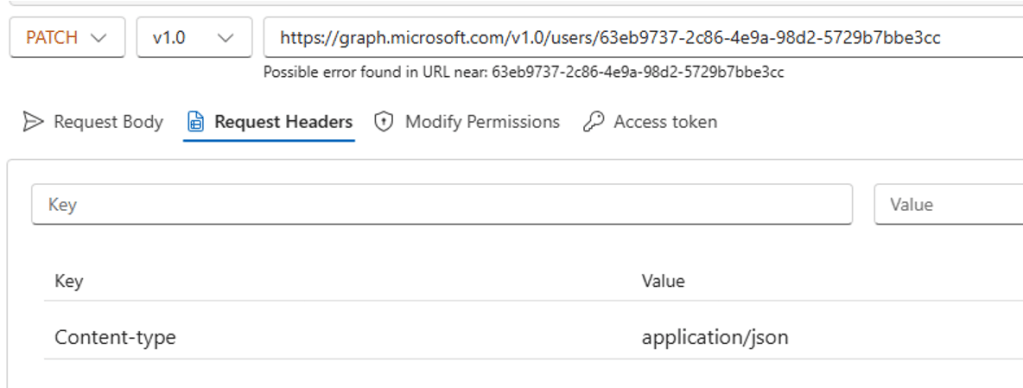
When doing such operations you will also be required to add Content-type: application/json in the Request headers, so that Microsoft Graph will understand the data sent in the request body.
Headers: At minimum, an Authorization header containing the Bearer token is required.
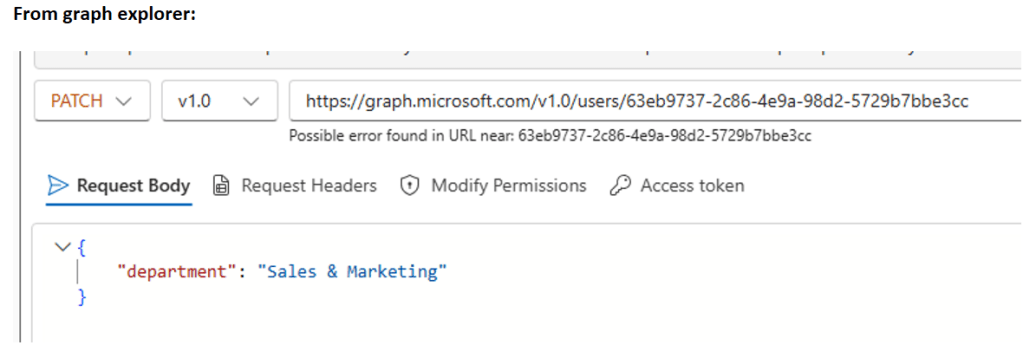
When invoking requests like POST, PATCH and PUT you will usually be required to specify the Request body, this is the request data that e.g. tells Microsoft Graph to update the JobTitle for a user to a new value.
Body: Required for write operations like POST, PATCH, and PUT. The body must be formatted in JSON and usually requires a Content-Type: application/json header.
From powershell SDK
(Invoke-MgGraphRequest)
While most cmdlets in the SDK are specific (like Get-MgUser for users or Get-MgGroup for groups), Invoke-MgGraphRequest is a generic tool that allows you to call any Microsoft Graph API endpoint directly. Think of it as a specialized version of Invoke-RestMethod that is pre-configured to handle authentication for you.
Unlike Invoke-RestMethod, you don’t have to manually build an authorization header with a Bearer token. It uses the active connection from your Connect-MgGraph session as token.
# Test out PATCH call - update users department to marketing $body = @" { "accountEnabled": false } "@ Invoke-MgGraphRequest -Method PATCH -Uri "https://graph.microsoft.com/v1.0/users/d91712b3-fd18-445ac-02d8a5" -Body $body
Troubleshoot:
1. Error 404 bad request – invalid json format.
Double check the body and ensure it is the correct format.

2. Using Invoke-RestMethod – Invalid authentication token
A token has not been defined when making calls. Assign a variable to the token first

# 1. Define your token (Ensure this variable actually has a value!)
$token = "tJD3QSY5dSwK9h5RFCRR_cozbBbkGNVHx_M-OxZWJ03aWP_Z0OlFvTB_Dst6.ruzXQS9VYtmUbLP1WGJb6y4EbbeUhRcylqpylL1DvweBFo9QabjAK41uV1KM3JZ7Tbne7zkhqHPWSySR7ObuOULIkcccB5L3lvH-foTI7UJSSD5Sd6518S_A95CHfOB-9NJO_B7ZB4t_GUTPX7ICNW6bZRWyIvrjmVHRk9EElw29a5Knh9NiFLSTFfy5TtIDz0lgAayX9ckoVvbILGOECaybdrsd2evpOIuNyGGxOQSEZLLMd4hC56ql3zNakRZIalsIoHeXmLrKQSIV75a7_WUrGdPj_8dFQaNUTiO3I6O6CUjJohaH4L7nwAmB6wlGetO0y5iqB_zDNw.aeGlaTLb-bpOpY82q3XP-wJUlHcg8FYzcBDywiSUuVeIn1Dqz0aWUJFYvBGX2FhglDlUONwaaC4uRSx8doUadQ"

# 2. Construct the Headers
$headers = @{
    "Authorization" = "Bearer $token"
    "Content-Type"  = "application/json"
}
# 3. Make the call
Invoke-RestMethod -Uri "https://graph.microsoft.com/v1.0/me" -Headers $headers -Method Get