The “Get items” action in the SharePoint Online connector is the primary way to retrieve data from a SharePoint list. It allows you to read rows from a list based on your specific needs (filtering, sorting, or limiting columns).
Purpose: Reads multiple items from a SharePoint list.

Requirement: Requires a valid Site Address and List Name.

Result: Returns an array (list) of items that can be processed in subsequent actions (like Apply to each loops, Select, or Filter array).
Goal: Use action [Get items] to retrieve multiple values under a single column from sharepoint list [NewHireError]. The reason why [Get items] is being used is due advanced parameter of ODATA filter query to filter out what is needed.
Workflow Breakdown:

Filtered Retrieval: The Get items action uses an OData filter to pull original and newly submitted User Principal Names (UPNs) from NewHireError.

Reprocessing: The NewHireError list captures any account creation failures during the Logic App execution. After parsing the JSON output, the flow re-triggers the new hire creation process using the updated UPN. It notifies the IT administrator via email to submit a corrected UPN, which resumes the automated onboarding workflow upon submission.

Status Update: The original UPN's status is then updated in a separate tracking list.
[Get Items] advanced parameters:
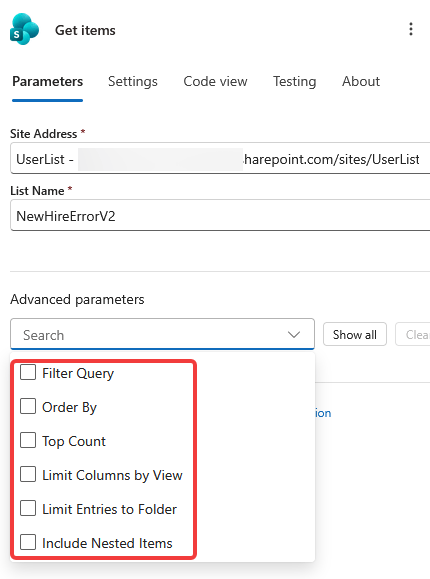
To optimize your flow and avoid performance issues (or errors), you should utilize the Show advanced options section:

1. Filter Query (OData):
 o What it does: Allows you to fetch only specific rows (e.g., Status eq 'Completed')
 o Why use it: Greatly improves performance and ensures your flow processes fewer records.

2. Top count:
 o What it does: Limits the maximum number of items returned (e.g., set to 1 if you only need the latest record).
 o Why use it: Helps keep the memory footprint low.

3. Order By:
 o What it does: Sorts the list (e.g., Created desc gets the newest items first).

4. Limit Columns by View:
 o What it does: Only returns the columns defined in a specific SharePoint View.
 o Why use it: This is the best way to avoid the "lookup column threshold" error status 400.
Filter Query
Azure Logic Apps, the Get items action uses OData (Open Data Protocol) filter queries to efficiently retrieve specific rows from a SharePoint list. Filtering at the source (server-side) significantly improves performance by reducing the amount of data processed by your workflow.
OData examples: https://www.powerapps911.com/post/filtering-sharepoint-data-with-odata-queries-in-power-automate
Basic Syntax
The standard format for filter query is: [InternalColumnName] [Operator] '[Value]'

 • Strings must be included in single quotes.
 • Numbers and Booleans do not require quotes.
 • *** DO NOT use "-" for the operators. Ex: -eq, -lt
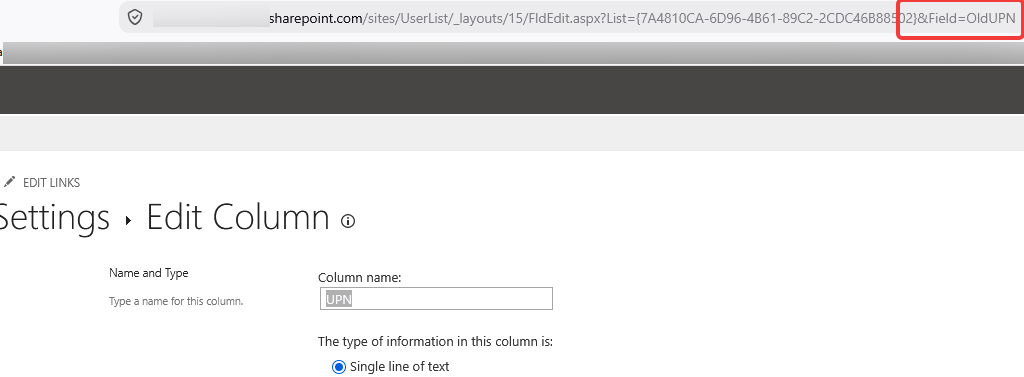
Before using oData to query – submit the list to query from first. To get the EXACT field name of a list > go to setting > list setting > select the list > review the url link.
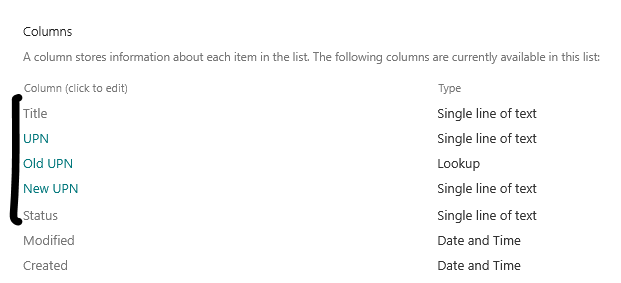
**** Sometimes the string listed under column is not 100% accurate, always double check the “Field=<ListName>” url text. The following screenshot shows column “UPN” is actually “OldUPN” ***** The proper list name below is “Field=OldUPN“
Filtering a Single Line Text Column
For a text-based column, you use the eq (equals) operator. The column name is case-sensitive and must match exactly as it appears in SharePoint.
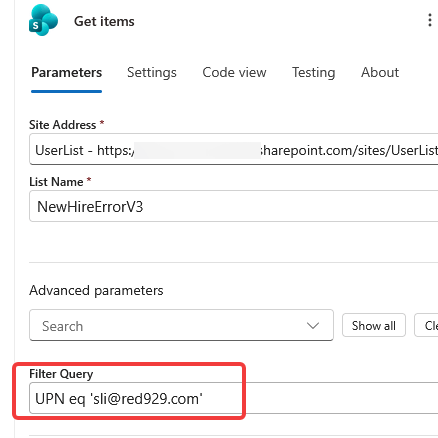
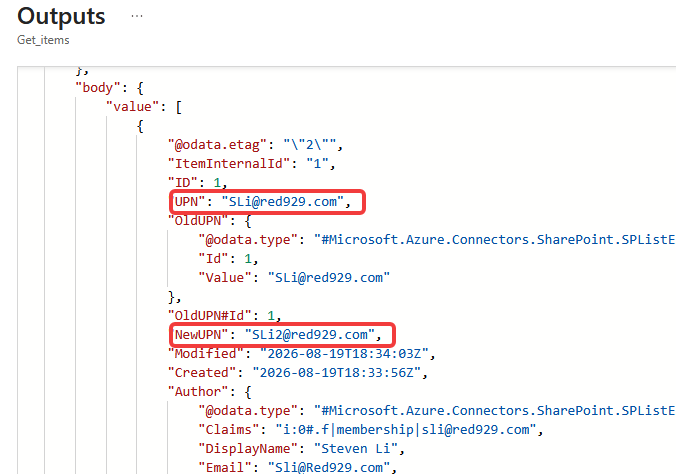
Example: The query finds the specific dynamic UPN for the column [UPN] from sharepoint list. This query only works if the column is set up as single text. The output grabs all the data (including New UPN) from the column once a UPN is submitted.
Filtering a Lookup Column
Lookup columns reference values from another list. The default way to filter is using the ID of the lookup record.
Example: In the screenshot below shows the list [NewHireErrorV3], this list handles the UPN that did not successfully get processed during the logic app workflow either due to duplicate UPN or issues with on premise active directory. The goal is to obtain the [New UPN] value by querying the ID. The new UPN can also be obtained by filtering out the ID of a column.
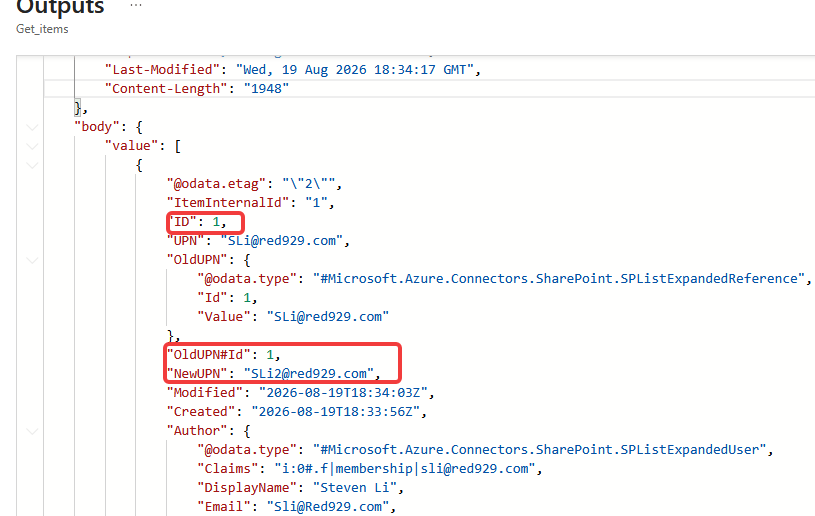
Background: The [UPN] column contains the original problematic UPN. [Old UPN] is a lookup type tied to [UPN]. The [New UPN] column contains the new value that should be re processed by logic app in order to continue to new hire creation.
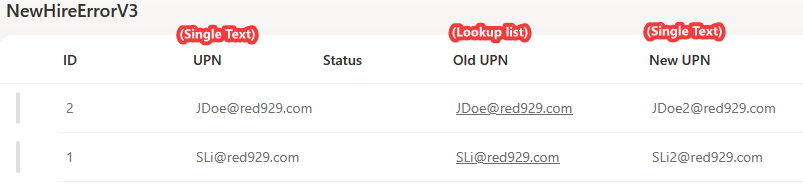
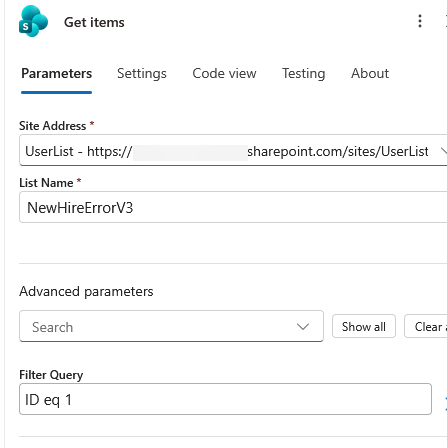
We are able to grab the value of a lookup column by filtering out the ID of the column. Once the value is exposed, the schema can then be parsed to grab the new upn value then restart the new hire process again with this value.
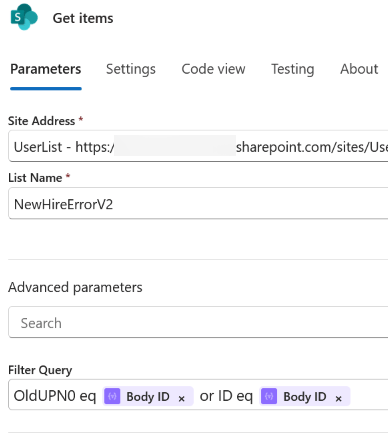
Filter query can also work with multiple conditions
Logical Operators

• and: Returns items only if both (or all) conditions are true.
• or: Returns items if at least one condition is true.
• not: Negates a condition.
Snippet of workflow to handle duplicate UPN collision