
Microsoft Graph is a REST API that provides a unified endpoint to access data and services across Microsoft cloud products (like Azure AD, Microsoft 365, etc.).
It allows developers and admins to:
- Read and write data (users, groups, mail, etc.)
- Automate administrative tasks
The purpose of this post is to develop an understand of how MS graph API authenticate to Entra as one of the project for lab requires verification of user in Entra using MS graph.
Authentication:
To authenticate with Microsoft Graph, you first need to determine the Access Scenario. The method you choose depends on whether your application is acting on behalf of a user or running as a background service.
Microsoft Graph supports two primary ways to access data:
| Feature | Delegated Access | App-Only Access |
| Identity | App + Signed-in User | App Identity only |
| Permissions | Delegated (Scopes) | Application (App Roles) |
| Best For | User-facing apps (Web, Mobile, Desktop) | Background services, Daemons, Automation |
| Example | Reading the current user’s email | A nightly script syncing all users’ data |
For Delegated access (On Behalf of user):
These methods require a user to sign in and provide consent to the requested scopes.
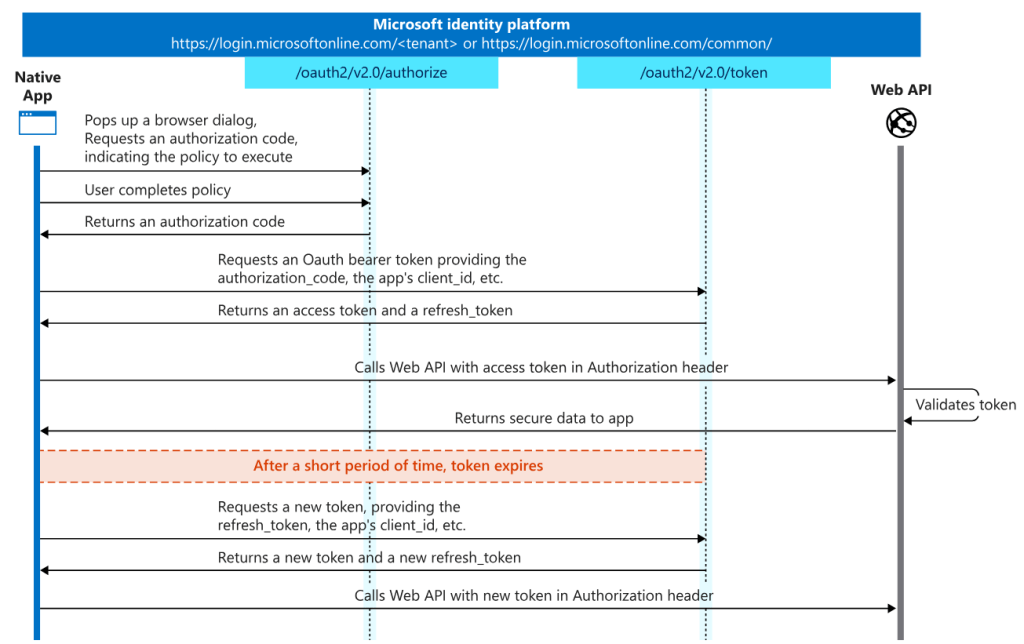
• Authorization Code Flow: The standard for web applications. It provides an access token and a refresh token. User authorizes the app on the same device.

https://learn.microsoft.com/en-us/entra/identity-platform/v2-app-types#mobile-and-native-apps

Example(Powershell):
Connect-MgGraph -Scopes "User.Read", "Mail.Read", "offline_access"
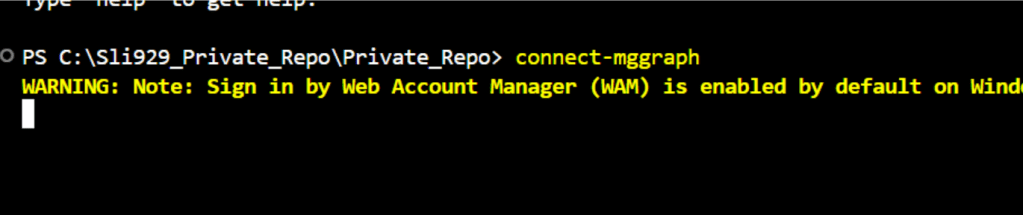
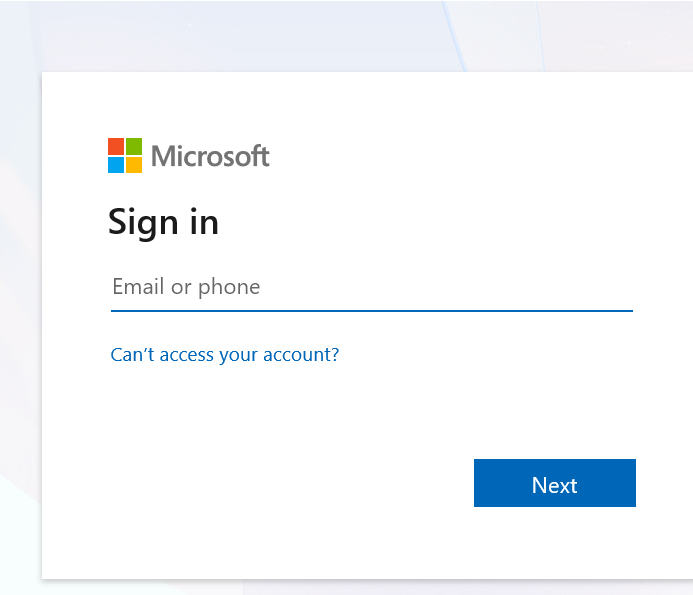
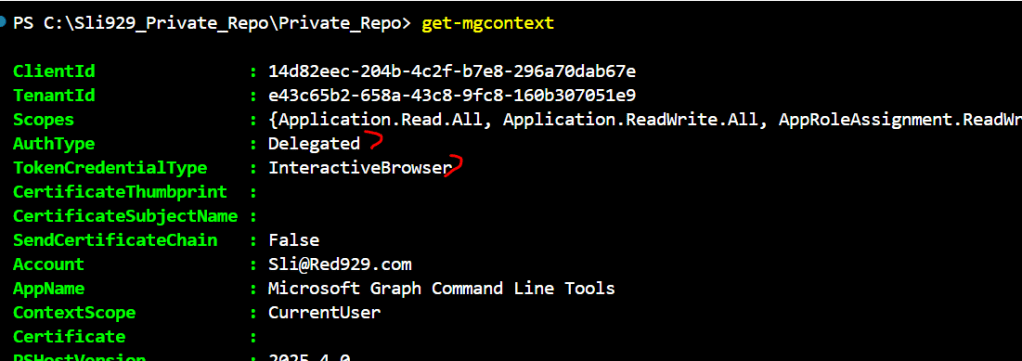
• Interactive Authentication: Used in desktop and mobile apps to pop up a browser window for user login.

Example(Powershell):
Connect-MgGraph -Scopes "User.Read.All", "Group.ReadWrite.All"
• Device Code Flow: Used for devices with no browser or limited input (e.g., IoT, CLI tools). The user visits a URL on another device to authorize the app.

Device authentication: Navigate to a URL and enter a device code to authenticate.
Connect-MgGraph -Scopes "User.Read.All", "Group.ReadWrite.All" -UseDeviceAuthentication

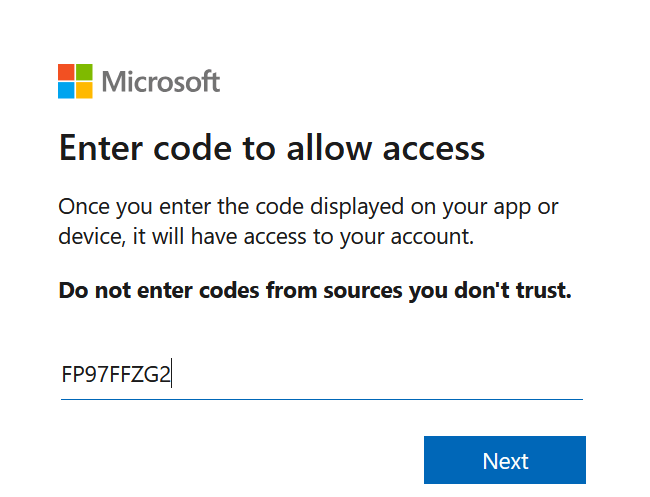
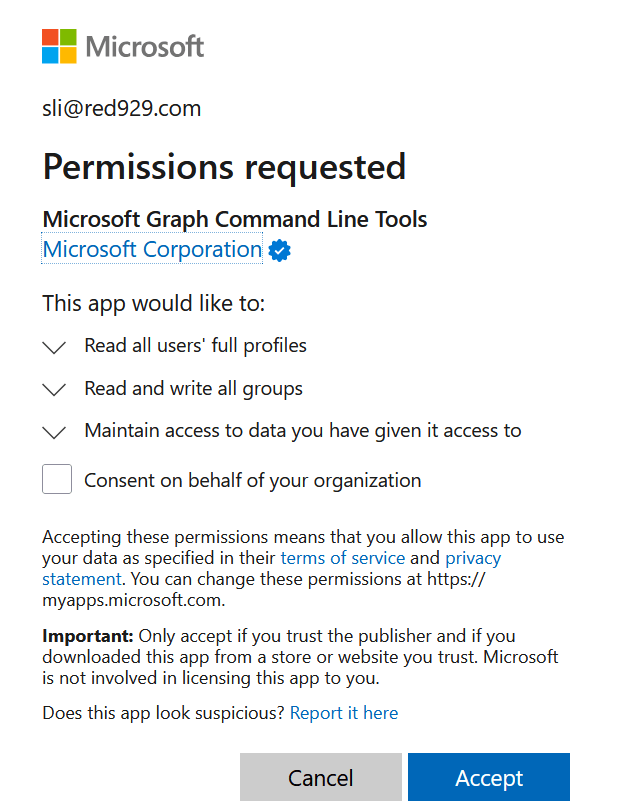
• Token based authentication: authenticate with token (can be app only if connecting using managed identity)

Connect-MgGraph -AccessToken $AccessToken

App-Only Access (Non-interactive):
These methods do not require a user and are used for automation.
• Client Secret: A simple password generated in the Entra App Registration. It is easy to use but requires manual rotation and secure storage (like Azure Key Vault).

$tenantId = "IDHERE"
$clientId = "IDHERE"
$clientSecret = ConvertTo-SecureString "CLIENTSECRETHERE" -AsPlainText -Force
$credential = New-Object System.Management.Automation.PSCredential($clientId, $clientSecret)
Connect-MgGraph -NoWelcome -ClientSecretCredential $credential -TenantId $tenantId
• Client Certificate: A more secure alternative to secrets. The app uses a private key to sign a token request. Authentication can be done using Certificate thumbprint, certificate name or just the certificate.

# Connect with certificate
$Cert = Get-ChildItem Cert:\LocalMachine\My$CertThumbprint
Connect-MgGraph -ClientId "YOUR_APP_ID" -TenantId "YOUR_TENANT_ID" -Certificate $Cert

# Connect with certificate name
Connect-MgGraph -ClientId "YOUR_APP_ID" -TenantId "YOUR_TENANT_ID" -CertificateName "YOUR_CERT_SUBJECT"

# Connect with certificate thumbprint
Connect-MgGraph -TenantId $TenantID -ClientId $AppID -CertificateThumbprint $Thumbprint
• Managed Identity: The most secure method for apps hosted on Azure. Azure handles the credentials automatically, so there are no secrets for you to manage or rotate.

# Connect to graph using System-assigned managed identity
Connect-MgGraph -Identity

# Connect to graph using User-assigned managed identity
Connect-MgGraph -Identity -ClientId "User_Assigned_Managed_identity_Client_Id"
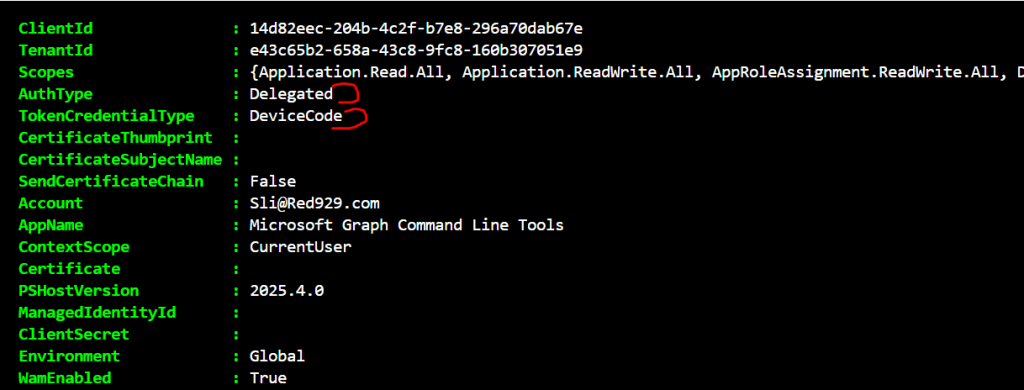
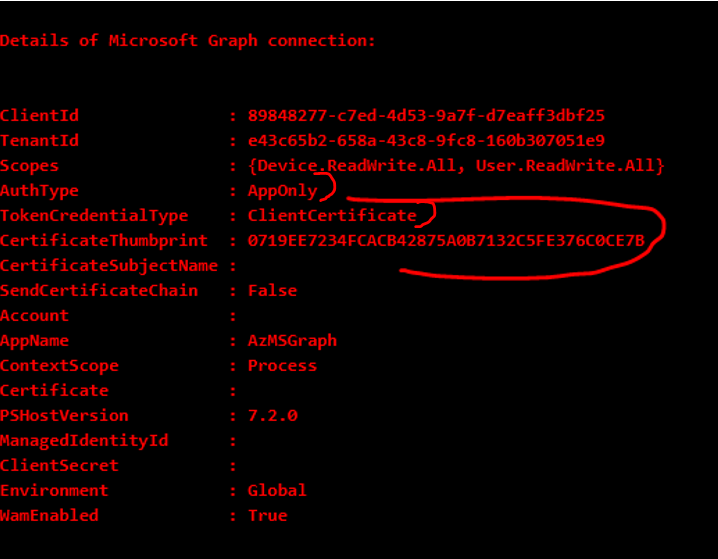
To verify authentication type:
Use “get-mgcontext”
The following shows delegated authentication (on behalf of user) using device code flow (Connect-MgGraph -UseDeviceAuthentication)
The following shows App only authentication (non-interactive) using certificate based authentication (Connect-MgGraph -TenantId $TenantID -ClientId $AppID -CertificateThumbprint $Thumbprint)
Source:
Getting started with Microsoft Graph – part 2
https://learn.microsoft.com/en-us/entra/identity-platform/v2-app-types#mobile-and-native-apps

