
In this post, lets take a look into a very important built in connector that comes with logic app designer that will be commonly used throughout the project.
The [variables] connector offers 6 different actions for your workflow varying from initializing variables to appending variables to an array. All is essential when it comes to referencing data across workflow at any point of the process. Most common usage is [initialize variables] action that declares the value. Once declared, we use that variable to fill out the information in other connectors that is used for this project.

Variable Operations
Initialize variable – Declares a variable and assigns its initial value. Must be executed at the root level (outside loops or scopes).
Support – Integer, Float, String, Boolean, Object, Array
Example: Declare variable [Number] as integers with value of 5

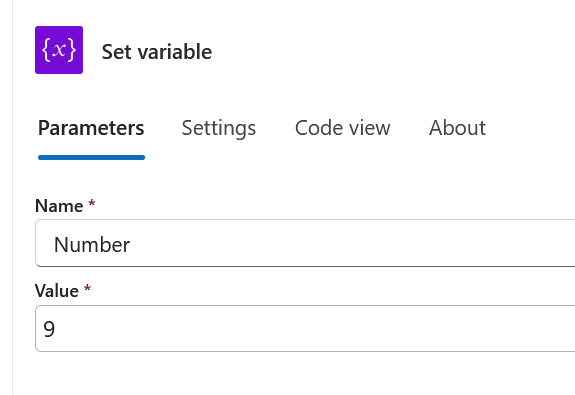
Set variable – Overwrites the existing variable value with a new value.
Support – Must match the initialized variable type.
Example: Set variable [Number] to value of 9
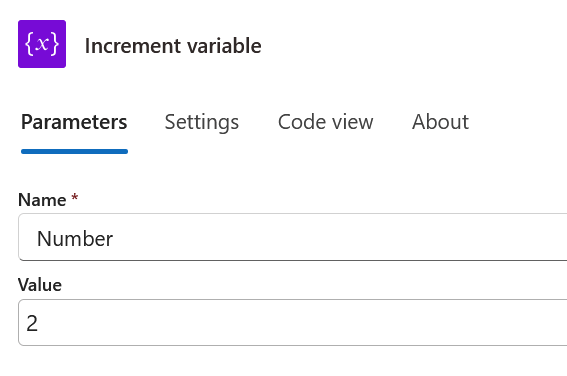
Increment variable – Increases a numeric value by a specified constant.
Support – Integer, Float
Example: Increment variable [Number] by 2
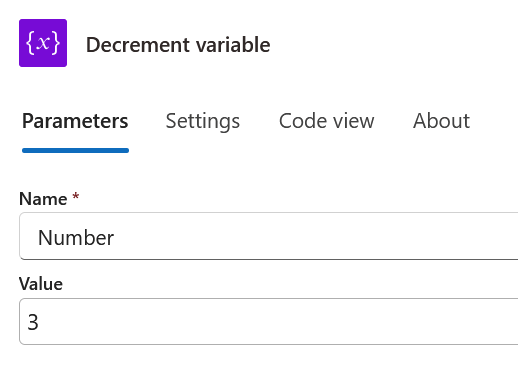
Decrement variable – Decrease a numeric value by a specified constant.
Support – Integer, Float
Example: Decrement variable [Number] by 3
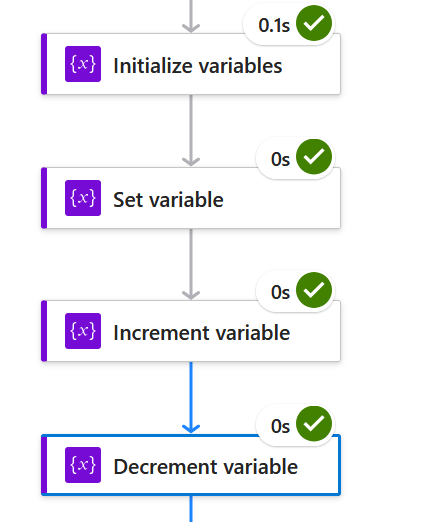
At the end of the flow – the variable [Number] should be a value of 8. By verifying raw output of the last step [Decrement variable], it is indeed 8.

Append to string variable – Adds new text to the end of a text string.
Support – String
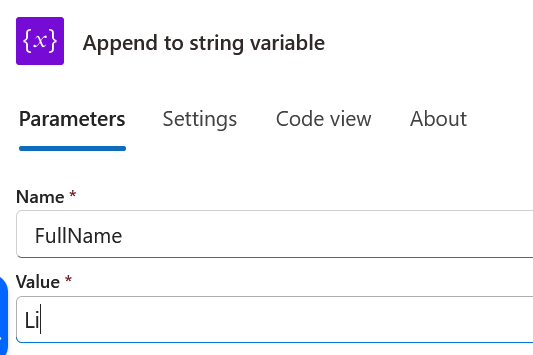
Example: Append the last name “Li” to variable [FullName]. FullName variable already has string “Steven”. The result should be “StevenLi”. By using [compose] action as the next step below [append to string variable] and inserting [FullName] variable there, the string is now correct.

Append to array variable – Inserts a new element as the last item in an array.
Support – Array
Example: Append new array item – “ID:2”, “Firstname:John” “Lastname:Doe” into existing array named[Array Set].

Verify the new array set by inserting the [Array Set] variable under the compose action
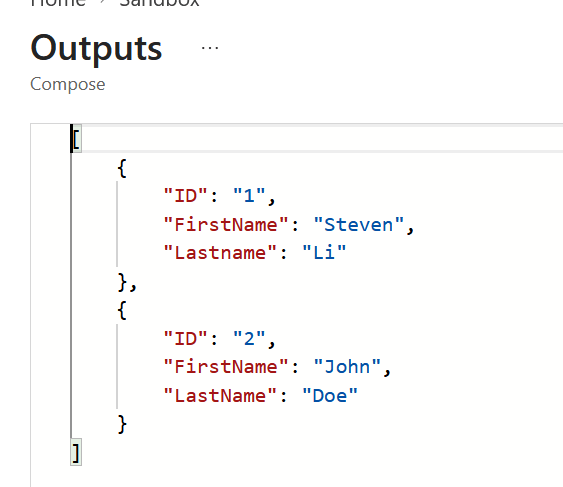
Example:
In a scenario where I want to grab a sub string from the output of a variable, a more advance setup is required. The example below will utilize the usage of functions to manipulate a value of a variable.
Functions (specifically Workflow Definition Language (WDL) expressions) are built-in operations used to transform data, manipulate strings, perform math, evaluate logic, and work with dates or arrays directly within workflow actions. There are well over 30+ unique functions for data manipulation.
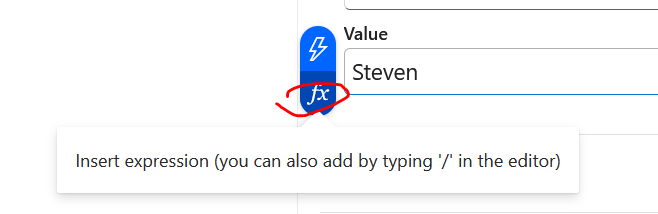

Grab only the sub string “Errorcode:” from the variable [Output]. Create a second empty string variable [GrabErrorCode] so the sub string can be stored there.

Use action [Set Variable] to target empty string variable [GrabErrorCode] – modify expression to find the string in variable [Output].
substring(variables(‘Output’), indexOf(variables(‘output’), ‘ErrorCode:’))
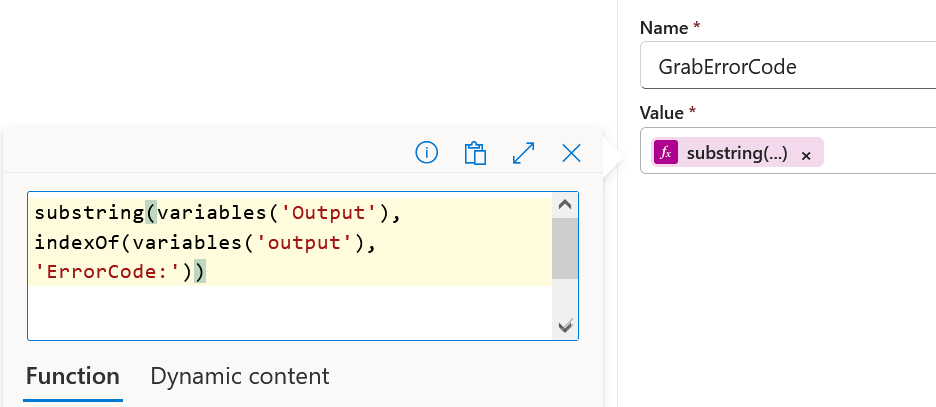
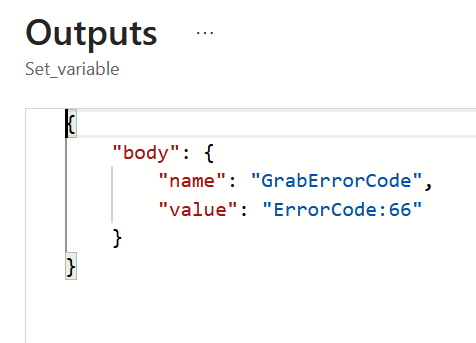
Verify the raw output of [Set Variable], it successfully grab string “ErrorCode”. This function works if output has different error code as well.
Example:
In this scenario, the custom connector [Azure automation] only works well if a single value is submitted. I am using Azure automation connector to pass on parameter from a Sharepoint list form into a runbook. The example below combines all answers from the form as a single variable becoming a nested variable in logic app. This example is good if you want to get a single value from multiple possible input. The example will only work if Microsoft form multiple selection is turned off for those specific columns.
• When providing a parameter to runbook - only one dynamic content can be selected.
• Use [Initialize variable] to select all dynamic content and give it a variable.
• Then call that variable when a parameter is being asked.
• This approach should be ok if the form only allow one input.
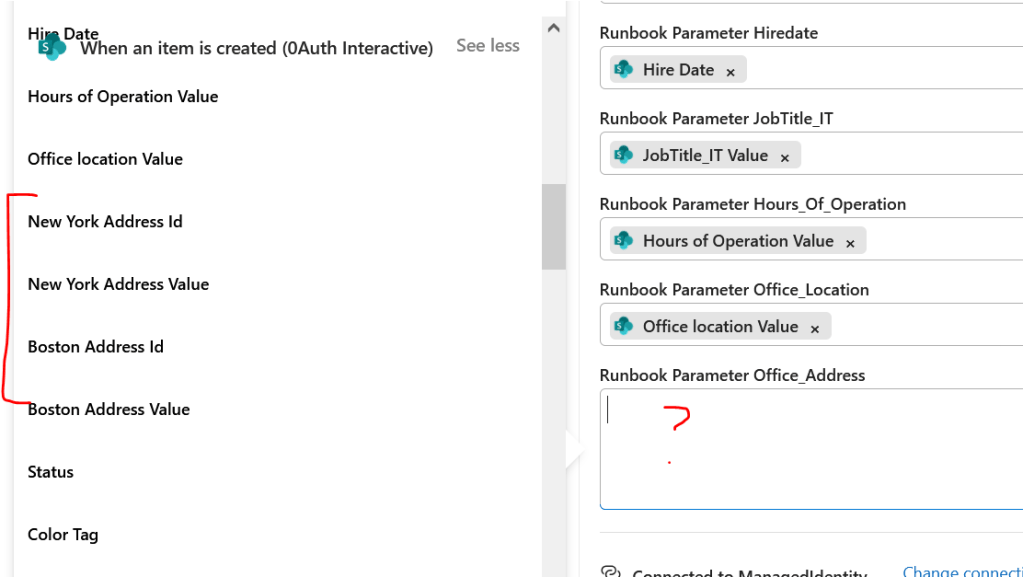
When determining office location (NY or Boston), it can be NY OR Boston, however, the runbook parameter can ONLY ALLOW ONE dynamic content to be inserted. So a new variable must be created with all the possible dynamic content attached to it. Then any final value for that new variable will be included in runbook parameter.
From here -

Create a variable name [Office Address] type string - insert all possible sharepoint values into the new variable.

Create a variable name [Job Title] type string - insert all possible sharepoint values into the new variable.


Once the variables are created- insert them into the custom connectors parameter fields.
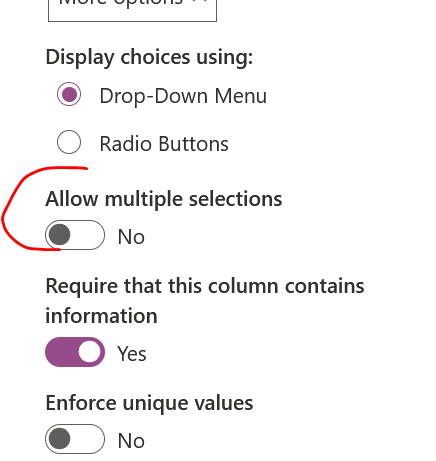
When any number of users submit their entry for job title within various departments or any office location – there can only be one try to pass off as a parameter. Since the data is pass from Microsoft list form into sharepoint – disable multiple selections for users to avoid conflict from forms setting.

Notes:
Global Scope: Variables are globally scoped within a single workflow execution instance. Any action that runs after initialization can read or modify the variable.
Concurrency Concerns: Because variables are global, modifying them inside parallel branches or concurrent loops (For each running in parallel) can cause race conditions and unpredictable outcomes. To safely modify variables inside loops, set the loop execution to Sequential.

