
Choice Column
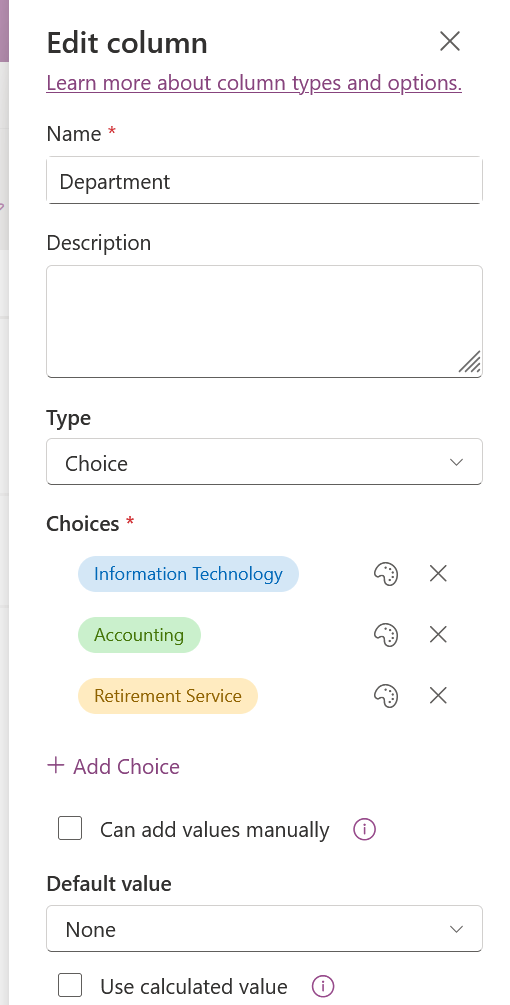
In the list form – it provide users the different type of departments as choices to select from. Given that the environment only has three department, using choice instead of lookup is fine.
On the main list [NewHire] > add column > choice > add the following:
- Information technology
- Accounting
- Retirement Service
Single text column
Since the user has option to select which department the new hire belongs to, what we want to do now is to create a list of JOB TITLES related to that department (Each department has unique job titles). It is better to create them on separate list instead of making it a choice selection.
The secondary list created for job title will be [JobTitle].
1. Create a new list/list form under the main sharepoint site [Userlist]. Name the list [JobTitle]
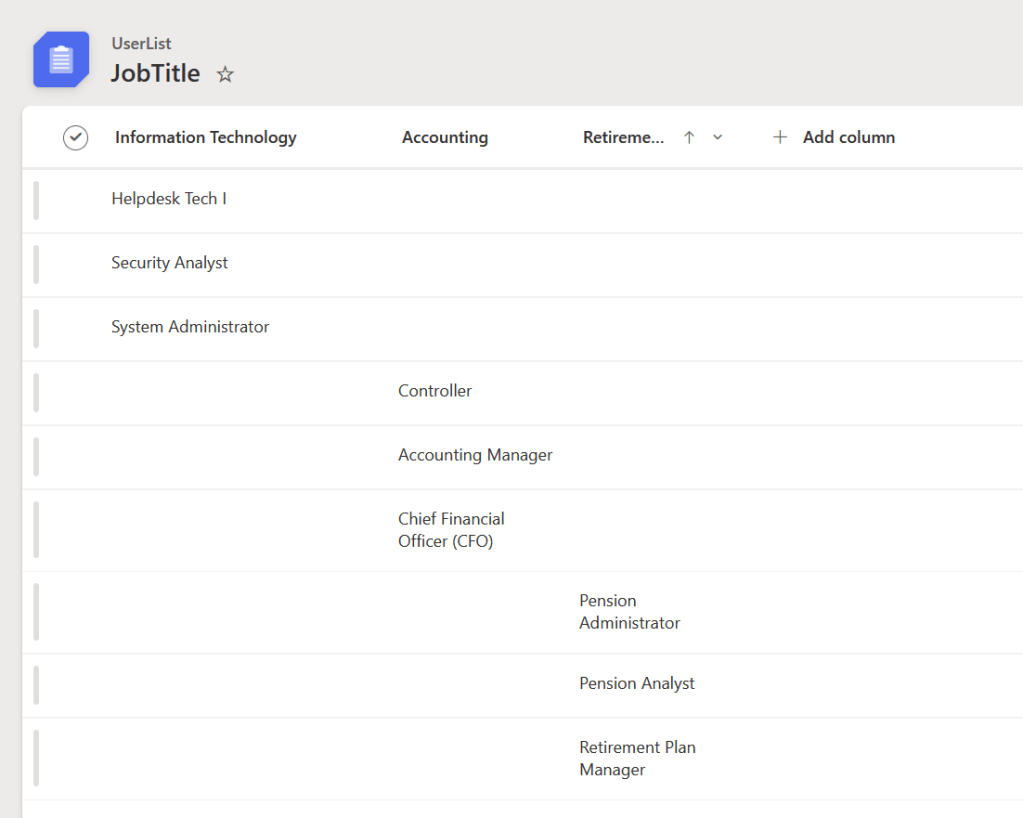
2. Add column > single text on list [JobTitle]. Add the department as column and job title under those columns.
Example: (Each department has a unique job title attached)

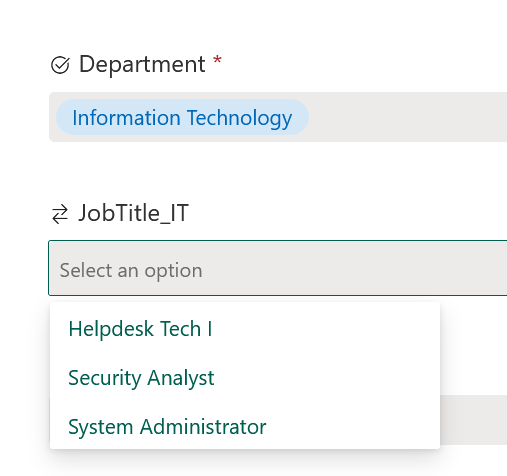
Information technology department ----- Helpdesk, security analyst, system administrator

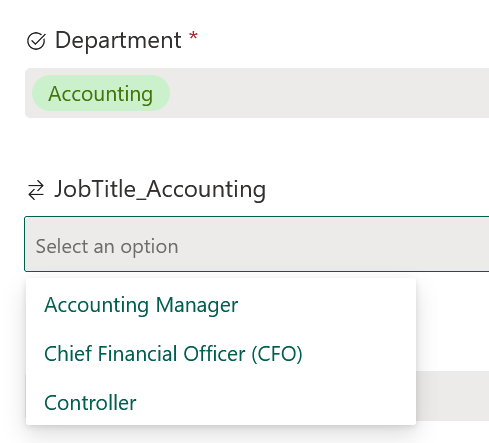
Accounting ------ Controller, Accounting Manager, Chief Financial Officer (CFO)

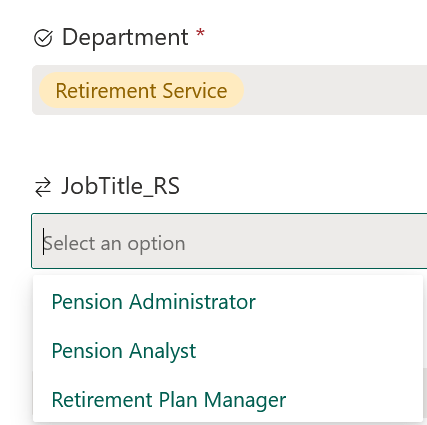
Retirement Service ------ Pension Administrator, Pension Analyst, Retirement Plan Manager
Lookup column
Now that we have a list of department choices column and a secondary list of job titles, lets reference those job titles depending on which department is selected.
For this, use lookup columns. A lookup column references a second set of data from different Microsoft list.
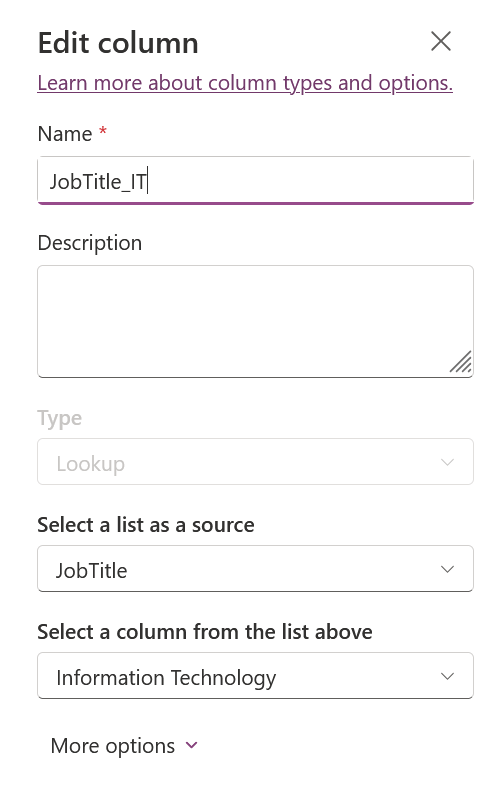
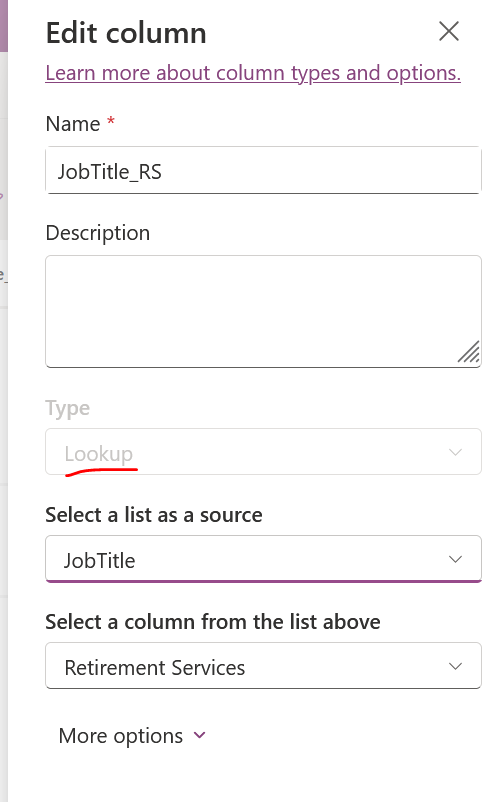
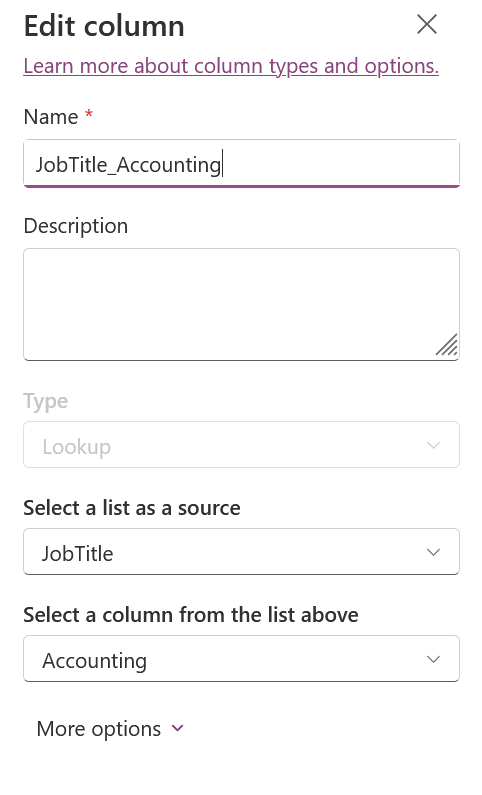
Add lookup column onto the main list [NewHire] > select [JobTitle] as source list > select the appropriate department from the secondary list.
There should be three columns for Job title referencing [JobTitle] list. (JobTitle_IT, JobTitle_Accounting, JobTitle_RS)
Conditional Branching
In Microsoft Lists and SharePoint, Conditional Branching allows you to build “smart” forms that adapt dynamically as users fill them out. Instead of overwhelming users with a massive wall of inputs, you can show or hide specific fields based on their previous input/selection.
The goal for this setup is to ONLY show IT job titles IF the department selection is IT. The same goes for accounting and retirement services. To do this, conditional branching will be the way to go.
Go to the main list [NewHire] > forms > create new form (a form will be generated showing columns created)
Make sure all the columns that you want to use on the form is VISIBLE!
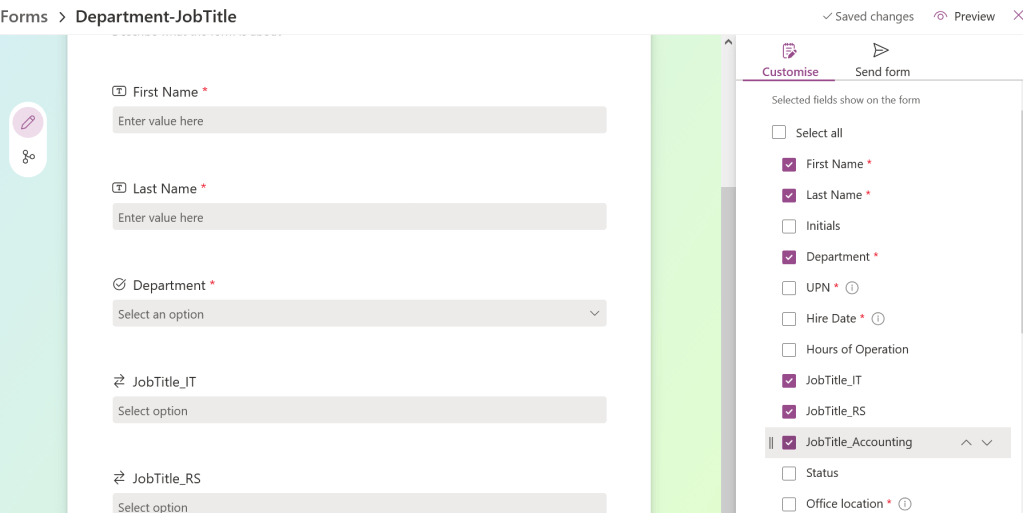
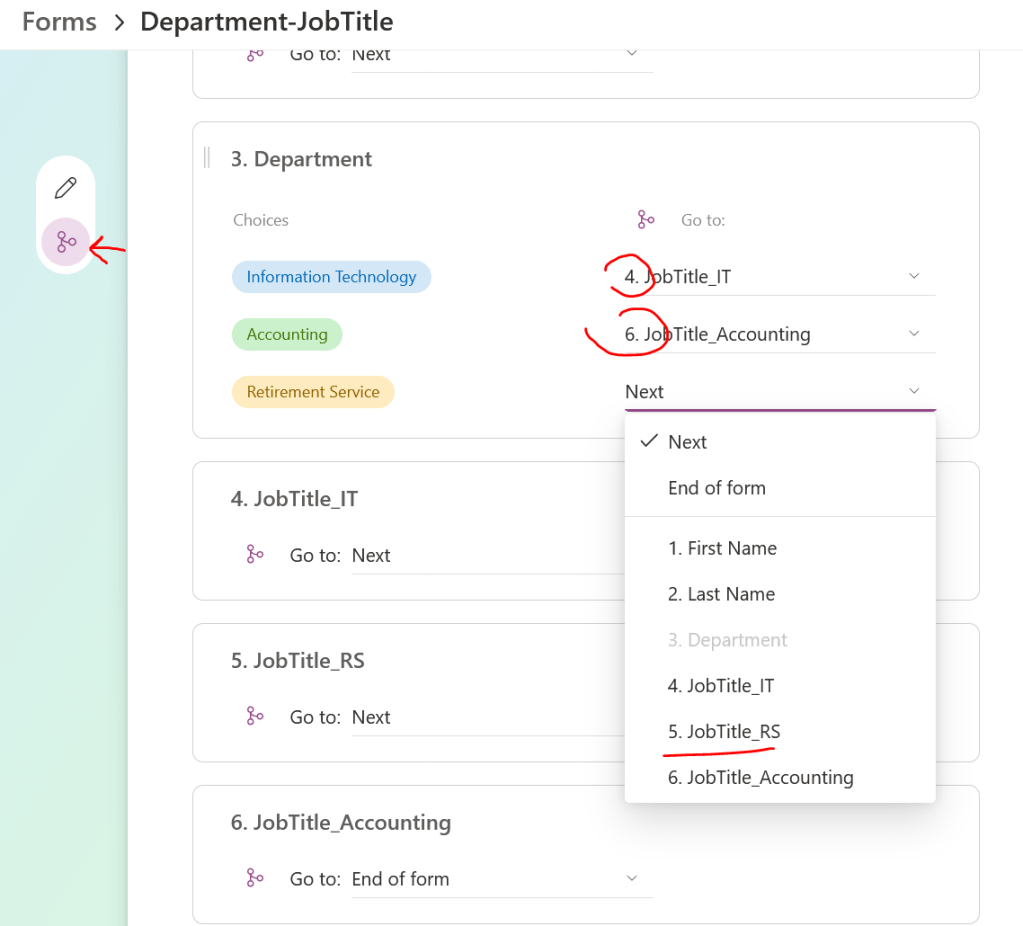
Select the conditional branching icon on left side > modify the order of choices as follow >
- IF choices (IT) is selected > go to (JobTitle_IT) field
- If choices (Accounting) is selected > go to (JobTitle_Accounting) field
- If choices (Retirement service) is selected > go to (JobTitle_RS) field
** Always make sure that at the end of each selection > always select “End of form” to end conditional branching.
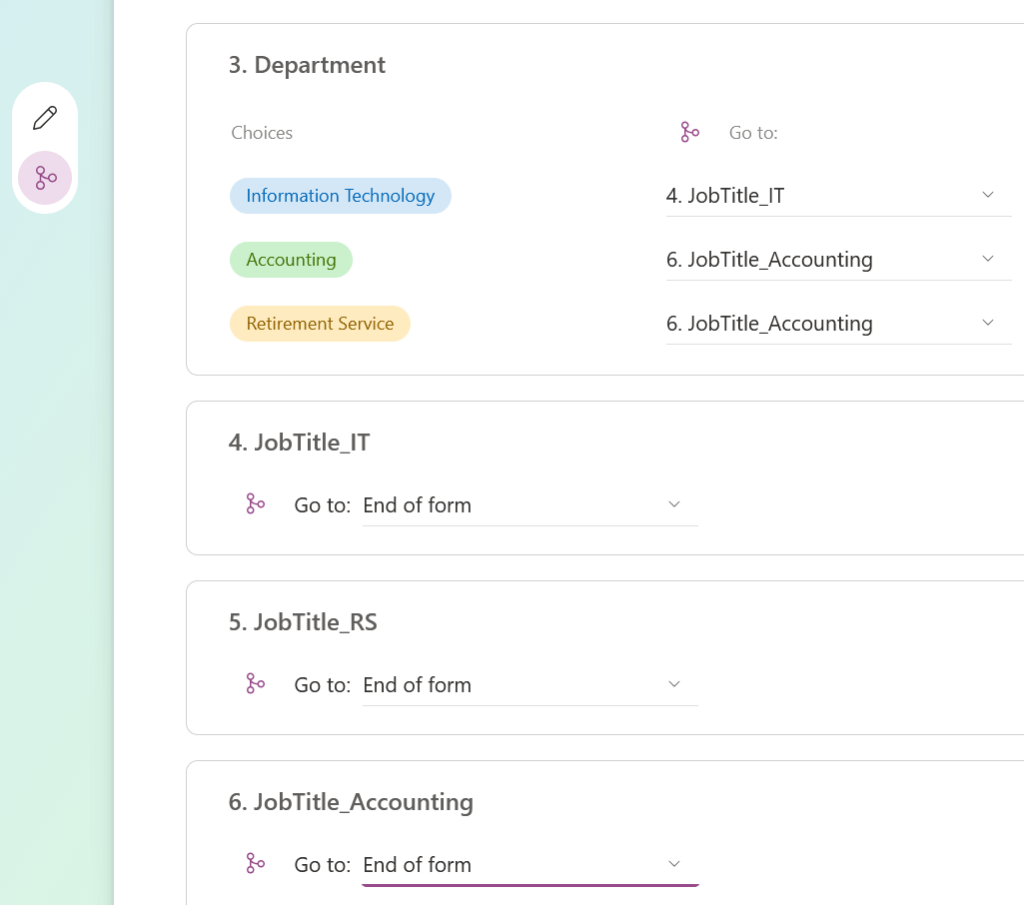
Results:
IF IT department is selected:
IF Accounting department is selected:
IF Retirement service department is selected:
Notes:
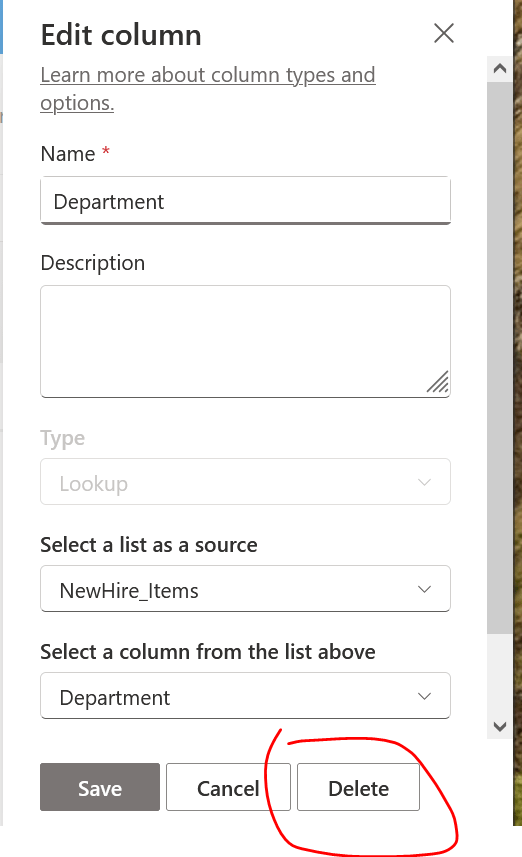
If column cannot be delete:
If column has no option to delete, it is a default column (Title) – those cannot be removed! Hide it instead.
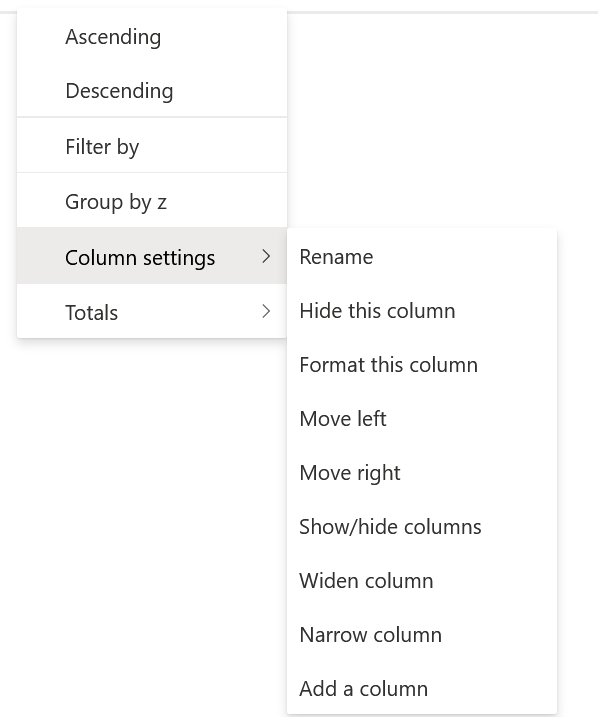
Custom column added manually can be removed
Calculations
Note: Calculated fields can only operate on their own row, so you can’t reference a value in another row, or columns contained in another list or library. Lookup fields are not supported in a formula. The ID of a newly inserted row can’t be used because the ID doesn’t exist when the formula is processed.
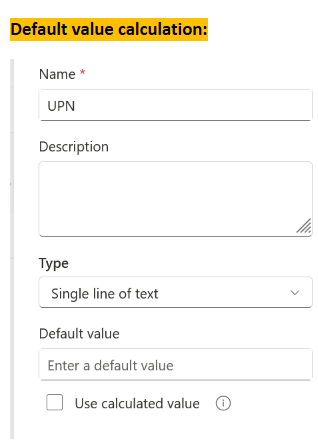
SharePoint list default value settings cannot reference other columns because the item does not exist yet when the form loads, making those references invalid. This lab will skip calculated values.

