
In Azure Logic Apps, a trigger is the starting condition or event that determines when a workflow run begins. Every Logic App workflow must start with exactly one trigger.
Once the trigger event hits true and meets the requirements, the entire process starts. Think of triggers as a starting point of the automation process.
Create logic app flow
Once the logic app is created and tied to resource group, go to azure and select your logic app > go to logic app designer and begin from there.

Each flow must have a trigger in order to start:

Types of Triggers
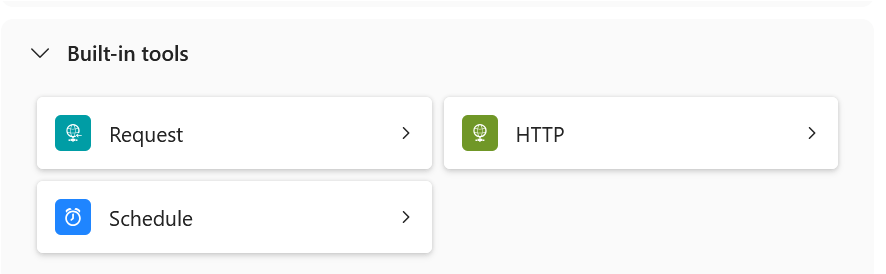
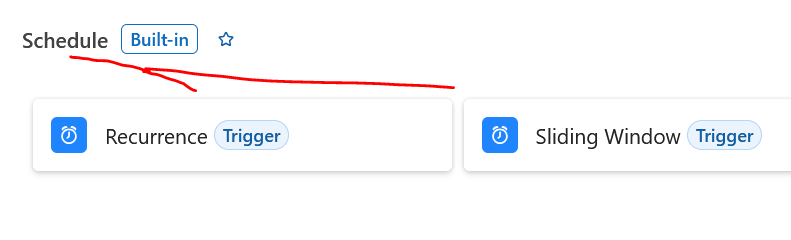
Each connector has its built in triggers that comes with it. For the built in connector for logic app, it has [Request, HTTP, schedule] that comes when logic app is created.
Built in triggers (Default triggers for logic app):
Connector triggers (Triggers that comes with share/managed connectors):
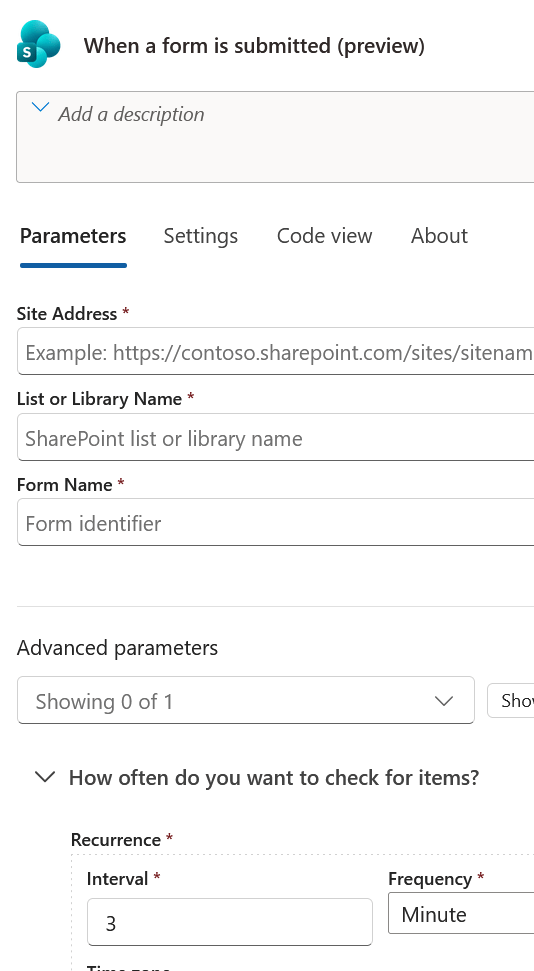
The example belong shows custom sharepoint connector with polling trigger that starts the workflow if a file is created or deleted.
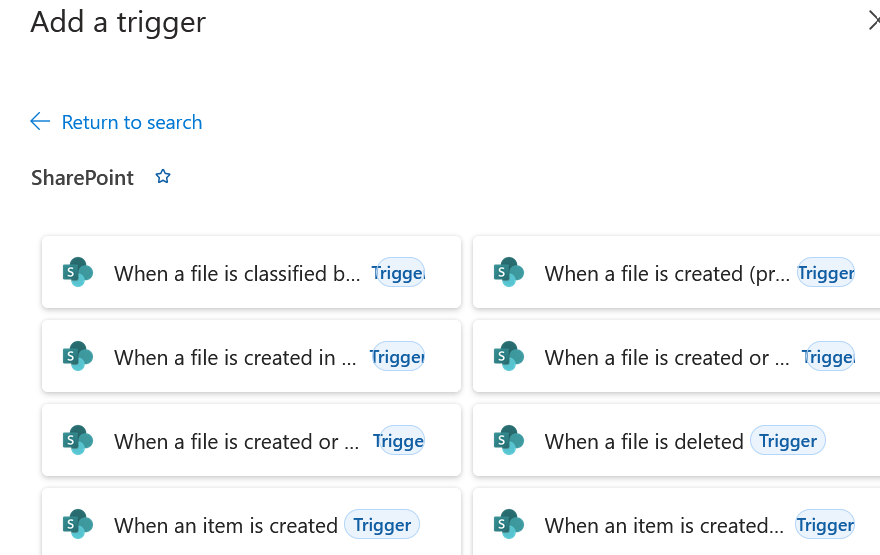
Polling Triggers: Regularly check an external service or endpoint at a set interval (e.g., every 5 minutes). If new data or an event is found, the trigger fires and starts a workflow instance.

Example: "When a new file is created in a SharePoint folder" or "When an email arrives in Outlook."

Push / Webhook Triggers (HTTP): Listen passively on an endpoint or subscription. The external service pushes data directly to the Logic App URL as soon as the event occurs, firing the workflow instantly without waiting for a poll cycle.

Example: "When an HTTP request is received" or "When a Event Grid resource event occurs."

Recurrence (Schedule) Triggers: Fire on a predetermined time-based schedule (e.g., daily at 8:00 AM, every Monday, or every 15 minutes), independent of external application events.

Example: Running a weekly automated cleanup script or generating a monthly system report.
Frequency of triggers
Once a trigger is determined – set how often the trigger will poll for data or when it will fire with recurrence setting.
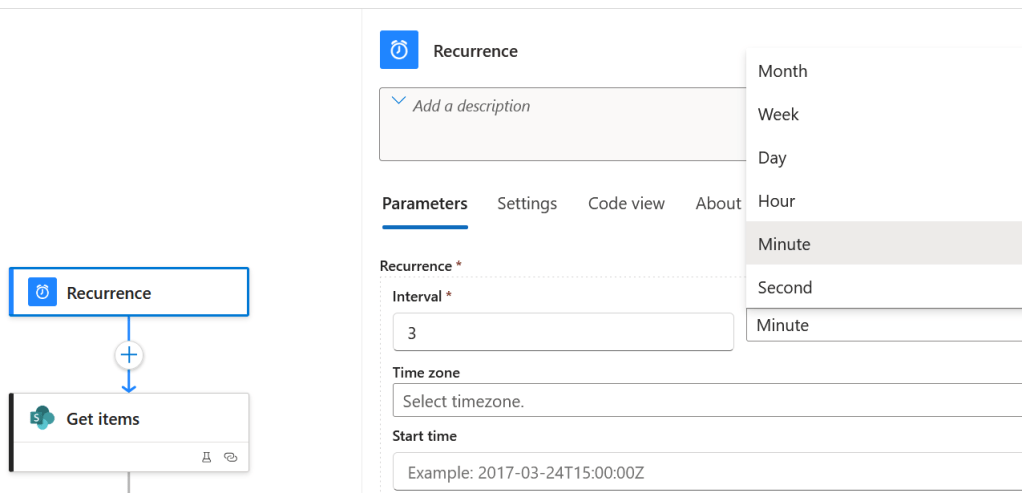
Example 1 (Recurrence (Schedule) Trigger:
Fire off the workflow based on [Schedule] trigger. This triggers every 3 minutes REGARDLESS of any condition. Think of this as a static workflow run.
Example 2 (Push / Webhook (HTTP) ) Trigger:
Fire off the workflow based on [Request] trigger. This triggers ONLY if there is an event that targets the HTTP URL generated by logic app. The trigger for this action starts when a webhook (POST) request get sent to the saved url.
It does not have a frequency or set time. Also known as webhook trigger.

Example 3 sharepoint (Polling Triggers):
Example of this sharepoint trigger only fires off if a form is submitted from sharepoint site, the default check is every 3 minutes. IF there is no form submitted, the workflow will not fire off and trigger will be marked as failed/skipped in history.
Trigger settings
There are settings for the trigger that can be modified such as:
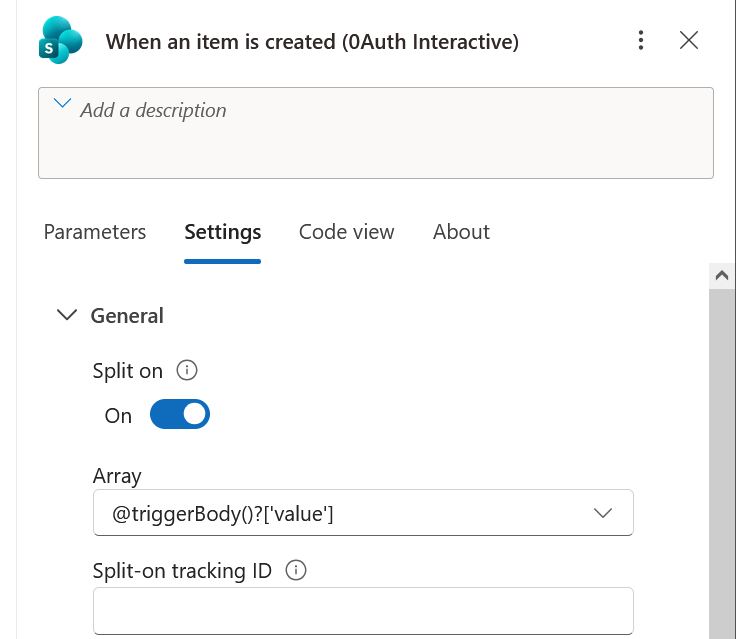
Split On: Allows a trigger that receives an array of items (like 10 new emails or files) to split the payload into 10 separate workflow runs, processing each item independently in parallel.
Concurrency Control: Limits how many concurrent workflow instances can run at the same time to protect downstream APIs from throttling. ** Once concurrency control is enabled – the workflow MUST be deleted in order to turn off setting**
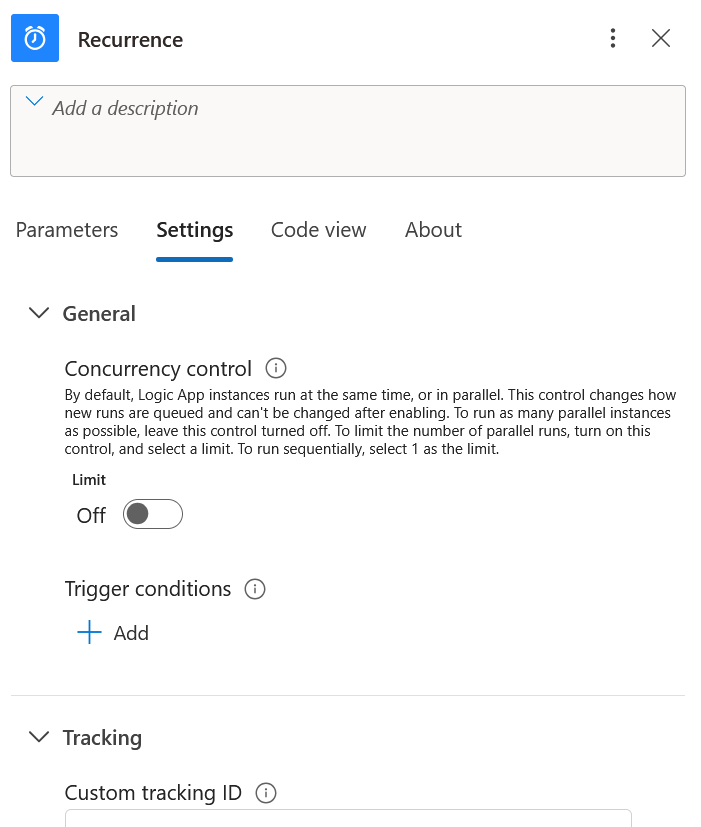
Trigger Conditions: Custom expressions applied directly to the trigger to filter events before a run starts preventing unnecessary workflow execution costs.
Example:
1. Trigger only start itself if the sharepoint item amount is greater than 100
greater(triggerBody()?['Amount'],100)
2. Trigger only fires itself between 3-4pm utc
@and(greaterOrEquals(formatDateTime(utcNow(), 'HH:mm'), '15:00'), less(formatDateTime(utcNow(), 'HH:mm'), '16:00'))
3. Only run on weekdays
@not(or(equals(dayOfWeek(utcNow()), 'Saturday'), equals(dayOfWeek(utcNow()), 'Sunday')))
4. SharePoint "When an item is created or modified" — only act on a specific status column if value is approved.@equals(triggerBody()?['Status']?['Value'], 'Approved'

