
The goal of this post is to create actions in logic app to update the status column in a sharepoint list. The post will list different options to achieve this goal by using sharepoint connector actions. The purpose of updating a sharepoint column is just to keep track of which stage the on boarding process is currently in.
Goal: Use sharepoint connector to write back to a specific list in regard to status of user account creation.

Status should be:

1. Pending - AD account creation underway.
2. Complete - AD account creation done.
2. Error - Error during creation process.

Variable declared:
• Status_Error (String) - output: "Error"
• Status_Pending (String) - output: "Pending"
• Status_Complete (String)- output: "Complete"
Option A: (“Update item”) action
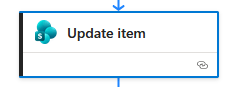
Site Address: Pick your SharePoint team site URL from the drop-down or enter it manually.

List Name: Choose the target SharePoint list or document library.

Id: Supply the dynamic ID token coming from your trigger (e.g., When an item is modified) or a preceding Get items search action.

Fields: Fill in the columns you want to change. If the columns are set to required - they must be filled in. Additional columns can be updated via the advanced parameter option.
Create the “Status” column on sharepoint list form first
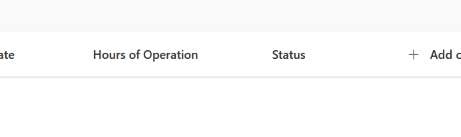
Use sharepoint action [Update Item] > advanced parameter > select status
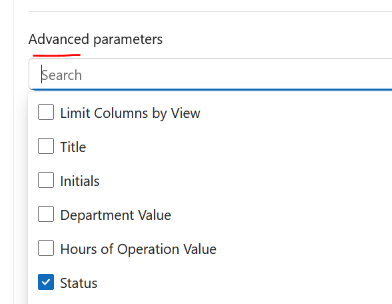
Input either a string or variable in there. The screenshot below has variable (Status_Error) set to status.
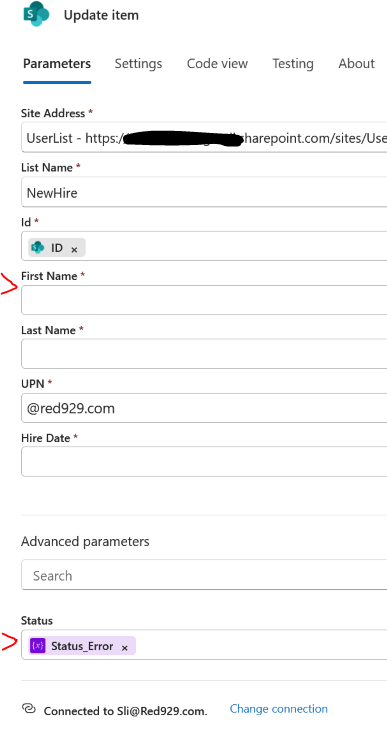
The workflow will go as follow: New sharepoint items gets created > next action is to update item “status” to pending. Note that the action “Update item” field requires it to be filled out as long as those columns are set to “Required” from sharepoint list. This is NOT what our goal is. The goal is to update a SINGLE column, which is “Status” in sharepoint list and not any other column so option A is not flexible.
Option B : (“Send an HTTP request to SharePoint”) action
Send HTTP request to manipulate status column on sharepoint with PATCH method. This request only targets a specific column.
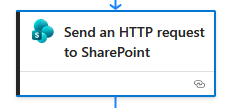
• Site Address: Select or type your target SharePoint site URL.

• Method: Choose GET, POST, PATCH, or DELETE depending on your task.

• Uri: Enter the endpoint path starting with _api/... (e.g., _api/web/lists/getbytitle('List Name')/items).

• Headers: Add Accept or Content-Type parameters. Set Accept to application/json; odata=nometadata to keep the response clean and easy to parse.

• Body: Supply a JSON payload if you are running a POST or PATCH request.
The following action set a POST method to set the status column to “Pending” for list /NewHire. The item to target is defined by the dynamic ID listed in Uri. The ID can be a static value (integer) or it can be grabbed from previous steps.
The important aspect is to make sure the body has the correct type of data, which is “Listitem”. The final value should be “type”: “SP.Data.ListNameListItem”
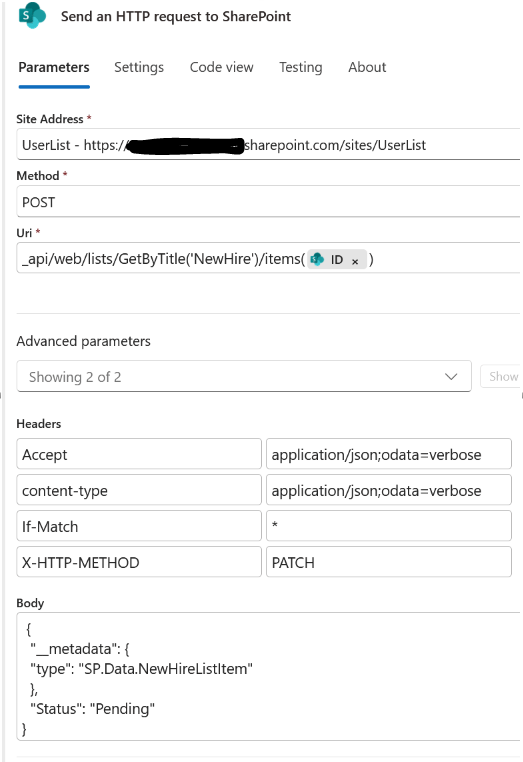
Input the following parameters:

Site address:
UserList - https://mytenantred929.sharepoint.com/sites/UserList

Method:
POST

Uri:
_api/web/lists/GetByTitle('NewHire')/items(*Insert Dynamic Content or Static ID*)

Headers:
• If the list contains mandatory fields, using "Merge" will not work with "X-HTTP-METHOD" - use "PATCH instead"

	{
	 "Accept" : "application/json;odata=verbose",
	 "content-type" : "application/json;odata=verbose",
	 "If-Match" : "*",
	 "X-HTTP-METHOD" : "PATCH"
	}
Body:
	{
	 "__metadata": {
	 "type": "SP.Data.NewHireListItem"
	 },
	 "Status": "Completed"
	}
Verify: HTTP status code 204 (No Content) indicates that a request has succeeded, but the server is not returning any content in the response
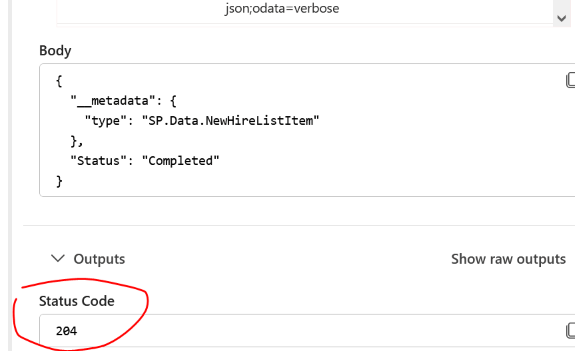
Notes
Notes:
Getting sharepoint item (entry):

Format:
_api/web/lists/GetByTitle('<List Title Here>')/items(<List Item ID Here>)

Example:
If the site name is UserList and the list name is "NewHire"

    Title = "NewHire"

    Item ID = the ID of the sharepoint entry (sharepoint increments an ID to every entry that exist in the list. It     always starts with 1 then increases.)

Results:
_api/web/lists/GetByTitle('NewHire')/items(65)


