The Microsoft Graph PowerShell SDK is the official command-line toolkit for managing resources across Microsoft 365 and Microsoft Entra when working in Powershell environment. Acting as an API wrapper that translates REST requests into native PowerShell cmdlets, the SDK installs over 35 specialized sub-modules for cloud administration.
Built on the modern Microsoft Authentication Library (MSAL), it serves as the essential replacement for the retired MSOnline (MSOL) and AzureAD modules.
Installation and Setup
• Prerequisites: Requires PowerShell 5.1 or later (PowerShell 7 is recommended), .NET Framework 4.7.2+, and the latest version of PowerShellGet.

** Do note that the SDK is massive, containing more than 35 sub-modules that install together under the main Microsoft.Graph umbrella. Installing module may take some time.

(Mandatory)
Microsoft.Graph.Authentication: This is the mandatory foundation of the SDK. It handles connection states, token acquisition via MSAL, tenant switching, and interactive/app-only logins (e.g., Connect-MgGraph, Disconnect-MgGraph, Get-MgContext).

(Optional)
Microsoft.Graph.Users: Cmdlets for managing user accounts, profiles, and licenses (e.g., Get-MgUser, Update-MgUser).
Microsoft.Graph.Groups: Cmdlets for Microsoft 365 groups, security groups, and group memberships (e.g., Get-MgGroup, New-MgGroup).
Microsoft.Graph.Sites: Cmdlets for SharePoint Online lists, drives, and site collections.
Microsoft.Graph.Teams: Cmdlets for Microsoft Teams team creation, channels, and settings.
# Install module for current user
Install-Module Microsoft.Graph -Scope CurrentUser

# Install module for all users
Install-Module Microsoft.Graph -Scope AllUsers -Repository PSGallery -Force

# Update Microsoft graph SDK
Update-Module Microsoft.Graph

# Verify module installation
Get-InstalledModule Microsoft.Graph

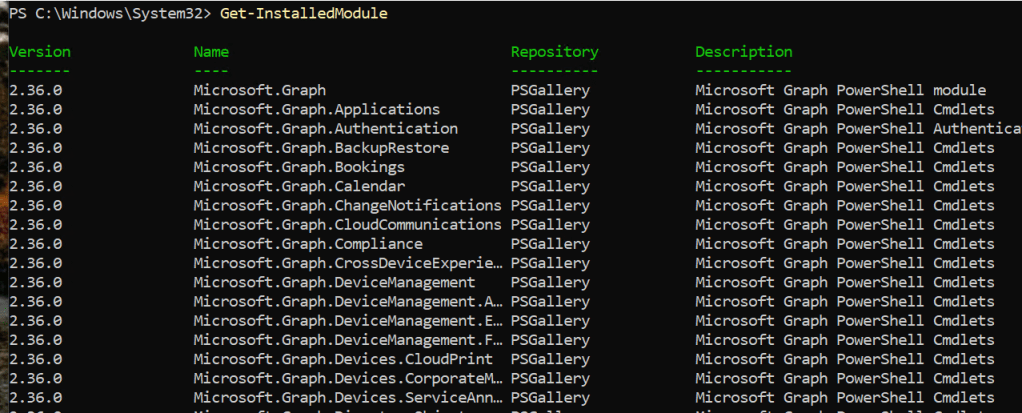
# Uninstalling the SDK
First, use the following command to uninstall the main module.

Uninstall-Module Microsoft.Graph -AllVersions

Then, remove all of the dependency modules by running the following commands.

Get-InstalledModule Microsoft.Graph.* | ? Name -ne "Microsoft.Graph.Authentication" | Uninstall-Module -AllVersions

Uninstall-Module Microsoft.Graph.Authentication -AllVersions
SDK authentication
The PowerShell SDK supports two types of authentication: delegated access, and app-only access. Delegated access is what you will be using when running the Powershell SDK as a user as it invokes operations on your behalf with your privileges, while app-only access is normally used with automation tasks.
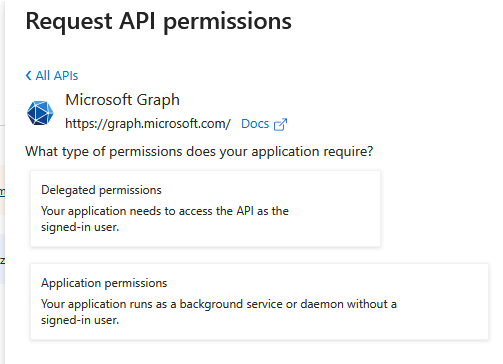
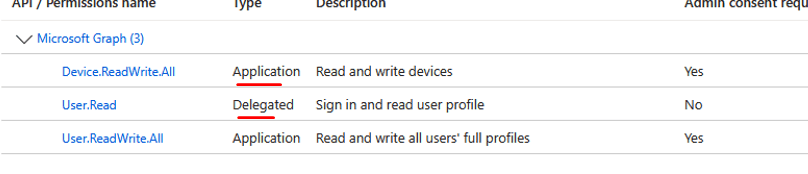
When signing in with the Powershell SDK you need to define the permission scopes you want to use. You will need to sign in with an admin user in the tenant to consent to the permission scopes. After authentication, you can add additional required permission scopes by repeating the Connect-MgGraph cmdlet with the new permission scopes.
Method of connection (A typical interactive session to connect to MS Graph requires device authentication code):
Interactive authentication: A browser opens to authenticate to your tenant.
Connect-MgGraph

Device authentication: Navigate to a URL and enter a device code to authenticate.
Connect-MgGraph -UseDeviceAuthentication

Access token: Authenticate using your own access token.
Connect-MgGraph -AccessToken $AccessToken
# Device code flow authentication with permission scope
Connect-MgGraph -Scopes "User.ReadWrite.All","Group.ReadWrite.All"
# Disconnect from session
Disconnect-MgGraph

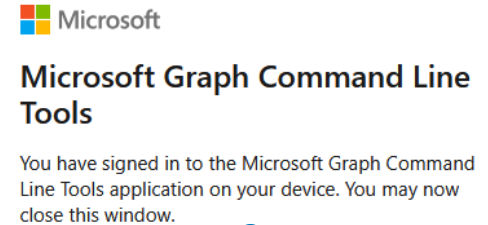
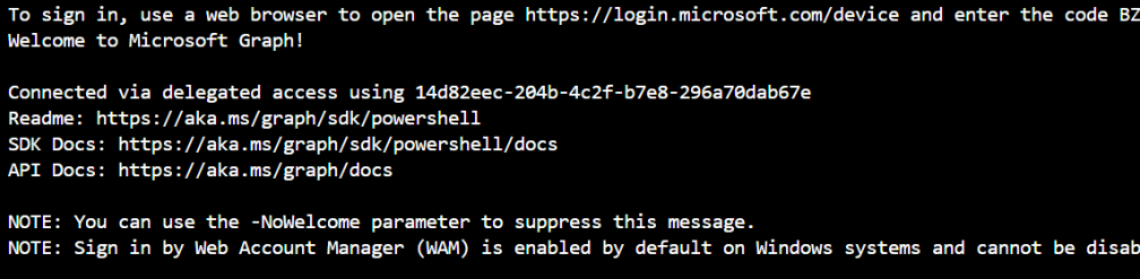
** Note: Any permission scopes you consent to for Graph Powershell SDK is only delegated permissions type, which means that Graph Explorer will never have more privilege than the signed-in user, and the signed-in user must be present.
Cmdlet Structure and Discovery
All nouns in cmdlets in the Powershell SDK is prefixed with *-Mg, like Get-MgUser, New-MgGroup etc.
Get-Command *mggroup*
Get-Command *mguser*
Get-Command -Module Microsoft.Graph* *team*
Get-Help New-MgUser -Detailed
Get-Help Remove-MgGroup -Detailed
Example:
Instead of using Invoke-MgGraphRequest and calling the PATCH method to update a user title – it can be done with just
Update-MgUser -UserID “xxx” -jobtitle “New Title”
- Invoke-MgGraphRequest is good to use if the other SDK cmdlet is not available or not working properly.
Powershell SDK Examples
User object:
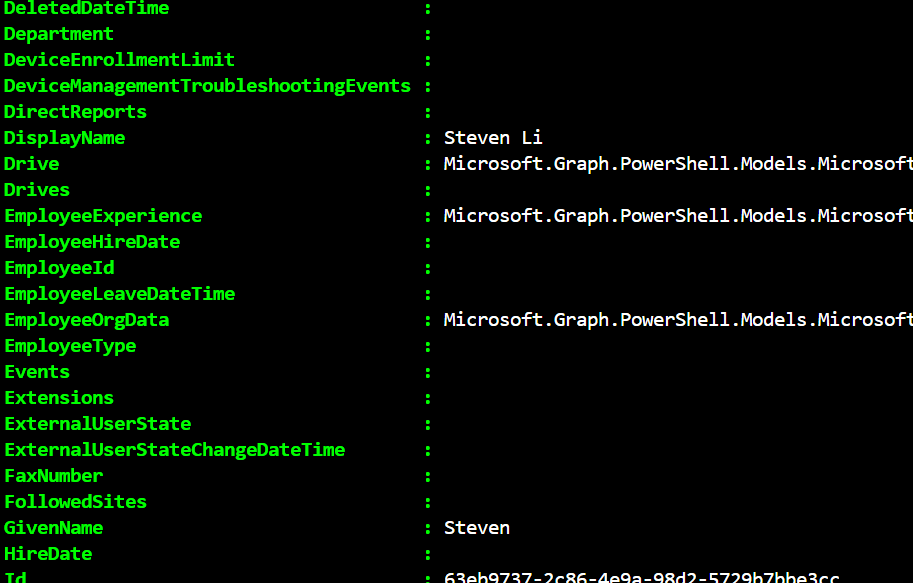
Retrieve specific properties of a user
# get user properties$user = Get-MgUser -UserId "sli@red929.com" -Property id,displayName,givenName,surname,mail,userPrincipalName,userType -ExpandProperty manager

# Output user attributes$user | Format-List
Retrieve user that matches specific properties
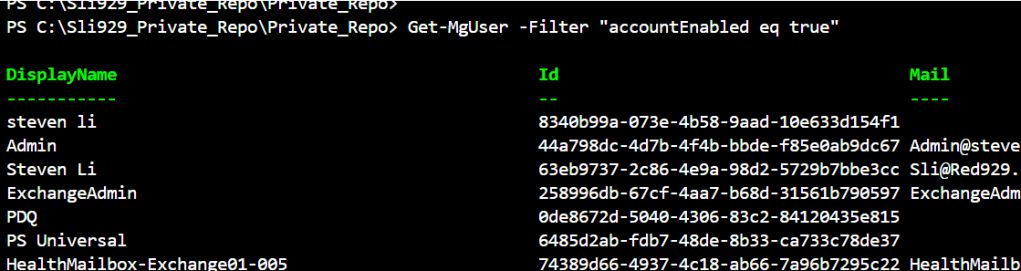
Use the cmdlet Get-MgUser and utilize the -Filter parameter to filter the response to only return objects with a specific attribute value.
# Retrieve user that matches specific propertiesGet-MgUser -Filter "displayName eq 'Steven Li'"

Get-MgUser -Filter "accountEnabled eq true"
Create a new user
Use the cmdlet New-MgUser to create a new user account. The attribute parameters in the example below are the very minimum of required attributes.
# Create new user $passwordProfile = @{ forceChangePasswordNextSignIn = $false password = "HSakz2Gzzzzzzzz@i" } | ConvertTo-Json New-MgUser -DisplayName "Test_User_Red9" -MailNickname "Test_User_Red9" -UserPrincipalName "Test_User_Red9@red929.com" -PasswordProfile $passwordProfile -AccountEnabled:$true

Update user
Update-MgUser -UserId "bob@red929.com" -AccountEnabled:$false -JobTitle "Test Account"
Delete existing user
Remove-MgUser -UserId "sli@red929.com"
Restore deleted user
Restore-MgUser -UserId f7b0b597-965f-4fcd-beb0-324335223c5c
Get group and list members
$group = Get-MgGroup -GroupId 5ed3f5ec-3a54-421a-8dba-e0e07c8f5704 -ExpandProperty members

Output members
($group.Members.AdditionalProperties).userPrincipalName

Add a user as a group member (Member added via object ID)
DirectoryObjectId: The unique Object ID (GUID) of the user, service principal, or nested group being added.
New-MgGroupMember -GroupId 2c16bbc9-7489-44a5-a9b7-67d5d8d8d4b5 -DirectoryObjectId f7b0b597-965f-4fcd-beb0-324335223c5c

If the group is on premise – then the user cannot be moved to the group. The membership must be modified from on premise AD.

Notes:
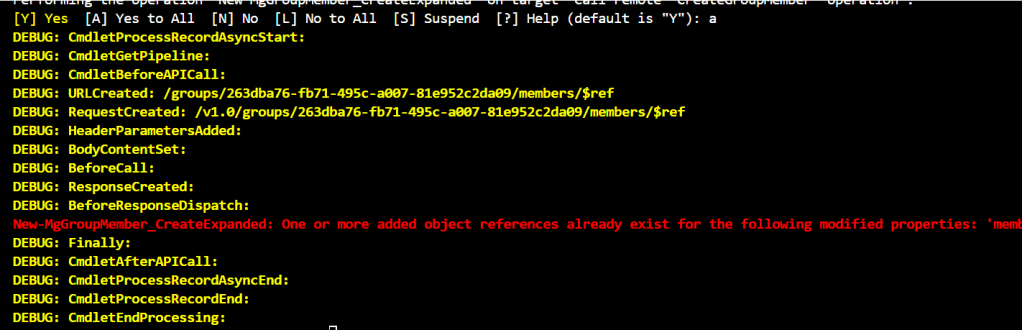
Add -debug parameter to get details information on cmdlets. -Verbose is also an option
Get current user permission scope:
To identify the permissions needed to run a specific cmdlet of the microsoft.graph module you can use the find-mgGraphCommand cmdlet, e.g.:
(Find-MgGraphCommand -Command get-mguser).permissions
Get details on ms graph connection
Get-MgContext
To identify which permissions are assigned to the current session you can use the get-mgcontext cmdlet, e.g.:
(get-mgcontext).scopes
Troubleshoot:
Invoke-MgGraphRequest
Invoke-MgGraphRequest is a powershell SDK cmdlet part of the Microsoft.Graph.Authentication Module.
It is used to send any HTTP request (GET, POST, PATCH, PUT, DELETE) directly to the Microsoft Graph API.
It works for any Graph API if you know the REST URI, method, and optional body parameter. This command is especially useful for accessing APIs for which there isn’t an equivalent cmdlet yet.
| Scenario | Use Invoke-MgGraphRequest | Use Invoke-RestMethod |
| Authentication | Handled automatically by your Connect-MgGraph session. | You must manually provide the Authorization header with a Bearer token. |
| URI Format | Can use relative paths (e.g., v1.0/me) or full URLs. | Requires the full absolute URL. |
| Output | Returns a PSCustomObject (similar to JSON). | Returns a PSCustomObject. |
| Best For | Quickly testing Graph calls or using Beta features in the SDK. | Custom scripts where you handle OAuth2 tokens yourself (no SDK installed). |
Running this command produces invalid results:
Invoke-MgGraphRequest -method GET -uri "https://graph.microsoft.com/v1.0/users?$filter=displayname eq 'Steven Li' "
The issue is how PowerShell handles the $ symbol inside double quotes. In PowerShell, $filter is interpreted as a variable. Since you probably haven’t defined a variable named $filter, PowerShell replaces it with nothing, sending a broken URI to Microsoft Graph. The correct way to use back tick before “$filter”
Invoke-MgGraphRequest -Method GET -Uri "https://graph.microsoft.com/v1.0/users?`$filter=displayName eq 'Steven Li'"
Output returns a PSCustomObject (Invoke-MgGraphRequest):
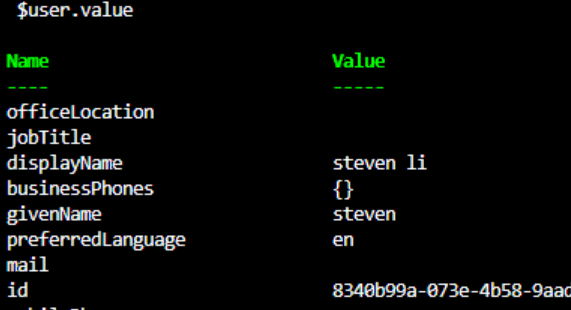
When you use Invoke-MgGraphRequest, the output isn’t a “pretty” list like Get-MgUser. It returns a PSCustomObject (a hash table-like structure).
Revise the method to get the data or assign a variable to the invoke request and get the properties of “Value”
$user = Invoke-MgGraphRequest -Method GET -Uri "https://graph.microsoft.com/v1.0/users?`$filter=displayName eq 'Steven Li'"

$user.value