
Azure Logic Apps (Platform as a service – PaaS) is Microsoft’s cloud-based integration platform used to design, automate, and orchestrate workflows across cloud, on-premises, and hybrid environments with little to no code. Unlike power automate, logic app is not tied to a single user account. It is tied to resource group making collaboration easy and adds no overhead when it comes to security access audits.
With Logic apps, admin can essentially create workflows with connectors (sharepoint, Outlook, azure automation,etc…). An example usage of logic app includes:
• Establish workflow to provision new accounts for organization for hybrid or full entra tenant. The workflow can interact with third party connectors like HR and MFA system to link the account. Workflow can also trigger azure runbook to interact with on premise Active directory environment to modify account attributes (logon hours, manager, address,etc...)

• Termination of user, control of identity lifecycle.

• Trigger provisioning of azure virtual machines using ARM Template or Bicep Deployment.

• Automated File Transfer & Data Ingestion (SFTP to Cloud Warehouse).

• Automated Cloud Infrastructure Maintenance & Reporting.

• Rotate account secrets or certificates.
How to create logic app
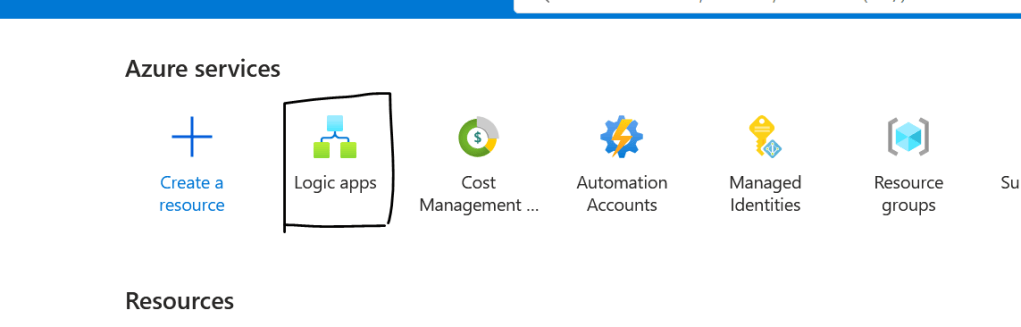
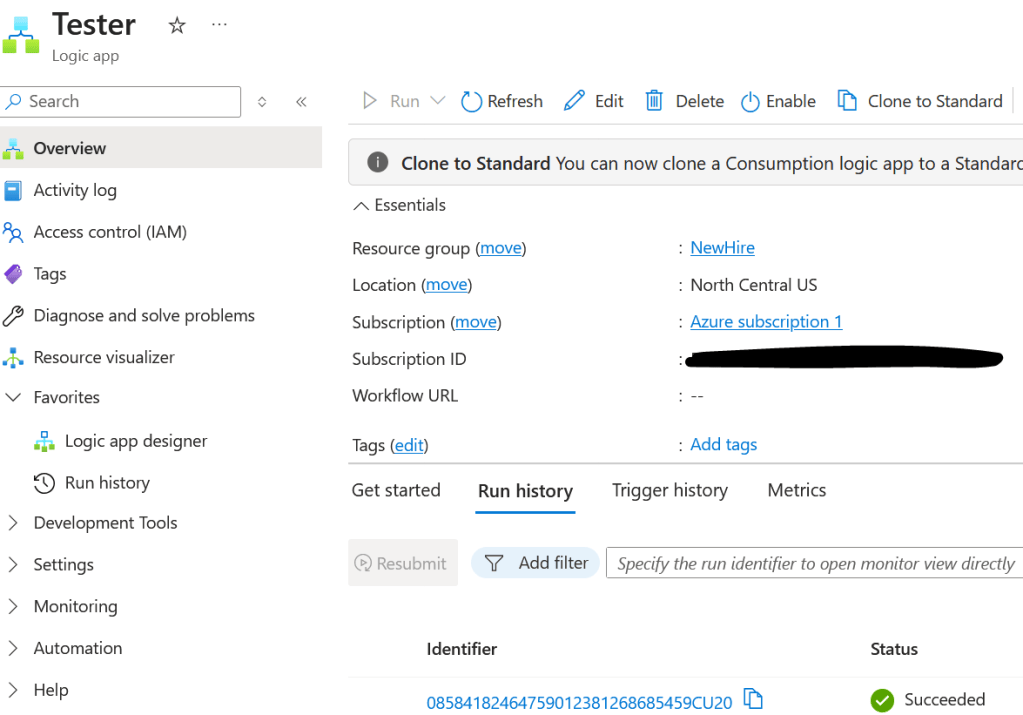
Go to Azure portal > select logic apps > create > select consumption/standard plan > fill out the information and tie the logic app to resource group and subscription plan > finish.
Core Architecture & Terminology
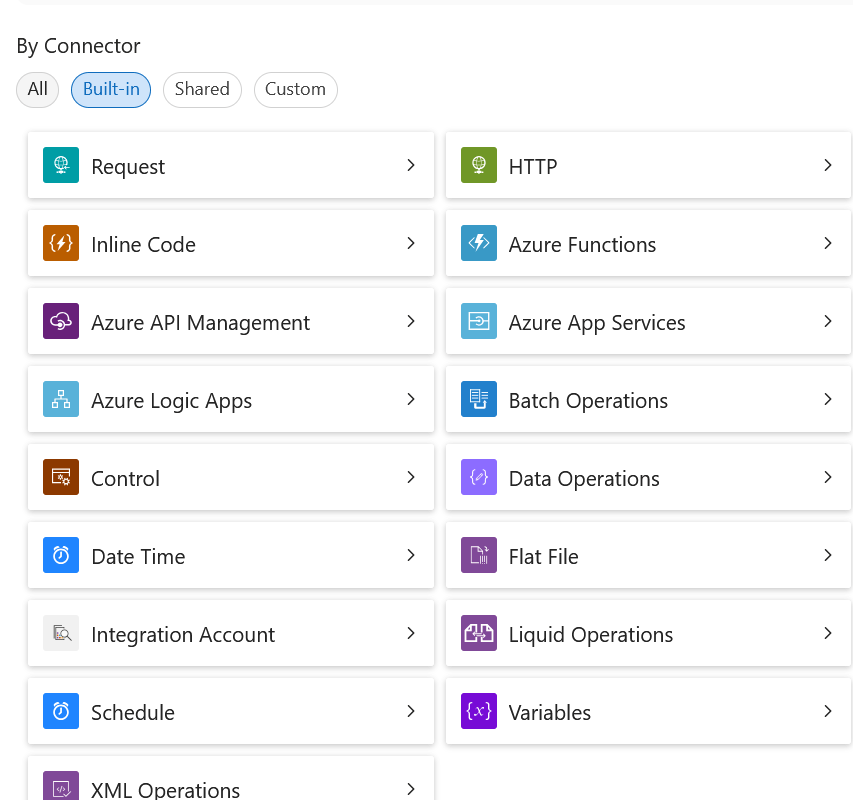
Built-in Connectors: Run natively inside the Logic Apps runtime for higher performance, lower latency, and local/on-premises execution.
Workflow: A sequence of steps defining a business process or automated task.
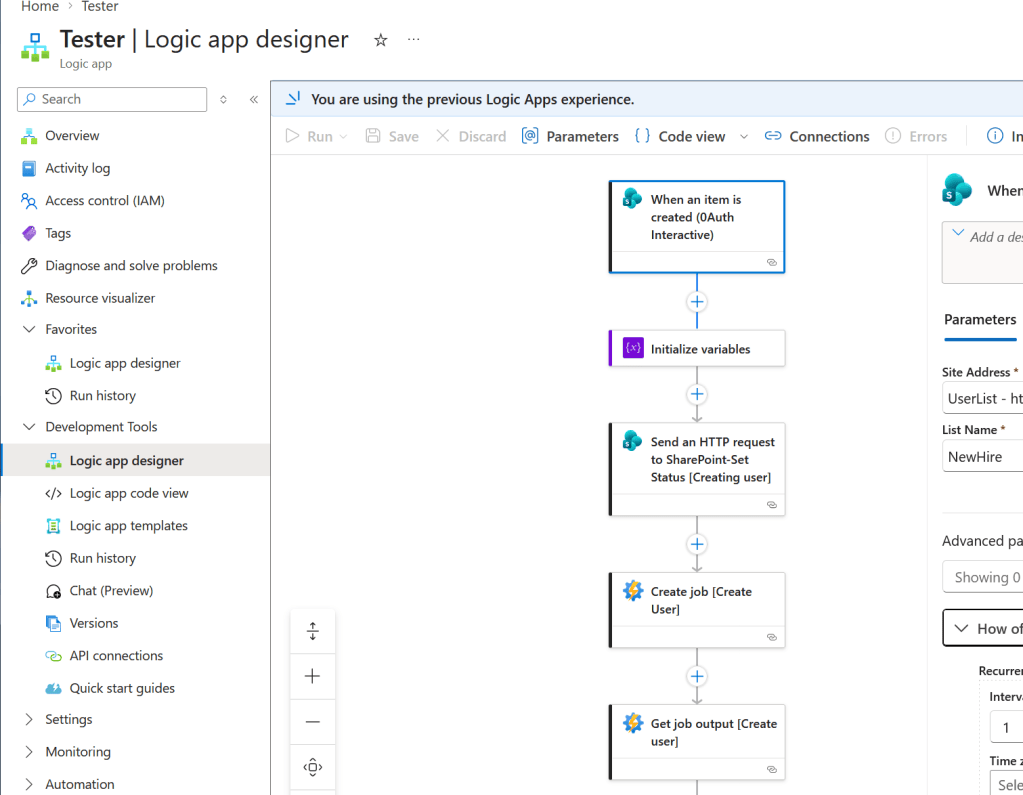
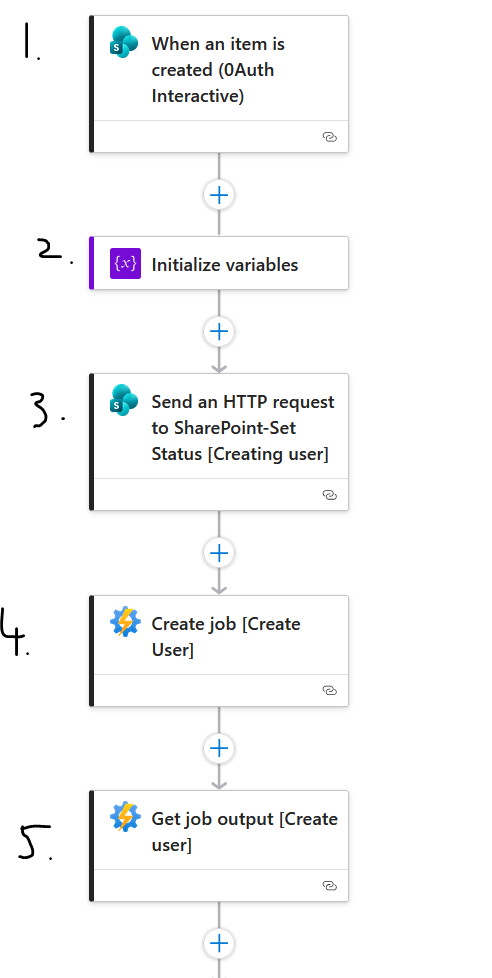
The example workflow here starts with sharepoint trigger:

1. When new item is created in Sharepoint list.

2. When new item is detected - it goes to step 2: Initialize variables - as I want the UPN, email, First name, etc... from step 1.)

3. Create HTTP Request to modify the status of the user to "Creating User" on sharepoint list

4. Now I have the new hire information from sharepoint and have updated the status on sharepoint list - I can begin account creation by calling Azure automation connector which will trigger azure runbook to run against my active directory environment.

5. Get job output retrieve the summary of the account creation process in step 4. If success - continue to group membership, else if failed, do something else.
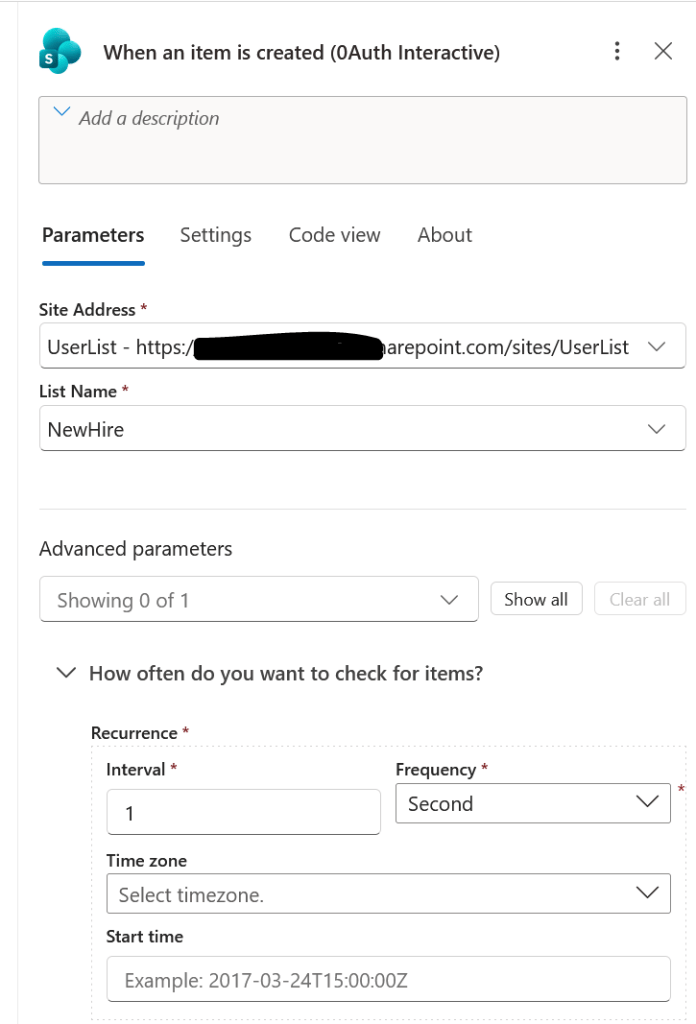
Trigger: The initial event that starts a workflow (e.g., a scheduled timer, an incoming HTTP request, or a file landing in Blob Storage).
The example below is a share point trigger that fires whenever a new item is created on a sharepoint site. Interactive authentication with OAuth will be used here as sharepoint connector does not support managed identity at this point.
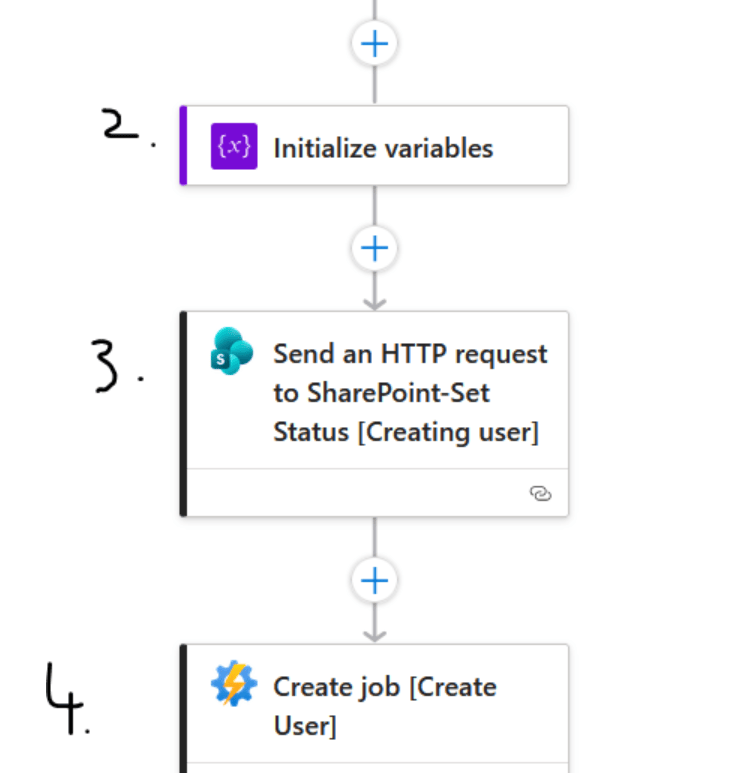
Action: Every step that follows the trigger (e.g., processing data, calling an API, sending an email, or executing script).
The actions here are:

[Initializing data using the built-in connector (Initialize Variables)]

[send HTTP request to sharepoint using sharepoint connector (Send an HTTp Request to sharepoint)]

[Create user creation job using azure automation connector (Create job)]
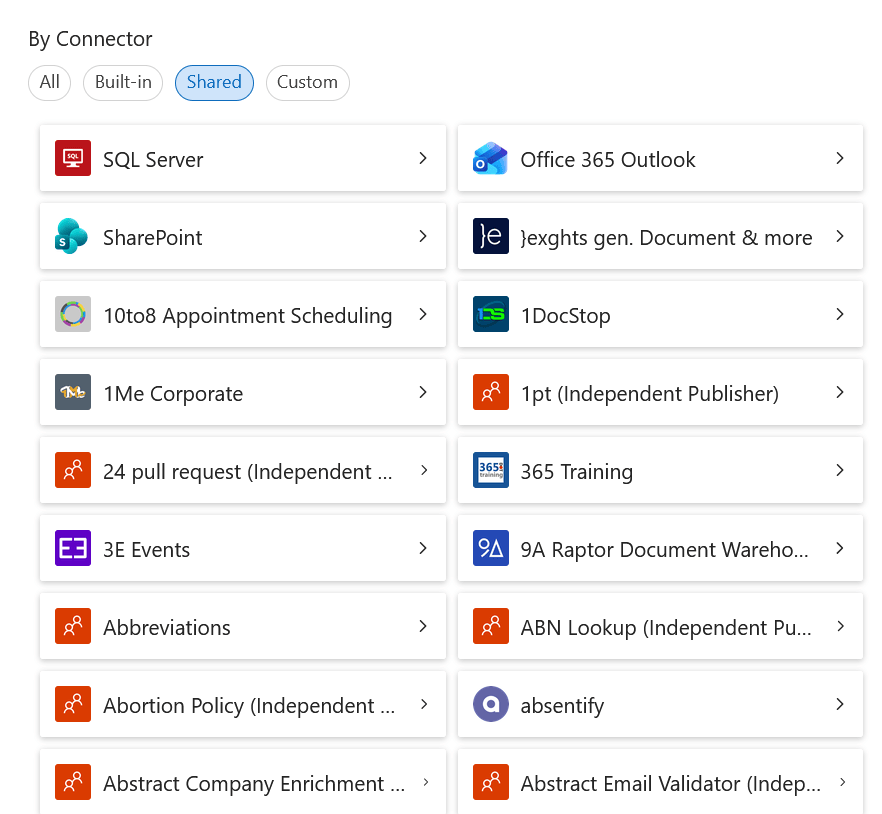
Shared (Managed) Connectors: Hosted in Azure; include over 1,400+ pre-built wrappers for services like Office 365, SQL, SAP, Salesforce, and Azure services.
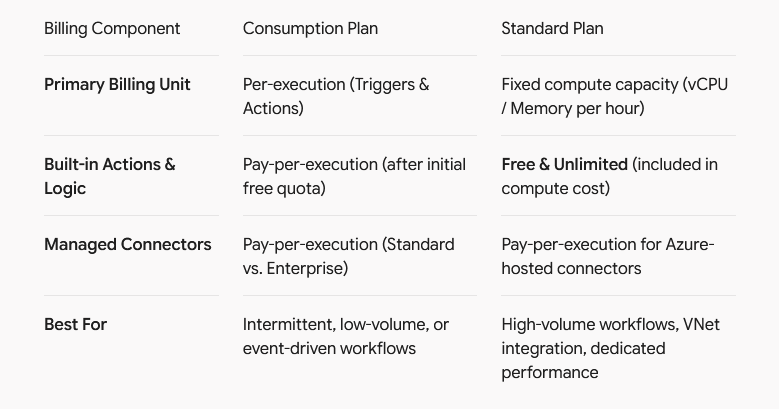
Billing
Current rate as of 2026:
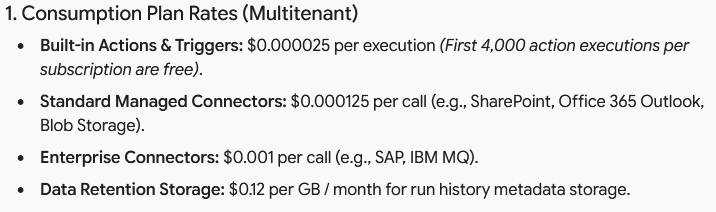
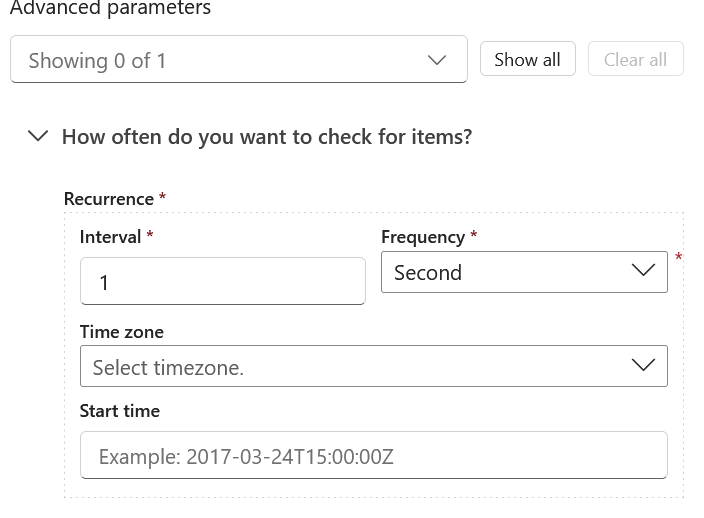
For the consumption plan – do note that Microsoft still bills for triggers that failed/skipped. For pay-per-execution plan with triggers that are set to recurrence of (every 1 second/minute/hour…), even if the trigger fails to fire every X seconds, it still counts towards the final bill so it is recommended to adjust the aggressiveness of the interval/frequency.
In conclusion, the bill will be higher if there is lots of actions (ex: loops) in the logic app and custom managed connectors are used. Consumption logic app are best for low volume execution workflow like provisioning new hire or user off boarding since it does not occur often.
High level overview
When it comes to Workflow automation and system integration for the organization, use azure logic app. Establish the logic and the steps to achieve the goal. Start with trigger and build the workflow from there with help from connectors.
Azure logic app provides a visual of the step by step process, which requires little to no code. However, it is recommended to get familiar with REST API and Json formatting when it comes to parsing or manipulating data from logic app.
Once the logic has been establishes, half of the work inside logic app is parsing data from other connectors. Other half of the work is either outside of logic app or making sure connectors are not failing inside logic apps due to access issues.

