
The Azure Automation connector provides pre-built actions for Power Automate, Azure Logic Apps, Power Apps, and Copilot Studio to invoke, manage, and monitor Azure Automation runbooks and job execution without writing custom API code. The actions for Azure Automation connectors are [Create Job], [Get Job output] and [Get status of job].
For the ILM (Identity lifecycle management) project, the new hire setup is done in a hybrid environment. Given that there is a requirement to provision the user from Active directory or Exchange admin center, this relies on hybrid runbook workers to trigger runbook for on premise server. Azure automation connector will meet this requirement as it has parameter to add a hybrid worker.
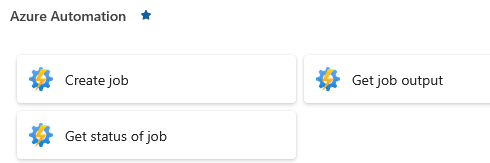
Core Capabilities for the actions:
- [Create job] Trigger PowerShell, Python, or Graphical runbooks on-demand or based on events from other services.
- [Get job output]: Retrieves the output generated by a completed runbook job.
- [Get status of job]: Queries the execution state of a runbook job.
When to Use It:
- Complex Logic: When your workflow requires logic that is too complex for standard Logic App / Power Automate expressions. Can utilize runbook .
- Legacy Infrastructure: When you need to interact with on-premises servers using Hybrid Runbook Workers.
- High-Volume Batching: For processing large datasets that require long-running, asynchronous background tasks.
Authentication Options:
Supports Service Principal Authentication, OAuth and managed identity. As a prerequisite – it is important to set up authentication method first.
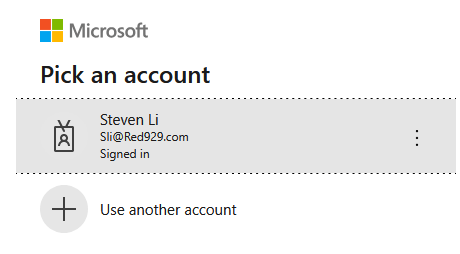
OAuth default will be interactive login with token based access.
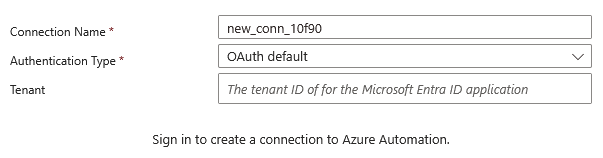
Service Principal Authentication – More details on Service principal here (https://blog.blue929.com/2026/07/19/service-principal/)
1. Create a service principal account (Entra portal > App registration > select “New registration” > input name > register).
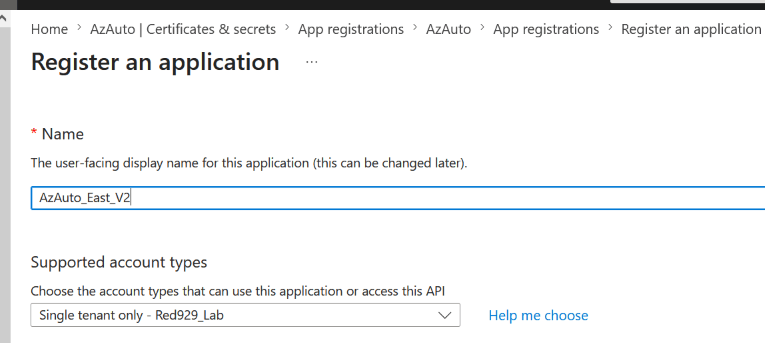
- Assign the necessary API permission required for app depending on workload inside runbook. (Optional)
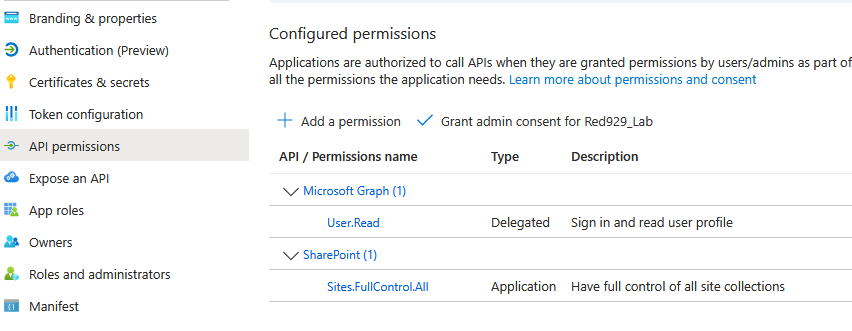
2. Create client secret (Certificates & secrets > “New Client Secret” > select expiration date > done)
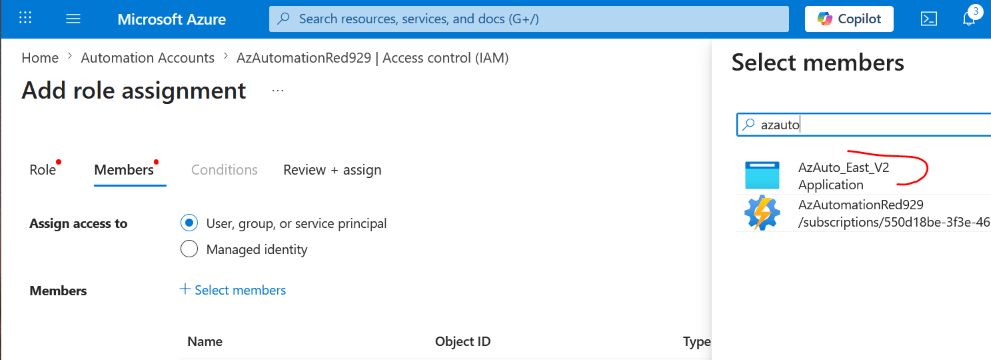
3. Configure RBAC and provide role for service principal under automation account IAM (Mandatory). Select service principal > “AzAuto_East_V2“. Assign at least one of the following roles:
| Role | Purpose / Capabilities | Scope Level |
| Automation Job Operator | Start jobs & read outputs. Allows triggering runbooks, passing parameters, and checking job status/streams. (Recommended for API/Connector integrations). | Automation Account or specific Runbook |
| Automation Runbook Operator | Read runbook properties. Read runbook configurations, schedules, and metadata (does not automatically grant permission to create/edit). | Automation Account or specific Runbook |
| Automation Operator | Full operational control. Start, pause, resume, stop jobs, and read schedules/runbook properties. | Automation Account |
| Automation Contributor | Full administrative control. Create, update, import, publish runbooks, manage schedules, assets, and credentials. | Resource Group or Automation Account |
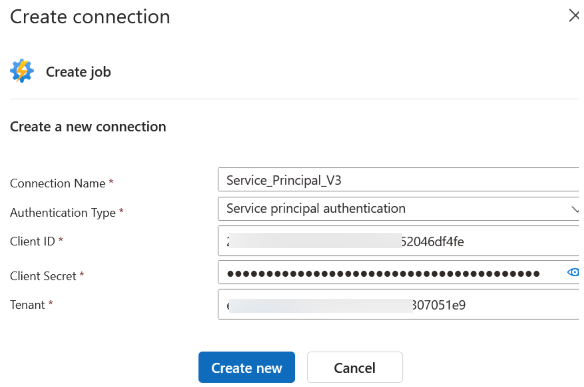
4. Log in with service principal from azure automation connector
Managed Identity authentication would be the preferred method as there is no management of secrets or certificates.
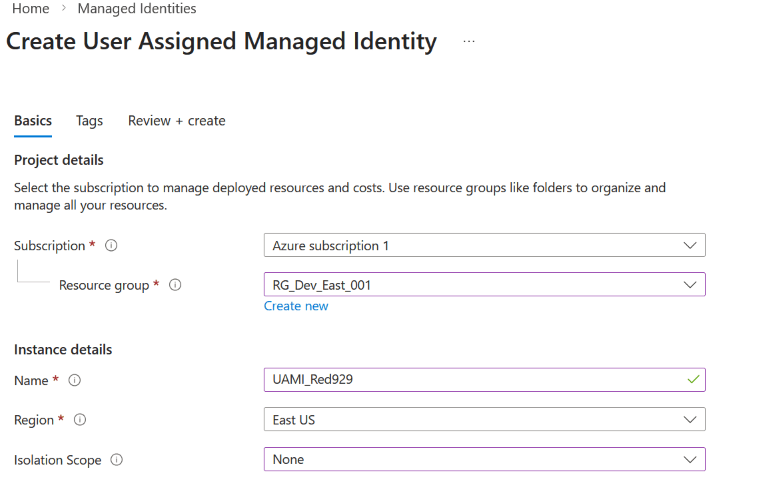
1. Create a user-assigned managed identity from azure portal. Azure portal > services > managed identities
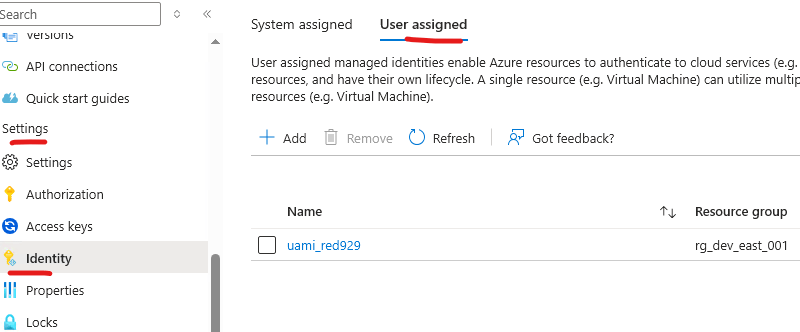
2. Go to logic app > select an app > setting > identity > user assigned > add the user identity:
From automation account > IAM > provide at least one of the roles:
| Role | Operational Scope |
| Automation Job Operator | Least Privilege: Allows starting runbook jobs, submitting parameters, and reading job outputs/statuses. (Best for API/connector integrations). |
| Automation Operator | Allows starting, stopping, pausing, and monitoring jobs, as well as viewing runbook names and properties. |
| Automation Contributor | Grants full administrative control (creating/editing runbooks, schedules, and account configuration). |

3. Click add new connection > the user managed identity should come up. Connector should be able to poll the details on subscription:
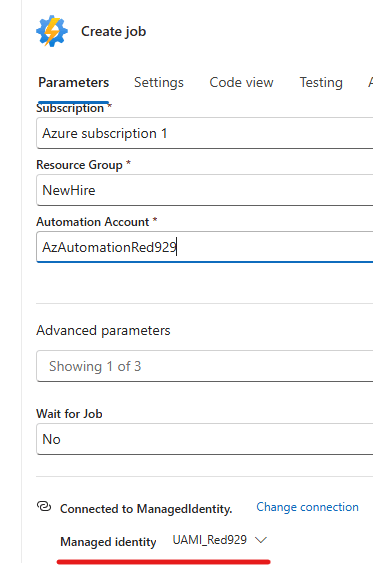
Verify Azure Automation connectivity:
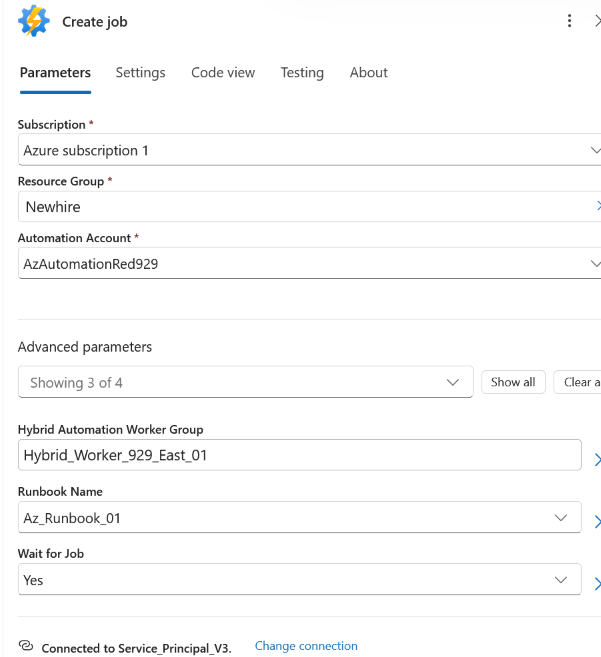
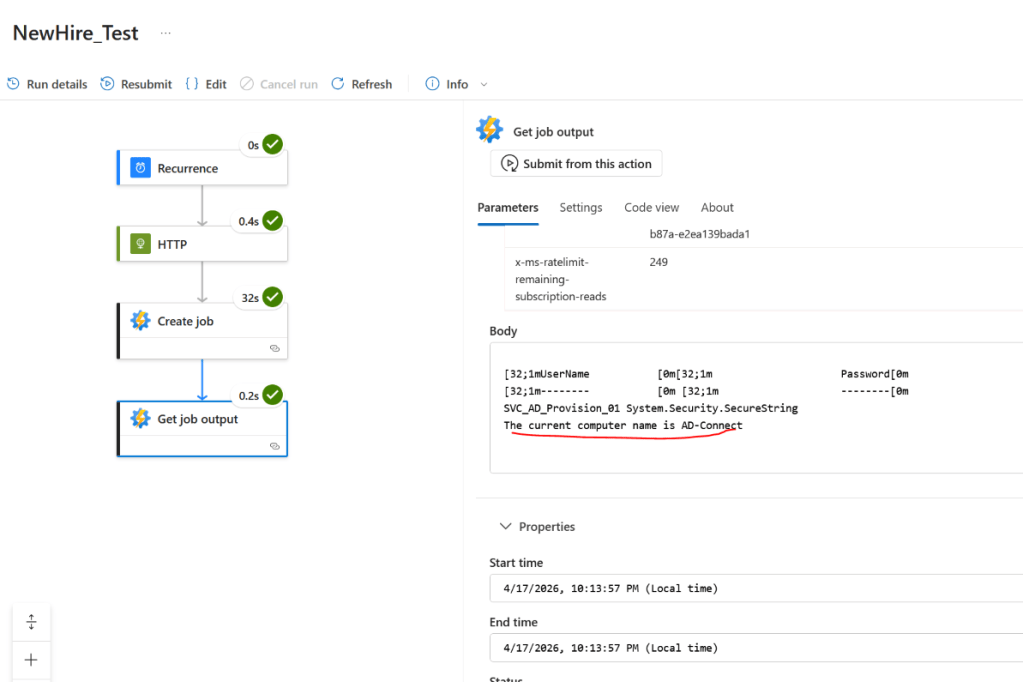
The following example uses service principal (AzAuto_East_v2) for authentication in order to trigger the runbook (Az_Runbook_01) using hybrid worker group (Hybrid_Worker_929_East_01). Once the job is done, grab body output.
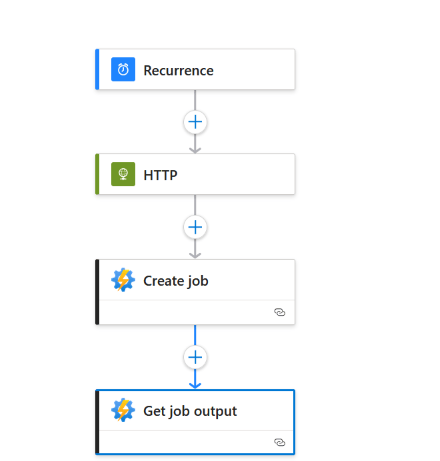
Create job parameters:
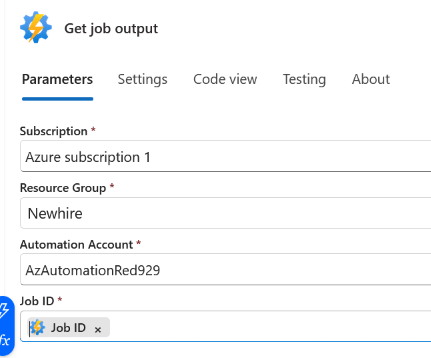
Get Job output parameters (Job ID will target the previous action dynamic content):
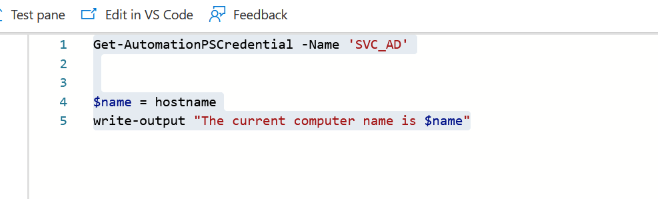
Runbook code that will be run against an on premise server:
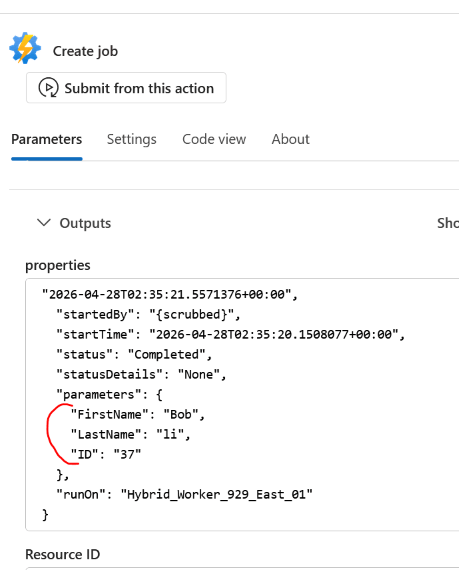
Output (Logic app run history:)
How to pass on parameters from Azure Automation connector over to runbook?
The Objective: Demonstrate how to pass parameters from an Azure Logic App workflow to an Azure Automation runbook.

Workflow Overview:

1.Data Transmission: Input values from the Logic App payload are passed directly into the Azure Automation connector.

2.Job Execution: The connector ships the parameters to a cloud or Hybrid Runbook Worker running on an on-premises server.

3.On-Premises Processing: The runbook executes using these passed variables to perform local administrative tasks, such as automating New Hire Active Directory account creation.
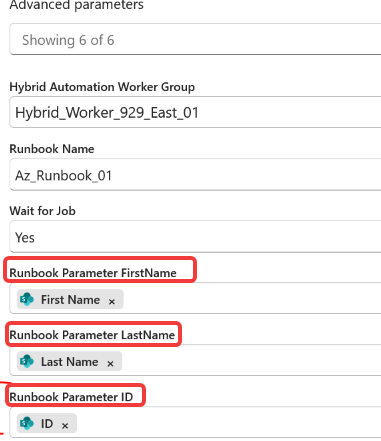
From Azure Runbook – insert the following parameters:
#Pass Parameters from logic app to runbook
	Param
	(
	    [parameter(Mandatory=$true)]
	    [Int] $ID,
	    [parameter(Mandatory=$true)]
	    [string] $firstname,
	    [parameter(Mandatory=$true)]
	    [string] $lastname
)
It should show up in azure automation connector:
Results:
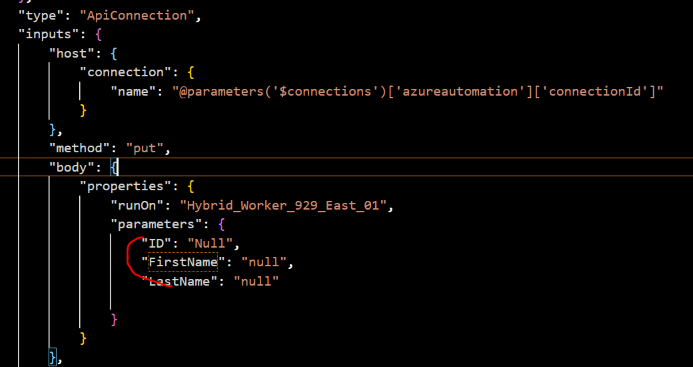
** If the parameters not showing up, modify the workflow from code view. Add the necessary parameters under code view so it reflects on GUI or remove the action and re add it again.
Troubleshoot:
Issue: Azure automation connections with service principal showing unauthorized header.
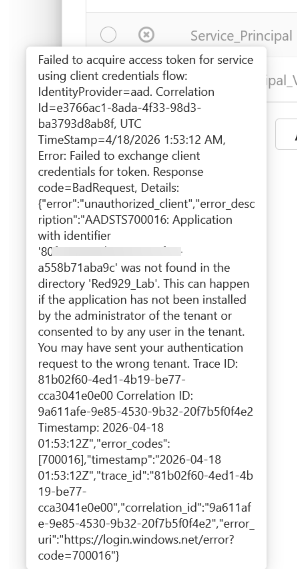
Resolution: Double check that the correct Client ID and secret value are inputted. If its incorrect, the call cannot be made.

