
The Data Operations actions in Azure Logic Apps provide built-in capabilities to manipulate, convert, and format data arrays and objects without requiring external code or scripts. For new hire project – [Parse Json] and [Compose] will be commonly used to grab string from an output then manipulate it with either compose or other actions.
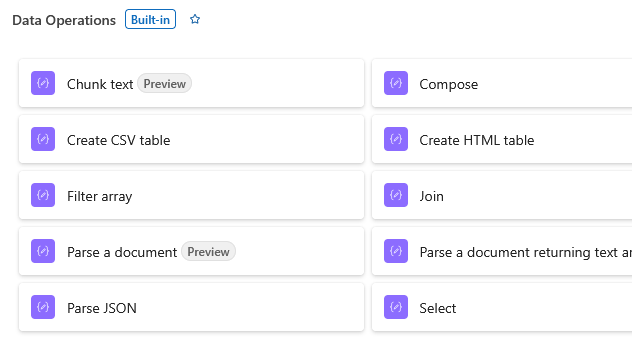
Compose: Creates a single custom output (string, JSON object, array, or dynamic content) from complex expressions or multiple variables to reuse across subsequent workflow steps.
Create CSV Table: Converts an array of JSON objects into a comma-separated value (CSV) table. Allows selecting specific attributes to include as columns.
Create HTML Table: Converts an array of JSON objects into a formatted HTML table for rendering in email bodies or web reports.
Filter Array: Filters an input array based on specific conditions or logical criteria, returning a smaller array that matches the filter rules.
Join: Takes an array of items and combines all elements into a single continuous string using a specified delimiter (e.g., ,, ;, or \n).
Parse JSON: Evaluates a raw JSON string against a defined JSON Schema, creating dynamic properties that can easily be picked from the workflow designer interface.
Select: Transforms an array of objects by picking, renaming, or reshaping specific properties into a new key-value format.
Core Use Cases & Benefits

No-Code Data Manipulation: Enables filtering lists, generating reports, and restructuring API payloads entirely inside the Logic App runtime.

Performance Optimization: Built-in data operations execute in-memory inside the Logic Apps engine, avoiding expensive external API calls or loops (Apply to each).

Schema Validation: The Parse JSON action validates payload structures at runtime, making error handling and downstream data extraction more reliable.
[Parse JSON] example:
When you receive information from the SharePoint REST API or Microsoft Graph, it arrives as a single, long block of raw text. While a human can read it, the computer views it as one giant string. The Parse JSON action breaks that string apart so individual pieces of data (like “List ID” or “Created By”) in later steps of your workflow as dynamic content.
Parsing (break down) the JSON object into readable format.
How the Action Functions
The action requires two inputs to work its magic:

1. Content: The raw JSON text you received from a previous step (usually the "Body" of an HTTP request).

2. Schema: A "map" or blueprint that tells the action what to look for (e.g., "Expect a field called 'Title' that contains text").

3. After parsing, you can use dynamic content of the body.

 *** The action creates a list of "tokens" you can simply click. If your JSON contains a "CandidateName" from your NewHire list, it will appear as a selectable bubble in your email or database actions.

In order to use sample payload to generate a schema, proceed with the following:
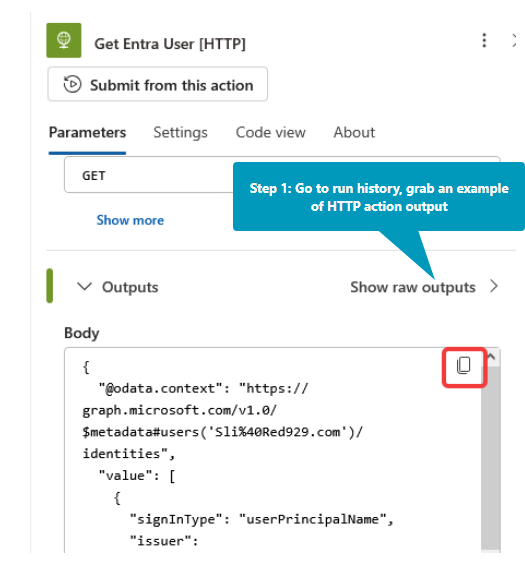
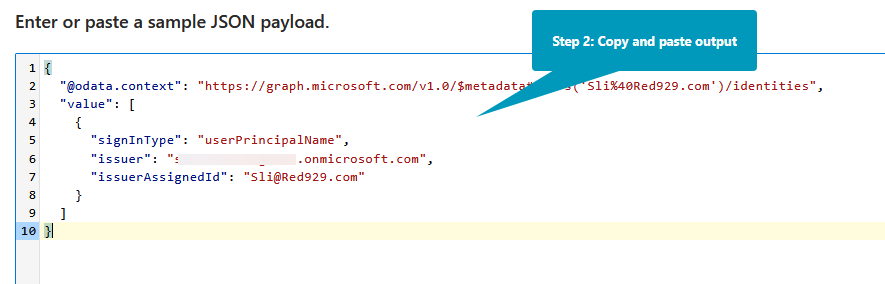
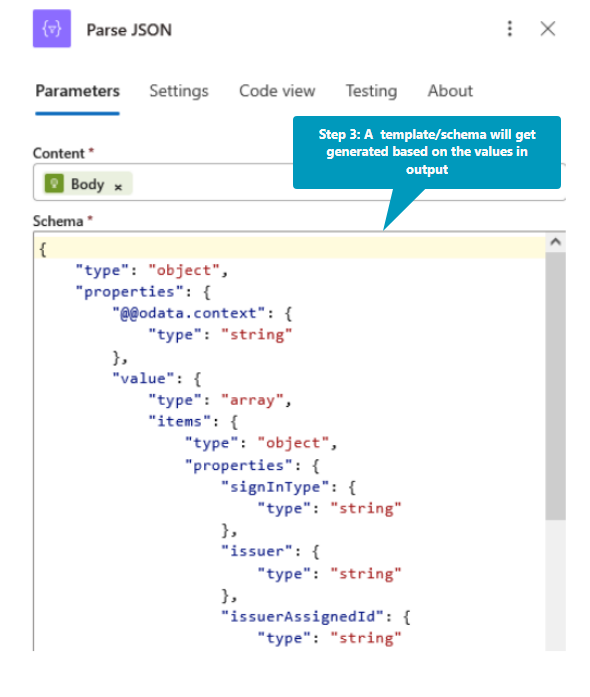
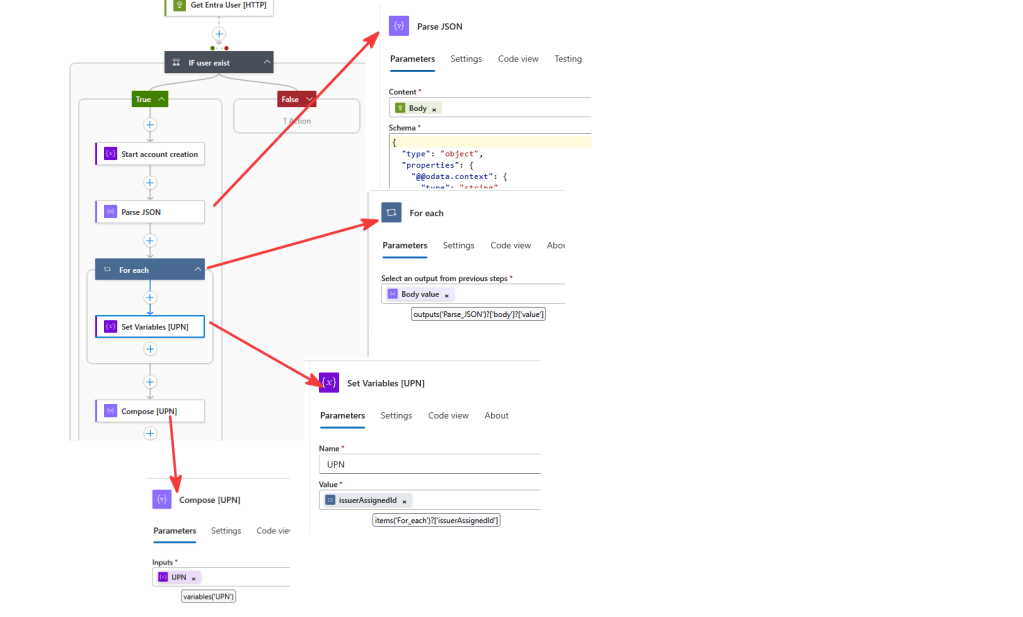
Below is a sample of parse json for HTTP call.

1. Create variable [UPN] before the HTTP action.

2. [Get Entra User [HTTP]] Make HTTP call to microsoft graph API to grab UPN from entra

3. [Parse JSON] Provide HTTP payload to parse JSON action in order to generate schema

4. Create new action [Set variables [UPN]],  Name: reference variable [UPN] Value: reference issuerAssignedId from body of [Parse JSON]

5. A foreach loop will come up when the body of the json is reference. It's because each value under the body is unique and each item must be iterated.

6. For each iteration - use [Set Variables] action to determine the value

7. Outside of the foreach loop, set [Compose] action to read the UPN.
 Steven’s Knowledge Base