What Are Parameters?
Azure Logic app Workflow-Level Parameters (Environment/Deployment Parameters) allows you to abstract and manage values that change across environments (such as Dev, Test, and Prod)—like connection strings, API URLs, or email recipients—without modifying the workflow logic itself. They act as static inputs defined outside the workflow execution code, making workflows portable, maintainable, and deployment-friendly.
Connector parameters is also another type of parameter in logic app that is commonly used for new hire project. The connector parameters are tied to specific custom connector – it is essentially a specific input fields required by a particular action or trigger inside an integrated service.
Workflow-Level Parameters
Core Concepts & Properties:

• Supported Data Types: String, Integer, Float, Boolean, Object, and Array.

• Purpose: Abstract environment-specific values, subscription IDs, API keys, or shared constants so you can change them in one place without rewriting action logic.

• Scope: Managed globally in the workflow definition or a root-level parameters.json file (especially in Logic Apps Standard)

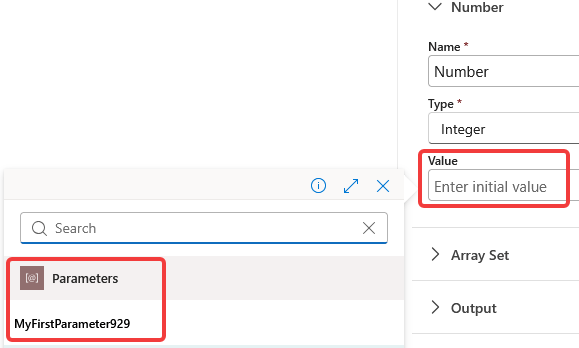
• Accessing in Workflows: In the visual designer, parameters are accessed via the Parameters tab in the dynamic content picker, which inserts the expression @parameters('ParameterName').

• Parameters vs. Variables: Parameters are initialized before execution (at deployment or runtime) and remain constant during a run, whereas variables are dynamically updated during workflow execution using actions.
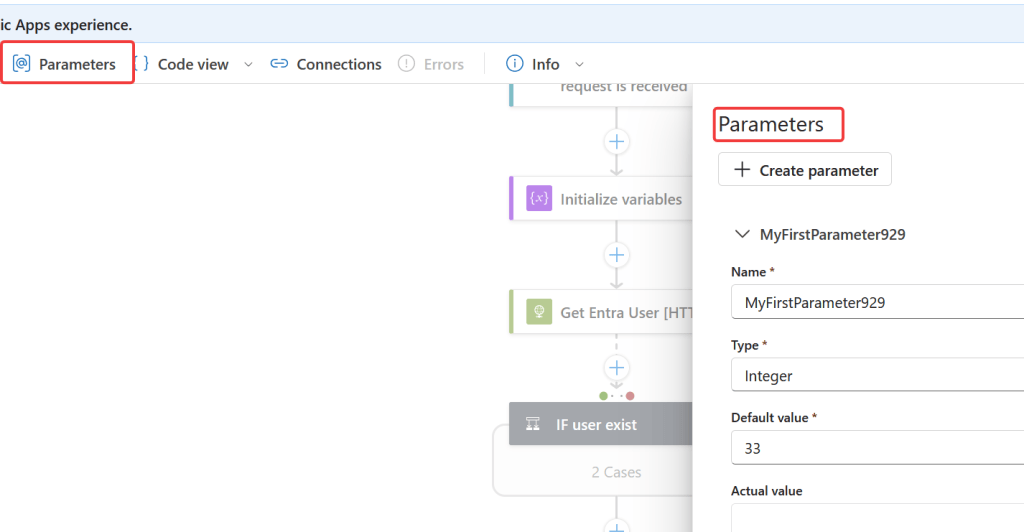
Creating parameter: (Assign parameter [MyFirstParameter929] an integer of 33 for the entire logic app workflow)
Access parameter: (Have [Initialize Variable] action set its value [Number] to the parameter [MyFirstParameter929] )
Notes: Do note that there is a major difference in how parameters are used depending on single or multi tenant plan.
| Feature | Logic Apps (Consumption) | Logic Apps (Standard) |
| Sharing Scope | Limited to a single workflow, as Consumption resources contain only one workflow. Parameters are not shared across Logic App resources. | Shared across all workflows residing within the same Logic App Standard instance/resource. |
| Storage & Definition | Defined directly inside the single workflow definition (workflow.json) via the designer toolbar. | Declared via a dedicated parameters.json file or resolved through App Service app settings and environment variables. |
| Cross-Workflow Sharing | Requires calling Azure Key Vault to retrieve shared values across different resources. | Native sharing at the root Logic App level across all child workflows. |
| Deployment & CI/CD | Injected during deployment using ARM/Bicep template parameters. | Maps to app settings/configuration. Supports local development in VS Code and runtime Key Vault references. |
| Secure Types | Supports securestring and secureobject types to hide sensitive values in execution logs. | Leverages App Settings and Key Vault references for secure secret management at runtime. |
Connector parameters
Connector parameters are scope down to specific connectors instead of the entire workflow. The values varies depending on the connector.
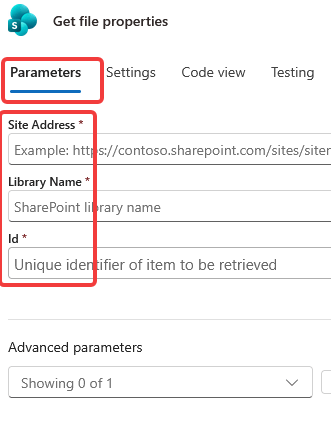
Example:
Using parameters with custom connector (Azure automation)
Utilize connector parameters in order to pass values over to runbook. The connector being used is azure automation. The goal is to grab on premise server details using custom runbook.

*** First - Declare the parameters from script ***
*** The parameter does NOT have to be mandatory for it to show up

From azure runbook script -

Param
(
    [parameter(Mandatory=$true)]
    [string] $firstname,
    [parameter(Mandatory=$true)]
    [string] $lastname
)

$name = hostname
write-output "The current computer name is $name"
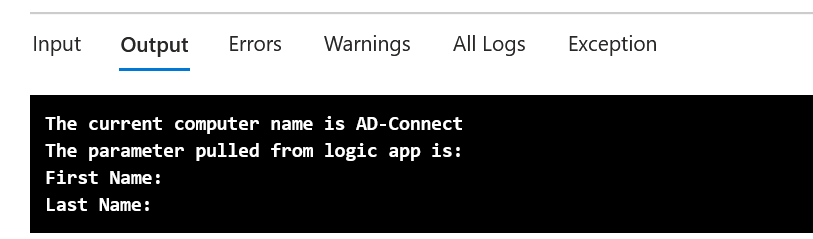
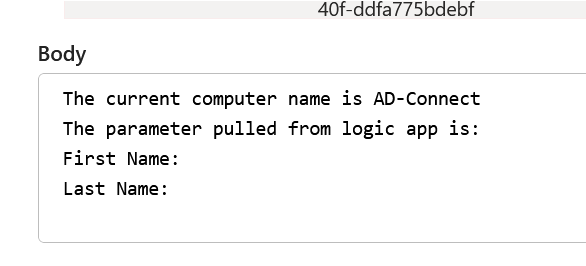
write-output "The parameter pulled from logic app is:`nFirst Name: $Firstname`nLast Name: $Lastname "
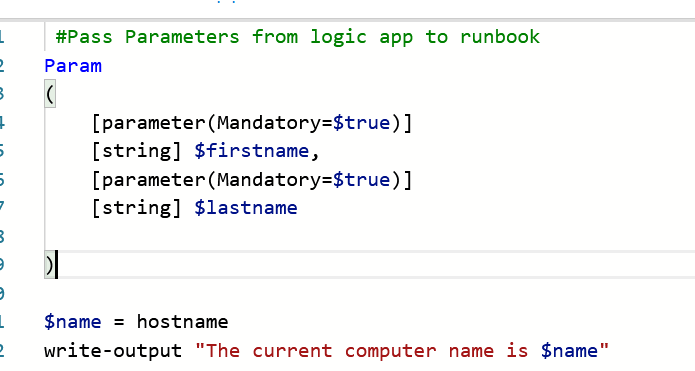
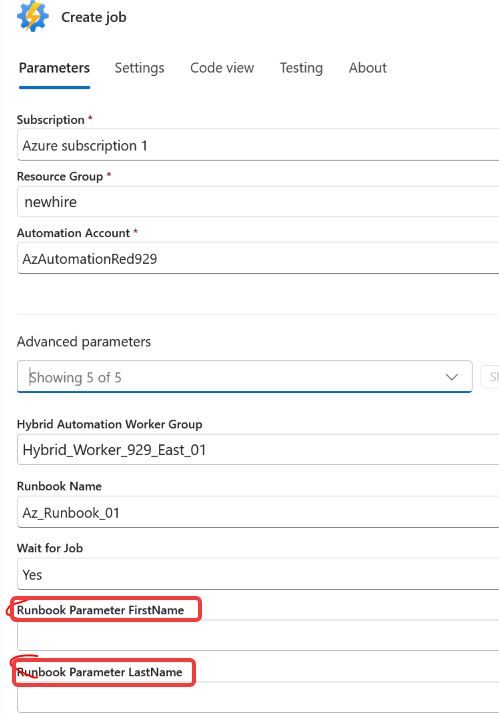
Once the parameters are declared from the script – the connector will update itself to have it as a fillable option.
Connector with updated parameter fields:
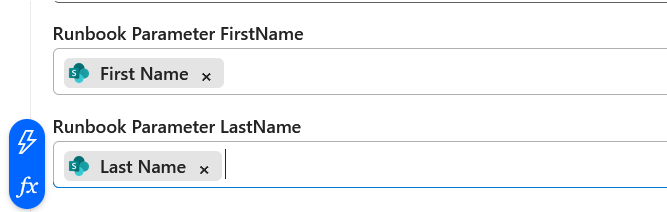
Fill out the field with string from sharepoint list:
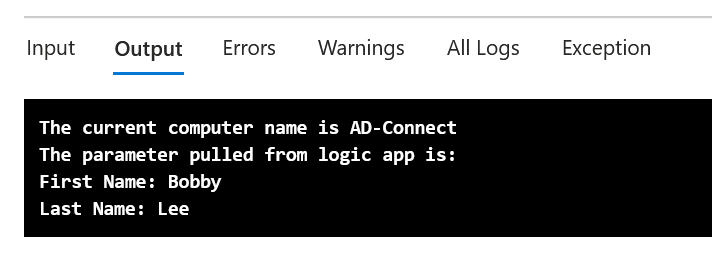
Results: (If parameters are declared on script – output will be passed from logic app to runbook successfully from results below)
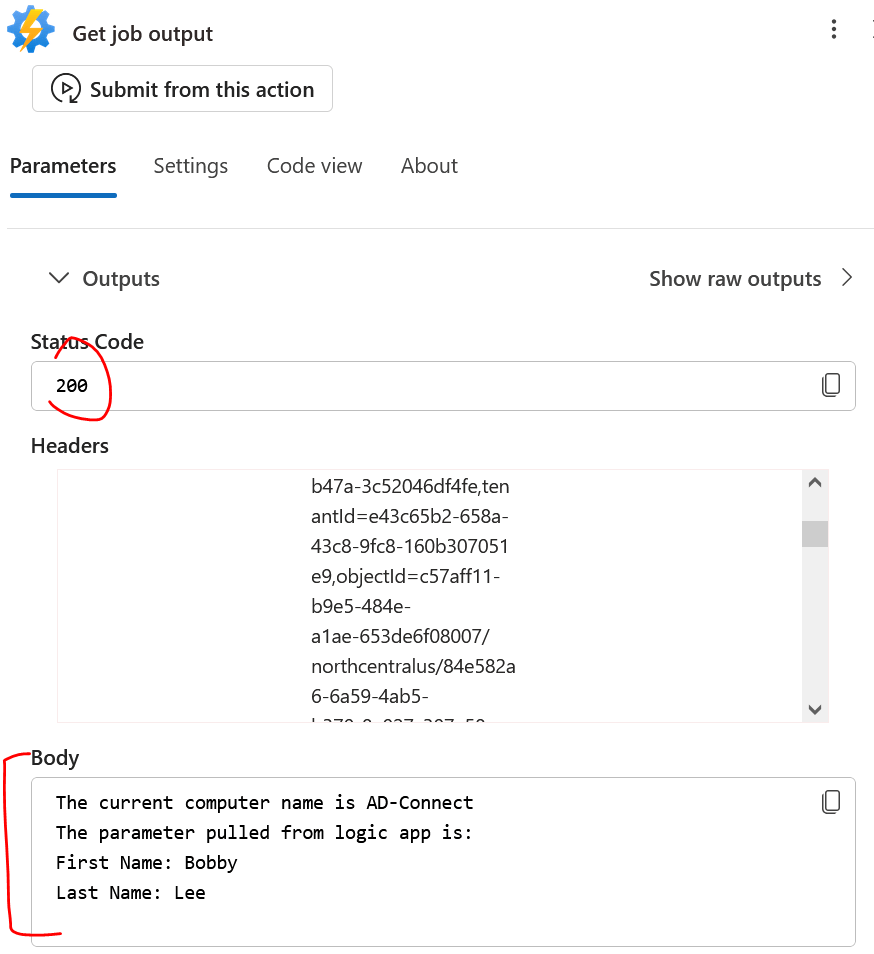
(From azure runbook output)
If parameters are not declared on script – output will be blank