
The Data Operations actions in Azure Logic Apps provide built-in capabilities to manipulate, convert, and format data arrays and objects without requiring external code or scripts.
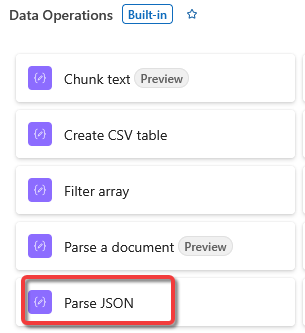
Parse JSON: Evaluates a raw JSON string against a defined JSON Schema, creating dynamic properties that can easily be picked from the workflow designer interface.
[Parse JSON] example:
When you receive information from the SharePoint REST API or Microsoft Graph, it arrives as a single, long block of raw text. While a human can read it, the computer views it as one giant string. The Parse JSON action breaks that string apart so individual pieces of data (like “List ID” or “Created By”) in later steps of your workflow as dynamic content.
Parsing (break down) the JSON object into readable format.
How the Action Functions
The action requires two inputs to work its magic:

1. Content: The raw JSON text you received from a previous step (usually the "Body" of an HTTP request).

2. Schema: A "map" or blueprint that tells the action what to look for (e.g., "Expect a field called 'Title' that contains text").

3. After parsing, you can use dynamic content of the body.

 *** The action creates a list of "tokens" you can simply click. If your JSON contains a "CandidateName" from your NewHire list, it will appear as a selectable bubble in your email or database actions.

In order to use sample payload to generate a schema, proceed with the following:
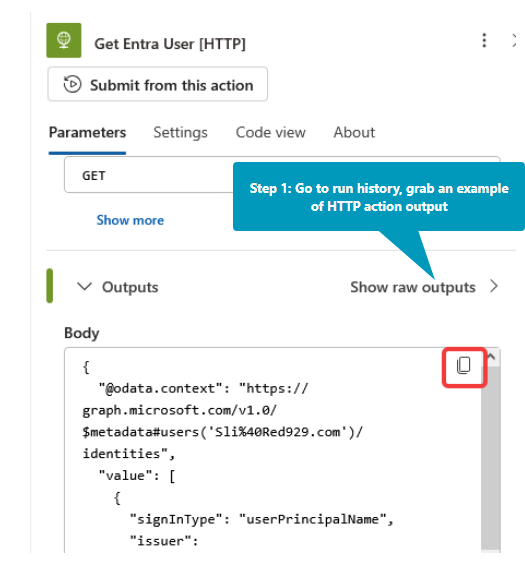
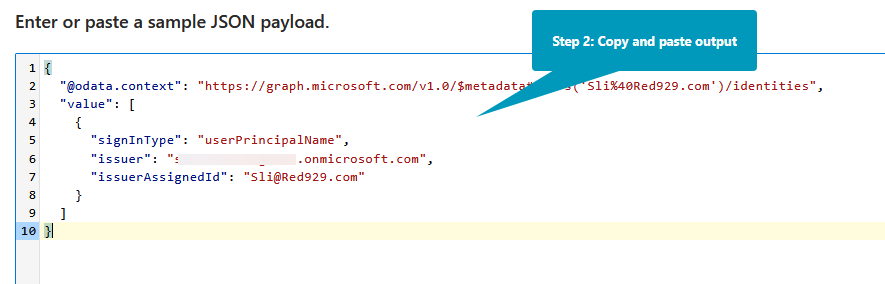
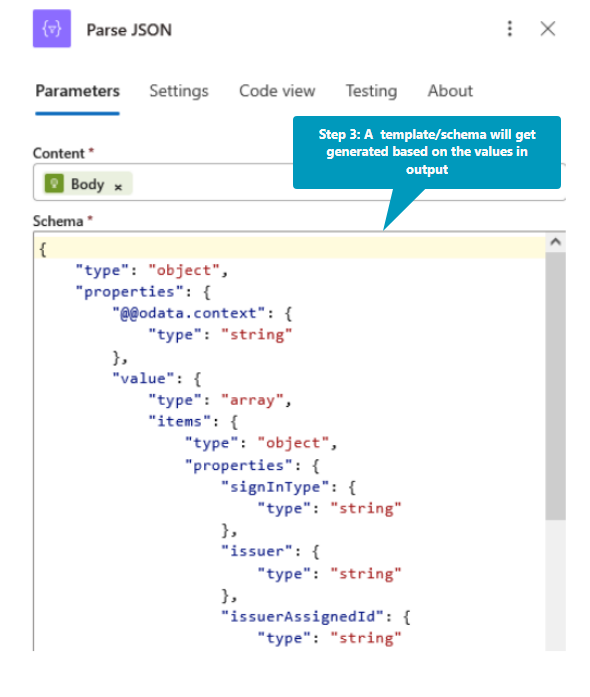
The [Parse JSON] now generated the following schema:
{
  "type": "object",
  "properties": {
    "@@odata.context": {
      "type": "string"
    },
    "value": {
      "type": "array",
      "items": {
        "type": "object",
        "properties": {
          "signInType": {
            "type": "string"
          },
          "issuer": {
            "type": "string"
          },
          "issuerAssignedId": {
            "type": "string"
          }
        },
        "required": [
          "signInType",
          "issuer",
          "issuerAssignedId"
        ]
      }
    }
  }
}
Below is a sample of parsing JSON formatted output from HTTP call to in order to retrieve only the UPN.

1. Create variable [UPN] before the HTTP action.

2. [Get Entra User [HTTP]] Make HTTP call to microsoft graph API to grab UPN from entra

3. [Parse JSON] create Parse JSON action - provide an example payload of the HTTP call from history in order to generate schema or blueprint.

4. Create new action [Set variables [UPN]]

Name: reference variable [UPN]
Value: reference issuerAssignedId from body of [Parse JSON]

5. A foreach loop will auto generate when the value of [issuerAssignedId] inside body of [Parse JSON] is reference. In Azure Logic Apps, a For_each loop automatically appears after a Parse JSON action because the JSON schema defines the output as an array (a list of multiple items).

So whether the HTTP output spits out one or ten values, the schema will almost always bundle the items into an array, therefore, each item must be iterated via foreach loop. The above schema value shows up as an array.

6. For each iteration - use [Set Variables] action to determine the value

7. Outside of the foreach loop, set [Compose] action to read the UPN.
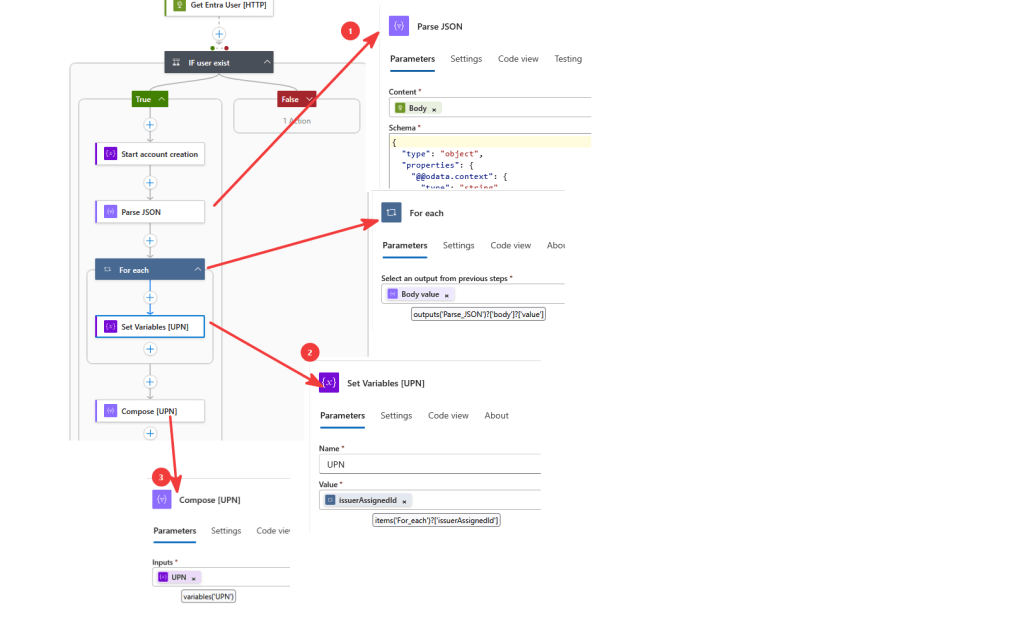
The example above shows how we can extract the value of a single item from the body of a JSON output.
What if we only want to extract multiple values depending on specific conditions from any array? For example – get the group membership of the UPN value that was extracted above.
Before making the HTTP call - make sure the account used for the connection has sufficient permission:

Group.Read.All (Recommended for reading group properties)
GroupMember.Read.All
Directory.Read.All
Workflow:
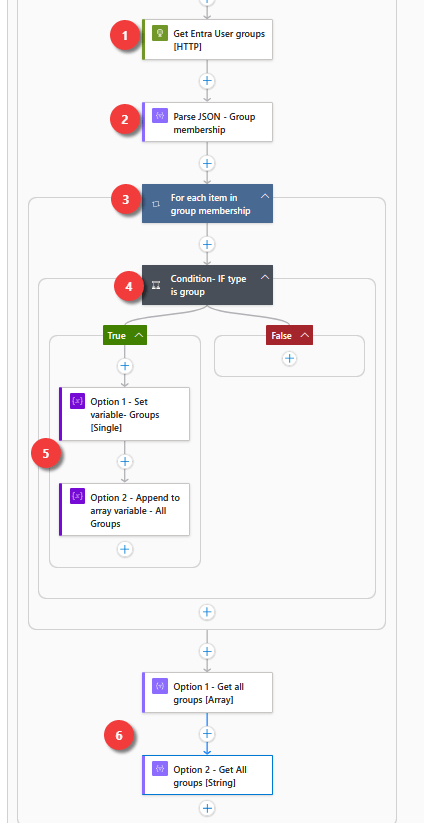
Details on every action
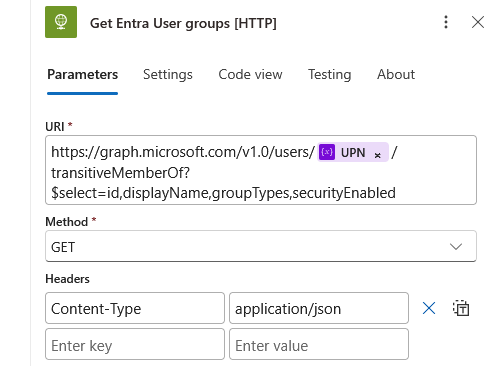
1. Make HTTP call to get all the groups that the user belongs to. Insert [UPN] dynamic content. Filter only for [id,displayName,groupTypes,securityEnabled] 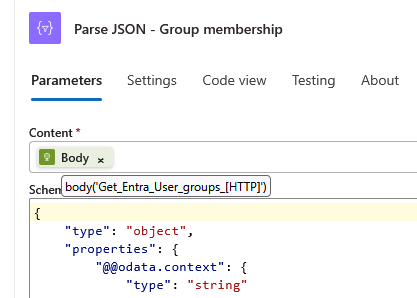
2. Parse the body of the call to get more details 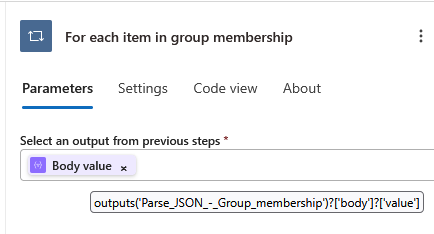
3. Now that we have the output, as soon as the body of parse output gets referenced to, foreach loop is created. 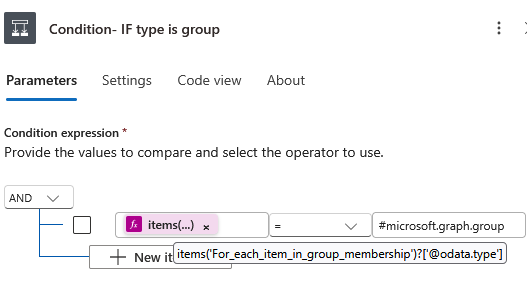
4. Nest the foreach loop and create second condition to ONLY look up entra groups. The original output reveals the role of the user as well according to schema. 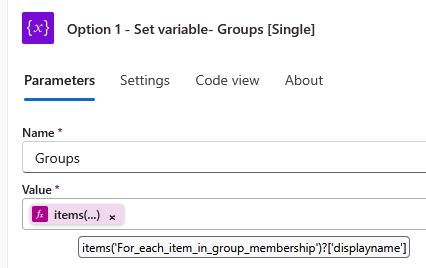
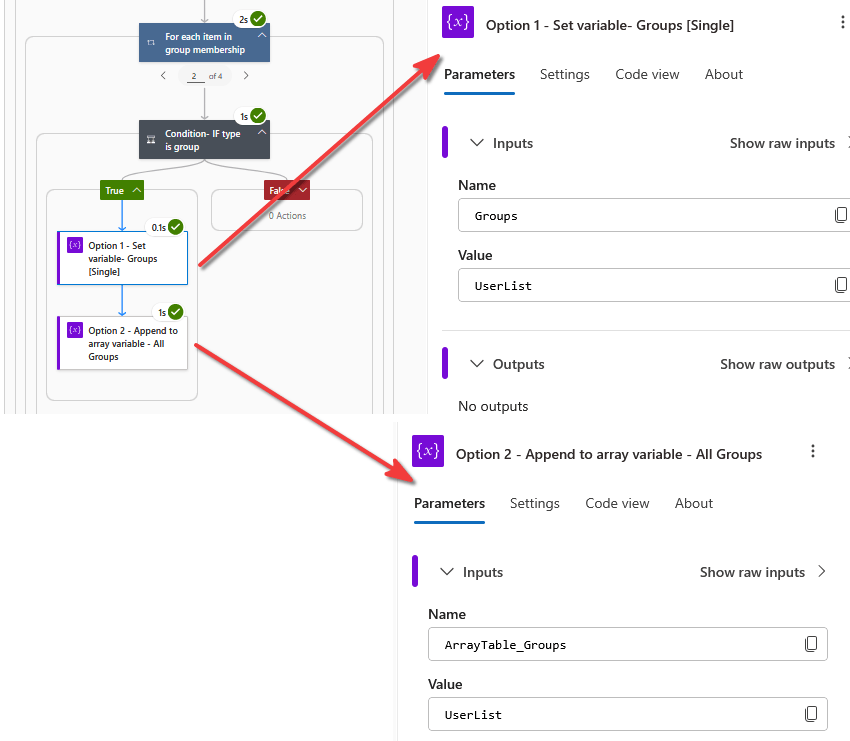
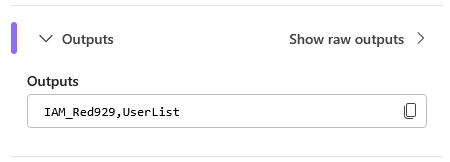
5. Option 1: Assign the displayname of group to a single string variable 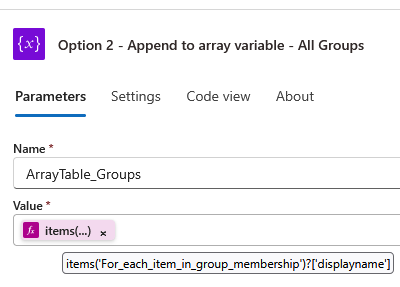
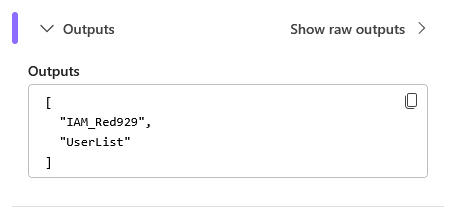
6. Option 2: Append all the groups listed and put it in array variable [ArrayTable_Groups] 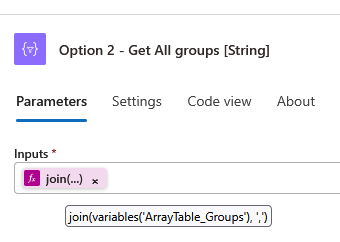
7. Option 1: Return the final output of all groups to array variable 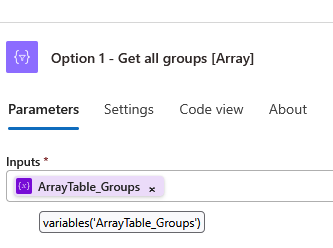
8. Option 2: Return output of all groups as comma separated string value
Results
Start with Original HTTP call output:
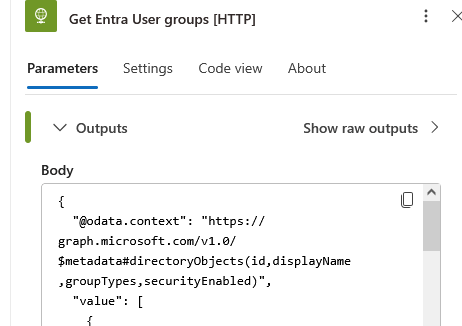
{
  "@odata.context": "https://graph.microsoft.com/v1.0/$metadata#directoryObjects(id,displayName,groupTypes,securityEnabled)",
  "value": [
    {
      "@odata.type": "#microsoft.graph.directoryRole",
      "id": "67b4c518-43a6-409f-ae8f-23b1f4f56188",
      "displayName": "Azure DevOps Administrator"
    },
    {
      "@odata.type": "#microsoft.graph.group",
      "id": "263dba76-fb71-495c-a007-81e952c2da09",
      "displayName": "UserList",
      "groupTypes": [
        "Unified"
      ],
      "securityEnabled": false
    },
    {
      "@odata.type": "#microsoft.graph.group",
      "id": "f1c054cd-2b29-45f9-b996-7d438665f842",
      "displayName": "IAM_Red929",
      "groupTypes": [
        "Unified"
      ],
      "securityEnabled": false
    },
    {
      "@odata.type": "#microsoft.graph.directoryRole",
      "id": "798badfe-443f-1648-b3d1-8c87nz0430f6",
      "displayName": "Directory Readers"
    }
  ]
}
For each loop – Inside the loop, Admin can either assign the group to a single string variable (option 1) or append every single group to array variable (option 2). Out of 4 iteration, only two is TRUE.
Final output (Post iteration, all groups are gathered into a variable). The end of the workflow successfully gathered only the group membership of the UPN declared into a variable that is readable. The output can also be further manipulated with compose action.
Option 1 – Get all groups [Array]
Option 2 – Get All groups [String]
Notes:
If working with multiple scenarios where parse of Json is required and outcome is schema is different, it is best to parse each scenario individually and grab the variables from the steps that is successful.
All scenarios may have different schemas and outcome will vary… recommend to run action in parallel state.
- Concurrency Limits: While they run “at the same time,” Logic Apps are still subject to connector limits. If you have 10 parallel branches all hitting the same SharePoint list, you might run into API throttling.

