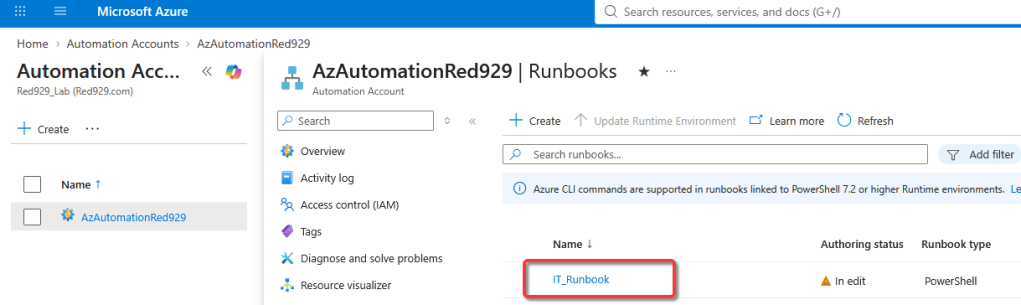
An Azure Automation Runbook is a set of automated tasks, routines, or workflows compiled into a single script or visual process that runs from Azure. Runbooks automate repetitive, time-consuming, or error-prone management tasks across Azure resources, multi-cloud platforms, and on-premises infrastructure. For new hire project, runbook will be heavily utilized to target on premise server with hybrid runbook workers.
Key Capabilities & Execution

Supported Languages: Authored using PowerShell, Python, or visual Graphical drag-and-drop designers.

Flexible Execution Environments:
Azure Cloud Sandboxes: Runs directly in Azure's managed multi-tenant environment for cloud operations.

Hybrid Runbook Workers: Executes directly on local virtual machines or on-premises physical servers to manage hybrid network resources.

Integration & Orchestration: Can be triggered via schedules, Azure webhooks, Azure Logic Apps, or directly through API calls via Entra ID authentication.
Azure runbook scripts can be written in the following ways:
| Runbook Type | Core Engine / Language | Primary Strengths & Features | Best Used For |
| PowerShell | Standard PowerShell (e.g., 7.4, 7.6, 5.1) | Direct, fast execution without workflow compilation overhead; supports cloud and Hybrid Worker runtimes. | General system management, API calls, and standard automation scripts. |
| PowerShell Workflow | Windows PowerShell Workflow | Supports long-running tasks, parallel execution, and checkpoints to resume logic after transient errors. | Complex, multi-step orchestration that requires state persistence across restarts. |
| Python | Python (3.10 recommended) | Native support for Python packages and libraries; runs across Azure sandboxes and Linux/Windows Hybrid Workers. | Data processing, multi-cloud operations, and AI/ML integrations. |
| Graphical | Visual Canvas (Generates PowerShell) | Visual drag-and-drop authoring without needing to write raw code; simplifies control and data flow modeling. | Teams seeking low-code workflow design or visual representations of processes. |
| Graphical PowerShell Workflow | Visual Canvas (Generates PS Workflow) | Combines visual drag-and-drop authoring with underlying PowerShell Workflow capabilities like checkpoints. | Low-code authoring for complex, stateful workflows that require error resumption. |
Important Considerations
- Lifecycle Alignment: Azure Automation tracks language lifecycle deprecations. Microsoft recommends targeting actively supported runtimes like PowerShell 7.4/7.6 and Python 3.10 as of the current date.
- Conversion Limits: Graphical runbooks can be converted between standard Graphical and Graphical PowerShell Workflow types, but cannot be converted directly to raw textual scripts.
- Hybrid Execution: Text-based PowerShell and Python runbooks can execute in the cloud or directly on target servers using Hybrid Runbook Workers.
Common Use Cases

Identity & Resource Provisioning: Automating user onboarding/offboarding tasks, license assignments, or group syncs across Entra ID and local Active Directory.

Routine Maintenance: Starting/stopping VMs on a schedule to save costs, managing patch updates, and rotating access keys.

Incident Remediation: Automatically responding to Azure Monitor alerts or Security operations (SOC) triggers to isolate breached resources or restart failed services.

Configuration Management: Auditing resource compliance and enforcing uniform configurations across servers.
How to create runbook
To create a runbook script, navigate to the following:
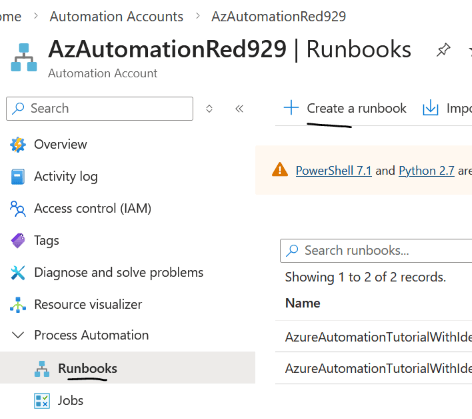
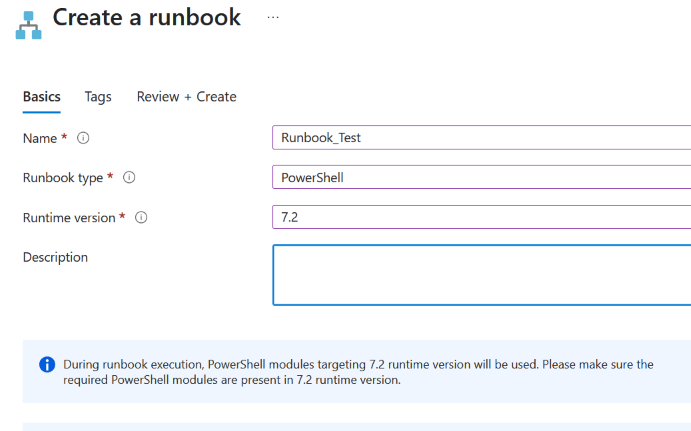
Once the runbook is generated, it can be modified via Visual studio code or from azure test pane.
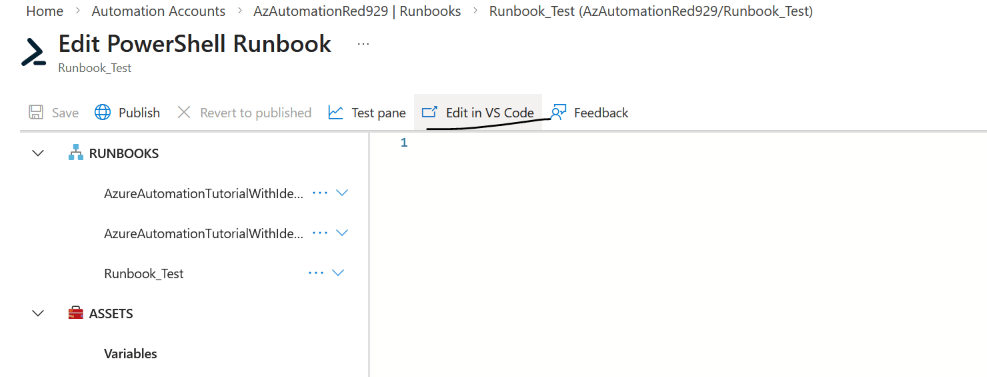
Install [Azure resource] extension in VSC in order to manage Azure automation runbooks.
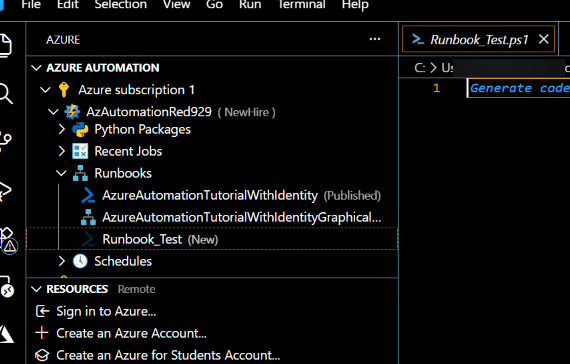
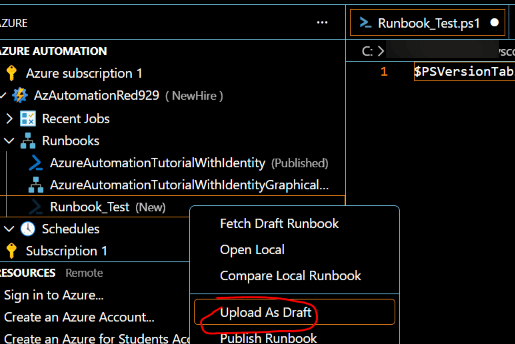
Modify code and upload from VSC to azure runbook by selecting “Upload As Draft”
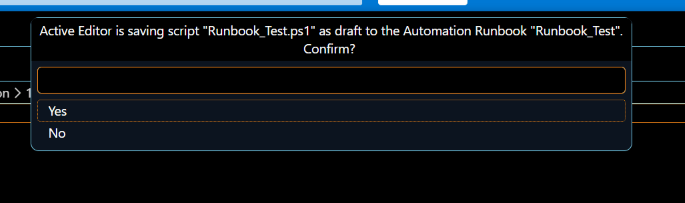
Refresh runbook and the code should update
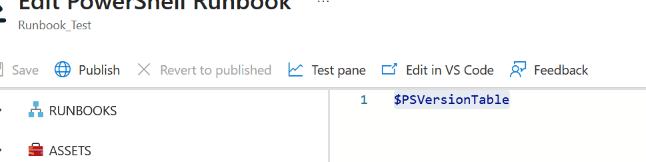
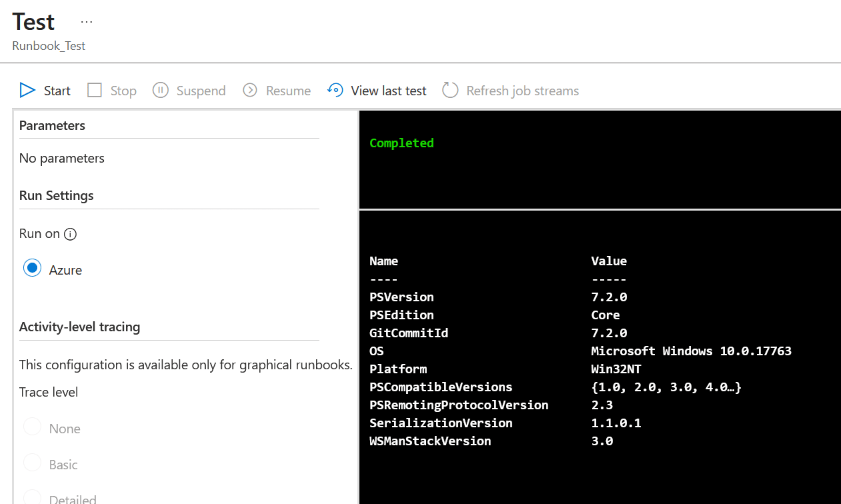
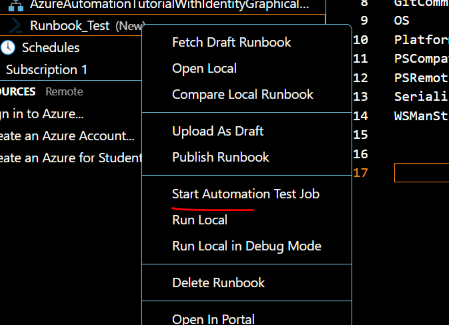
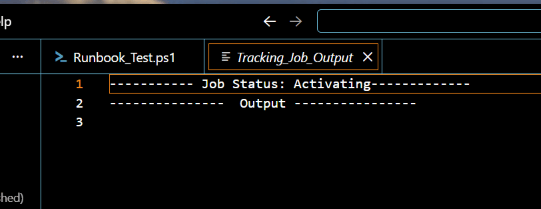
The code can also be executed from VSC
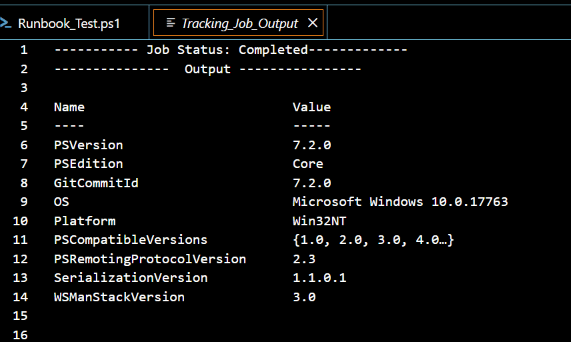
Notes:
How Azure Runbook Streams are Divided
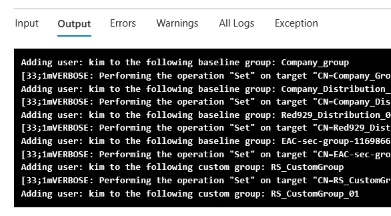
When you look at the job history or the test pane of a runbook, you will see tabs separating these streams:
1. The Output Pane (Success Stream): * This is where standard data objects, Write-Output, and Write-Information lines go.
- If a command finishes successfully, data lands here.
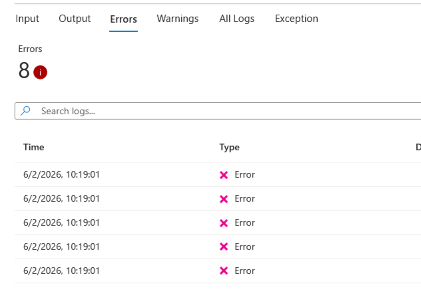
2. The Errors Pane (Error Stream): * This is where non-terminating errors (like a failed Get-ADUser query that couldn’t find a specific identity) and terminating exceptions land.
- The Output pane will remain completely blank for that specific error message, while the Errors pane will light up red.