In a previous post, I covered how to authenticate to Microsoft Graph using certificate-based authentication to retrieve Microsoft Entra user data.
In this post, we’ll explore an alternative method: Managed Identities. This approach is ideal for cloud-native tenants operating entirely within the Azure ecosystem. However, note that this specific method cannot be invoked from Azure Arc-enabled servers or Hybrid Runbook Workers, therefore, I will not be using it in the new hire provision project with my hybrid environment but it is good to know the very basic of how its used.
A major advantage of using Managed Identities—whether in Azure Automation or other native services—is that they eliminate the need to manage, store, or rotate client secrets and certificates (including those stored in Azure Key Vault). Instead, Azure handles authentication under the hood, allowing your scripts to securely interact with Azure resources and Microsoft Graph seamlessly.
🔹 Service Principal vs Managed Identity
| Feature | Service Principal | Managed Identity |
| Needs secret/cert | ✅ Yes | ❌ No |
| Secret rotation required | ✅ Yes | ❌ No |
| Works outside Azure | ✅ Yes | ❌ No |
| Best for CI/CD | ✅ Yes | Sometimes |
| Best for Azure resources | Good | ⭐ Best |
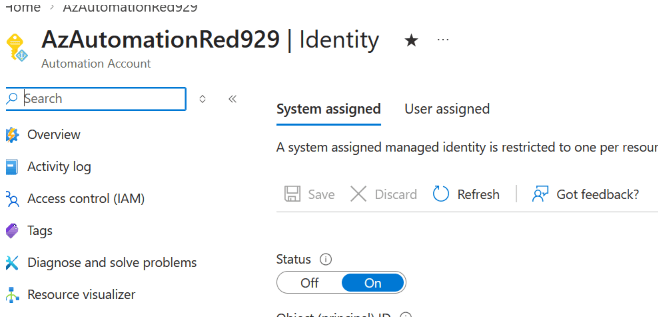
FIRST: Enable the system managed identity
Azure portal > automation account > Identity > system assigned > Toggle on
SECOND: Configure API permission for the service principal of the managed identity
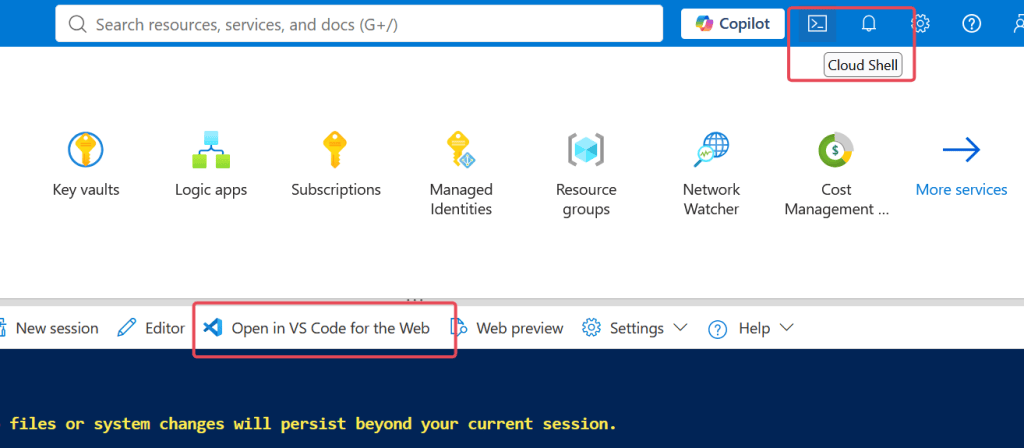
Open up cloud shell or open it via VS code on web (I prefer VS code on web). If working with VS code on web, Go to cloud shell > open VS code on web > wait it for it load > choose workspace folder > install powershell extension > create blank .ps1 file
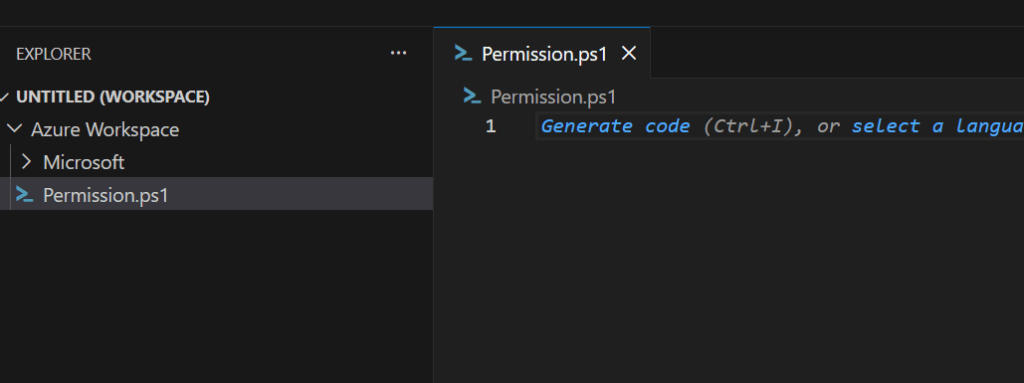
The following script will configure Microsoft graph API permission for the managed identity in our tenant [AzAutomationRed929] – source: https://learn.microsoft.com/en-us/powershell/entra-powershell/grant-api-permissions-managed-identity?view=entra-powershell
# The following script demonstrates how to assign Microsoft Graph API permissions to a managed identity in Azure Automation using the Microsoft Entra PowerShell module.# Target system managed identity: AzAutomationRed929# Target API: Microsoft Graph# Permission: User.ReadWrite.All# Powershell 7 is recommended for the microsoft Entra module$PSVersionTable.PSVersion<# Install the required module before configuring service principal permissions with the following cmdlet: - Connect-Entra - Get-EntraServicePrincipal (Retrieves the managed identity and target API service principals) - New-EntraServicePrincipalAppRoleAssignment (Assigns the Graph app role to the managed identity) #> Install-Module -Name Microsoft.Entra -Repository PSGallery -Scope CurrentUser -Force -AllowClobber # Verify module is present Get-InstalledModule -Name Microsoft.Entra* | Where-Object { $_.Name -notmatch "Beta" } | Format-Table Name, Version, InstalledLocation -AutoSize# To grant API permissions to managed identities, connect with the Application.ReadWrite.All and AppRoleAssignment.ReadWrite.All scopes:# The following command will trigger device code flowConnect-Entra -Scopes "Application.ReadWrite.All", "AppRoleAssignment.ReadWrite.All"# Identify the managed identity service principal# For system-assigned managed identities, use the Azure resource name; For user-assigned managed identities, use the managed identity name.# The following command will get the Service principal ID of a SYSTEM managed identiy$managedIdentityName = "AzAutomationRed929"$managedIdentitySP = Get-EntraServicePrincipal -Filter "displayName eq '$managedIdentityName' and servicePrincipalType eq 'ManagedIdentity'"if (-not $managedIdentitySP) { Write-Error "Managed identity service principal '$managedIdentityName' not found." -ErrorAction Stop}Write-Host "Found managed identity service principal:"Write-Host "Display Name: $($managedIdentitySP.DisplayName)"Write-Host "Object ID: $($managedIdentitySP.Id)"# This script targets the API permission for microsoft graph - so the local service principal ID is required for Microsoft graph.# The global unique app ID for MS graph across the tenant is "00000003-0000-0000-c000-000000000000". From there, query the local SP ID thats only unique for your own tenant.$graphServicePrincipal = Get-EntraServicePrincipal -Filter "appId eq '00000003-0000-0000-c000-000000000000'"# Identify the required API permissions (ex: User.Read.All, Device.ReadWrite.All, User.ReadWrite.All).# The following will assign the permission to read and modify all users in entra for the managed identity$appRole = $graphServicePrincipal.AppRoles | Where-Object { $_.Value -eq "User.Readwrite.All" }# Grant API permissions to the managed identity with the details of# 1) SP ID of managed identity# 2) SP ID of the unique local SP ID of ms graph for tenant# 3) The appropirate permissions necessary to perform task$params = @{ ServicePrincipalId = $managedIdentitySP.Id PrincipalId = $managedIdentitySP.Id ResourceId = $graphServicePrincipal.Id AppRoleId = $appRole.Id}$appRoleAssignment = New-EntraServicePrincipalAppRoleAssignment @params# Verify the granted permissions$assignments = Get-EntraServicePrincipalAppRoleAssignment -ServicePrincipalId $managedIdentitySP.IdWrite-Host "Current app role assignments for $($managedIdentitySP.DisplayName):"foreach ($assignment in $assignments) { $resource = Get-EntraServicePrincipal -ServicePrincipalId $assignment.ResourceId $assignedRole = $resource.AppRoles | Where-Object { $_.Id -eq $assignment.AppRoleId } Write-Host "- Resource: $($resource.DisplayName)" Write-Host " Permission: $($assignedRole.Value)" }
The general idea is to gather the service principal/Object ID of the managed identity and MS graph. Then determine what permission to provision. Once that is done, finalize it with [New-EntraServicePrincipalAppRoleAssignment] command.
Example:
Find the Service Principal ID of the system managed identity
From command line:

From GUI:
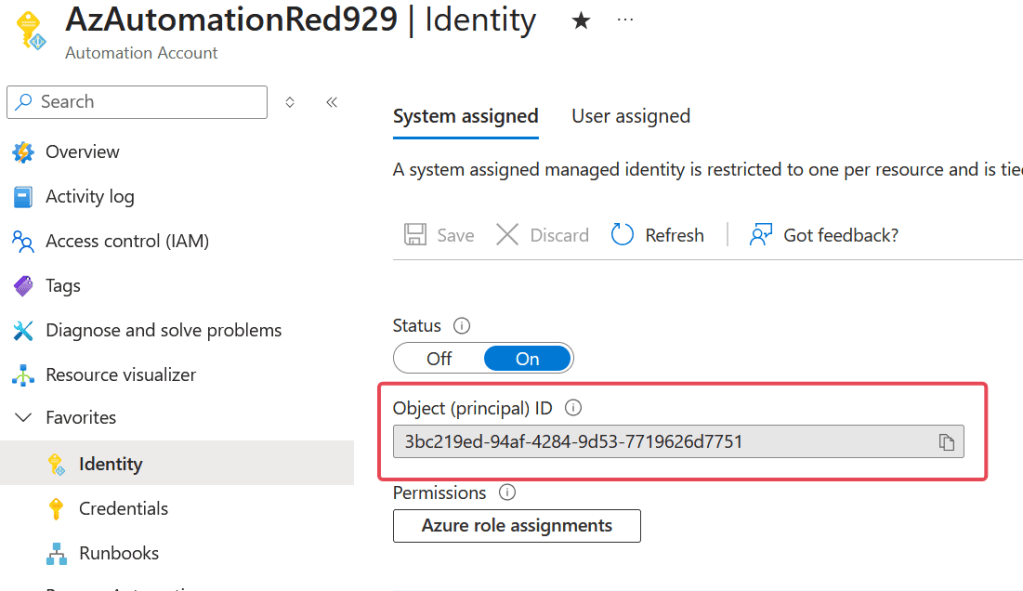
Query the local service principal ID for MS graph:
Command line:

From GUI: (Select app with MS graph service principal permission already configured – view the SP ID of graph)
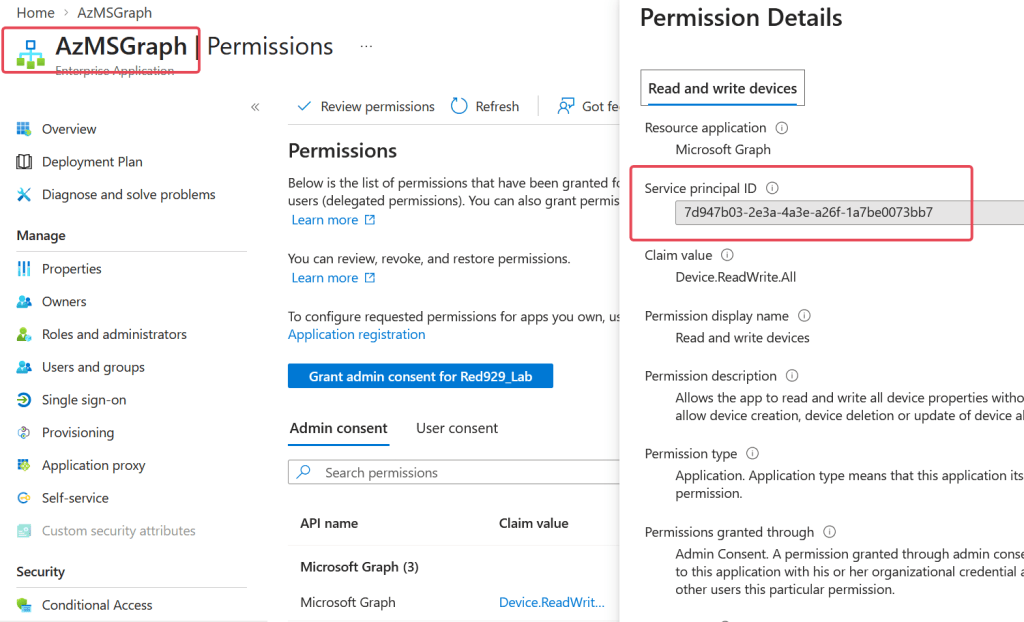
Gather all the information and assign the permission to managed identity
$params = @{
    ServicePrincipalId = $managedIdentitySP.Id
    PrincipalId = $managedIdentitySP.Id
    ResourceId = $graphServicePrincipal.Id
    AppRoleId = $appRole.Id
}
$appRoleAssignment = New-EntraServicePrincipalAppRoleAssignment @params
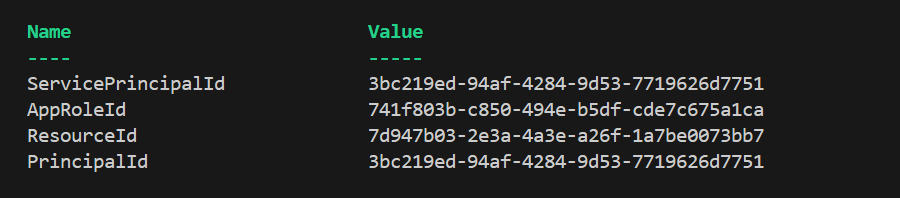

Verify:
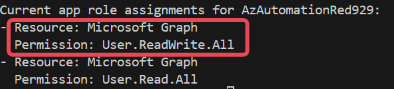
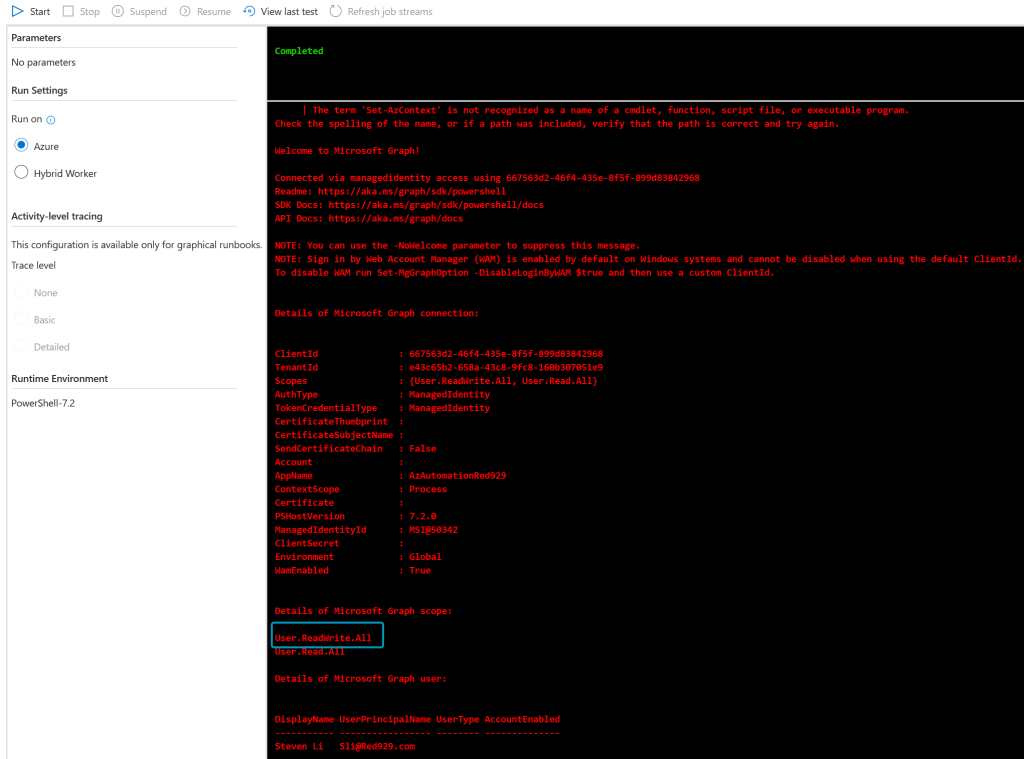
Authenticate with msgraph using managed identity (MSI)
Once permission is configured, go ahead and connect to Microsoft graph with managed identity to retrieve entra user information. The steam of red text on output indicates an error, in this scenario, it is unable to find one of the module and [Set-entrauser] module cannot be found.
When you run a standard runbook in Azure, it executes within an isolated environment known as an Azure sandbox. Under the hood, Microsoft manages these sandboxes by running each job as a shared process inside a secure container. Troubleshooting corrupted modules or assembly conflict can be a headache so we can review that later.
| Path | Purpose / Notes |
| C:\Users\ContainerUser\Documents\PowerShell\Modules | User-installed modules — anything imported via Automation → Modules for the current user. This is where version conflicts often happen. |
| C:\usr\src\PSModules | Likely a custom path for containerized modules. The modules installed from azure portal are located here. |
| C:\AzAt\Modules\11.2.0 | Built-in Az modules for PS 7.2 runtime. Your runbooks should load modules from here. |
| C:\AzAt\Modules\Global\ | Other built-in or globally shared modules in the Azure Automation sandbox. |
| C:\Program Files\powershell\Modules | Standard PowerShell system path, mostly ignored in Automation sandbox. |
| c:\app\runtimes\win\lib\net6.0\Modules | PS 7.2 runtime internal modules for .NET 6.0. |
| C:\Program Files\WindowsPowerShell\Modules | PS 5.1 modules — mostly not used by PS 7.2, only relevant if you switch runtimes. |
| C:\Windows\system32\WindowsPowerShell\v1.0\Modules | Legacy system modules for PS 5.1 |

# Install the AZ.account module if it's not already installed from automation account blade# From azure runbook:# The following script will connect to app (AzMsGraph) that can access msgraph using an MSI (Managed system identity)# This script is intended for Azure Runbook only not for hybrid worker group.######################################## Load the following modules:Import-Module Az.Accounts#######################################<# Ensures you do not inherit an AzContext in your runbookBy default, Azure PowerShell can automatically save your login context (subscription, tenant, account) so it persists across sessions.Disable-AzContextAutosave turns that behavior off, meaning: • Your Azure login context will not be saved after the session ends. • You must re-authenticate when starting a new PowerShell session. • Useful for: Automation scripts, CI/CD pipelines, Secure environments, Shared machines #> Disable-AzContextAutosave -Scope Process <# Connect to Azure with system-assigned managed identity.(-Identity) tells Connect-AzAccount to authenticate using a Managed Identity instead of:Username/password, Service principal secret or Interactive login.This works in environments like Azure VM (with system/user-assigned identity), Azure App Service, Azure Functions, Azure Automations #> $AzureContext = (Connect-AzAccount -Identity).context <# Set and store context. Set-AzContext is a PowerShell cmdlet in the Az.Accounts module used to select the active subscription and tenant for your current Azure session in Microsoft Azure.#> $AzureContext = Set-AzContext -SubscriptionName $AzureContext.Subscription -DefaultProfile $AzureContext######################################## Connect to Ms graph as MSIConnect-MgGraph -Identity#List details on connection:Write-Output "`nDetails of Microsoft Graph connection:`n"Get-MgContext# Verify current scope permission for MSIWrite-Output "`nDetails of Microsoft Graph scope:`n"(get-mgcontext).scopes# Get user detailsWrite-Output "`nDetails of Microsoft Graph user:`n"Get-MgUser -UserId "sli@red929.com" | select DisplayName, UserPrincipalName, UserType, AccountEnabled# Set user company name and then verifyset-entrauser -userID "Sli@red929.com" -companyName "Red929_Lab_X3"Get-EntraUser -UserId "Sli@red929.com" | Select-Object DisplayName, UserPrincipalName, CompanyName