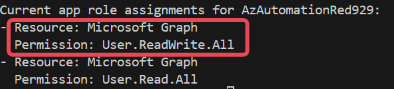
The following post will show how to assign API permissions to system managed identity. It is good to know in case managed identity is used for future projects. The following demonstrates how to assign Microsoft Graph permissions to a managed identity in Azure Automation using the Microsoft Entra PowerShell module.
Target system managed identity: AzAutomationRed929
Target API: Microsoft Graph
Permission: User.ReadWrite.All
Configure API permission for the service principal of the managed identity
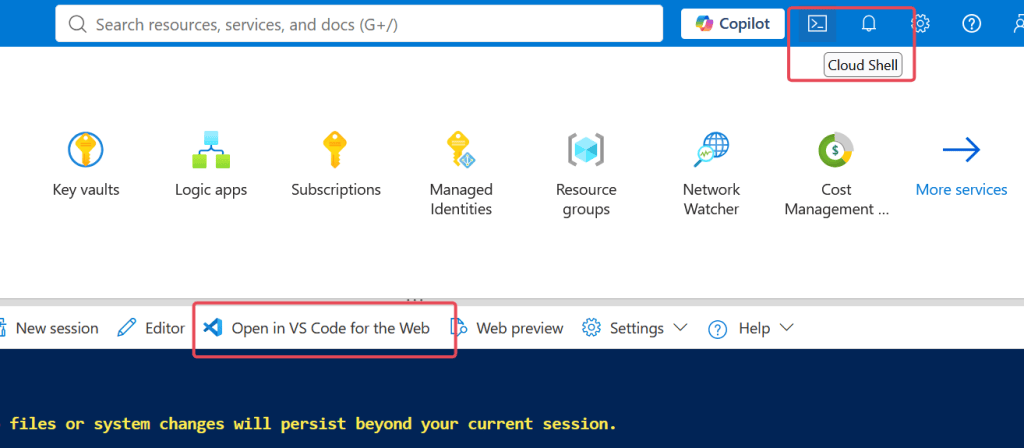
Open up cloud shell or open it via VS code on web (I prefer VS code on web). If working with VS code on web – Go to cloud shell > open VS code on web > wait it for it load > choose workspace folder > install powershell extension > create blank .ps1 file
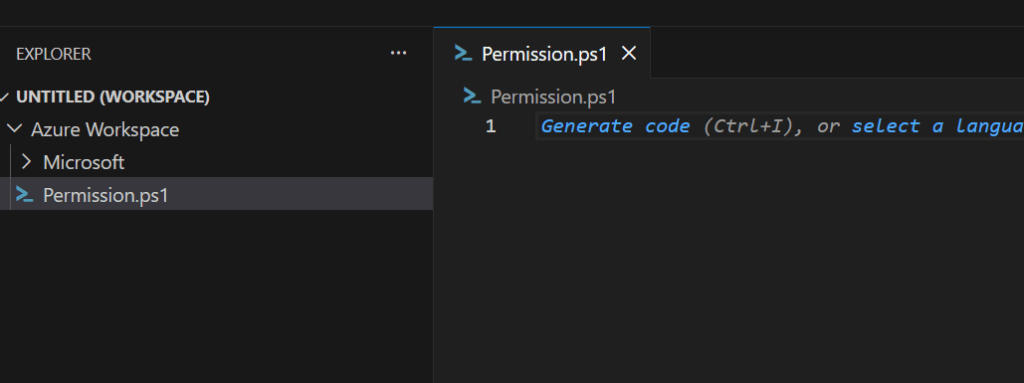
The following script will configure Microsoft graph API permission for the managed identity in our tenant [AzAutomationRed929] – source: https://learn.microsoft.com/en-us/powershell/entra-powershell/grant-api-permissions-managed-identity?view=entra-powershell
# The following script demonstrates how to assign Microsoft Graph API permissions to a managed identity in Azure Automation using the Microsoft Entra PowerShell module.# Target system managed identity: AzAutomationRed929# Target API: Microsoft Graph# Permission: User.ReadWrite.All# Powershell 7 is recommended for the microsoft Entra module$PSVersionTable.PSVersion<# Install the required module before configuring service principal permissions with the following cmdlet: - Connect-Entra - Get-EntraServicePrincipal (Retrieves the managed identity and target API service principals) - New-EntraServicePrincipalAppRoleAssignment (Assigns the Graph app role to the managed identity) #> Install-Module -Name Microsoft.Entra -Repository PSGallery -Scope CurrentUser -Force -AllowClobber # Verify module is present Get-InstalledModule -Name Microsoft.Entra* | Where-Object { $_.Name -notmatch "Beta" } | Format-Table Name, Version, InstalledLocation -AutoSize# To grant API permissions to managed identities, connect with the Application.ReadWrite.All and AppRoleAssignment.ReadWrite.All scopes:# The following command will trigger device code flowConnect-Entra -Scopes "Application.ReadWrite.All", "AppRoleAssignment.ReadWrite.All"# Identify the managed identity service principal# For system-assigned managed identities, use the Azure resource name; For user-assigned managed identities, use the managed identity name.# The following command will get the Service principal ID of a SYSTEM managed identiy$managedIdentityName = "AzAutomationRed929"$managedIdentitySP = Get-EntraServicePrincipal -Filter "displayName eq '$managedIdentityName' and servicePrincipalType eq 'ManagedIdentity'"if (-not $managedIdentitySP) { Write-Error "Managed identity service principal '$managedIdentityName' not found." -ErrorAction Stop}Write-Host "Found managed identity service principal:"Write-Host "Display Name: $($managedIdentitySP.DisplayName)"Write-Host "Object ID: $($managedIdentitySP.Id)"# This script targets the API permission for microsoft graph - so the local service principal ID is required for Microsoft graph.# The global unique app ID for MS graph across the tenant is "00000003-0000-0000-c000-000000000000". From there, query the local SP ID thats only unique for your own tenant.$graphServicePrincipal = Get-EntraServicePrincipal -Filter "appId eq '00000003-0000-0000-c000-000000000000'"# Identify the required API permissions (ex: User.Read.All, Device.ReadWrite.All, User.ReadWrite.All).# The following will assign the permission to read and modify all users in entra for the managed identity$appRole = $graphServicePrincipal.AppRoles | Where-Object { $_.Value -eq "User.Readwrite.All" }# Grant API permissions to the managed identity with the details of# 1) SP ID of managed identity# 2) SP ID of the unique local SP ID of ms graph for tenant# 3) The appropirate permissions necessary to perform task$params = @{ ServicePrincipalId = $managedIdentitySP.Id PrincipalId = $managedIdentitySP.Id ResourceId = $graphServicePrincipal.Id AppRoleId = $appRole.Id}$appRoleAssignment = New-EntraServicePrincipalAppRoleAssignment @params# Verify the granted permissions$assignments = Get-EntraServicePrincipalAppRoleAssignment -ServicePrincipalId $managedIdentitySP.IdWrite-Host "Current app role assignments for $($managedIdentitySP.DisplayName):"foreach ($assignment in $assignments) { $resource = Get-EntraServicePrincipal -ServicePrincipalId $assignment.ResourceId $assignedRole = $resource.AppRoles | Where-Object { $_.Id -eq $assignment.AppRoleId } Write-Host "- Resource: $($resource.DisplayName)" Write-Host " Permission: $($assignedRole.Value)" }
The general idea is to gather the service principal/Object ID of the managed identity and MS graph. Then determine what permission to provision. Once that is done, finalize it with [New-EntraServicePrincipalAppRoleAssignment] command.
Example:
Find the Service Principal ID of the system managed identity
From command line:

From GUI:
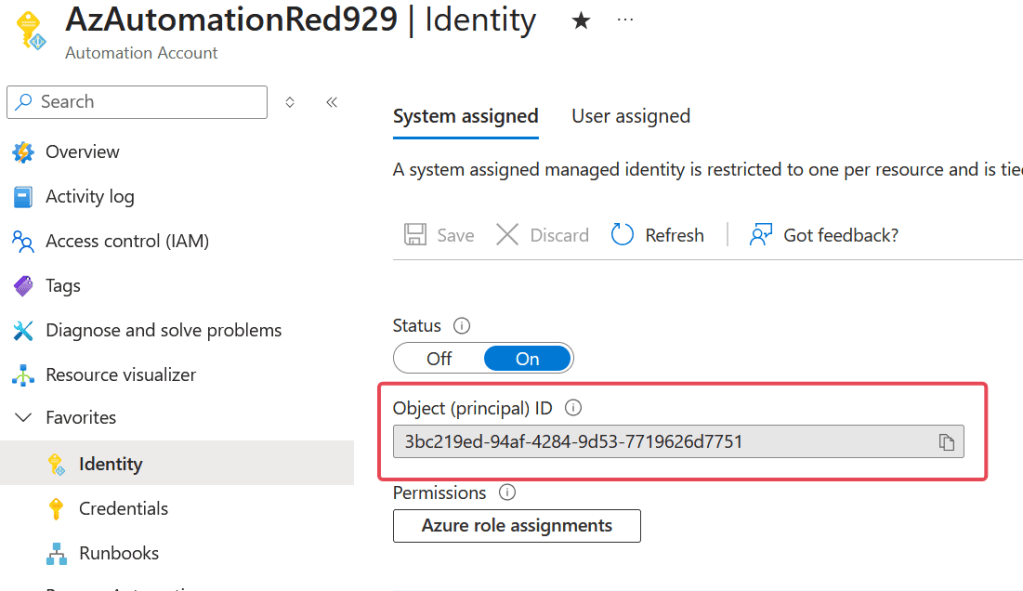
Query the local service principal ID for MS graph:
Command line:

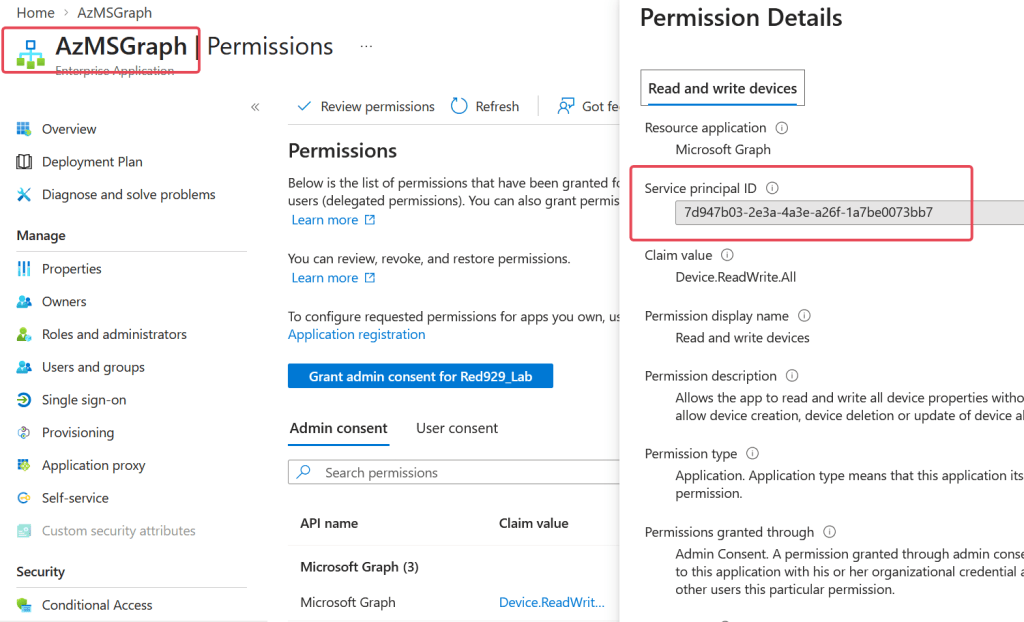
From GUI: (Select app with MS graph service principal permission already configured – view the SP ID of graph)
Gather all the information and assign the permission to managed identity
$params = @{
    ServicePrincipalId = $managedIdentitySP.Id
    PrincipalId = $managedIdentitySP.Id
    ResourceId = $graphServicePrincipal.Id
    AppRoleId = $appRole.Id
}
$appRoleAssignment = New-EntraServicePrincipalAppRoleAssignment @params
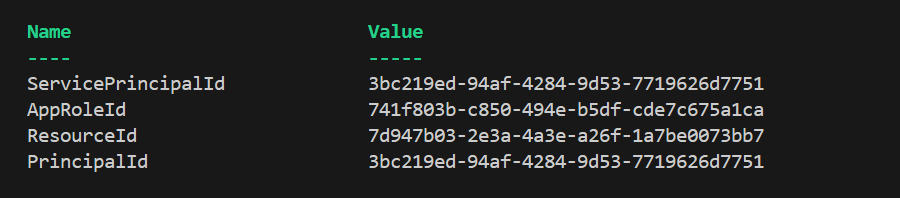

Verify: