
Every automation script eventually needs to interact with something that requires authentication – a database, an API, a third-party service, or an on-premises system. When connecting back to on-premises resources such as Active Directory (AD DS), SMB file shares, or SQL databases, picking the right authentication method is critical for security and reliability. This post will explore what is method is available for automation accounts runbook.
Azure runbook hybrid group executes the PowerShell session as local SYSTEM account by default for windows environment. In order to run it as other user – such as account that requires access to network shares and on premise Active directory services, the username/password can be pulled from Automation account credential assets or from azure key vault.
If the runbook requires authenticating to Microsoft Graph, the runbook can automate the login via certificate based authentication (CBA) by pulling the cert from key vault.
This post will explore the option of credential handling by using the following Azure resources – Azure Automation Accounts and Azure Key vault.
Prerequesite:
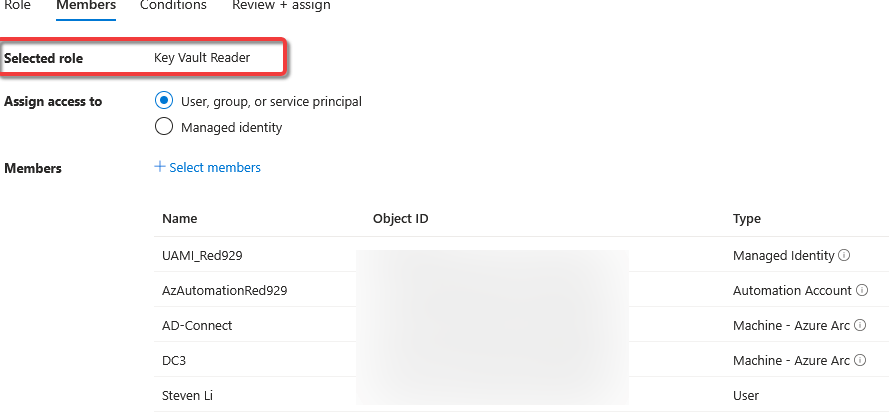
Make sure the member has access to read the credentials set from either Automation accounts or key vault first.
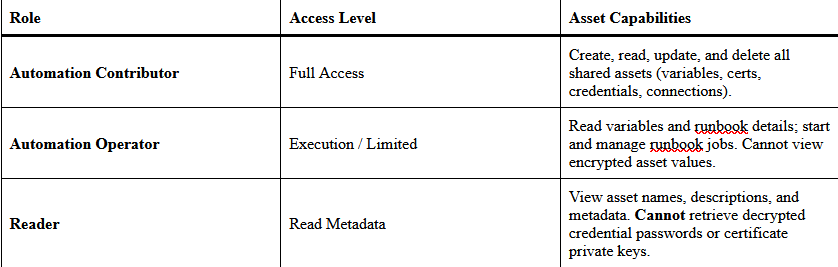
Role assignment for Automation Accounts to access shared resources:
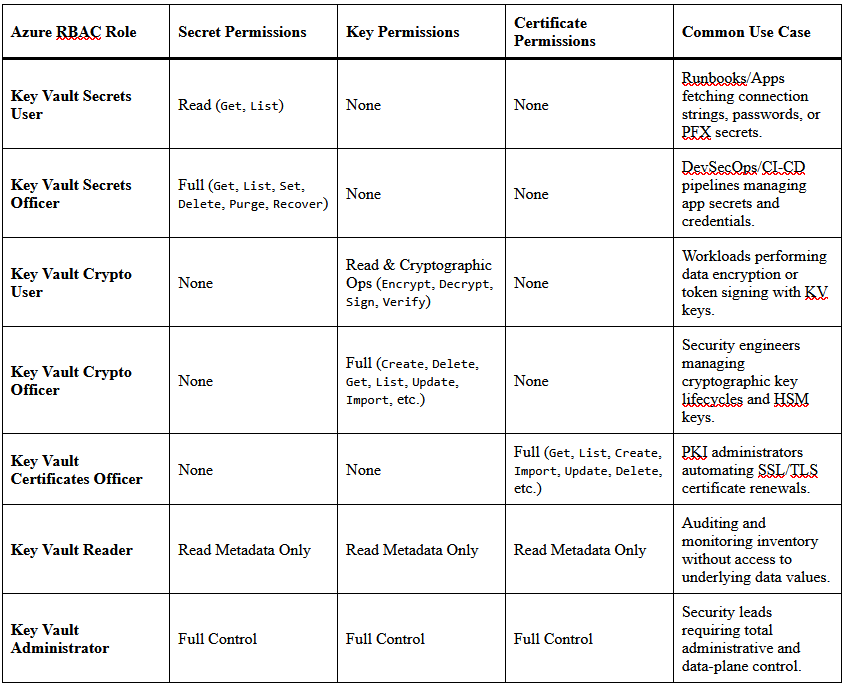
Role assignment for Azure Key Vault:
Azure Automation Accounts:
Automation Account Credentials (Credential Asset):
Credentials store a username and password pair encrypted at rest. Credential assets securely store sensitive authentication pairs—specifically a Username and Password—to prevent hardcoding credentials in scripts. It also store security details that are retrieved directly as standard PSCredential objects for PowerShell runbooks or DSC configurations.
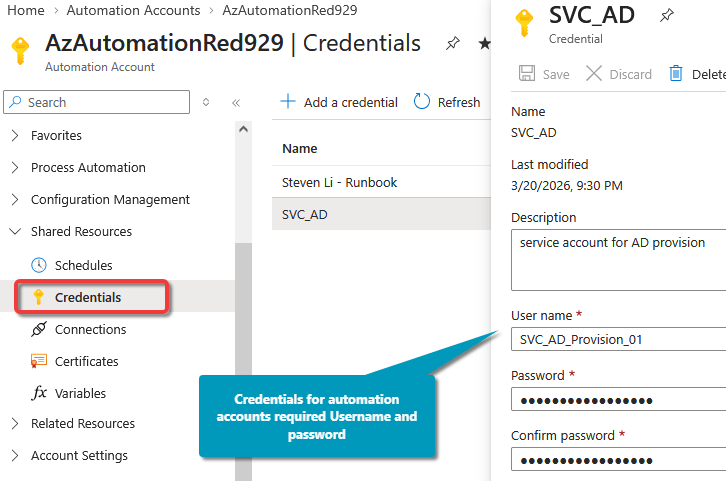
Example of runbook script:
$Mycred = Get-AutomationPSCredential -Name 'SVC_AD'

Invoke-Command -computer "DC3" -Credential $mycred -ScriptBlock{
#Pass it to your command
Write-output "Current computer name is: $env:computername. The current user is: $env:USERNAME"}
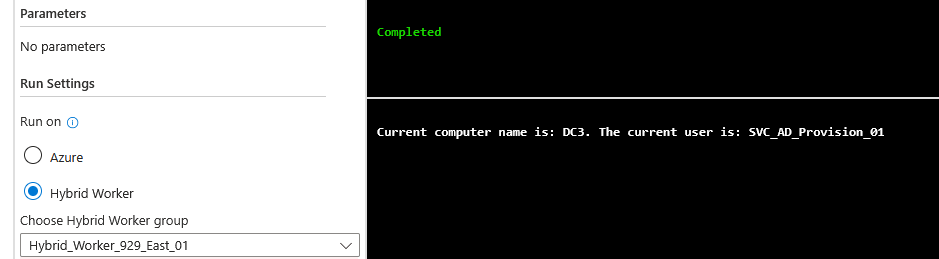
| Method | Best Used For | Secure? | Output Object |
| Get-AutomationPSCredential | Standard usernames and passwords | Yes (encrypted at rest) | System.Management.Automation.PSCredential |
Automation Account Certificates:
Azure Automation Certificate Assets securely store x509 public (.cer) or private (.pfx) certificates for non-interactive authentication, payload signing, or secure channel establishing within runbooks.
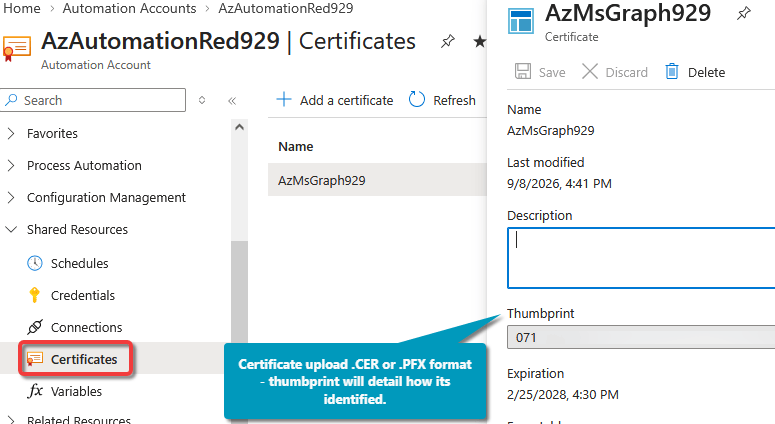
If your PFX file is not password protected (default policy doesn’t have password), you can’t use Azure portal to upload the certificate. The portal requires a password for the upload. To work around this, run the following PowerShell script, replacing the respective placeholders. Ensure you run this in PowerShell version 7 or later.

** Download the certificate in .PFX format first and save it locally before executing command **

Use the commands below to import the cert if it cannot be done via GUI:

Install-Module -Name Az.Automation
$certificateName = “AzMsGraph929”
$PfxCertPath = “C:\Users\Sli\Downloads\az-keyvault-red929-Az-MsGraph-Cert-929.pfx”
$ResourceGroup = “newhire”
$AutomateAccountName = "AzAutomationRed929"

New-AzAutomationCertificate -AutomationAccountName $AutomateAccountName -Name $certificateName -Path $PfxCertPath -Exportable -ResourceGroupName $ResourceGroup
Example of runbook script:
# Fetch the certificate asset
$cert = Get-AutomationCertificate -Name "AzMsGraph929"

# Authenticate to Microsoft Graph or Azure using the object
Connect-MgGraph -ClientId "Client-ID" -TenantId "Tenant-ID" -Certificate $cert
| Method | Best Used For | Secure? | Output Object |
| Get-AutomationCertificate | Non-interactive authentication using public/private key pairs (.pfx / .cer) | Yes (encrypted at rest) | System.Security.Cryptography.X509Certificates.X509Certificate2 |
Automation Account Variables:
Azure Automation uses Variables as shared resources to store and retrieve values used across multiple runbooks and DSC configurations. Variable types include String, Integer, Date, Time, Boolean, and Null. Variables can be encrypted for storing sensitive data, a setting that must be enabled at the time of creation.
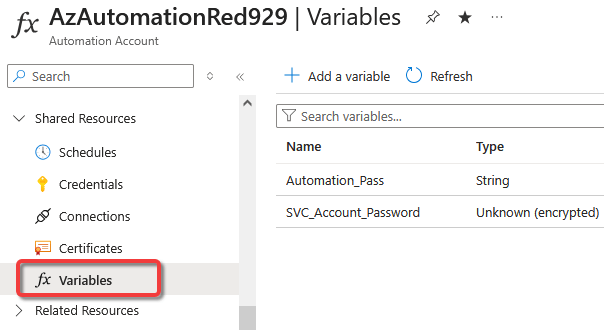
Example of runbook script:
# 1. Retrieve the plain text username variable
$username = "SVC_AD_Provision_01@red929.com"

# 2. Retrieve the encrypted password variable (automatically decrypted at runtime). Call variable with Get-AutomationVariable

$passwordString = Get-AutomationVariable -Name "Automation_Pass"

# 3. Convert the plain text password string into a SecureString
$securePassword = ConvertTo-SecureString $passwordString -AsPlainText -Force

# 4. Construct the PSCredential object
$myCred = New-Object System.Management.Automation.PSCredential($username, $securePassword)

Invoke-Command -computer "DC3" -Credential $mycred -ScriptBlock{

# 5. Pass it to your command
Write-output "Current computer name is: $env:computername. The current user is: $env:USERNAME"}
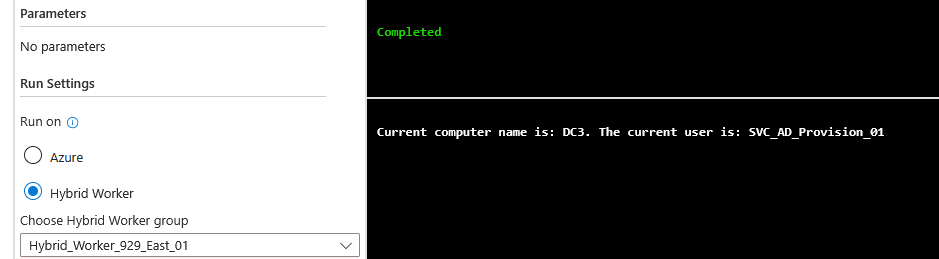
| Method | Best Used For | Secure? | Output Object |
| Get-AutomationVariable | Single strings, API tokens, or configurations | Yes (if “Encrypted” is checked) | System.String |
Azure Key Vault (Recommended):
Azure Key Vault is a cloud-based service designed to securely store and control access to sensitive application data, eliminating the need to hardcode credentials or keys in application source code. For maximum security and centralized secret management, integrate your runbooks with Azure Key Vault. Store all secrets/keys/cert all in a single vault for centralized management.
Prerequisite – The managed identity MUST have permission to the key vault (Key vault secrets users, officer, etc…)
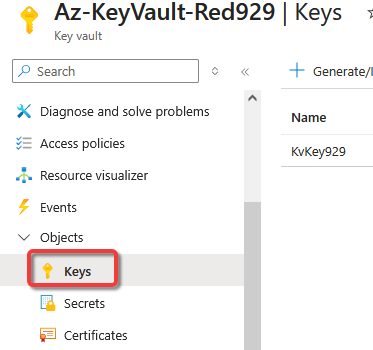
Azure Key Vault Keys:
Manages asymmetric cryptographic keys (software or Hardware Security Module [HSM]-backed) used for data encryption at rest (e.g., Azure Disk Encryption, SQL Transparent Data Encryption) and signature generation.
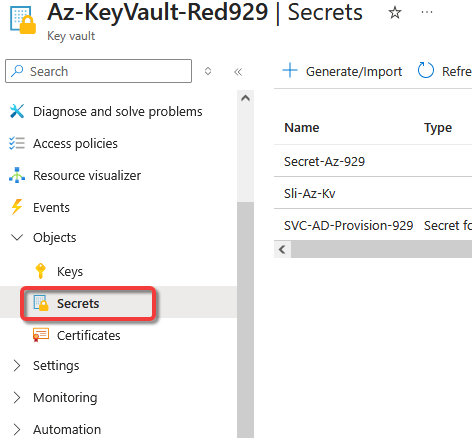
Azure Key Vault Secrets:
Securely stores strings up to 25 KB, such as database connection strings, passwords, and API tokens.
Example of runbook script: The following example retrieve key vault secret with managed system identity (MSI)
If the device is on premise – it is recommended to call key vault in order to obtain secret instead of embedding the secret as a runbook variable. Use managed identity as it is secure and passwordless. Managed identity also works for hybrid worker groups if the on prem server is enrolled under Azure arc.
If on premise server is not enrolled in azure arc, it will output the following error:

# Retrieve the secret:

################################################################
# Connect to azure with managed system identity (MSI)
################################################################

# Authenticate using the system-assigned managed identity
# No credentials needed - Azure provides the token automatically
Connect-AzAccount -Identity


################################################################
# Test local env variables
################################################################

$computerName = $env:COMPUTERNAME
$ipAddress = (Get-NetIPAddress -AddressFamily IPv4 | Where-Object { $_.InterfaceAlias -notlike '*Loopback*' }).IPAddress

Write-output "The following env variable for on prem server:"
Write-output "Computer name: $computerName"
Write-output "IP address: $ipAddress"

################################################################
# Test out key vault
################################################################
Write-output "`nThe following secret pulled from azure key vault"
$secret = Get-AzKeyVaultSecret -VaultName "Az-KeyVault-Red929" -Name "Secret-Az-929" -AsPlainText

# output
$secret
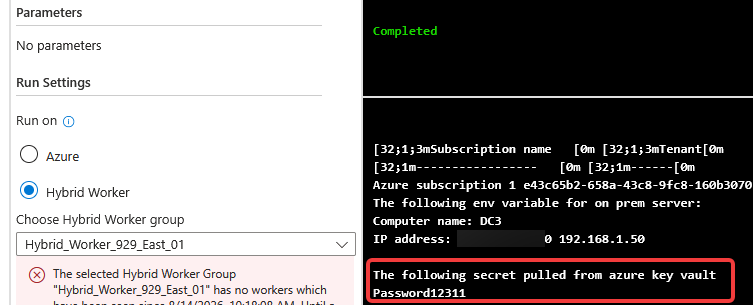
Azure Key Vault Certificates:
Automates the provisioning, lifecycle management, and renewal of public or private Transport Layer Security/Secure Sockets Layer (TLS/SSL) certificates.
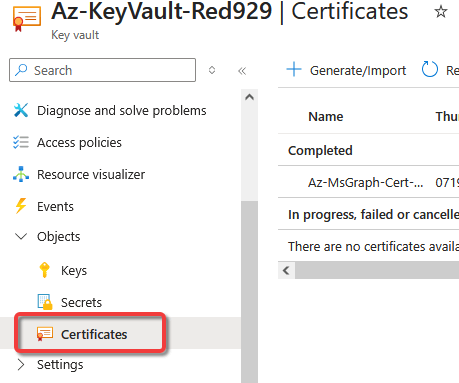
Example: For hybrid worker group device, use MSI (managed service identity) to connect to key vault to retrieve cert. Then connect to ms graph using the certificate.
 Steven’s Knowledge Base