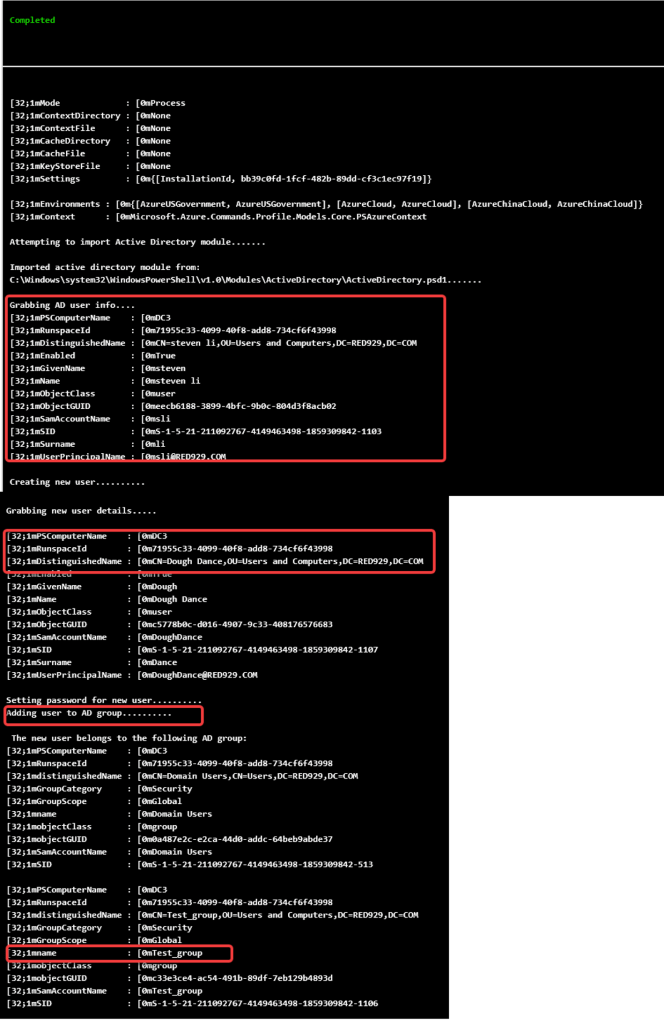
This post details how to connect to on-premises Active Directory and manage AD user objects—including creation and modification—using an Azure Automation Hybrid Runbook Worker.
Specifically, the workflow leverages PowerShell’s "Invoke-Command” to target an on-premises Domain Controller to execute changes. Credentials required for “Invoke-Command" can be dynamically retrieved using either Azure Automation Credential Assets or Azure Key Vault.
To execute these operations under least-privilege access, the script can run using either a dedicated service account or a computer account. Necessary permissions for Active Directory lifecycle management can be granted and delegated using either the “dsacls.exe” command-line utility or the Active Directory Delegation of Control Wizard GUI.
1. Service account (recommended)
✅ Why it’s the standard
• Designed for automation (scripts, apps, provisioning tools)
• Supports least-privilege delegation (e.g., only create users in one OU)
• Auditable → actions clearly tied to a named identity
• Not tied to a single machine

2. Computer account (not recommended)
A computer account (DOMAIN\SERVER01$) can create users if you delegate permissions, but it introduces problems:
❌ Drawbacks
• Tied to one machine (bad for scaling / failover)
• Harder to audit (was it the system or a process?)
• Password rotates automatically → can break integrations
• Blurs line between machine identity vs application identity
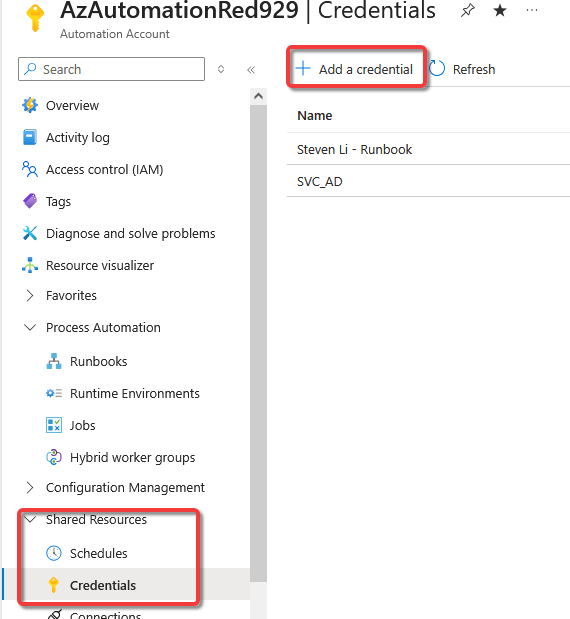
Azure Automation Account credential assets
From Azure automation account > Runbook > shared resources >
To add username and password as a shared resource under credential asset, select credentials and input the details.
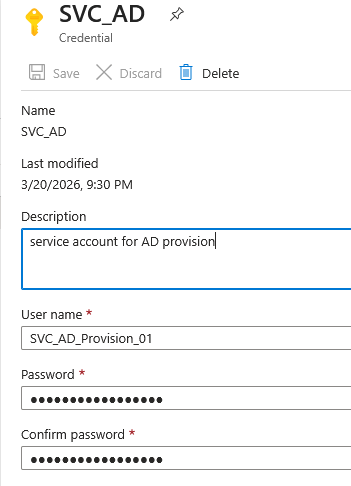
Add [SVC_AD_Provision01] service account that was created earlier. If called using “Get-AutomationPSCredential -Name ‘SVC_AD’“, the credentials are converted to PScredential object.

Example:
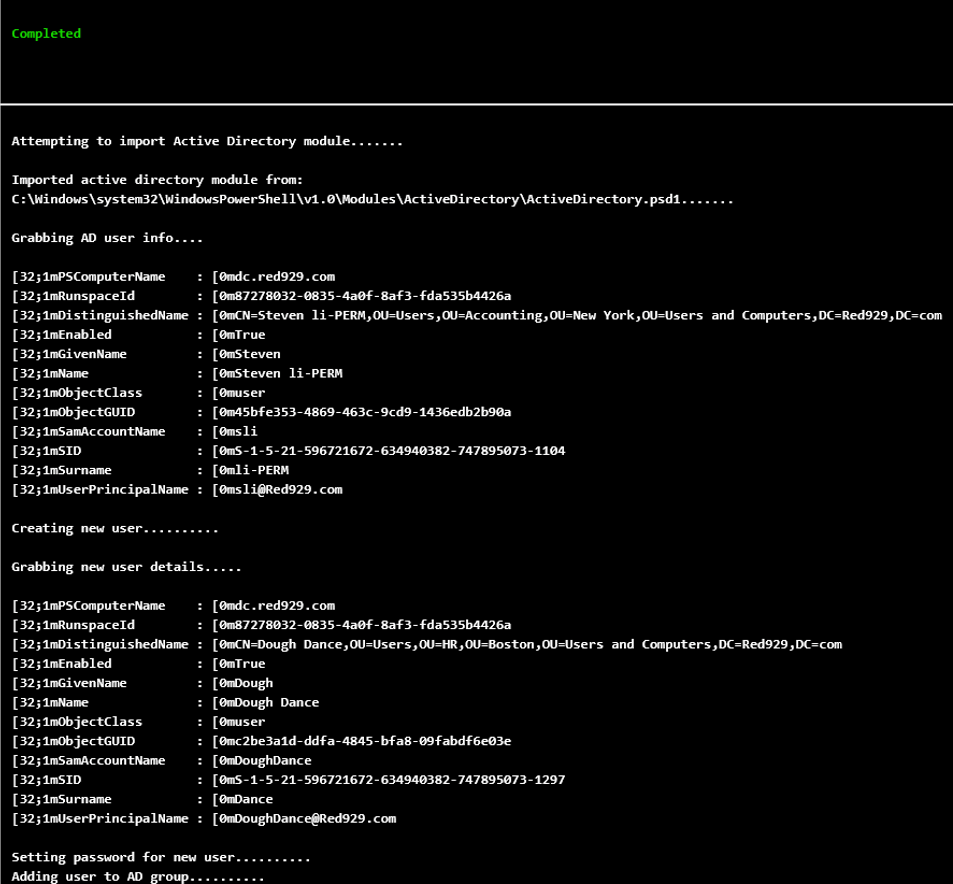
The following script invoke DC with [Svc_AD_Provision_01] credentials to do the following:

* Load AD module if necessary
* Create new AD users and modify group membership.
* Set password
* Get AD user info
* Authenticate to DC using credential asset from Azure automation account
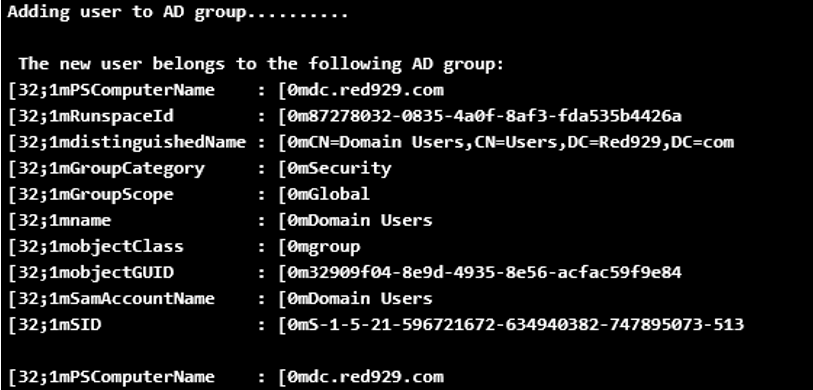
<# Goal: Connect to AD to create and modify AD user information for Hybrid worker runbook--------------------------Env: Hybrid worker runbookRun As: NT AUTHORITY\SYSTEM$Credential: SVC_AD_Provision_01 (To access network resources)--------------------------Credentials is configured under shared resource in the automation account blade. AD service account creds can be passed on via $Credential#>######################## Install AD Module ######################### Get the credential asset$credential = Get-AutomationPSCredential -Name 'SVC_AD'Invoke-Command -ComputerName dc.red929.com -ScriptBlock {# Check if AD module is loaded - $AD_Module = get-module -Name activedirectory # If module is not loaded - try import it if(-not $AD_Module){ Write-Output "Attempting to import Active Directory module.......`n" import-module activedirectory -Force # Check module post import $AD_Module_Check = get-module -Name activedirectory # Module path $Path = (Get-Module -ListAvailable activedirectory).path if(Test-Path -path $Path){ Write-Output "Imported active directory module from:`n$path.......`n" } # If importing module fails - install it then import it if(-not $AD_Module_Check){ # Install the windows feature Write-Output "##### Installing RSAT AD and import AD module #####`n" Install-WindowsFeature -Name “RSAT-AD-PowerShell” -IncludeAllSubFeature #For Windows Server # Import the module Write-Output "`nImporting Active Directory module.......`n" import-module activedirectory -Force # Check for imported module if(get-module -Name activedirectory){ Write-Warning "`n##### Actived directory module is installed and imported successfully #####`n" # Module path $Path = (Get-Module -ListAvailable activedirectory).path Write-Output "`nImported Active Directory module from:`n$path.......`n" }else{ Write-Warning "`n##### Active Directory module is NOT installed #####`n" } } }# Get AD infoWrite-Output "Grabbing AD user info...."Get-ADUser -Identity sli# Create a new userWrite-Output "Creating new user.........."$firstName = "Dough"$lastName = "Dance"$accountName = "DoughDance"$dnsroot = '@' + (Get-ADDomain).dnsroot$OU = "OU=Users,OU=HR,OU=Boston,OU=Users and Computers,DC=Red929,DC=com"$password = "lazyPass123" $userDetails = @{ GivenName = $firstName Surname = $lastName Name = "$firstName $lastName" SamAccountName = $accountName UserPrincipalName = $accountName + $dnsroot Path = $OU AccountPassword = (ConvertTo-SecureString -AsPlainText $password -Force) Enabled = $true ChangePasswordAtLogon = $true}New-ADUser @userDetails Write-Output "`nGrabbing new user details.....`n"Get-ADUser -Identity $accountName # Set password for the userWrite-Output "Setting password for new user.........."Set-ADAccountPassword -Identity $accountName -Reset -NewPassword (ConvertTo-SecureString -AsPlainText "Shell@@1" -Force) # Add user to a groupWrite-Output "Adding user to AD group.........."Add-ADGroupMember -Identity "Test_group" -Members $accountNameWrite-Output "`n The new user belongs to the following AD group:"Get-ADPrincipalGroupMembership -Identity "$accountName"} -Credential $credential
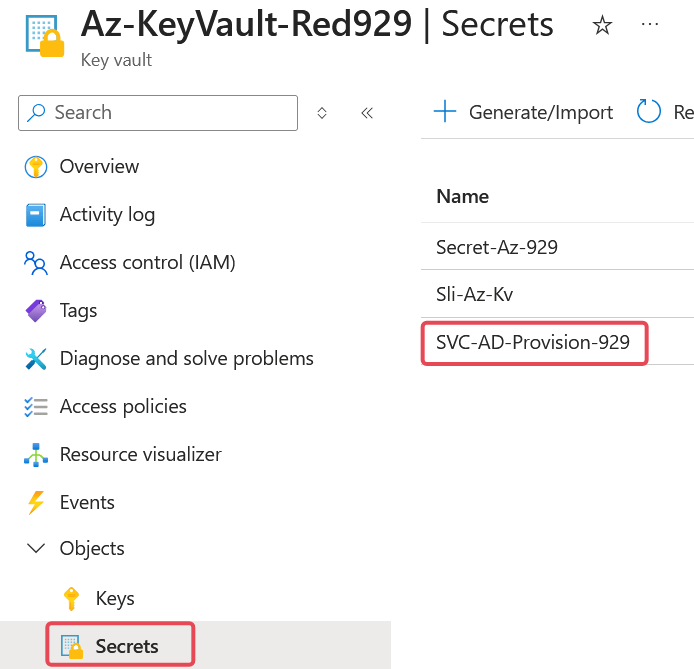
Azure Key Vault
Retrieve secret from key vault by using Get-AzKeyVaultSecret command
Example:
The following script invoke DC with [Svc_AD_Provision_01] credentials to do the following:

* It will load AD module if necessary
* Create new AD users and modify group membership.
* Set password
* Get AD user info
* Grabs secretes from Azure key vault using managed identity and turn it into PScredential object
######################################## Load the following modules:Import-Module Az.Accounts#######################################<# Ensures you do not inherit an AzContext in your runbookBy default, Azure PowerShell can automatically save your login context (subscription, tenant, account) so it persists across sessions.Disable-AzContextAutosave turns that behavior off, meaning: • Your Azure login context will not be saved after the session ends. • You must re-authenticate when starting a new PowerShell session. • Useful for: Automation scripts, CI/CD pipelines, Secure environments, Shared machines #> Disable-AzContextAutosave -Scope Process <# Connect to Azure with system-assigned managed identity.(-Identity) tells Connect-AzAccount to authenticate using a Managed Identity instead of:Username/password, Service principal secret or Interactive login.This works in environments like Azure VM (with system/user-assigned identity), Azure App Service, Azure Functions, Azure Automations #> $AzureContext = (Connect-AzAccount -Identity).context <# Set and store context. Set-AzContext is a PowerShell cmdlet in the Az.Accounts module used to select the active subscription and tenant for your current Azure session in Microsoft Azure.#> $AzureContext = Set-AzContext -SubscriptionName $AzureContext.Subscription -DefaultProfile $AzureContext######################################## Begin script execution# Connect to managed identityConnect-AzAccount -identity# 1. Define variables$vaultName = "Az-KeyVault-Red929"$secretName = "SVC-AD-Provision-929"$userName = "Red929\SVC_AD_Provision_01"# 2. Retrieve the secret value as a secure string$secretValue = Get-AzKeyVaultSecret -VaultName $vaultName -Name $secretName -AsPlainText# 3. Convert the plain text secret into a secure string$securePassword = ConvertTo-SecureString $secretValue -AsPlainText -Force# 4. Construct the PSCredential object$credential = New-Object System.Management.Automation.PSCredential ($userName, $securePassword)invoke-command -computername DC3 -scriptblock {# Check if AD module is loaded - $AD_Module = get-module -Name activedirectory # If module is not loaded - try import it if(-not $AD_Module){ Write-Output "Attempting to import Active Directory module.......`n" import-module activedirectory -Force # Check module post import $AD_Module_Check = get-module -Name activedirectory # Module path $Path = (Get-Module -ListAvailable activedirectory).path if(Test-Path -path $Path){ Write-Output "Imported active directory module from:`n$path.......`n" } # If importing module fails - install it then import it if(-not $AD_Module_Check){ # Install the windows feature Write-Output "##### Installing RSAT AD and import AD module #####`n" Install-WindowsFeature -Name “RSAT-AD-PowerShell” -IncludeAllSubFeature #For Windows Server # Import the module Write-Output "`nImporting Active Directory module.......`n" import-module activedirectory -Force # Check for imported module if(get-module -Name activedirectory){ Write-Warning "`n##### Actived directory module is installed and imported successfully #####`n" # Module path $Path = (Get-Module -ListAvailable activedirectory).path Write-Output "`nImported Active Directory module from:`n$path.......`n" }else{ Write-Warning "`n##### Active Directory module is NOT installed #####`n" } } }# Get AD info Write-Output "Grabbing AD user info...." Get-ADUser -Identity sli# Create a new user Write-Output "Creating new user.........." $firstName = "Dough" $lastName = "Dance" $accountName = "DoughDance" $dnsroot = '@' + (Get-ADDomain).dnsroot $OU = "OU=Users and Computers,DC=Red929,DC=com" $password = "lazyPass123" $userDetails = @{ GivenName = $firstName Surname = $lastName Name = "$firstName $lastName" SamAccountName = $accountName UserPrincipalName = $accountName + $dnsroot Path = $OU AccountPassword = (ConvertTo-SecureString -AsPlainText $password -Force) Enabled = $true ChangePasswordAtLogon = $true } New-ADUser @userDetails Write-Output "`nGrabbing new user details.....`n" Get-ADUser -Identity $accountName # Set password for the user Write-Output "Setting password for new user.........." Set-ADAccountPassword -Identity $accountName -Reset -NewPassword (ConvertTo-SecureString -AsPlainText "MyCrappyPassword123%" -Force) # Add user to a group Write-Output "Adding user to AD group.........." Add-ADGroupMember -Identity "Test_group" -Members $accountName Write-Output "`n The new user belongs to the following AD group:" Get-ADPrincipalGroupMembership -Identity "$accountName"} -Credential $credential