
This guide demonstrates how to add users to cloud-only Entra groups using the Microsoft Exchange online commands. This process is a key component of the automated onboarding workflow managed by Azure Logic Apps. There are alternative such as using MS graph commands but from my experience, Exchange online gets the job done pretty well!
In my hybrid lab environment, there are three types of groups that I have created for on boarding. I believe these are very basic and common group structure.
The following groups are evaluated:

1.Baseline groups (Groups meant for ALL new users in the company - ex: Global VPN & Network Access,Intranet/HR Portal, Conditional access policy)

2.Departmental groups (Groups meant for all new users in a specific department - ex: Departmental File Share & SharePoint site permissions, Department-level SaaS tools)

3.Custom groups (Groups listed as selection during new hire setup. ex: Distribution list, cross departmental project access, application access, licensing etc..)
Commands
The following Entra group types are created on exchange admin portal
[https://admin.cloud.microsoft/exchange#/groups] or M365 admin center [https://admin.cloud.microsoft/?#/groups/]:

* Microsoft 365 group
* Distribution group
* Mail enabled security
** Dynamic Distribution (Memberships are determined automatically by filters)

Add users to those groups with the following command:

Command (Exchange online):

Add-DistributionGroupMember # Add-DistributionGroupMember can be used for on premise or on cloud groups #

Add-UnifiedGroupLinks
Example:
1. Adding user to Microsoft 365 group (EXO commands)
Add-UnifiedGroupLinks -Identity “M365_IT_Dev_Team” -LinkType “Members” -Links “bob” -Verbose

2. Adding user to distribution list (Entra) (EXO commands)
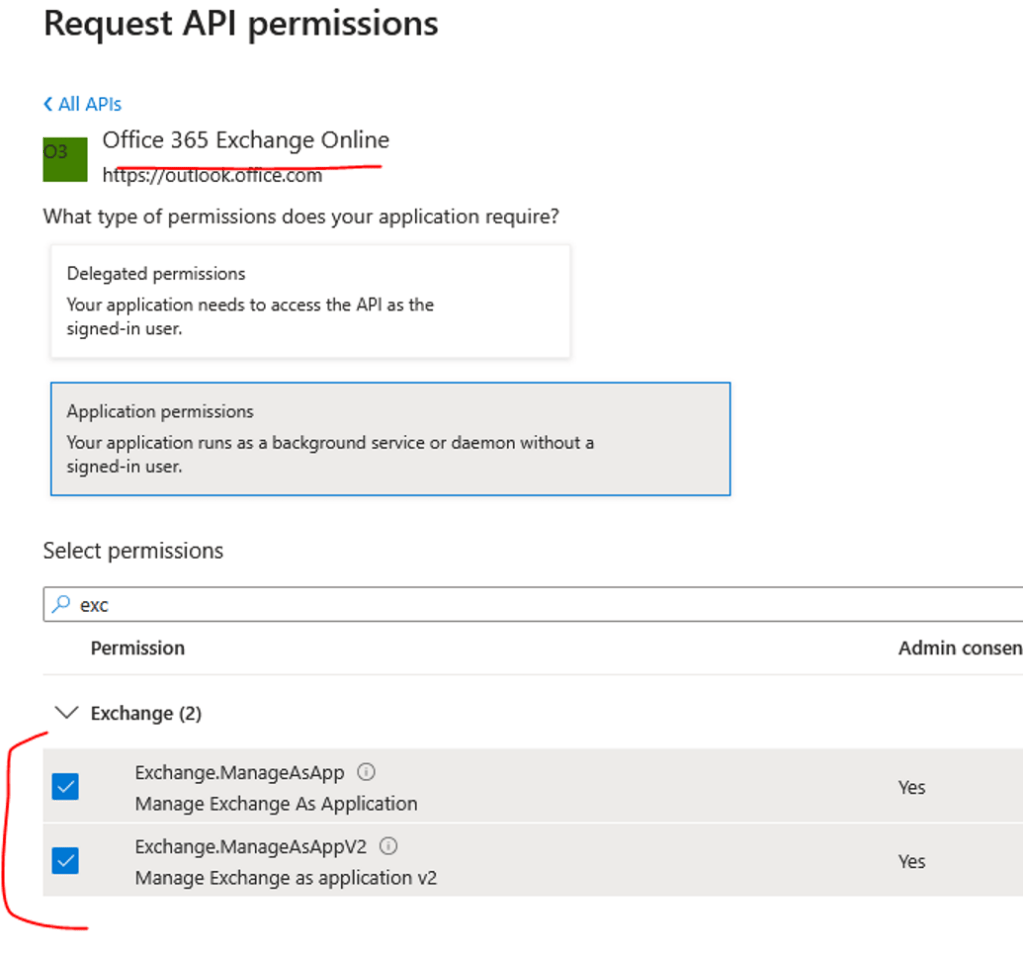
Before adding users to distribution list, the following API permission and role must be configured for service principal connecting to Exchange online.
### Set up service principal for EXO and provide the necessary API permissions ###
Application: Office 365 Exchange Online
API Permission: Exchange.ManageAsApps
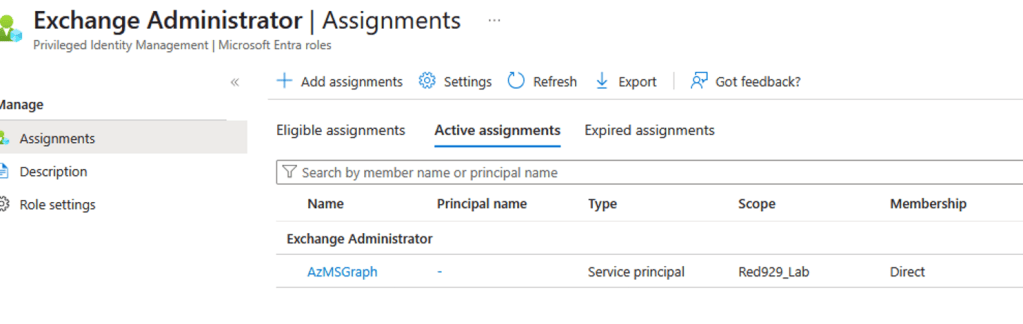
### Assign service principal Exchange admin role ###
- Open the Microsoft Entra Admin Center.
- Navigate to Identity > Roles & admins > Roles & administrators.
- Search for and click on Exchange Administrator (or Global Reader if you only need read access).
- Click Add assignments.
- Click Select members, search for your Application ID or its display name, select it, and click Add.
# Connect to EXO using service principal CBA

Connect-ExchangeOnline -AppId "YOUR-APP-CLIENT-ID"  -CertificateThumbprint "YOUR-CERTIFICATE-THUMBPRINT" -Organization "yourdomain.onmicrosoft.com"

# Add user to EXO distribution group
Add-DistributionGroupMember -Identity "IT_Dev_Team_Distro_365" -Member "sli" -Verbose

3. Adding user to mail enabled security group (Entra) (EXO commands)
Add-DistributionGroupMember -Identity “MES_IT_Dev_Team” -Member “bob” -Verbose -BypassSecurityGroupManagerCheck
*** When the Exchange Online Authentication Type is set to certificate-based authentication, BypassSecurityGroupManagerCheck entry gets added by default. If you don’t want to use BypassSecurityGroupManagerCheck, add enableByPassSecurityManagerCheck entry to the source XML with its value set to false.
4. Get details on ALL entra groups
Get-Recipient can query both modern Microsoft 365 Groups and legacy distribution lists without throwing an exception. Great for automated scripts in order to determine what commands to use in order to add users to either M365 or Distribution list/Mail enabled security group.
# Use [Get-Recipient] command to determine which command to use for adding users to group:

# M365 groups (RecipientTypeDetails: GroupMailbox)

# Distribution list/Mail enabled security (RecipientTypeDetails: MailUniversalDistributionGroup/MailUniversalSecurityGroup)

$ItemType = Get-Recipient -Identity "$item"| Select-Object Name, PrimarySmtpAddress, RecipientTypeDetails
Mail enabled security group:

Distribution list:

M365 group:

Troubleshoot:
Error: Cannot update mail enabled security groups or distribution list.

Resolution:
Microsoft 365 Groups: Fully manageable via Microsoft Graph PowerShell (New-MgGroupMember).

Security Groups (Non-mail-enabled): Fully manageable via Graph.

Mail-Enabled Security Groups & Distribution Lists: Read-only in Graph; must use Exchange Online tools.
Error: Role assigned is not supported after connecting to EXO

Resolution: Make sure service principal has an exchange role assigned to it.
Error: You don’t have sufficient permissions. This operation can only be performed by a manager of the group.

Resolution: To completely bypass the manager validation policy, append the -BypassSecurityGroupManagerCheck switch to your cmdlet. This flag tells Exchange Online to ignore the owner restriction and execute the change using your broad administrative privileges.
Example: Add-DistributionGroupMember -Identity “MES_IT_Dev_Team” -Member “bob” -Verbose –BypassSecurityGroupManagerCheck

Error: Adding a user to a group that’s synced from on premise

Resolution: Connect to on premise exchange shell to perform the modification instead since changes cannot be made to on premise synced group if current connection is targeting exchange online.

