
In this post, I’ll cover how to add newly provisioned users to groups residing in both Active Directory (On-Premises) and Entra ID. The updated runbook dynamically evaluates the group’s type and location before executing the appropriate command to update membership. Previously, I maintained two separate runbooks for this process—one for Entra ID and another for On-Premises AD.
Now, everything is unified into a single script using commands “Add-ADGroupMember, Add-DistributionGroupMember and Add-UnifiedGroupLinks”
The bulk load of the work only starts if the on premise provisioned account has been successfully synced over to Entra. If the user is not found in Entra, the script throws and error halting group membership modification.
Related Posts:
For details on On-Premises AD commands, see Active Directory Group Membership.
For details on the commands used for Entra ID groups, check out Entra ID Group Membership in the Cloud.
Comments from script
<#

Provision Entra group membership with parameters passed from logic app to runbook

Script is written for azure runbook targeting hybrid worker
Secrets are pulled from AZURE KEY VAULT for on premise server authentication

***********************
The following groups are evaluated in hybrid environment:

1. Baseline groups (Groups meant for ALL new users in the company - ex: VPN access group)

2. Departmental groups (Groups meant for all new users in a specific department - ex: departmental file share access)

3. Custom groups (Groups listed as selection during new hire setup. ex: sharepoint access, app access,etc..)

***********************
On premise group type created using Active Directory Users & Computers (ADUC) or Active Directory Administrative center (ADAC):
    Security groups
    Distribution groups

    Command:
    Add-ADGroupMember

    ---------------------

Entra group type created on exchange admin portal: [https://admin.cloud.microsoft/exchange#/groups]
    Microsoft 365 group
    Distribution group
    Mail enabled security
    *Dynamic Distribution (Memberships are determined automatically by filters)

    Command (Exchange online)
    Add-DistributionGroupMember
    Add-UnifiedGroupLinks


***********************
*Notes:

* Default scope is universal for EAC groups.

* When using Add-ADGroupMember for EAC groups - the SAMaccountname MUST be used.
   • Make sure the ExchangeOnlineManagement module is installed for azure arc server for hybrid env.

* Certificate-based authentication (CBA) with a service principal
   ** This script is intended for BOTH entra and AD groups **
Workflow logic:
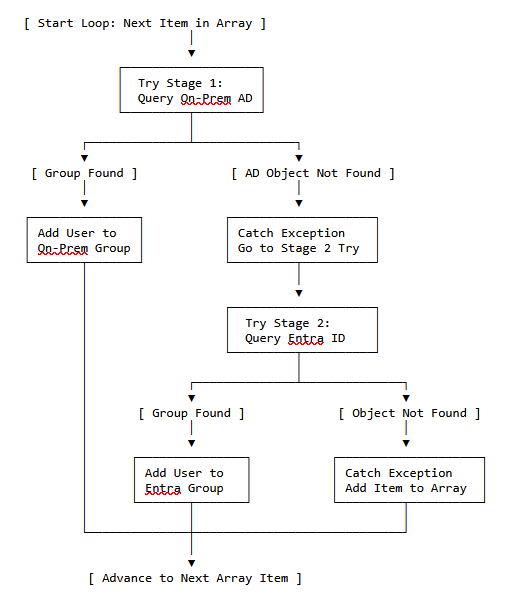
Source code
#########################################
# Start Declare Parameter #
#########################################
#Pass Parameters from logic app to runbook. Parameter MUST always be declared first!

Param
(

    [parameter(Mandatory=$true)]
    [string] $UPN,
    [parameter(Mandatory=$true)]
    [string] $Department,
    [parameter(Mandatory=$true)]
    [Object] $Groups

)
#########################################
# End Declare Parameter #
#########################################

#################################################################
######### Start Get the credential from AZURE KEY VAULT #########
################################################################

# Load the following modules:
Import-Module Az.Accounts
<# Ensures you do not inherit an AzContext in your runbook
By default, Azure PowerShell can automatically save your login context (subscription, tenant, account) so it persists across sessions.
Disable-AzContextAutosave turns that behavior off, meaning:
    • Your Azure login context will not be saved after the session ends.
    • You must re-authenticate when starting a new PowerShell session.
    • Useful for: Automation scripts, CI/CD pipelines, Secure environments, Shared machines #>

Disable-AzContextAutosave -Scope Process

<# Connect to Azure with system-assigned managed identity.
(-Identity) tells Connect-AzAccount to authenticate using a Managed Identity instead of:
Username/password, Service principal secret or Interactive login.
This works in environments like Azure VM (with system/user-assigned identity), Azure App Service, Azure Functions, Azure Automations #>

$AzureContext = (Connect-AzAccount -Identity).context

<# Set and store context.
Set-AzContext is a PowerShell cmdlet in the Az.Accounts module used to select the active subscription and tenant for your current Azure session in Microsoft Azure.#>

$AzureContext = Set-AzContext -SubscriptionName $AzureContext.Subscription -DefaultProfile $AzureContext

# Define variables for key vault
$vaultName  = "Az-KeyVault-Red929"
$secretName = "SVC-AD-Provision-929"
$userName   = "Red929\SVC_AD_Provision_01"

# Retrieve the secret directly as a SecureString
$securePassword = (Get-AzKeyVaultSecret -VaultName $vaultName -Name $secretName).SecretValue
# Create the PSCredential object
$creds = New-Object System.Management.Automation.PSCredential ($username, $securePassword)

#################################################################
######### End Get the credential from AZURE KEY VAULT #########
################################################################

$AppID = "xxxxxAPPIDxxxxxx"
$Thumbprint = "xxxxThumbPrintxxxxx"
$Domain = "@red929.com"

##########################
#### Declare function ####
##########################
# The function will evaluate the group type and execute the appropriate command based on the type of group.

function AddGroupMembership {

# Start try
    try {
        # Part 1 - Verify if group is part of AD
        # NOTE: We use -ErrorAction Stop so a missing group triggers the 'catch' block immediately
        $GetADGroup = Get-ADGroup -Identity $item -Verbose -ErrorAction Stop

        # IF Found in AD
        if ($GetADGroup) {
            Write-Output "Group found in Active Directory: $item"

            # Add user to AD group
            Write-Output "`n##### Adding user: $UPN to the following baseline group: $item #####`n"
            Add-ADGroupMember -Identity $item -Members $UPN -Credential $creds -Verbose

        }
    }
    catch [Microsoft.ActiveDirectory.Management.ADIdentityNotFoundException] {
        # Fallback Part 2 - If NOT found in AD, check Exchange/Entra
        Write-Output "Item [$item] not found in AD. Checking Entra/Exchange Recipient status..."

        try {
            # We use Stop here so we can intercept the Exchange "not found" message safely
            $GetEntraGroup =  Get-Recipient -Identity "$item" -ErrorAction Stop | Select-Object Name, PrimarySmtpAddress, RecipientTypeDetails

            if ($GetEntraGroup) {
                Write-Output "Entra Group found: $item"
                # Start Entra group evaluation logic
                    #If type is Microsoft 365 group
                    if($GetEntraGroup.RecipientTypeDetails -eq "GroupMailbox"){
                        # Add user to group
                        Write-Output "`n##### Adding user: $UPN to the following Microsoft 365 group (Entra): $item #####`n"
                        Add-UnifiedGroupLinks -Identity "$item" -LinkType "Members" -Links "$UPN"
                    }
                    #If type is Distribution list
                    if($GetEntraGroup.RecipientTypeDetails -eq "MailUniversalDistributionGroup"){
                        # Add user to group
                        Write-Output "`n##### Adding user: $UPN to the following Distribution list (Entra): $item #####`n"
                        Add-DistributionGroupMember -Identity "$item" -Member $UPN  -BypassSecurityGroupManagerCheck
                    }
                    #If type is Mail enabled security
                    if($GetEntraGroup.RecipientTypeDetails -eq "MailUniversalSecurityGroup"){
                        # Add user to group
                        Write-Output "`n##### Adding user: $UPN to the following Mail enabled security group (Entra): $item #####`n"
                        Add-DistributionGroupMember -Identity "$item" -Member $UPN -BypassSecurityGroupManagerCheck
                }
            }else{
                Write-Error " -> [UNSUPPORTED] Recipient type [$($GetEntraGroup.RecipientTypeDetails)] cannot be processed automatically."
                return "FAILED_UNSUPPORTED_TYPE_ENTRA_GROUP"
            }
        }
        catch {
            # Catch the specific 'Object not found' error from Exchange
            if ($_.Exception.Message -like "*couldn't be found on*") {
                Write-Output "Group [$item] does not exist in AD or Entra. Verify if it is the correct name......."

                # ADD TO ARRAY: Group was not found anywhere, add it to missing group array
                $List.Add($item)

            } else {
                # Handle generic Exchange errors (permissions, etc.)
                Write-Error "Unexpected Exchange error on [$item]: $($_.Exception.Message)"
            }
        }
    }# End first catch

    catch {
        # This catches all other non-identity issues
        Write-Error -message "`n ~~~~~ Critical error encountered ~~~~~ "
        Write-Output " $($_.Exception.Message)"
        Continue

    } # End second catch
}# End function [AddGroupMembership]

function Get-ADModule {

# Check if AD module is loaded -
    $AD_Module = get-module -Name activedirectory

    # If module is not loaded - try import it
    if(-not $AD_Module){

        Write-Output "Attempting to import Active Directory module.......`n"
        import-module activedirectory -Force

        # Check module post import
        $AD_Module_Check = get-module -Name activedirectory

        # Module path
        $Path = (Get-Module -ListAvailable activedirectory).path
        if(Test-Path -path $Path){
            Write-Output "Imported active directory module from:`n$path.......`n"
        }

        # If importing module fails - install it then import it
        if(-not $AD_Module_Check){

        # Install the windows feature
            Write-Output "##### Installing RSAT AD and import AD module #####`n"
            Install-WindowsFeature -Name “RSAT-AD-PowerShell” -IncludeAllSubFeature #For Windows Server

        # Import the module
            Write-Output "`nImporting Active Directory module.......`n"
            import-module activedirectory -Force

        # Check for imported module
            if(get-module -Name activedirectory){

            Write-Warning "`n##### Actived directory module is installed and imported successfully #####`n"

        # Module path
            $Path = (Get-Module -ListAvailable activedirectory).path
            Write-Output "`nImported Active Directory module from:`n$path.......`n"

            }else{

            Write-Warning "`n##### Active Directory module is NOT installed #####`n"

            }
        }
    }
} # End function [Get-ADModule]
function Get-EXOModule {
    # Check if EXO module is loaded
    $EXO_Module = Get-Module -Name ExchangeOnlineManagement

    # If module is not loaded - try importing it
    if (-not $EXO_Module) {
        Write-Output "Attempting to import Exchange Online Management module.......`n"
        Import-Module ExchangeOnlineManagement -Force -ErrorAction SilentlyContinue

        # Check module post-import
        $EXO_Module_Check = Get-Module -Name ExchangeOnlineManagement

        # Module path
        $Path = (Get-Module -ListAvailable ExchangeOnlineManagement).Path
        if (Test-Path -Path $Path) {
            Write-Output "Imported Exchange Online Management module from:`n$($Path).......`n"
        }

        # If importing module fails - install it from PSGallery, then import it
        if (-not $EXO_Module_Check) {
            Write-Output "##### Installing ExchangeOnlineManagement module from PSGallery #####`n"

            # Ensure TLS 1.2 is enabled for PowerShell Gallery downloads
            [Net.ServicePointManager]::SecurityProtocol = [Net.SecurityProtocolType]::Tls12

            # Install the EXO module (Scope CurrentUser avoids needing elevation)
            Install-Module -Name ExchangeOnlineManagement -Scope AllUsers -Force -AllowClobber -ErrorAction Stop

            # Import the module after installation
            Write-Output "`nImporting Exchange Online Management module.......`n"
            Import-Module ExchangeOnlineManagement -Force -ErrorAction SilentlyContinue

            # Check for imported module
            if (Get-Module -Name ExchangeOnlineManagement) {
                Write-Warning "`n##### Exchange Online Management module is installed and imported successfully #####`n"

            # Module path
            $Path = (Get-Module -ListAvailable ExchangeOnlineManagement).Path
            Write-Output "`nImported Exchange Online Management module from:`n$($Path).......`n"
            } else {
                Write-Warning "`n##### Exchange Online Management module failed to install/import #####`n"
            }
        }
    }
} # End function [Get-EXOModule]

##########################
#### Connect to EXO ####
##########################
# Import AD module
Get-ADModule

# Import EXO module
Get-EXOModule

# use exchange module commands
Connect-ExchangeOnline -AppId $AppID -CertificateThumbprint $Thumbprint -Organization "red929.onmicrosoft.com"

##########################
#### Verify IF User is present ####
##########################
# Check the users mailbox first post delta sync. Since the user creation starts under EAC, the mailbox will be created along with the AD object. If the mailbox is not found, then the script will exit.

try{
$UserMailbox = Get-EXOMailbox -Identity "$upn$domain"

if($UserMailbox){

Write-output @"
########################################
User mailbox found for: $upn$domain
########################################

Proceeding with group membership modification.............

"@
}else{

write-error @"
########################################
User mailbox NOT found for: $upn$domain
########################################

"@

Throw "User mailbox NOT found for: $upn$domain. Please verify if the user mailbox is created in Entra/Exchange before running this script."

}
}catch{
     # get terminating error
    # Output error to [Error] stream
    Write-Error -message $_.Exception
    # output error to [Output] stream
    Write-Output " $($_.Exception.Message)"
    throw $_.Exception
}

#######################################
### Start Baseline group membership (Entra/On Premise AD) ###
#######################################
# Any new hire are automatically added to these groups.
# These groups are meant for all users in company.

Write-Output "`n#################################### `
Starting Baseline Group modification `
####################################"

try {
    # Establish empty array to record missing groups
    $List = [System.Collections.Generic.List[string]]::new()

    # Establish an array for each item
    $Baseline_groups=@(
    "M365_Company_Group",
    "DL365_Company_group",
    "MES365_Company_group",
    "Company_group",
    "Company_Distribution_group",
    "Red929_Distribution_02-1369401796",
    "EAC-sec-group-11698667084"
    )

    foreach($item in $Baseline_groups){

        Write-Output "----------------------------------------"
        Write-Output "Processing item: [$item]"

        AddGroupMembership
    }
}catch{

    # get terminating error
    # Output error to [Error] stream
    Write-Error -message $_.Exception
    # output error to [Output] stream
    Write-Output " $($_.Exception.Message)"
    throw $_.Exception

}
#######################################
### End Baseline group membership ###
#######################################


###########################################
### Start Departmental group membership ###
###########################################

Write-Output "`n####################################`
Starting Departmental Group modification`
####################################"

###################################
# Information Technology
###################################
# Default group for ALL users under IT department

try {

    if($Department -eq "Information Technology"){

        # establish an array
        $IT_Groups = @(

            "IT_Email",
            "IT_Default_Group"

        )
        foreach($item in $IT_Groups){

            Write-Output "----------------------------------------"
            Write-Output "Processing item: [$item]"

            AddGroupMembership
        }
    } # End If dept equals IT
} # end try
catch {
    # Output error to [Error] stream
    Write-Error -message $_.Exception
    # output error to [Output] stream
    Write-Output " $($_.Exception.Message)"
    throw $_.Exception
} # end catch

###################################
# Accounting
###################################
# Default group for ALL users under accounting department

try {

    if($Department -eq "Accounting"){

        # establish an array
        $Accounting_Groups = @(

        "Accounting_CustomGroup",
        "Accounting_Distro_Group"

        )

        foreach($item in $Accounting_Groups){

            Write-Output "----------------------------------------"
            Write-Output "Processing item: [$item]"

            AddGroupMembership
        }
    } # End If dept equals Accounting
} # end try
catch {

    # Output error to [Error] stream
    Write-Error -message $_.Exception
    # output error to [Output] stream
    Write-Output " $($_.Exception.Message)"
    throw $_.Exception

} # end catch

###################################
# Retirement Services
###################################
# Default group for ALL users under RS department
try {

    if($Department -eq "Retirement Service"){

        # establish an array
       $RS_Groups = @(

            "RS_Default_Group"

        )
        foreach($item in $RS_Groups){

            Write-Output "----------------------------------------"
            Write-Output "Processing item: [$item]"

            AddGroupMembership
        }
    } # End If dept equals retirement service
} # end try
catch {

    # Output error to [Error] stream
    Write-Error -message $_.Exception
    # output error to [Output] stream
    Write-Output " $($_.Exception.Message)"
    throw $_.Exception

} # end catch

###########################################
### End Departmental group membership ###
###########################################

####################################
### Start custom group membership ###
#####################################

Write-Output "`n####################################`
Starting custom Group modification`
####################################"


# Grab  comma-separated string from logic app then convert value to array to sort.

try{
$Group_List = $groups.split(',')

# output which group
    foreach($item in $Group_List){

        Write-Output "----------------------------------------"
        Write-Output "Processing item: [$item]"

        AddGroupMembership
    }
}catch{

    # get terminating error
    Write-Error -message $_.Exception
    Write-Output " $($_.Exception.Message)"
    throw $_.Exception

}

####################################
### End custom group membership ###
#####################################

################################
########### Summary ###########
################################
# Obtain all the groups not found in Entra or AD
# --- SUMMARY SECTION --- Post group membership--- #
    Write-Output "`n========================================"
    Write-Output "PROCESS COMPLETE - MISSING GROUPS REPORT"
    Write-Output "========================================"

    if ($List.Count -gt 0) {
        Write-Output "The following $($List.Count) group(s) do not exist in either system:"
        foreach ($missing in $List) {

            Write-Output "  - $missing"

        }
    } else {
        Write-Output "Success! All input groups were successfully found in either AD or Entra."
    }

